1. المقدمة
يُقدّم هذا الدليل تعليماتٍ مُفصّلة لتركيب وتشغيل وصيانة كاميرا AVer PTZ310N 12X NDI للبث المباشر. يُرجى قراءة هذا الدليل جيدًا قبل استخدام المنتج لضمان الإعداد الصحيح والأداء الأمثل.
كاميرا AVer PTZ310N هي كاميرا PTZ (تحريك وإمالة وتكبير) احترافية مصممة للبث المباشر وإنتاج الفيديو. تتميز بتقريب بصري 12x، ودعم NDI، ووظائف متقدمة مثل SmartShoot وSmartFrame لتحسين جودة تسجيل الفيديو.
2. محتويات العبوة
تأكد من تضمين جميع العناصر المدرجة أدناه في الحزمة الخاصة بك:
- كاميرا AVer PTZ310N
- جهاز التحكم عن بعد
- محول طاقة 12 فولت/5 أمبير
- الوثائق (دليل البدء السريع، بطاقة الضمان) - ملاحظة: قد تختلف الوثائق الفعلية.
3. انتهى المنتجview
صُممت كاميرا AVer PTZ310N لتوفير استخدامات متعددة وتسجيل فيديو عالي الجودة. تعرّف على مكونات الكاميرا ومنافذ التوصيل الخاصة بها.
3.1 الأمامي والجانبي Views
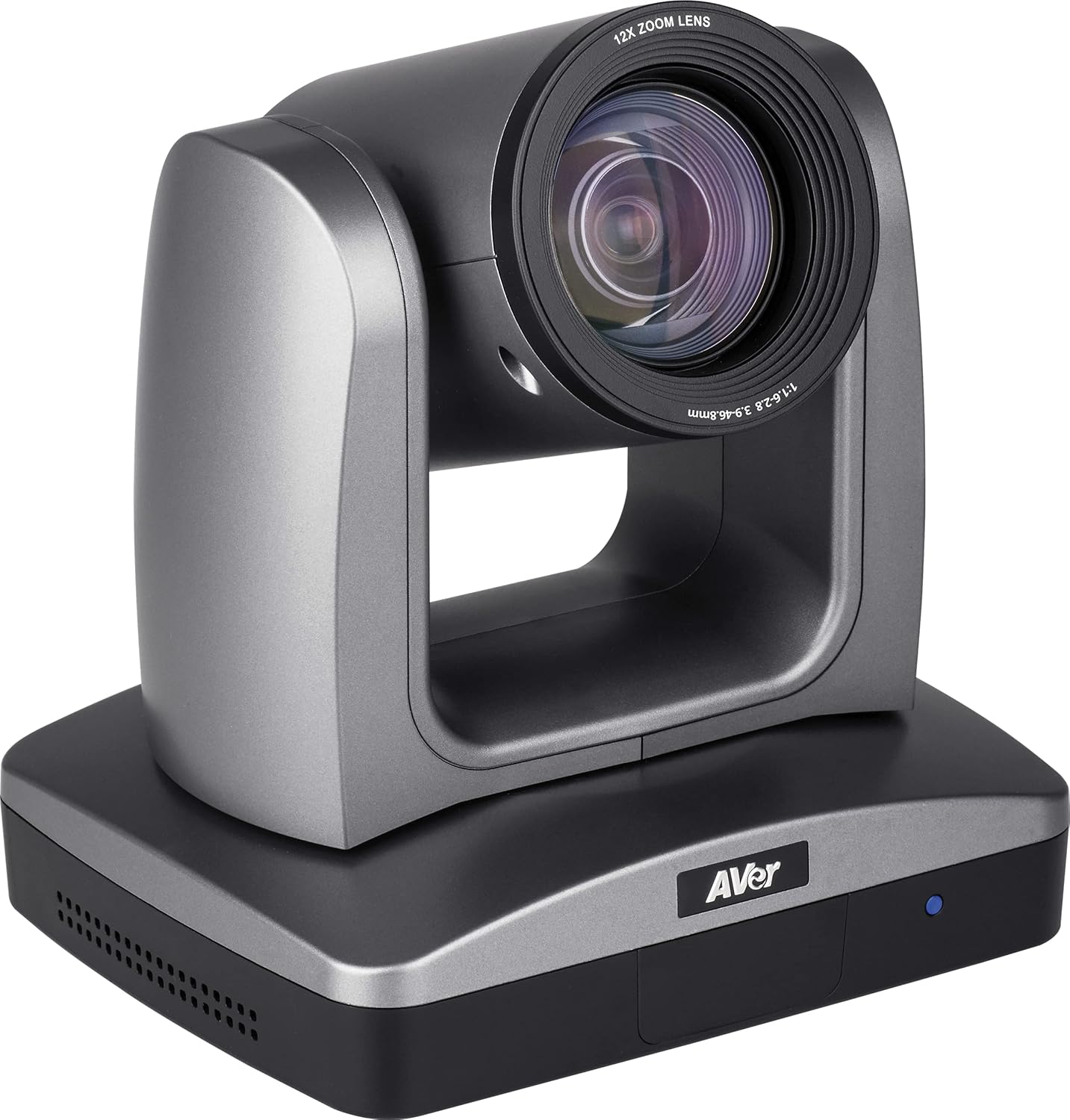
الشكل 3.1: الزاوية الأمامية view صورة لكاميرا AVer PTZ310N، توضح العدسة والقاعدة.
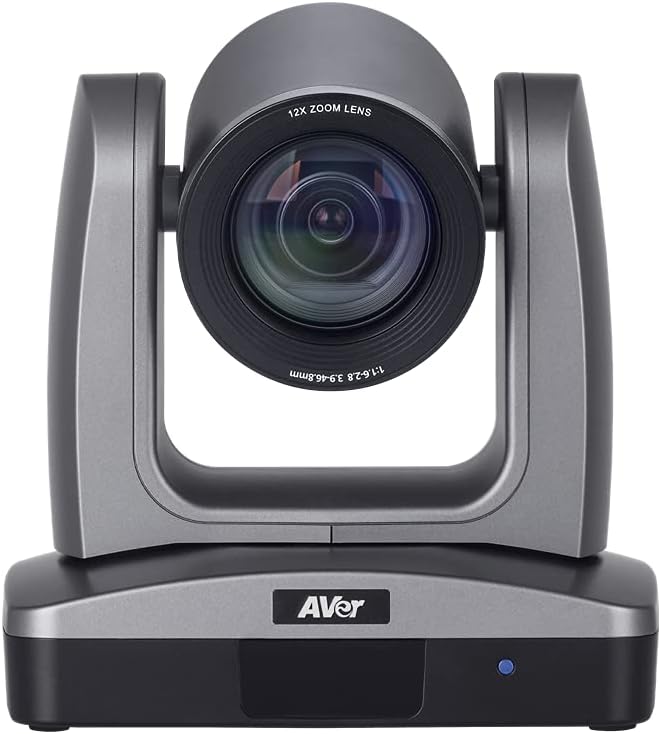
الشكل 3.2: الجبهة view من كاميرا AVer PTZ310N، مع تسليط الضوء على عدسة التكبير 12X.
3.2 اتصالات اللوحة الخلفية
توفر اللوحة الخلفية لكاميرا PTZ310N منافذ متنوعة للطاقة وإخراج الفيديو وإدخال الصوت والتحكم.

الشكل 3.3: اللوحة الخلفية لكاميرا AVer PTZ310N، والتي توضح منافذ الاتصال المختلفة.
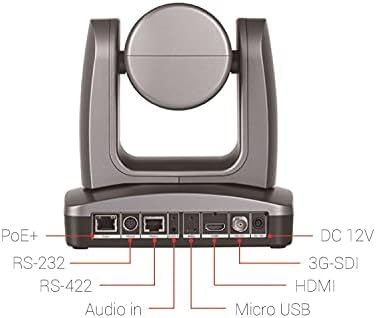
الشكل 3.4: توصيلات اللوحة الخلفية الموضحة لكاميرا AVer PTZ310N، والتي تشير إلى منافذ PoE+ و RS-232 و RS-422 و Audio In و Micro USB و HDMI و 3G-SDI و DC 12V.
- منفذ PoE+: لتوفير الطاقة واتصال الشبكة (NDI).
- منافذ RS-232 / RS-422: للتحكم التسلسلي عبر بروتوكول VISCA.
- مدخل الصوت: مقبس 3.5 ملم لإدخال الصوت الخارجي.
- ميكرو يو إس بي: لتحديثات البرامج الثابتة أو للتحكم المحدد.
- مخرج HDMI: لإخراج الفيديو إلى شاشات العرض أو أجهزة الالتقاط.
- مخرج 3G-SDI: لإنتاج فيديو احترافي عبر مسافات أطول.
- تيار مستمر 12 فولت: يتم إدخال الطاقة باستخدام محول الطاقة المرفق 12 فولت/5 أمبير.
4. الإعداد والتثبيت
اتبع هذه الخطوات لإعداد كاميرا AVer PTZ310N الخاصة بك بشكل صحيح.
4.1 توصيل الطاقة
- قم بتوصيل محول الطاقة المرفق 12 فولت/5 أمبير بمنفذ التيار المستمر 12 فولت الموجود على اللوحة الخلفية للكاميرا.
- قم بتوصيل محول الطاقة بمأخذ طاقة مناسب.
- بدلاً من ذلك، في حال استخدام تقنية التغذية عبر الإيثرنت (PoE+)، قم بتوصيل كابل إيثرنت من محول أو موزع يدعم تقنية PoE+ إلى منفذ PoE+ الموجود على الكاميرا. ستتلقى الكاميرا الطاقة وبيانات الشبكة عبر هذا الكابل الواحد.
4.2 توصيل مخرج الفيديو
اختر واحداً أو أكثر من خيارات إخراج الفيديو التالية:
- HDMI: قم بتوصيل كابل HDMI من منفذ HDMI الخاص بالكاميرا إلى مدخل HDMI على شاشة العرض أو بطاقة الالتقاط أو جهاز تبديل الفيديو.
- 3G-SDI: قم بتوصيل كابل SDI من منفذ 3G-SDI الخاص بالكاميرا إلى مدخل SDI في جهاز تبديل أو تسجيل فيديو احترافي.
- بروتوكول الإنترنت (NDI): قم بتوصيل كابل إيثرنت بمنفذ PoE+ (أو منفذ LAN منفصل في حال عدم استخدام PoE+). ستظهر الكاميرا على شبكتك كمصدر NDI. راجع دليل برنامج NDI الخاص بك لمعرفة كيفية التكامل.
- USB: قم بتوصيل كابل Micro USB من الكاميرا إلى جهاز الكمبيوتر لتطبيقات محددة أو لتحديثات البرامج الثابتة.
4.3 اتصال التحكم
يمكن التحكم بالكاميرا عبر جهاز التحكم عن بعد بالأشعة تحت الحمراء المرفق، أو عبر بروتوكول الإنترنت، أو عبر وصلات تسلسلية.
- جهاز التحكم عن بعد بالأشعة تحت الحمراء: وجّه جهاز التحكم عن بعد نحو مستقبل الأشعة تحت الحمراء الخاص بالكاميرا.
- التحكم التسلسلي (RS-232/RS-422): قم بتوصيل كابل تسلسلي من منفذ RS-232 أو RS-422 الخاص بالكاميرا إلى نظام تحكم متوافق. تدعم الكاميرا بروتوكول VISCA للتحكم.
- التحكم في الملكية الفكرية: بمجرد الاتصال بالشبكة، يمكن التحكم في الكاميرا عبرها web واجهة أو برنامج تحكم متوافق عبر بروتوكول الإنترنت. راجع إعدادات الشبكة الخاصة بالكاميرا لمعرفة عنوان IP الخاص بها.
5. التشغيل
يشرح هذا القسم بالتفصيل الجوانب التشغيلية لكاميرا AVer PTZ310N.
5.1 تشغيل/إيقاف التشغيل
- لتشغيل الكاميرا، تأكد من توصيل محول الطاقة أو تفعيل تقنية PoE+. ستبدأ الكاميرا عملية بدء التشغيل.
- لإيقاف التشغيل، افصل محول الطاقة أو قم بتعطيل خاصية PoE+ للكاميرا.
5.2 التحكم في التحريك والإمالة والتكبير
- استخدم أزرار الاتجاهات على جهاز التحكم عن بُعد أو برنامج التحكم لتحريك الكاميرا أفقيًا (التحريك الأفقي) ورأسيًا (التحريك الرأسي). توفر الكاميرا حركة دقيقة مع مناورات دوران أفقية/رأسية دقيقة تصل إلى 0.1 درجة لكل خطوة.
- استخدم أزرار التكبير/التصغير لضبط عدسة التكبير البصري 12x. قم بالتكبير للحصول على لقطات مقرّبة، وقم بالتصغير للحصول على لقطات أوسع.
- تتيح أدوات التحكم في السرعة القابلة للتعديل حركة سلسة ومتناسقة للكاميرا.
5.3 المواقع المحددة مسبقًا
تتيح لك كاميرا PTZ310N حفظ واستدعاء أوضاع الكاميرا المحددة (التحريك، الإمالة، التكبير، التركيز).
- إعدادات مسبقة لجهاز التحكم عن بعد بالأشعة تحت الحمراء: يتيح لك جهاز التحكم عن بُعد بالأشعة تحت الحمراء ضبط واستدعاء ما يصل إلى 10 مواقع مُبرمجة مسبقًا. راجع التعليمات الخاصة بجهاز التحكم عن بُعد لحفظ واستدعاء الإعدادات المُسبقة.
- إعدادات VISCA المسبقة: يمكن ضبط ما يصل إلى 255 موقعًا مختلفًا مسبقًا عبر التحكم في VISCA من خلال منافذ RS-232 أو RS-422. راجع وثائق بروتوكول VISCA للاطلاع على الأوامر التفصيلية.
5.4 ميزة التصوير الذكي
تعمل ميزة AVer SmartShoot على تبسيط التحكم بالكاميرا لالتقاط المحتوى تلقائيًا وبسلاسة بين المناطق المحددة مسبقًا. تتيح هذه الميزة تجربة استخدام كاميرات متعددة مع كاميرا PTZ310N واحدة من خلال تتبع الحركة بين المناطق المحددة مسبقًا.
ميزة الإطار الذكي 5.5
توفر تقنية SmartFrame من Aver ميزة استهداف الوجه بلمسة واحدة. فهي تضبط مجال رؤية الكاميرا على الفور. View (FOV) لتناسب جميع المشاركين على الشاشة، مما يجعلها مناسبة لالتقاط المجموعات في العروض التقديمية أو المحاضرات.
6. الصيانة
تضمن الصيانة المناسبة طول عمر الكاميرا والأداء الأمثل لها.
- تنظيف العدسة: استخدم قطعة قماش ناعمة وخالية من الوبر مصممة خصيصًا للعدسات البصرية لمسح عدسة الكاميرا برفق. تجنب استخدام المواد الكاشطة أو المواد الكيميائية القاسية.
- تنظيف الجسم: امسح جسم الكاميرا بقطعة قماش ناعمة وجافة. إذا لزم الأمر، استخدم قطعة قماش مبللة قليلاًamp يمكن استخدام القماش، ولكن يجب التأكد من عدم دخول أي رطوبة إلى المنافذ أو المكونات الداخلية.
- تخزين: عند عدم استخدام الكاميرا لفترات طويلة، قم بتخزينها في بيئة جافة وخالية من الغبار، بعيدًا عن أشعة الشمس المباشرة ودرجات الحرارة القصوى.
- تحديثات البرامج الثابتة: تحقق من AVer بشكل دوري webقم بزيارة الموقع الإلكتروني لتحديث البرامج الثابتة لضمان حصول كاميرتك على أحدث الميزات وتحسينات الأداء. اتبع التعليمات المرفقة مع تحديث البرنامج الثابت بعناية.
7. استكشاف الأخطاء وإصلاحها
إذا واجهت مشاكل مع كاميرا AVer PTZ310N الخاصة بك، فارجع إلى خطوات استكشاف الأخطاء وإصلاحها الشائعة التالية.
- لا يوجد طاقة:
- تأكد من توصيل محول الطاقة بشكل آمن بكل من الكاميرا ومأخذ الطاقة العامل.
- في حالة استخدام تقنية PoE+، تحقق من أن كابل الإيثرنت متصل بمنفذ يدعم تقنية PoE+ وأن محول/حاقن PoE+ قيد التشغيل.
- لا يوجد مخرج فيديو:
- تأكد من توصيل جميع كابلات الفيديو (HDMI، 3G-SDI، Ethernet لـ NDI) بشكل آمن.
- تأكد من تحديد مصدر الإدخال على شاشة العرض أو جهاز الالتقاط بشكل صحيح.
- بالنسبة لتقنية NDI، تأكد من أن الكاميرا موجودة على نفس الشبكة ويمكن اكتشافها بواسطة برنامج NDI الخاص بك.
- الكاميرا لا تستجيب للتحكم:
- جهاز التحكم عن بعد بالأشعة تحت الحمراء: تأكد من عدم وجود أي عوائق بين جهاز التحكم عن بعد وجهاز استقبال الأشعة تحت الحمراء الخاص بالكاميرا. تحقق من بطارية جهاز التحكم عن بعد.
- التحكم التسلسلي: تحقق من توصيلات كابل التسلسل وتأكد من تكوين معدل الباود والبروتوكول الصحيحين (VISCA) على نظام التحكم الخاص بك.
- التحكم في الملكية الفكرية: تأكد من صحة عنوان IP الخاص بالكاميرا وإمكانية الوصول إليه عبر الشبكة. تحقق من اتصال الشبكة.
- مشكلات جودة الصورة:
- تأكد من نظافة العدسة (راجع قسم الصيانة).
- تحقق من ظروف الإضاءة المحيطة. تعمل الكاميرا بشكل جيد في الإضاءة المنخفضة، ولكن يُنصح دائمًا بتوفير إضاءة مثالية.
- اضبط إعدادات الكاميرا (مثل التعريض الضوئي، وتوازن اللون الأبيض) عبر واجهة التحكم إن وجدت.
إذا استمرت المشكلة، فاتصل بالدعم الفني لشركة AVer للحصول على مزيد من المساعدة.
8. المواصفات
يوضح الجدول التالي المواصفات الفنية لكاميرا AVer PTZ310N.
| ميزة | مواصفة |
|---|---|
| ماركة | جزم |
| رقم الموديل | بتز310ن |
| تقنية مستشعر الصور | مستشعر CMOS (مستشعر Exmor CMOS مقاس 1/2.8 بوصة) |
| دقة التقاط الفيديو | 1080 بكسل |
| التكبير البصري | 12x |
| الفتحة القصوى | 1.6 مليمتر |
| تكنولوجيا الاتصال | لاسلكي (IP/NDI)، HDMI، 3G-SDI، USB، RS-232، RS-422 |
| تنسيق الصوت المدعوم | AAC |
| تنسيق التقاط الفيديو | ام بي اي جي 4 |
| وزن العنصر | 8.08 رطل (حوالي 3.67 كجم) |
| أبعاد الحزمة | 11.5 × 11.2 × 11.2 بوصة (حوالي 29.2 × 28.4 × 28.4 سم) |
| لون | رمادي |
| الشركة المصنعة | جزم |
| تاريخ أول توفر | 17 أغسطس 2020 |
9. الضمان والدعم
تُقدّم AVer الدعم لمنتجاتها. للحصول على معلومات مفصلة حول الضمان، وتسجيل المنتج، والمساعدة التقنية، يُرجى زيارة موقع AVer الرسمي. webالموقع أو اتصل بدعم العملاء مباشرة.
الشركة المصنعة: جزم
للحصول على أحدث موارد الدعم، بما في ذلك الأسئلة الشائعة وبرامج التشغيل والبرامج، يرجى زيارة المسؤول في AVer webموقع.


