1. المقدمة
This manual provides detailed instructions for the installation, setup, operation, and maintenance of your Dioche DW80 Fingerprint Smart Lock. Please read this manual thoroughly before installation and use to ensure proper function and security. Keep this manual for future reference.
الميزات الرئيسية
- طرق فتح متعددة: Fingerprint, IC Card, Password, Mechanical Key, and Mobile App (Wi-Fi).
- High-Performance Fingerprint Sensor: 550 DPI biometric sensor for accurate and fast recognition.
- التحكم عن بعد بالواي فاي: Unlock remotely and view unlock history via the mobile application.
- Virtual Password Function: Enhance security by entering random digits before or after the correct password.
- تحذير انخفاض البطارية: Visual and audible alerts for timely battery replacement.
- Emergency Power & Key Access: Micro USB port for emergency power and mechanical keys for backup access.
2. محتويات العبوة
تأكد من وجود جميع المكونات في العبوة قبل المتابعة في عملية التثبيت.

Image: Dioche DW80 Smart Lock package contents. Includes the main lock unit (front and rear panels), mortise, two mechanical keys, two IC cards, and various screws and pins for installation.
- Front Panel Assembly (with handle and keypad)
- Rear Panel Assembly (with handle and battery compartment)
- هيئة قفل نقر
- لوحة الإضراب وصندوق الإضراب
- المفاتيح الميكانيكية (2)
- IC Cards (2)
- Mounting Hardware (screws, spindles, etc.)
- قالب التثبيت
- دليل المستخدم
3. المواصفات
| ميزة | التفاصيل |
|---|---|
| ماركة | ديوش |
| اسم الموديل | د.و80 |
| نوع القفل | البيانات الحيوية |
| مادة | سبائك الزنك |
| لون | أسود |
| المميزات الخاصة | Fingerprint, Smart Lock, Touchscreen, Wi-Fi |
| بروتوكول الاتصال | واي فاي |
| طريقة التحكم | Remote, Voice (via compatible smart home systems) |
| مصدر الطاقة | 4 x AAA Dry Batteries (not included) |
| عمر البطارية | Approximately 9+ months under normal use |
| توافق سمك الباب | 38mm - 55mm (1-3/8" to 2") |
| درجة حرارة التشغيل | Approximately -4°F to 140°F (-20°C to 60°C) |
| وزن العنصر | 4.14 رطل |
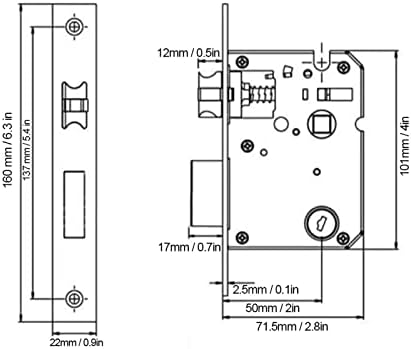
Image: Technical diagram illustrating the dimensions of the lock's mortise and faceplate, with measurements in millimeters and inches.
4. دليل التثبيت
Before installation, ensure your door meets the compatibility requirements (door thickness 38mm-55mm). Professional installation is recommended for optimal performance and security.
تحضير
- تحقق من توافق الباب: Confirm door thickness and backset (distance from door edge to center of door hole: 60mm or 70mm).
- جمع الأدوات: You will need a screwdriver, drill, measuring tape, and pencil.
- Review نموذج: Use the provided installation template to mark drilling points accurately.
خطوات التثبيت
- Install Mortise Lock: Insert the mortise into the door edge and secure it with screws.
- تثبيت اللوحة الأمامية: Route the cable through the door hole and attach the front panel, ensuring the spindle is correctly aligned.
- تثبيت اللوحة الخلفية: Connect the cable from the front panel to the rear panel. Secure the rear panel to the door using the provided screws.
- تركيب البطاريات: Open the battery compartment on the rear panel and insert 4 AAA batteries (ensure correct polarity).
- عملية الاختبار: After installation, test the mechanical key and ensure the handles operate smoothly.

Image: The Dioche DW80 Smart Lock, showcasing its sleek black design with a keypad on the front panel and a fingerprint sensor integrated into the handle.
5. Initial Setup and User Management
After installation, you need to set up the lock and register users for various unlocking methods.
5.1 Mobile App Connection (Tuya Smart)
The Dioche DW80 Smart Lock supports Wi-Fi connectivity via the Tuya Smart app for remote control and monitoring.
- تحميل التطبيق: Scan the QR code or search for "Tuya Smart" in your app store. قم بتنزيل تطبيق Tuya Smart
- التسجيل/تسجيل الدخول: Create an account or log in to the Tuya Smart app.
- إضافة جهاز: Follow the in-app instructions to add your smart lock. Ensure your phone is connected to a 2.4GHz Wi-Fi network during pairing.

Image: QR code for quick download of the Tuya Smart mobile application, essential for Wi-Fi features.
5.2 تسجيل بصمات الأصابع
- Access the lock's programming mode (refer to the specific instructions in your app or the lock's voice prompts).
- Place your finger on the fingerprint sensor multiple times as prompted, slightly shifting its position each time for comprehensive registration.
- Confirm successful registration via voice prompt or app notification.
5.3 ضبط كلمات المرور
- ادخل إلى وضع البرمجة.
- Input your desired password (typically 6-8 digits) and confirm.
- To use the virtual password feature, you can enter random digits before or after your actual password, then press '#' to confirm. This prevents others from guessing your code by observing finger movements.

Image: Demonstration of the virtual password feature, where a correct 6-digit password is embedded within a longer sequence of random numbers to deter observation.
5.4 Registering IC Cards
- ادخل إلى وضع البرمجة.
- Present the IC card to the designated sensing area on the lock.
- The lock will confirm successful registration.
6. تشغيل القفل الذكي
The Dioche DW80 offers multiple convenient ways to unlock your door.
6.1 فتح القفل ببصمة الإصبع
- Place your registered finger on the fingerprint sensor located on the handle.
- The lock will emit a confirmation sound/light, and the handle will engage.
- Push down the handle to open the door.
6.2 فتح القفل باستخدام كلمة المرور
- المس لوحة المفاتيح لتفعيلها.
- Enter your registered password (or virtual password sequence).
- Press '#' to confirm. The lock will unlock if the password is correct.
6.3 Unlocking with IC Card
- Present the registered IC card to the card reader area on the lock.
- The lock will confirm and unlock.
6.4 فتح القفل باستخدام المفتاح الميكانيكي
- Insert the mechanical key into the keyhole located on the front panel.
- Turn the key to unlock the door.
6.5 Remote Unlocking via Mobile App
- افتح تطبيق Tuya Smart على هاتفك الذكي.
- Select your Dioche DW80 Smart Lock from the device list.
- Tap the unlock button within the app. Confirm the remote opening when prompted.

Image: A smartphone screen showing the Tuya Smart app, indicating a successful remote unlock command sent to the smart handle lock via Wi-Fi.

Image: An infographic highlighting the five primary unlocking methods: fingerprint, IC card, password, mechanical key, and mobile app, with Wi-Fi and Tuya integration.
7. الصيانة
Regular maintenance ensures the longevity and optimal performance of your smart lock.
7.1 استبدال البطارية
The lock will provide a low battery warning (red light flashing, audible beep) when the batteries are running low. Replace all four AAA batteries promptly.
- Open the battery compartment cover on the rear panel.
- قم بإزالة البطاريات القديمة.
- Insert four new AAA batteries, ensuring correct polarity (+/-).
- أغلق غطاء حجرة البطارية.
Note: If you miss all low battery warnings, the lock can be temporarily powered via the Micro USB port for emergency access, or unlocked with a mechanical key.
7.2 التنظيف
- امسح سطح القفل بقطعة قماش ناعمة وجافة.
- تجنب استخدام المنظفات الكاشطة أو المذيبات أو المواد الكيميائية القاسية، حيث يمكن أن تؤدي إلى إتلاف الطبقة النهائية والمكونات الإلكترونية.
- Keep the fingerprint sensor and keypad clean and free of debris for accurate recognition.
8. استكشاف الأخطاء وإصلاحها
راجع هذا القسم للحصول على حلول للمشاكل الشائعة.
| مشكلة | السبب المحتمل | حل |
|---|---|---|
| القفل لا يستجيب. | البطاريات الميتة. | Replace batteries. Use emergency Micro USB power or mechanical key. |
| لم يتم التعرف على بصمة الإصبع. | Finger not placed correctly; sensor dirty; fingerprint not registered. | Ensure finger covers the sensor completely. Clean the sensor. Re-register fingerprint, ensuring slight shifts during registration. |
| Password not working. | Incorrect password entered; keypad not active. | Ensure correct password is entered. Touch keypad to activate. Try virtual password method. |
| IC Card not recognized. | Card not registered; card damaged. | Register the IC card. Try a different registered card. |
| لا يمكن الاتصال بشبكة Wi-Fi/التطبيق. | Incorrect Wi-Fi password; 5GHz Wi-Fi network; poor signal; lock not in pairing mode. | Ensure 2.4GHz Wi-Fi. Check Wi-Fi password. Move closer to router. Re-enter pairing mode on the lock. |
9. الضمان والدعم
Dioche products are designed for reliability and performance. For warranty information, technical support, or service inquiries, please refer to the contact information provided with your purchase documentation or visit the official Dioche website. Please have your model number (DW80) and purchase date ready when contacting support.