1. المقدمة
Thank you for choosing the ipega PG-9083S Wireless Gamepad. This device is designed to enhance your mobile gaming experience on both iOS and Android smartphones and tablets. Please read this manual carefully before use to ensure proper operation and to maximize your enjoyment of the product.
2. ميزات المنتج وأكثرview
The ipega PG-9083S offers a range of features for an immersive gaming experience:
- الاتصال اللاسلكي 4.0: Provides a stable and efficient connection to your mobile devices.
- Telescopic Holder: Adjustable holder accommodates devices from 5 to 10 inches, with a maximum extension of 28cm (11 inches).
- توافق واسع: Supports iOS (iPhone 8/XR/XS and newer) and Android mobile phones and tablets.
- تصميم مريح: مصمم لتوفير قبضة مريحة أثناء جلسات اللعب الطويلة.
- تعيين زر قابل للتخصيص: Allows for personalized control settings to suit various game types and player preferences.
- عصي التحكم عالية الدقة: Designed for accurate control and smooth operation in games.

Figure 2.1: The ipega PG-9083S Wireless Gamepad, showcasing its design with a tablet inserted. This image highlights the sleek feel and how it holds a device.

Figure 2.2: The gamepad's telescopic function, illustrating its ability to hold various devices including smartphones and tablets, with a maximum length of 28cm (11 inches).

Figure 2.3: Illustration of the gamepad's ergonomic design for comfort and its support for both vertical and horizontal screen orientations for tablets.

Figure 2.4: Depiction of the customizable button mapping feature, allowing users to set function keys according to personal habits for various game control needs.
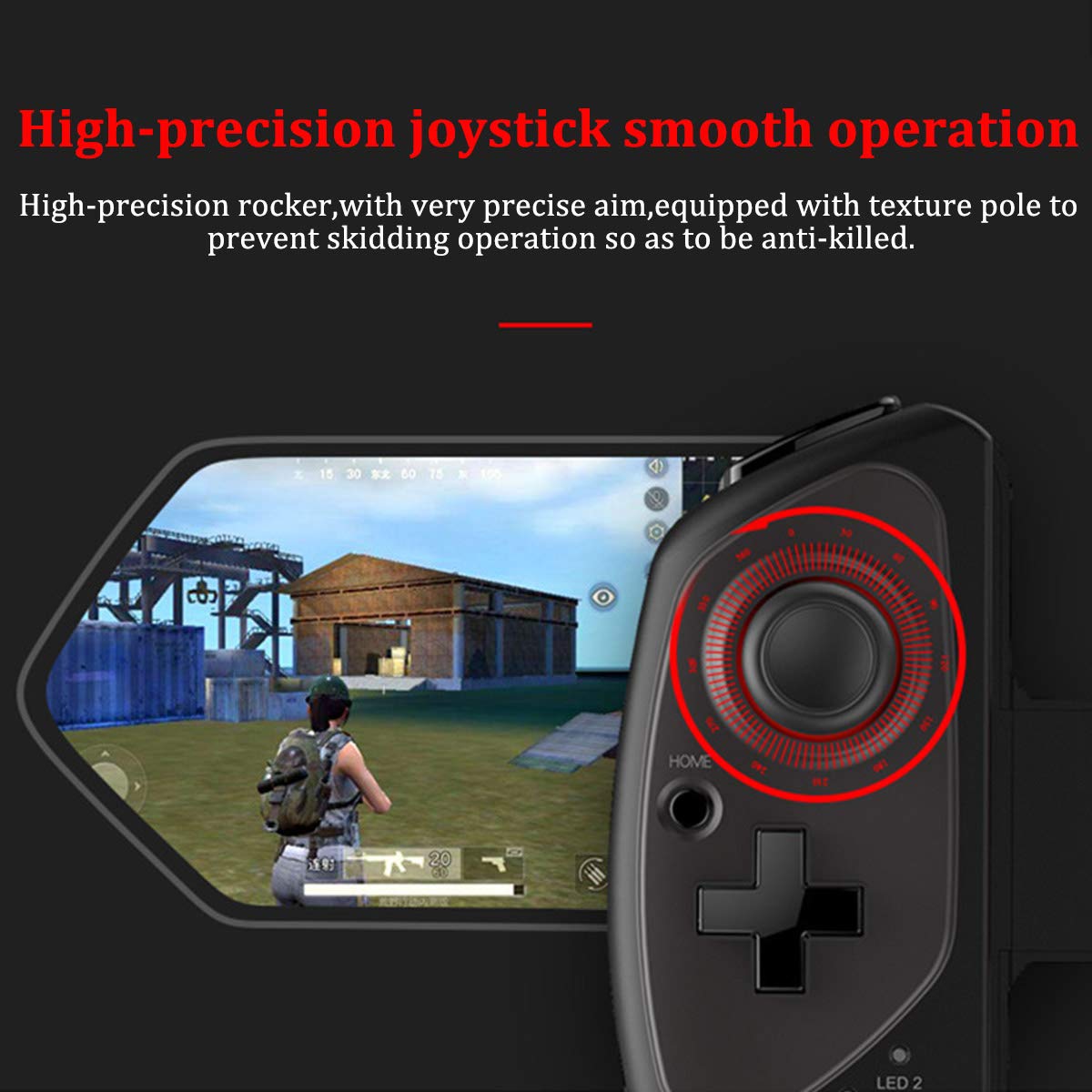
Figure 2.5: Close-up of the high-precision joystick, emphasizing its smooth operation and textured pole designed to prevent slipping during intense gameplay.
3. دليل الإعداد
3.1 شحن لوحة الألعاب
Before initial use, fully charge the gamepad. Connect the provided USB charging cable to the gamepad's charging port and to a USB power source (e.g., computer, USB wall adapter). The LED indicator will show charging status and turn off or change color when fully charged.
3.2 Inserting Your Device
- Pull the telescopic arm outwards to unlock and extend it.
- Carefully place your smartphone or tablet into the holder, ensuring it is centered and securely seated.
- Release the telescopic arm to allow it to retract and firmly grip your device. Ensure the device is locked in place before gaming.

الشكل 3.1: مفصل view of the security lock mechanism for the telescopic arm, illustrating how to extend and secure your device.
3.3 اقتران بلوتوث
To connect the gamepad to your device:
- تشغيل الطاقة: Press and hold the Power button (usually the HOME button) for a few seconds until the LED indicator starts flashing, indicating it's in pairing mode.
- تفعيل البلوتوث: على هاتفك الذكي أو جهازك اللوحي، انتقل إلى إعدادات البلوتوث وقم بتشغيل البلوتوث.
- بحث عن الأجهزة: سيقوم جهازك بالبحث عن أجهزة بلوتوث المتاحة. ابحث عن "PG-9083S" أو اسم مشابه في القائمة.
- زوج: Select the gamepad from the list to initiate pairing. Once connected, the LED indicator on the gamepad will typically become solid.
- اختيار الوضع (إن وجد): Some games or operating systems may require specific modes. Refer to your game's settings or the gamepad's quick start guide for specific mode switching instructions (e.g., Android Standard, iOS Direct Play).
4. تعليمات التشغيل
4.1 تشغيل/إيقاف التشغيل
- تشغيل الطاقة: اضغط مع الاستمرار على بيت button for approximately 3 seconds. The indicator light will flash.
- إيقاف التشغيل: اضغط مع الاستمرار على بيت button for approximately 5 seconds until the indicator light turns off. The gamepad will automatically power off after a period of inactivity to save battery.
4.2 Gamepad Modes
The PG-9083S supports different operating modes for optimal compatibility with various platforms. Typically, these modes are activated by holding a specific button combination while powering on the gamepad.
- وضع Android القياسي: Often activated by holding × + الصفحة الرئيسية. For general Android gaming.
- iOS Direct Play Mode: Often activated by holding ص + الصفحة الرئيسية. For iOS games that support direct gamepad input.
- أوضاع أخرى: Consult the quick start guide included with your product for any additional specific modes or button combinations for advanced functionality or specific game titles.
4.3 In-Game Control
Once connected, the gamepad will function as your primary input device for compatible games. The layout includes:
- عصا تحكم تناظرية مزدوجة: للحصول على حركة دقيقة والتحكم في الكاميرا.
- D- الوسادة: For directional input, often used in retro games or menu navigation.
- أزرار الإجراءات (A، B، X، Y): لإجراءات داخل اللعبة.
- أزرار الكتف (L1، R1) وأزرار الزناد (L2، R2): For additional actions, often firing or accelerating.
- SELECT/BACK, START/MENU, HOME Buttons: For system functions and game menus.
Refer to individual game settings for specific button assignments and customization options.
5. الصيانة
- تنظيف: Use a soft, dry cloth to wipe the surface of the gamepad. Do not use harsh chemicals or abrasive cleaners.
- تخزين: قم بتخزين وحدة التحكم في اللعبة في مكان بارد وجاف بعيدًا عن أشعة الشمس المباشرة ودرجات الحرارة العالية.
- العناية بالبطارية: لإطالة عمر البطارية، تجنب تفريغها بالكامل بشكل متكرر. اشحن وحدة التحكم بانتظام، حتى لو لم تكن قيد الاستخدام لفترات طويلة.
- تجنب القطرات: حماية الجهاز من السقوط والصدمات التي قد تؤدي إلى تلف المكونات الداخلية.
6. استكشاف الأخطاء وإصلاحها
6.1 وحدة التحكم لا تتصل/تقترن
- تأكد من شحن وحدة التحكم.
- تأكد من تمكين البلوتوث على جهازك.
- حاول نسيان الجهاز في إعدادات البلوتوث الخاصة بهاتفك وإعادة إقرانه.
- Ensure the gamepad is in the correct pairing mode for your operating system (Android/iOS).
- Restart both your mobile device and the gamepad.
6.2 Buttons or Joysticks Unresponsive/Inaccurate
- Verify the gamepad is properly connected and in the correct operating mode for the game.
- Some games may require specific controller configurations or do not fully support external gamepads. Check the game's settings.
- Ensure there are no physical obstructions preventing button presses or joystick movement.
- If experiencing issues with joystick sensitivity or "dead zones," check if the game offers in-game calibration or sensitivity adjustments.
6.3 Gamepad Not Charging
- Check the charging cable and USB power source. Try a different cable or adapter.
- تأكد من أن منفذ الشحن الموجود على وحدة التحكم نظيف وخالٍ من الأوساخ.
6.4 الجهاز غير مثبت بإحكام
- Ensure your device's dimensions are within the specified telescopic holder range (5-10 inches, up to 28cm/11 inches).
- Remove any bulky cases from your device that might prevent a secure fit.
7. المواصفات
| رقم الموديل: | PG-9083S |
| الاتصال: | لاسلكي 4.0 |
| Telescopic Holder Range: | 5 - 10 inches (up to 28 cm / 11 inches) |
| التوافق: | iOS (iPhone 8/XR/XS and newer), Android (Mobile Phones, Tablets) |
| وزن السلعة: | 13.1 أونصة (حوالي 371 جرامًا) |
| أبعاد الحزمة: | 9.53 × 6.81 × 2.44 بوصة |
8. معلومات السلامة
- Do not expose the gamepad to extreme temperatures, humidity, or direct sunlight.
- Do not attempt to disassemble or modify the gamepad. This will void any potential warranty and may cause damage.
- احتفظ بالجهاز بعيدًا عن الماء والسوائل الأخرى.
- Dispose of the battery according to local regulations. Do not dispose of batteries in household waste.
- يحفظ بعيدًا عن متناول الأطفال الصغار.


