1. المقدمة
This user manual provides detailed instructions for the Waveshare Raspberry Pi 4 Model B Display Kit. It covers the assembly, setup, operation, and maintenance of your 7-inch capacitive touch LCD display kit designed for the Raspberry Pi 4. Please read this manual thoroughly before use to ensure proper functionality and to maximize your experience with the product.
2. محتويات العبوة
تأكد من وجود جميع العناصر المذكورة أدناه في طردك. في حال وجود أي مكونات مفقودة أو تالفة، يرجى التواصل مع خدمة العملاء.

Image: All components included in the Waveshare Raspberry Pi 4 Display Kit.
- 7-inch Capacitive Touch LCD
- Acrylic Case (Black/White)
- كابل HDMI
- USB-A to Micro-USB Cable (for touch and power)
- محول الطاقة
- بطاقة ذاكرة مايكرو إس دي (16 جيجابايت)
- قارئ بطاقات Micro SD
- Screws and Standoffs for assembly
3. انتهى المنتجview
The Waveshare Raspberry Pi 4 Model B Display Kit combines a high-resolution 7-inch capacitive touch screen with essential accessories, allowing you to build a compact, all-in-one computer solution with your Raspberry Pi 4.
3.1 Raspberry Pi 4 Model B Features (Raspberry Pi board sold separately)
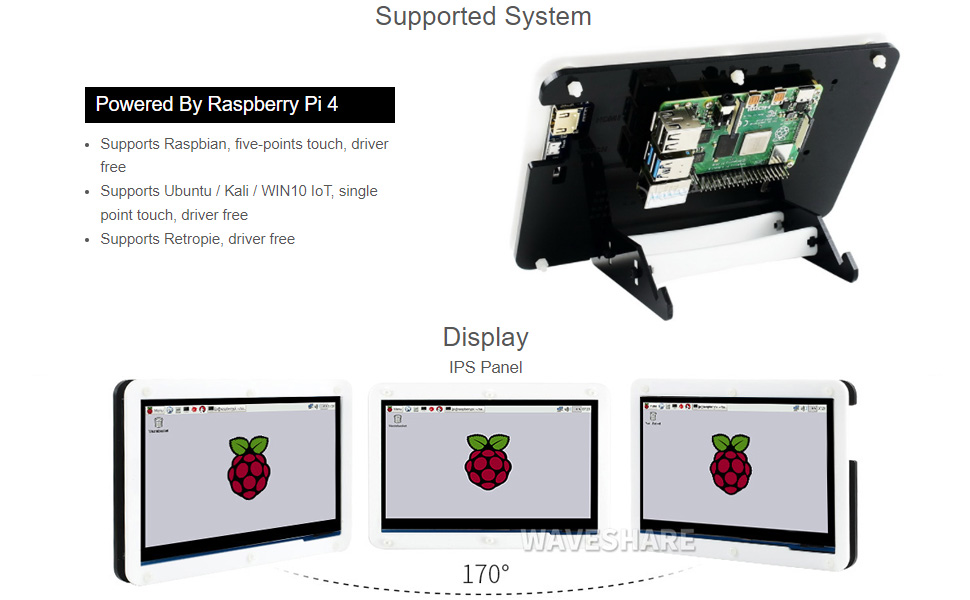
Image: Raspberry Pi 4 Model B board layout with key components labeled.
- المعالج: Broadcom BCM2711 ، رباعي النواة Cortex-A72 (ARM v8) 64 بت SoC @ 1.5 جيجا هرتز
- ذاكرة: LPDDR4-2400 SDRAM (available in 1GB, 2GB, 4GB, or 8GB options)
- الاتصال: 2.4 GHz and 5.0 GHz IEEE 802.11ac wireless, Bluetooth 5.0, Gigabit Ethernet
- منافذ USB: 2 × USB 3.0 ports, 2 × USB 2.0 ports
- الفيديو والصوت: 2 × micro-HDMI ports (up to 4Kp60 supported), 2-lane MIPI DSI display port, 2-lane MIPI CSI camera port, 4-pole stereo audio and composite video port
- GPIO: 40-pin GPIO header
- قوة: 5V DC via USB-C connector (minimum 3A recommended)
4. دليل الإعداد
Follow these steps to assemble and set up your Waveshare Raspberry Pi 4 Display Kit.
4.1 Hardware Assembly

Image: Fully assembled Waveshare Raspberry Pi 4 Display Kit.
- Prepare the Raspberry Pi: Ensure your Raspberry Pi 4 Model B board is ready.
- Mount the Raspberry Pi: Attach the Raspberry Pi 4 board to the designated mounting points on the back panel of the acrylic case using the provided screws and standoffs.
- قم بتوصيل الشاشة: Connect the 7-inch LCD to the Raspberry Pi 4. Typically, this involves connecting the HDMI cable from the display to one of the micro-HDMI ports on the Raspberry Pi, and the USB-A to Micro-USB cable for touch functionality and power.
- تجميع القضية: Secure the front panel of the acrylic case around the display and then attach it to the back panel, enclosing the Raspberry Pi and display. Ensure all cables are properly routed and not pinched.
- تثبيت الحامل: Assemble and attach the included stand to the bottom of the case for stable positioning. The stand often allows for adjustable viewing angles (e.g., 45° or 60°).
4.2 تكوين البرنامج
The Waveshare 7-inch capacitive touch LCD is designed for driver-free operation with several popular operating systems.
- تركيب نظام التشغيل: Install your preferred operating system (e.g., Raspbian, Ubuntu, Kali, WIN10 IoT, Retropie) onto the provided 16GB Micro SD card using a suitable imaging tool (e.g., Raspberry Pi Imager).
- أدخل بطاقة SD: Insert the prepared Micro SD card into the Raspberry Pi's Micro SD card slot.
- تشغيل الطاقة: Connect the power adapter to the display kit. The Raspberry Pi and display should power on automatically.
- التشغيل بدون سائق: For most supported systems, the display and touch functionality will work automatically without additional driver installation.
5. تعليمات التشغيل
5.1 وظيفة اللمس

Image: User interacting with the capacitive touch screen.
- The 7-inch display features a capacitive touch panel, supporting up to five-point touch input.
- Ensure the USB touch cable is securely connected between the display and the Raspberry Pi for touch input to function.
- Touch gestures and multi-touch capabilities will depend on the operating system and applications running on your Raspberry Pi.
5.2 أنظمة التشغيل المدعومة
The display kit offers broad compatibility with various Raspberry Pi operating systems:
- Raspbian: Supports five-point touch, driver-free.
- Ubuntu / Kali / WIN10 IoT: Supports single-point touch, driver-free.
- Retropie: Supports driver-free operation.
6. المواصفات
| ميزة | مواصفة |
|---|---|
| حجم العرض | 7 بوصة |
| نوع اللمس | Capacitive, up to 5-points |
| الواجهة | منفذ HDMI للعرض، منفذ USB للشاشة اللمسية |
| التوافق | راسبيري باي 4 موديل B |
| دعم نظام التشغيل | Raspbian, Ubuntu, Kali, WIN10 IoT, Retropie |
| Memory Storage Capacity (SD Card) | 16 جيجا بايت |
| وزن العنصر | 1.28 رطل |
| رقم الموديل | PI4B Display Acce |
| الشركة المصنعة | وايفشير |
7. الصيانة
- تنظيف: استخدم قطعة قماش ناعمة وخالية من الوبر لمسح الشاشة برفق. لإزالة البقع الصعبة، امسحها برفق.ampامسح القماش بالماء أو بمنظف آمن للشاشات. تجنب المواد الكيميائية القاسية أو المواد الكاشطة.
- تخزين: عند عدم الاستخدام، قم بتخزين المجموعة في مكان بارد وجاف بعيدًا عن أشعة الشمس المباشرة ودرجات الحرارة القصوى.
- التعامل: Handle the display and Raspberry Pi board with care to avoid physical damage. Avoid applying excessive pressure to the screen.
8. استكشاف الأخطاء وإصلاحها
8.1 لا يوجد مخرج عرض
- التحقق من الطاقة: Ensure the power adapter is securely connected to the display kit and plugged into a working power outlet.
- اتصال HDMI: Verify that the HDMI cable is firmly connected between the display and the Raspberry Pi's micro-HDMI port. Try a different micro-HDMI port if available.
- بطاقة SD: Confirm that the Micro SD card with a properly installed operating system is inserted correctly into the Raspberry Pi.
- مزود الطاقة: Ensure your Raspberry Pi is receiving adequate power (a 5V/3A USB-C power supply is recommended for Raspberry Pi 4).
8.2 وظيفة اللمس لا تعمل
- اتصال USB: Check that the USB-A to Micro-USB cable is securely connected from the display to a USB port on the Raspberry Pi.
- دعم نظام التشغيل: Confirm that your operating system supports the touch functionality of this display. While most are driver-free, some configurations might require specific settings.
- إعادة التشغيل: Try rebooting the Raspberry Pi.
8.3 وميض الشاشة أو عدم استقرارها
- مزود الطاقة: Ensure a stable and sufficient power supply is used for both the display and the Raspberry Pi.
- سلامة الكابل: Check the HDMI and USB cables for any damage or loose connections.
9. الضمان والدعم
للحصول على معلومات الضمان أو الدعم الفني أو أي مساعدة إضافية، يرجى الرجوع إلى موقع Waveshare الرسمي. webالموقع أو تواصل مع بائع التجزئة. احتفظ بإيصال الشراء كإثبات للشراء في حال وجود أي مطالبات بالضمان.


