مقدمة
The Logitech K400 Plus Wireless Touch Keyboard is designed for comfortable control of your entertainment from a distance. Featuring a full-size keyboard layout and a large, integrated touchpad, it offers seamless navigation for your PC-connected TV, media center, or other compatible devices. This manual provides essential information for setting up, operating, and maintaining your keyboard.
يثبت
1. تركيب البطارية
The Logitech K400 Plus requires two AAA batteries (included). To install them:
- حدد موقع غطاء حجرة البطارية على الجانب السفلي من لوحة المفاتيح.
- حرك الغطاء لفتحه.
- قم بإدخال بطاريتين AAA، مع التأكد من القطبية الصحيحة (+/-).
- أغلق غطاء حجرة البطارية جيدًا.
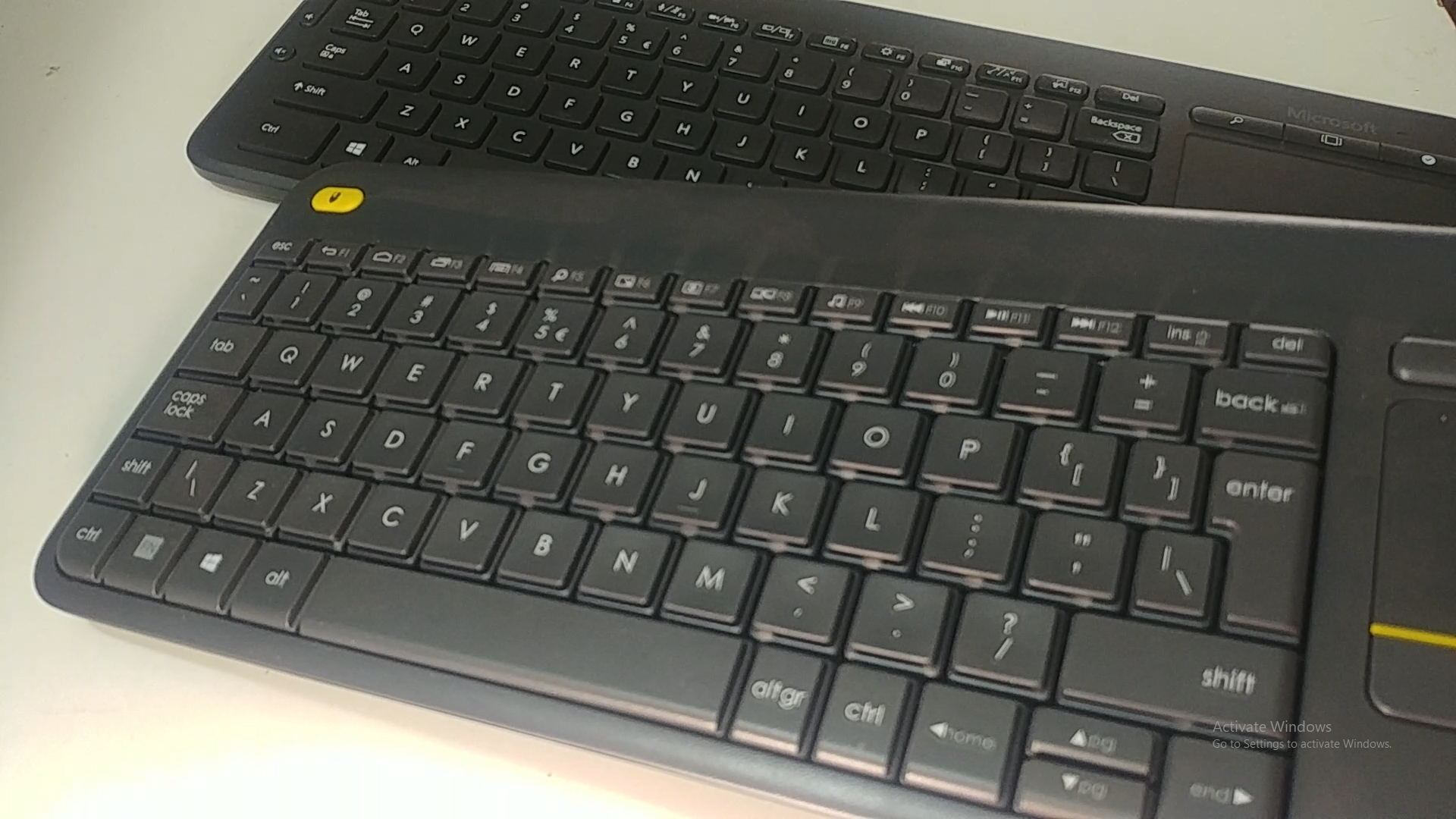
Image: Underside of the Logitech K400 Plus keyboard with the battery compartment open, showing two AAA batteries.
2. Connecting the Keyboard (USB Unifying Receiver)
The K400 Plus connects wirelessly via a small USB Unifying receiver. This receiver is typically stored inside the battery compartment for safekeeping.
- Open the battery compartment cover and remove the USB Unifying receiver.
- Plug the USB Unifying receiver into an available USB port on your PC, smart TV, or other compatible device.
- Turn on the keyboard using the On/Off switch located on the top right edge of the keyboard. A green indicator light will appear.
- Your keyboard should automatically connect. If not, refer to the troubleshooting section or visit the Logitech support website for the Unifying software.

Image: The Logitech K400 Plus Wireless Touch Keyboard, showing its compact design with integrated touchpad.
تعليمات التشغيل
تخطيط لوحة المفاتيح
The K400 Plus features a standard QWERTY layout with additional function keys and an integrated touchpad.
الصورة: تفصيلية view of the Logitech K400 Plus keyboard keys, highlighting the QWERTY layout.
استخدام لوحة اللمس
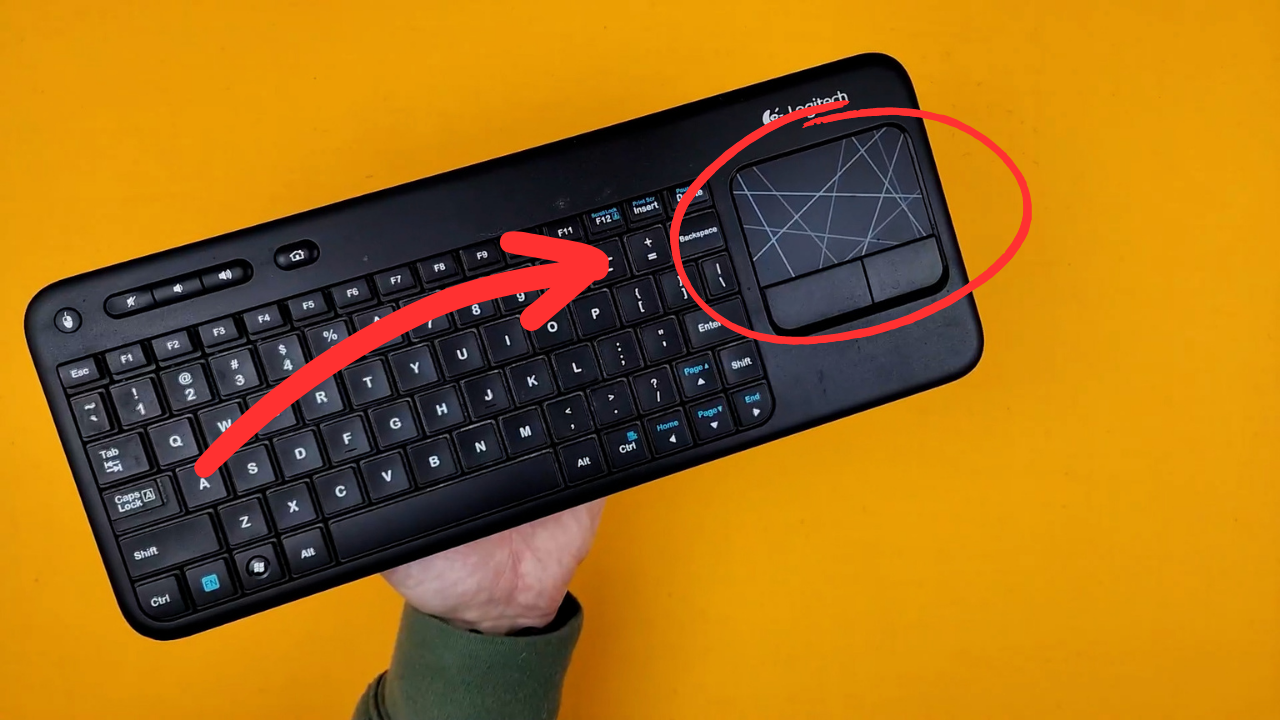
The large 3.5-inch touchpad allows for intuitive navigation. It supports multi-touch gestures for enhanced control.
- النقر بإصبع واحد: الزر الأيسر.
- النقر بإصبعين: انقر على اليمين.
- التمرير بإصبعين: Scroll vertically or horizontally.
- الضغط للتكبير: Zoom in or out (if supported by the application).
- Dedicated left and right-click buttons are located below the touchpad for traditional mouse button functionality.
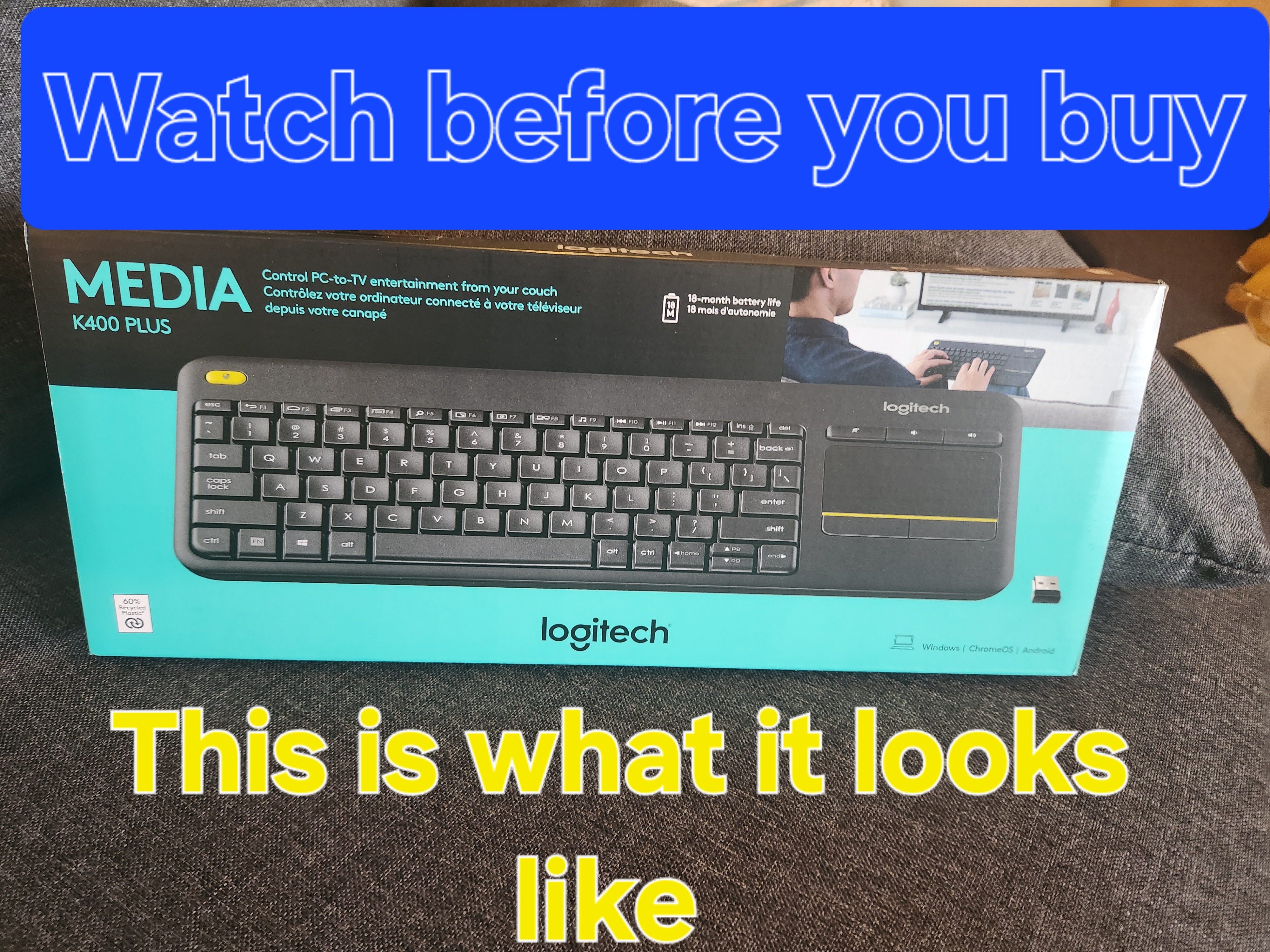
Image: A hand demonstrating the use of the integrated touchpad on the Logitech K400 Plus.
مفاتيح الوسائط المتعددة والوظائف
The top row of keys includes dedicated multimedia controls and function keys (F1-F12) with secondary actions. To activate the secondary actions (indicated by blue icons), press and hold the Fn key (located near the left Ctrl key) while pressing the desired function key.
- ضوابط الصوت: Dedicated buttons for mute, volume down, and volume up are located above the touchpad.
- زر الصفحة الرئيسة: Access your device's home screen or browser home page.
- Page Up/Down, End: التنقل بين المستندات و web الصفحات.
- Left Mouse Button (top left): An additional left-click button is located on the top left corner of the keyboard for convenient two-hand operation.
صيانة
تنظيف
لتنظيف لوحة المفاتيح:
- قم بإيقاف تشغيل لوحة المفاتيح باستخدام مفتاح التشغيل/الإيقاف.
- استخدم قطعة قماش ناعمة وخالية من الوبر وامسحها برفق.ampبالماء أو بمحلول تنظيف معتدل.
- Avoid excessive moisture and do not immerse the keyboard in liquid.
- For stubborn dirt between keys, use compressed air.
استبدال البطارية
When the battery indicator light (usually located near the On/Off switch) turns red or the keyboard becomes unresponsive, it's time to replace the batteries. Follow the "Battery Installation" steps in the Setup section to replace the two AAA batteries.
استكشاف الأخطاء وإصلاحها
لوحة المفاتيح لا تستجيب
- التحقق من الطاقة: Ensure the keyboard is turned on and the battery indicator light is green. Replace batteries if necessary.
- فحص جهاز الاستقبال: Make sure the USB Unifying receiver is securely plugged into a working USB port on your device. Try a different USB port.
- مسافة: Ensure the keyboard is within the operating range (up to 10 meters or 33 feet) of the USB receiver.
- تدخل: قم بإبعاد لوحة المفاتيح وجهاز الاستقبال عن الأجهزة اللاسلكية الأخرى أو الأجسام المعدنية الكبيرة التي قد تسبب تداخلًا.
- بصلح: If issues persist, you may need to re-pair the keyboard with the Unifying receiver using the Logitech Unifying software, available for download from the official Logitech support webموقع.
Touchpad Not Working Correctly
- سطح نظيف: Ensure the touchpad surface is clean and free of debris.
- تحديث برنامج التشغيل: Check your device's operating system for updated drivers for the Logitech Unifying receiver or touchpad.
- إعدادات: Verify touchpad settings in your device's control panel or system preferences.
تحديد
| ماركة | لوجيتك |
| رقم الموديل | 920-009280 |
| تكنولوجيا الاتصال | Wireless (2.4 GHz via USB Unifying Receiver) |
| لاسلكي المدى | حتى 10 مترا (33 قدما) |
| البطاريات | بطاريات آا شينومكس x (وشملت) |
| عمر البطارية | مدة تصل إلى 18 شهرًا (قد تختلف المدة بناءً على الاستخدام) |
| لوحة اللمس المتكاملة | 3.5-inch multi-touch touchpad |
| الأجهزة المتوافقة | PC (Windows 7, 8, 10 or later), Android TV, Chrome OS |
| الأبعاد (الطول × العرض × الارتفاع) | حوالي 13.9 × 5.5 × 0.9 بوصة (354 × 139.9 × 23.5 ملم) |
| وزن | Approximately 13.76 oz (390 g) with batteries |
الضمان والدعم
Logitech provides a limited hardware warranty for this product. For detailed warranty information, technical support, and driver downloads, please visit the official Logitech support webموقع:
يمكنك أيضاً العثور على الأسئلة الشائعة ومنتديات المجتمع للحصول على مساعدة إضافية.