مقدمة
This manual provides essential instructions for setting up, operating, maintaining, and troubleshooting your Microsoft Surface Pro 2017. The Surface Pro 2017 is a versatile 2-in-1 device designed to function as both a powerful laptop and a portable tablet, offering a seamless computing experience.
يرجى قراءة هذا الدليل جيداً لضمان الاستخدام الأمثل ولإطالة عمر جهازك. احتفظ بهذا الدليل للرجوع إليه مستقبلاً.
ماذا يوجد في الصندوق
Upon unboxing your Microsoft Surface Pro 2017, verify that all components are present:
- جهاز Microsoft Surface Pro 2017
- محول التيار المتردد
Note: Additional accessories such as the Surface Pen, Type Cover, or Surface Dial are sold separately and may not be included with your device.
يثبت
1. التشغيل الأولي والشحن
- قم بتوصيل محول الطاقة: Plug the AC power adapter into a wall outlet and then connect the magnetic charging connector to the charging port on your Surface Pro. The LED indicator on the connector will illuminate when charging.
- تشغيل الطاقة: Press and hold the power button located on the top edge of the device for a few seconds until the Microsoft logo appears on the screen.
2. إعداد Windows
Follow the on-screen prompts to complete the initial Windows setup. This process typically includes:
- اختيار منطقتك ولغتك.
- الاتصال بشبكة Wi-Fi.
- الموافقة على اتفاقية الترخيص.
- Creating or signing in with a Microsoft account.
- Setting up security features like Windows Hello (facial recognition) or a PIN.
3. الاتصال بشبكة Wi-Fi
- During Windows setup, you will be prompted to connect to a network. Select your desired Wi-Fi network from the list and enter the password if required.
- If you need to connect later, go to يبدأ > إعدادات > الشبكات والانترنت > واي فاي. Turn Wi-Fi on, select your network, and click يتصل.
تعليمات التشغيل
Basic Device Orientation and Controls
The Surface Pro 2017 features a 12.3-inch PixelSense display with multi-touch support. Key physical controls include:
- زر الطاقة: Located on the top edge, used to turn the device on/off, sleep, or wake.
- أزرار التحكم في الصوت: Located on the side, used to adjust audio volume.
- مسنده: Integrated on the back, allows for multiple viewزوايا متعددة.
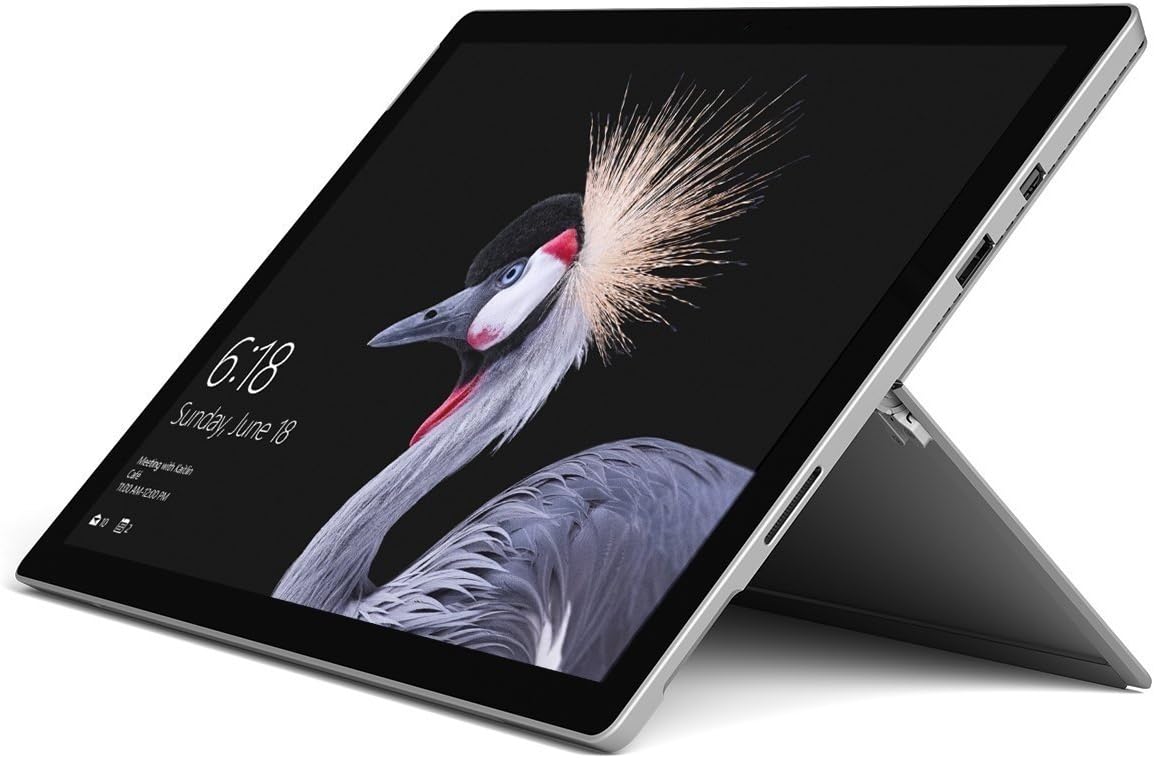
Image: Microsoft Surface Pro 2017 in laptop mode with its kickstand extended, showcasing the device's display.
استخدام المسند
The integrated kickstand allows you to position your Surface Pro at various angles for comfortable viewing, typing, or drawing. Gently pull the kickstand out from the back of the device until it reaches your desired angle.
إدارة الطاقة
- وضع السكون: Briefly press the power button to put the Surface Pro into sleep mode. Press it again to wake the device.
- اغلق: اذهب الى يبدأ > قوة > اغلق.
- إعادة تشغيل: اذهب الى يبدأ > قوة > إعادة تشغيل.
ربط الأجهزة الطرفية
The Surface Pro 2017 includes various ports for connecting external devices:
- منفذ USB 3.0: For connecting USB drives, keyboards, mice, and other compatible accessories.
- ميني ديسبلايبورت: للاتصال بالشاشات الخارجية أو أجهزة العرض.
- قارئ بطاقة مايكرو اس دي: لتوسيع مساحة التخزين أو النقل fileمن بطاقات الذاكرة.
- منفذ توصيل السطح: For power and connecting to Surface Dock accessories.
- مقبس سماعة رأس مقاس 3.5 ملم: لإخراج الصوت.
بلوتوث: To connect Bluetooth devices (e.g., headphones, mice), go to يبدأ > إعدادات > الأجهزة > البلوتوث والأجهزة الأخرى. Ensure Bluetooth is turned on, then select "Add Bluetooth or other device" and follow the pairing instructions.

الصورة: الجانب المحترفfile of the Microsoft Surface Pro 2017, highlighting the various ports available for connectivity.
صيانة
Cleaning Your Surface Pro
- شاشة: استخدم قطعة قماش ناعمة وخالية من الوبر وامسحها برفق.ampened with water or an approved screen cleaner. Avoid harsh chemicals or abrasive materials.
- جسم: Wipe the exterior with a soft, dry cloth. Do not allow liquids to enter openings.
- الموانئ: Keep ports free of dust and debris. Use compressed air carefully if needed, holding the can upright.
العناية بالبطارية
- تجنب درجات الحرارة القصوى، لأنها قد تؤدي إلى تدهور عمر البطارية.
- للحفاظ على صحة البطارية المثلى، تجنب تفريغ البطارية بالكامل باستمرار أو إبقائها مشحونة بنسبة 100% لفترات طويلة.
- Use only the official Microsoft AC power adapter or a compatible charger.
تحديثات البرامج
Regularly update your Windows operating system and device drivers to ensure optimal performance, security, and compatibility. Go to يبدأ > إعدادات > التحديث والأمان > تحديث الويندوز للتحقق من التحديثات وتثبيتها.
استكشاف الأخطاء وإصلاحها
يتناول هذا القسم المشكلات الشائعة التي قد تواجهها مع جهاز Surface Pro 2017.
Device Will Not Turn On
- تأكد من شحن الجهاز. وصّل محول الطاقة وانتظر بضع دقائق قبل محاولة تشغيله.
- Perform a two-button shutdown: Press and hold the volume-up button and the power button simultaneously for at least 15 seconds, then release both. Wait 10 seconds, then press the power button again to turn on the Surface.
Screen Not Responding to Touch
- أعد تشغيل الجهاز.
- تأكد من أن الشاشة نظيفة وخالية من الحطام.
- Check for available Windows updates, as driver updates can resolve touch issues.
مشاكل الاتصال بشبكة Wi-Fi
- تأكد من تفعيل الواي فاي في إعدادات > الشبكات والانترنت > واي فاي.
- Restart your Surface Pro and your Wi-Fi router.
- انسَ الشبكة وأعد الاتصال: انتقل إلى إعدادات > الشبكات والانترنت > واي فاي, click on your network, then ينسى. Reconnect and enter the password.
تحديد
| ميزة | مواصفة |
|---|---|
| اسم الموديل | سيرفس برو 2017 |
| رقم موديل العنصر | 7Y30 |
| حجم الشاشة | 12.3 بوصة |
| دقة الشاشة | 2736 × 1824 بكسل |
| المعالج | Intel Core m3-7Y30 (1 GHz Intel_Mobile_CPU) |
| كبش | 4 جيجا بايت DDR4 SDRAM |
| تخزين | 128 جيجا بايت SSD |
| بطاقة الرسوميات | إنتل (متكاملة) |
| نظام التشغيل | نوافذ |
| نوع لاسلكي | 802.11abg |
| وزن العنصر | 1.89 رطل |
| أبعاد المنتج | 11.5 × 7.9 × 0.3 بوصة |
| لون | فضي |
الضمان والدعم
For detailed warranty information, please refer to the warranty card included with your purchase or visit the official Microsoft support website. Warranty terms and conditions may vary based on region and retailer.
For technical support, driver downloads, and additional resources, please visit the official Microsoft Support webموقع: support.microsoft.com/surface


