1. المقدمة
This manual provides instructions for the setup, operation, and maintenance of your Acer XF270H Bbmiiprx 27-inch Full HD gaming monitor. This monitor is designed to deliver a responsive visual experience with features such as a 144Hz refresh rate, 1ms response time, and compatibility with AMD FreeSync and NVIDIA G-SYNC technologies. It also features a Zero Frame design and Acer VisionCare for comfortable viewعمل.

الصورة 1.1: الجبهة view of the Acer XF270H Bbmiiprx monitor, showcasing its key performance features.
2. محتويات العبوة
Verify that all items listed below are present in your package. If any items are missing or damaged, contact your retailer or Acer support.
- وحدة عرض
- حامل الشاشة (القاعدة والرقبة)
- سلك الطاقة
- كابل ديسبلايبورت
3. الإعداد
3.1. مجموعة الشاشة
- قم بإزالة مكونات الشاشة والحامل من العبوة بعناية.
- قم بتثبيت قاعدة الحامل على لوحة الشاشة. تأكد من تثبيتها بإحكام في مكانها أو باستخدام البراغي إن وجدت.
- Attach the stand base to the stand neck. Tighten the thumb screw or screws at the bottom of the base.
- ضع الشاشة المجمعة على سطح ثابت ومستوٍ.
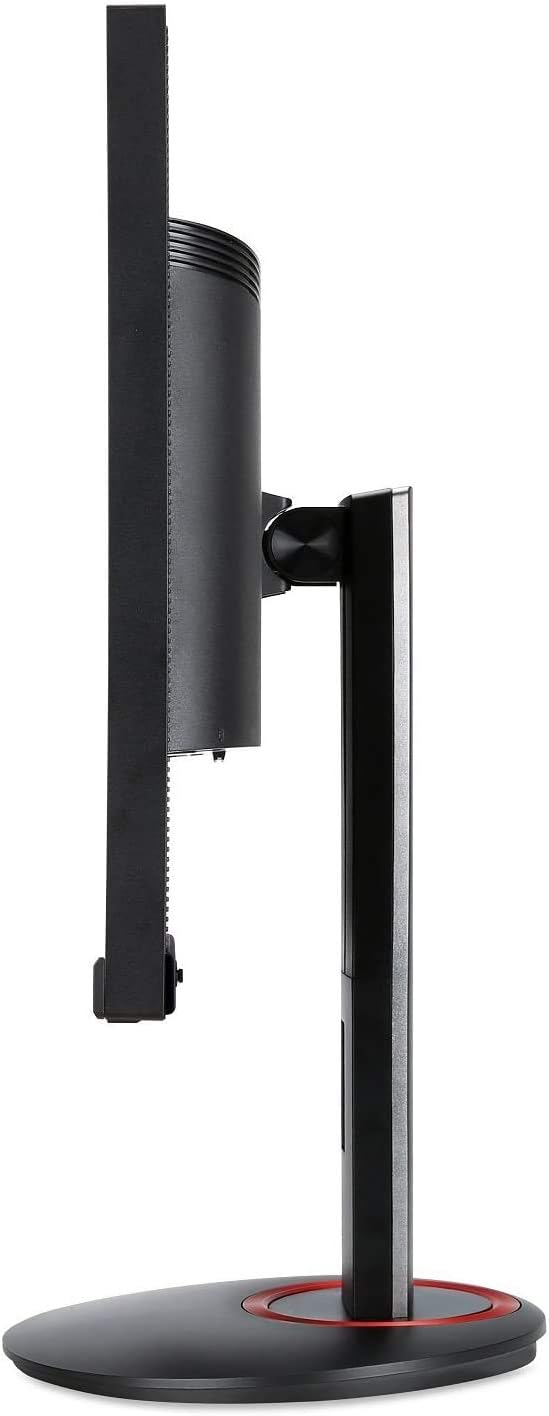
الصورة 3.1: الجانب view of the monitor, illustrating the stand assembly.
التوافق مع حامل VESA: The monitor supports a 100 x 100 mm VESA mount standard. If you plan to use a wall mount or an alternative monitor arm, remove the stand and attach the VESA-compatible mounting bracket (sold separately) to the monitor's rear panel.

Image 3.2: Monitor in vertical orientation, demonstrating pivot functionality.
3.2. توصيل الشاشة
- توصيل الطاقة: قم بتوصيل سلك الطاقة بمدخل الطاقة الخاص بالشاشة ثم بمأخذ الطاقة.
- اتصال الفيديو:
- For optimal performance (144Hz refresh rate), connect the included DisplayPort cable from your computer's graphics card to the monitor's DisplayPort 1.2 input.
- Alternatively, connect an HDMI cable (not included) from your computer's graphics card to one of the monitor's two HDMI 2.0 inputs.
- اتصال الصوت (اختياري): If you wish to use external speakers or headphones, connect them to the monitor's audio output jack. The monitor also has built-in speakers.
- تشغيل الطاقة: Press the power button on the monitor to turn it on. Power on your computer.
4. تشغيل الشاشة
4.1. تشغيل/إيقاف التشغيل
To turn the monitor on or off, press the power button located on the bottom right side of the monitor bezel.
4.2. التنقل في قائمة العرض على الشاشة (OSD)
The OSD menu allows you to adjust various monitor settings such as brightness, contrast, color, input source, and gaming features. Use the buttons located on the bottom right of the monitor to navigate the OSD menu:
- اضغط على أي زر لتفعيل قائمة العرض على الشاشة.
- Use the directional buttons to navigate through menu options.
- Press the select button (usually the middle button) to confirm a selection.
- Press the exit button (often the leftmost button) to go back or exit the menu.
4.3. الميزات الرئيسية
- معدل تحديث 144 هرتز: This monitor supports a high refresh rate of 144Hz when connected via DisplayPort, providing smoother motion and reduced input lag compared to standard 60Hz monitors.
- وقت الاستجابة 1 مللي ثانية: The 1ms response time (GtG) minimizes motion blur and ghosting, ensuring clear visuals during fast-moving scenes.
- AMD FreeSync & NVIDIA G-SYNC Compatible: This monitor supports adaptive sync technologies to synchronize the monitor's refresh rate with your graphics card's frame rate, eliminating screen tearing and stuttering for a smoother gaming experience. Ensure your graphics card drivers are up to date and FreeSync/G-SYNC is enabled in your graphics card control panel.
- تصميم الإطار الصفري: The narrow bezels provide a larger viewing area and are ideal for multi-monitor setups.
- أيسر فيجن كير: Features like Flicker-less, Blue Light Filter, and Low Dimming are integrated to reduce eye strain during extended use.

Image 4.1: Visual representation of 144Hz refresh rate benefits in fast-paced content.

Image 4.2: Visual representation of 1ms response time reducing blur.
5. الصيانة
5.1. تنظيف الشاشة
- قم دائمًا بإيقاف تشغيل الشاشة وفصل سلك الطاقة قبل التنظيف.
- استخدم قطعة قماش ناعمة وخالية من الوبر برفق دampيُنظف بالماء أو بمنظف شاشات خفيف وغير كاشط.
- لا ترشّ المنظف مباشرةً على الشاشة، بل ضعه على قطعة القماش أولًا.
- تجنب استخدام البنزين أو المذيبات أو المنظفات التي تحتوي على الأمونيا أو المواد الكاشطة، حيث يمكن أن تؤدي هذه المواد إلى إتلاف الشاشة أوasing.
5.2. العناية العامة
- تجنب وضع الشاشة في ضوء الشمس المباشر أو بالقرب من مصادر الحرارة.
- تأكد من وجود تهوية كافية حول الشاشة.
- لا تضع أشياء ثقيلة على الشاشة أو كابلاتها.
- إذا لم يتم استخدام الشاشة لفترة طويلة، فافصلها عن مأخذ الطاقة.
6. استكشاف الأخطاء وإصلاحها
إذا واجهت مشكلات مع شاشتك، فراجع خطوات استكشاف الأخطاء وإصلاحها الشائعة التالية:
| مشكلة | الحل المحتمل |
|---|---|
| لا توجد صورة على الشاشة |
|
| الصورة ضبابية أو مشوهة |
|
| وميض الشاشة أو تمزقها |
|
| لا يوجد صوت من مكبرات الصوت |
|
7. المواصفات
The following table lists the technical specifications for the Acer XF270H Bbmiiprx monitor:
| ميزة | مواصفة |
|---|---|
| حجم الشاشة | 27 بوصة |
| دقة | 1920 × 1080 (دقة عالية كاملة) |
| نوع اللوحة | TN |
| معدل التحديث | 144Hz (via DisplayPort) |
| وقت الاستجابة | 1 مللي ثانية |
| المزامنة التكيفية | AMD FreeSync, NVIDIA G-SYNC Compatible |
| نسبة العرض إلى الارتفاع | 16:9 |
| Viewزوايا جي | 170 درجة أفقيًا ، 160 درجة رأسيًا |
| الموانئ | منفذ عرض واحد 1.2، منفذان HDMI 2.0 |
| المتحدثون | 2 × 2 واط |
| معيار حامل VESA | 100 × 100 ملم |
| الأبعاد (الطول × العرض × الارتفاع) | 24.17 × 9.64 × 15.63 بوصة |
| وزن | 17.68 رطل |
8. معلومات الضمان
Acer products are covered by a limited warranty. The specific terms and duration of your warranty may vary by region and product. Please refer to the warranty card included with your product or visit the official Acer webالموقع الإلكتروني للاطلاع على معلومات الضمان التفصيلية والتسجيل.
9. الدعم
For technical assistance, product inquiries, or service requests, please contact Acer customer support. You can find contact information and additional resources on the official Acer support webموقع:
دعم أيسر Webموقع: www.acer.com/support
Please have your monitor's model number (XF270H Bbmiiprx) and serial number ready when contacting support.


