1. المقدمة
This manual provides detailed instructions for the installation, operation, and maintenance of your MERCUSYS AC1200 Wireless Dual Band Router, model AC12. Please read this guide thoroughly to ensure proper setup and optimal performance of your device.
The MERCUSYS AC1200 Router offers high-speed Wi-Fi connectivity with dual-band support, designed to provide reliable internet access for your home or office network.
2. محتويات العبوة
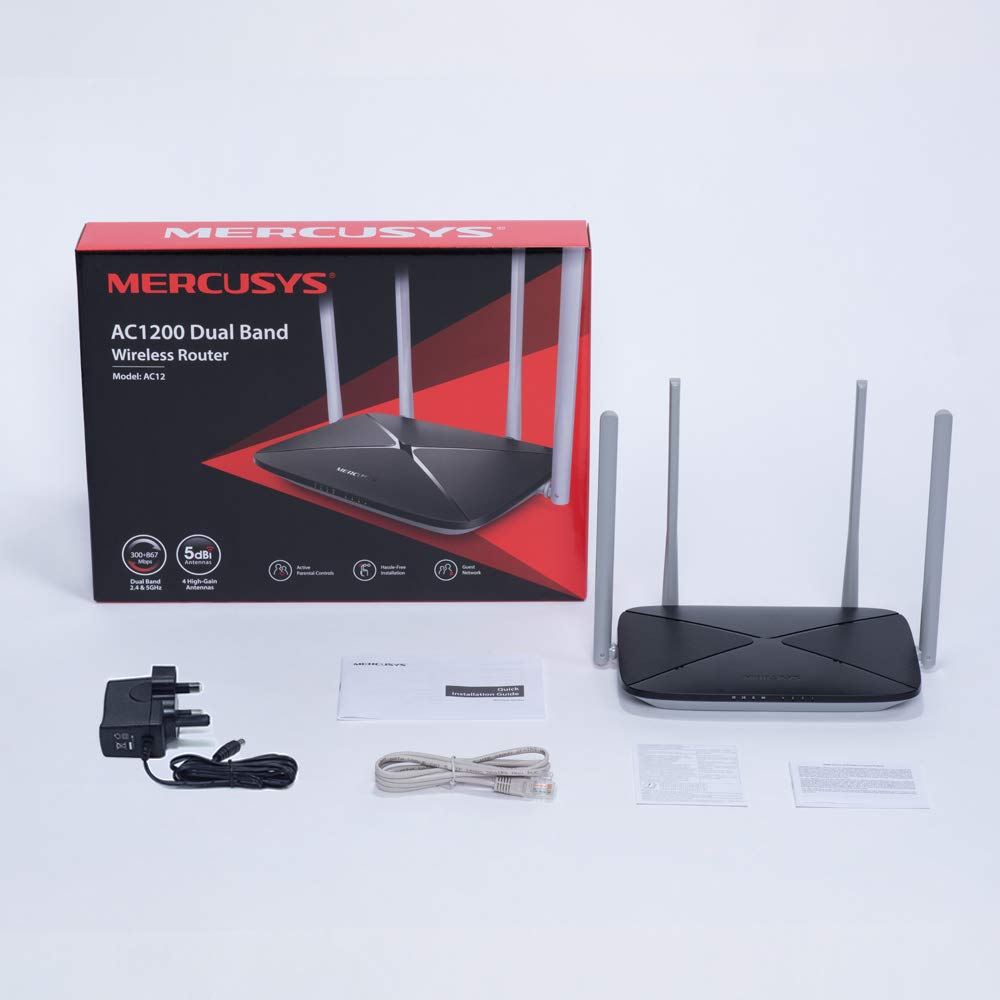
تأكد من وجود جميع العناصر في عبوة المنتج الخاص بك:
- MERCUSYS AC1200 Dual Band Wireless Router (AC12)
- محول الطاقة
- دليل التثبيت السريع
- كابل إيثرنت
3. انتهت الأجهزةview
3.1 اللوحة الأمامية
The front panel features LED indicators that provide status information about the router's operation, including power, internet connection, and Wi-Fi activity.

3.2 اللوحة الخلفية
The rear panel contains all the physical ports and buttons necessary for connecting the router to your network and power source.
- WAN Port (Orange): يتصل بجهاز المودم الخاص بك أو بمعدات مزود خدمة الإنترنت (ISP).
- LAN Ports (Blue): Connects to wired devices such as computers, gaming consoles, or network printers. The AC12 model features 4 LAN ports.
- مدخلات الطاقة: يتصل بمحول الطاقة المقدم.
- زر إعادة الضبط/WPS: Used to reset the router to factory settings or to initiate a Wi-Fi Protected Setup (WPS) connection.

3.3 الهوائيات
The router is equipped with four external 5dBi omni-directional antennas, designed to enhance wireless coverage and signal strength.

4. دليل الإعداد
Follow these steps to set up your MERCUSYS AC1200 Router:
- توصيل الأجهزة:
- قم بإيقاف تشغيل المودم الخاص بك.
- Connect the modem's Ethernet cable to the WAN port (orange) of the AC12 router.
- Connect your computer to one of the LAN ports (blue) on the router using an Ethernet cable, or connect wirelessly using the default Wi-Fi name (SSID) and password printed on the router's label.
- Power on your modem, then power on the AC12 router.
- Configure Router via Web الواجهة:
افتح web browser on your connected computer or device. The intuitive webpage guides you through the setup process in minutes.
- الخطوة 1: Create a unique login password for the router's management page.
- الخطوة 2: Choose your internet service type and enter any required information provided by your ISP.
- الخطوة 3: Set your wireless network name (SSID) and password for both 2.4 GHz and 5 GHz bands.

5. تعليمات التشغيل
5.1 واي فاي ثنائي النطاق
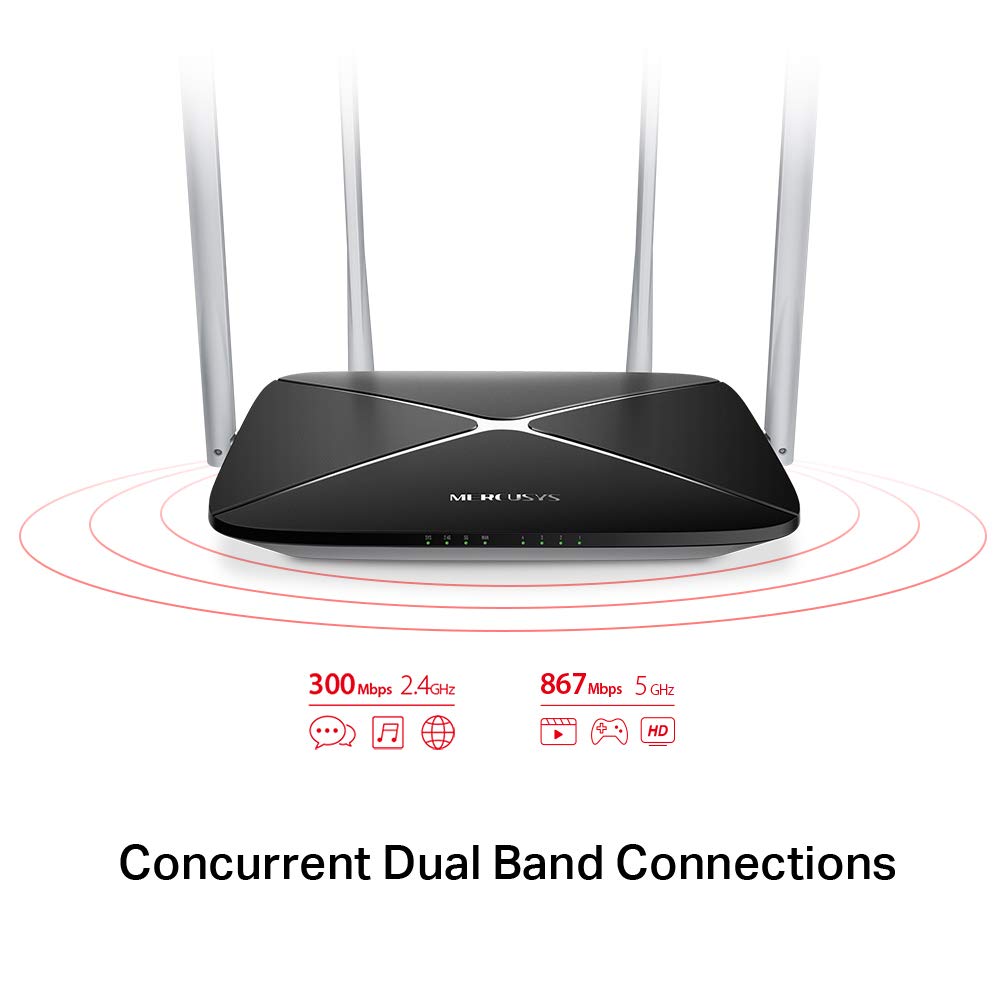
The AC1200 router operates on two distinct Wi-Fi bands:
- نطاق 2.4 جيجاهرتز: Provides speeds of up to 300 Mbps, suitable for general internet use, web التصفح والبريد الإلكتروني.
- نطاق 5 جيجاهرتز: Offers faster speeds of up to 867 Mbps, ideal for online gaming, HD video streaming, and other bandwidth-intensive applications.
5.2 Enhanced Wireless Coverage
The four external 5dBi omni-directional antennas are designed to provide extensive wireless coverage and strong signal intensity throughout your home or office, minimizing weak spots and dropped connections.

5.3 شبكة الضيف
The Guest Network feature allows you to provide secure Wi-Fi access to guests without sharing your main network password. This enhances security by isolating guest devices from your primary network resources.
5.4 بروتوكول الأمان
The router supports WPA-PSK / WPA2-PSK security protocols to protect your wireless network from unauthorized access.
6. الصيانة
- تحديثات البرامج الثابتة: Regularly check the MERCUSYS official webموقع للحصول على تحديثات البرامج الثابتة لضمان الأداء والأمان الأمثل.
- التنظيف المادي: حافظ على نظافة جهاز التوجيه وخلوه من الغبار. استخدم قطعة قماش ناعمة وجافة للتنظيف. لا تستخدم المنظفات السائلة.
- الموقع: ضع جهاز التوجيه في مكان مركزي، بعيدًا عن العوائق والأجهزة التي قد تسبب التداخل (مثل أجهزة الميكروويف والهواتف اللاسلكية).
- إعادة التشغيل: إذا واجهت مشاكل في الشبكة، فحاول إعادة تشغيل جهاز التوجيه عن طريق فصل محول الطاقة لمدة 10 ثوانٍ ثم إعادة توصيله.
7. استكشاف الأخطاء وإصلاحها
- لا يوجد اتصال بالإنترنت:
- تأكد من إضاءة مؤشر منفذ WAN. إذا لم يكن مضاءً، فتأكد من توصيل كابل الإيثرنت الخاص بجهاز المودم بشكل محكم.
- تأكد من أن جهاز المودم الخاص بك يعمل بشكل صحيح.
- أعد تشغيل كل من المودم وجهاز التوجيه.
- اتصل بمزود خدمة الإنترنت الخاص بك إذا استمرت المشكلة.
- إشارة واي فاي ضعيفة:
- انقل جهاز التوجيه إلى موقع أكثر مركزية.
- تأكد من وضع الهوائيات بشكل عمودي.
- Minimize physical obstructions (walls, large furniture) between the router and your devices.
- Avoid placing the router near other electronic devices that may cause interference.
- لا يمكن الوصول إلى جهاز التوجيه Web صفحة الإدارة:
- تأكد من أن جهازك متصل بالموجه (سلكيًا أو لاسلكيًا).
- تأكد من استخدامك لعنوان IP الصحيح (على سبيل المثال،
192.168.1.1ormwlogin.net) في الخاص بك web المتصفح. - قم بمسح ذاكرة التخزين المؤقت للمتصفح الخاص بك أو جرب متصفحًا آخر.
- هل نسيت كلمة مرور الواي فاي أو كلمة مرور تسجيل الدخول؟
- You can reset the router to factory default settings by pressing and holding the Reset/WPS button on the rear panel for approximately 6-10 seconds until the LEDs flash. Note that this will erase all your custom settings.
8. المواصفات
| ميزة | التفاصيل |
|---|---|
| ماركة | MERCUSYS |
| اسم الموديل | ايه سي 12 |
| المعيار اللاسلكي | 802.11 ايه سي |
| فئة نطاق التردد | النطاق المزدوج (2.4 جيجاهرتز و 5 جيجاهرتز) |
| 2.4 GHz Wi-Fi Speed | تصل إلى 300 ميجابايت في الثانية |
| 5 GHz Wi-Fi Speed | تصل إلى 867 ميجابايت في الثانية |
| الهوائيات | هوائيان متعدد الاتجاهات بقدرة 5 ديسيبل |
| منافذ إيثرنت | 1 وان، 4 لان |
| بروتوكول الأمان | WPA-PSK / WPA2-PSK |
| أبعاد المنتج | 22.2 × 14 × 3.2 سم |
| وزن العنصر | 260 جرام |
| المجلدtage | 9 فولت |
| توافق نظام التشغيل | Windows (for setup via web واجهه المستخدم) |
9. الضمان والدعم
9.1 معلومات الضمان
This MERCUSYS AC1200 Router comes with a ضمان لمدة 3 سنوات. Please retain your purchase receipt for warranty claims. The warranty covers manufacturing defects under normal use conditions.
9.2 الدعم الفني
For technical assistance, please visit the official MERCUSYS website or contact their customer support. Manufacturer: TP-Link Technologies Co.,Ltd.


