1. المقدمة وما فوقview
This manual provides detailed instructions for the setup, operation, and maintenance of your Xprinter XP-Q200 80mm Thermal Printer. The XP-Q200 is a high-speed thermal receipt printer designed for various operating systems including Windows, Android, and iOS. It offers versatile connectivity options such as USB, Bluetooth, and Ethernet, making it suitable for a wide range of business environments.

الشكل 1.1: الجبهة view of the Xprinter XP-Q200 Thermal Printer.
2. معلومات السلامة
Please read the following safety precautions carefully before using the printer to ensure safe and proper operation:
- Do not touch the thermal print head immediately after printing, as it may be hot.
- Use only the power adapter supplied with the printer. Using an incorrect adapter may damage the printer or cause fire.
- Do not disassemble or modify the printer. Refer all servicing to qualified personnel.
- أبقِ الطابعة بعيدة عن الماء والرطوبة وأشعة الشمس المباشرة.
- تأكد من وضع الطابعة على سطح مستوٍ وثابت.
3. محتويات العبوة
تأكد من أن جميع العناصر المدرجة أدناه موجودة في حزمة الطابعة الخاصة بك:
- Xprinter XP-Q200 Thermal Printer Unit
- محول الطاقة
- كابل يو اس بي
- Thermal Paper Roll (initial)
- دليل المستخدم
4. مواصفات المنتج
The Xprinter XP-Q200 offers a range of features designed for efficient and reliable thermal printing:
- طباعة عالية السرعة: Achieves print speeds of up to 260mm/sec with an integrated auto cutter.
- واجهات متعددة: Equipped with USB, Bluetooth, and Ethernet connectivity for flexible integration.
- توافق واسع: Supports Windows, Linux, and Android operating systems.
- Logo and Barcode Support: Allows for downloading and printing of store logos (BMP file format) and various barcode types on thermal paper.
- التعامل مع الآوراق: Designed to handle thermal paper rolls up to 80x80mm.
- International Language Support: Supports a variety of international languages and scripts.
- إنذارات الخطأ: Features print job tips and error alarm functions for operational awareness.
- Black Mark Detection: Includes a black mark detection function for specific printing applications.
- Missing Orders Function: Incorporates a feature to help avoid "missing orders."
- قدرات المراقبة: Supports Ethernet and Serial port monitoring functions.
- تخزين شعار NV: Provides 256K Bytes of NV Logo download storage.
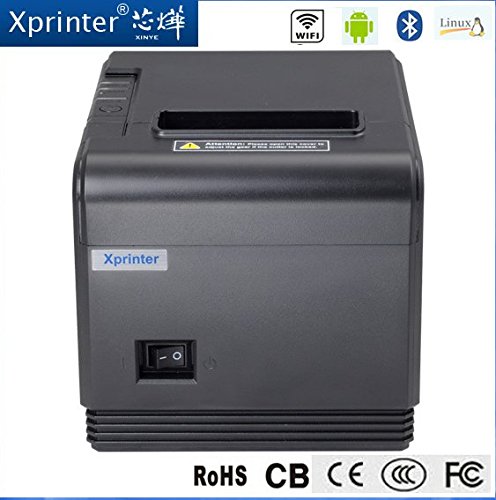
الشكل 4.1: الجبهة view highlighting connectivity options.
5. الإعداد
5.1 الإعداد المادي
- قم بفك الطابعة وإزالة جميع مواد التغليف الواقية.
- Place the printer on a stable, flat surface near a power outlet and your host device.
- Connect the power adapter to the printer's power port and then plug it into a wall outlet.
5.2 تحميل الورق الحراري
- Press the cover open button (usually located on the side or front) to open the printer's top cover.
- Insert the thermal paper roll into the paper compartment with the printing side facing the thermal print head. Ensure the roll unwinds from the bottom.
- اسحب كمية صغيرة من الورق خارج القاطع.
- Close the top cover firmly until it clicks into place. The printer will automatically feed the paper to the correct position.
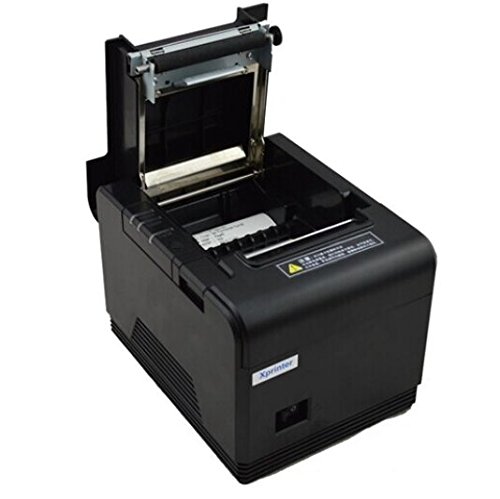
الشكل 5.1: تحميل الورق الحراري في الطابعة.
5.3 الاتصال بجهاز
The XP-Q200 supports USB, Bluetooth, and Ethernet connections.

الشكل 5.2: خلفي view of the printer with connectivity ports.
5.3.1 اتصال USB
- Connect one end of the USB cable to the printer's USB port and the other end to your computer's USB port.
- The computer should detect the printer automatically.
5.3.2 Bluetooth Connection (for Android/iOS)
- تأكد من تشغيل الطابعة.
- On your Android or iOS device, go to Bluetooth settings and enable Bluetooth.
- بحث عن available devices. The printer should appear as "XP-Q200" or similar.
- Select the printer to pair. The default PIN is usually "0000" or "1234".
- Once paired, you can select the printer from your application's print settings.
5.3.3 اتصال إيثرنت
- قم بتوصيل كابل Ethernet من منفذ Ethernet الخاص بالطابعة بجهاز التوجيه أو المحول الشبكي لديك.
- The printer will obtain an IP address automatically via DHCP. For static IP configuration, refer to the advanced settings utility provided with the printer drivers.
5.4 تثبيت برنامج التشغيل
For Windows and Linux systems, you will need to install the appropriate printer drivers. Drivers are typically available on the Xprinter official website or on a CD included with the printer. Follow the on-screen instructions during installation.
6. تعليمات التشغيل
6.1 الطباعة الأساسية
Once the printer is connected and drivers are installed (if applicable), you can send print jobs from your application. Ensure the printer is powered on and has paper loaded.
- From your application (e.g., POS software, web browser), select the print option.
- Choose "Xprinter XP-Q200" from the list of available printers.
- Adjust any print settings as needed (e.g., paper size, copies).
- انقر فوق "طباعة" لإرسال المهمة إلى الطابعة.
6.2 Logo and Barcode Printing
The XP-Q200 supports custom logo and barcode printing. Refer to the printer's utility software (usually provided with drivers) for instructions on how to upload logos (BMP format) to the printer's NV memory and configure barcode printing settings.
7. الصيانة
7.1 تنظيف الطابعة
يساعد التنظيف المنتظم على الحفاظ على جودة الطباعة وإطالة عمر الطابعة.
- رأس الطباعة: استخدمي قطعة قطنية برفقampened with isopropyl alcohol to gently wipe the thermal print head. Allow it to dry completely before closing the cover. Clean the print head regularly, especially if print quality degrades.
- أسطوانة الطباعة: Clean the rubber platen roller with a soft cloth dampمخفف بالكحول الأيزوبروبيل.
- الخارج: امسح الجزء الخارجي من الطابعة بقطعة قماش ناعمة وجافة. لا تستخدم منظفات أو مذيبات كاشطة.
7.2 إزالة انحشار الورق
في حالة حدوث انحشار للورق:
- أوقف تشغيل الطابعة.
- افتح الغطاء العلوي.
- Carefully remove any jammed paper. Ensure no small pieces of paper remain inside.
- Close the top cover firmly.
- أعد تشغيل الطابعة.
8. استكشاف الأخطاء وإصلاحها
This section addresses common issues you might encounter with your XP-Q200 printer.
| مشكلة | السبب المحتمل | حل |
|---|---|---|
| الطابعة لا تعمل | Power cable loose; Power outlet faulty; Power adapter faulty | Check power connections; Try a different outlet; Contact support if adapter is faulty. |
| لا يوجد مخرج طباعة | No paper; Paper loaded incorrectly; Printer offline; Driver issue | Load paper correctly; Check printer status; Reinstall drivers. |
| جودة طباعة رديئة | Print head dirty; Low quality paper; Print head worn out | Clean print head; Use recommended thermal paper; Contact support for service. |
| انحشار الورق | Paper loaded incorrectly; Foreign object inside | Refer to Section 7.2 for clearing jams. |
| Bluetooth/Ethernet connection fails | Incorrect pairing; Network issue; IP address conflict | Re-pair device; Check network cables/settings; Verify IP address. |
9. المواصفات
| ميزة | مواصفة |
|---|---|
| اسم الموديل | XP-Q200 |
| تكنولوجيا الطباعة | حراري |
| سرعة الطباعة | 260 ملم/ثانية |
| مخرجات الطابعة | أحادي اللون |
| تكنولوجيا الاتصال | بلوتوث، يو اس بي، ايثرنت |
| حجم الورقة | Thermal (80mm) |
| الطباعة على الوجهين | نعم |
| لون | أسود |
| نوع وحدة التحكم | اي او اس، اندرويد |
| المكونات المضمنة | ورق |
| ميزة خاصة | USB |
| نوع الماسح الضوئي | محمول |


