1. المقدمة
This manual provides essential information for the setup, operation, and maintenance of your SMART Board Interactive Whiteboard System SBM685IX3. Please read this manual thoroughly before using the product to ensure proper functionality and to maximize your experience.
2. انتهى المنتجview
The SMART Board Interactive Whiteboard System SBM685IX3 is an advanced interactive display solution designed for collaborative environments such as classrooms and meeting rooms. It combines an 87-inch interactive whiteboard with an ultra-short-throw projector to deliver a large, dynamic display surface.
تتضمن المكونات الرئيسية ما يلي:
- ألواح الكتابة التفاعلية: An 87-inch (7.25 feet diagonal viewing angle) touch-sensitive surface for direct interaction.
- Ultra-Short-Throw Projector: Projects large images from a very short distance, minimizing shadows and glare. Features a 16:10 widescreen (WXGA) aspect ratio and a built-in 16W speaker.
- Pen Tray: For storing interactive pens.

Figure 2.1: The SMART Board Interactive Whiteboard System with an ultra-short-throw projector mounted above, displaying a presentation slide.
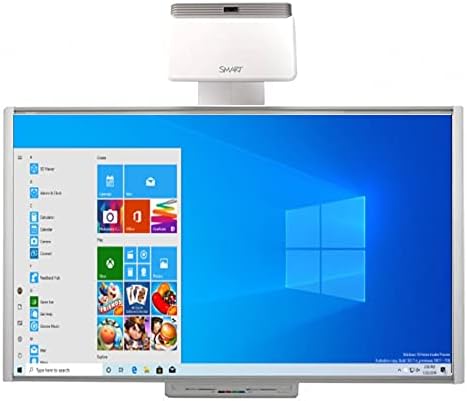
Figure 2.2: The SMART Board interactive whiteboard displaying a Windows 10 desktop interface, highlighting its functionality as a large interactive display.
3. ماذا يوجد في الصندوق
Upon unpacking, verify that all the following components are present:
- SMART Board M685 (87’’)
- Wall mount for SMART Board
- علبة الأقلام
- 2 قلم
- ممحاة
- Ultra-Short-Throw Projector
- جبل العارض
- USB cable (for SMART Board connectivity)
- HDMI cable (for projector video input)
- Power cables (for projector and SMART Board)
- دليل البدء السريع
4. تعليمات الإعداد
اتبع هذه الخطوات لإعداد نظام السبورة التفاعلية SMART Board:
4.1 Mounting the Whiteboard and Projector
- Install Whiteboard Wall Mount: Securely attach the provided wall mount hardware for the SMART Board to a sturdy wall surface according to the quick start guide.
- Mount Whiteboard: Carefully lift and attach the SMART Board M685 to the installed wall mount.
- Install Projector Mount: Attach the projector mount to the wall or ceiling, ensuring it is positioned correctly above the whiteboard. The ultra-short-throw projector is designed to project a 100-inch image from approximately 12 inches away from the edge of the projector to the screen.
- Mount Projector: Secure the ultra-short-throw projector onto its mount.

Figure 4.1: An installed SMART Board interactive whiteboard system in a room, showing the projector mounted on the wall above the board, displaying a blue Windows background.
4.2 توصيل النظام
- Connect SMART Board to Computer: Use the provided USB cable to connect the SMART Board to your computer. This enables touch and pen interaction.
- Connect Projector to Computer: Use the provided HDMI cable to connect the projector to your computer's video output.
- توصيلات الطاقة: Connect the power cables to the SMART Board and the projector, then plug them into appropriate power outlets.
- تشغيل الطاقة: Turn on the projector and the SMART Board. Your computer's display should now be projected onto the whiteboard.
5. تعليمات التشغيل
The SMART Board SBM685IX3 offers intuitive interaction for various applications.
5.1 التفاعل الأساسي
- Touch and Pen: Use your finger or the provided pens to interact with the projected content. The system supports dual-touch controls, allowing multiple users to interact simultaneously.
- وظائف الماوس: Perform standard mouse functions (click, right-click, drag) directly on the board.
- إيماءات اللمس: Utilize natural touch gestures such as flicking, rotating, and zooming to manipulate content.
5.2 SMART Ink Functionality
SMART Ink allows you to write and draw directly over various applications and content:
- علق: Write over websites, videos, PDF documents, and Microsoft Office files.
- Save Notes: Save your annotations and notes in almost any file type for later reference or sharing.

Figure 5.1: The SMART Board interactive whiteboard displaying a world map with annotations, illustrating interactive teaching or presentation capabilities.

Figure 5.2: Two children interacting with the SMART Board interactive whiteboard, which displays a dinosaur skeleton image, demonstrating its use in educational settings.
5.3 توافق النظام
The SMART Board SBM685IX3 is compatible with both Windows and Mac OS operating systems, allowing for flexible integration into existing IT infrastructures.

Figure 5.3: The SMART Board interactive whiteboard displaying the Windows Start menu with various applications, emphasizing its computer-like functionality.
6. المميزات
The SMART Board Interactive Whiteboard System SBM685IX3 offers several features to enhance collaboration and presentation:
- Natural Touch Experience: Write, erase, and perform mouse functions using a finger or pen with intuitive touch gestures like flick, rotate, and zoom.
- Simultaneous Touch: Supports multiple simultaneous touches, facilitating collaborative work among students or team members.
- SMART Ink Integration: Allows users to write directly over various digital content, including websites, videos, PDFs, and Microsoft Office files, and save notes in multiple file التنسيقات.
- Enhanced Presentations: Provides a large, dynamic surface for delivering engaging content, enabling audience interaction with on-screen elements.
- تطبيقات متعددة: Suitable for diverse uses such as capturing project notes, incorporating client feedback in design processes, and creating training simulators.
7. الصيانة
لضمان طول عمر نظام لوحة SMART Board الخاص بك وأدائه الأمثل، اتبع إرشادات الصيانة التالية:
- Cleaning the Whiteboard: استخدم قطعة قماش ناعمة وخالية من الوبر برفق دampened with water or a mild, non-abrasive cleaner specifically designed for interactive whiteboards. Avoid harsh chemicals or abrasive materials.
- Projector Lens Care: نظّف عدسة جهاز العرض برفق باستخدام قطعة قماش مخصصة لتنظيف العدسات أو منفاخ هواء لإزالة الغبار. تجنّب لمس العدسة مباشرةً بأصابعك.
- النظافة العامة: Keep the surrounding area clean and free of dust. Regularly wipe down the projector casing and pen tray.
- إدارة الكابلات: Ensure all cables are securely connected and not under strain. Avoid bending or kinking cables sharply.
8. استكشاف الأخطاء وإصلاحها
If you encounter issues with your SMART Board system, refer to the following common troubleshooting steps:
8.1 No Display on Whiteboard
- التحقق من الطاقة: Ensure both the projector and the SMART Board are powered on and their power cables are securely connected.
- Verify HDMI Connection: Confirm the HDMI cable is firmly connected between the computer and the projector.
- إعدادات عرض الكمبيوتر: Check your computer's display settings to ensure it is configured to extend or duplicate the display to the projector.
- Projector Input: Ensure the projector's input source is set to the correct HDMI port.
8.2 No Touch or Pen Interaction
- التحقق من اتصال USB: Ensure the USB cable connecting the SMART Board to your computer is securely plugged in.
- تثبيت برنامج التشغيل: Verify that the necessary SMART Board drivers are installed on your computer. Refer to the SMART Technologies webموقع للحصول على أحدث برامج التشغيل.
- معايرة: If interaction is inaccurate, perform a calibration of the SMART Board. Instructions for calibration are typically found in the SMART software settings.
8.3 قضايا الصوت
- مستويات الصوت: Check the volume settings on your computer and the projector.
- مخرج الصوت: Ensure your computer's audio output is directed to the HDMI port connected to the projector.
For further assistance, consult the detailed troubleshooting guides available on the SMART Technologies support webموقع.
9. المواصفات
The following are the technical specifications for the SMART Board Interactive Whiteboard System SBM685IX3:
| ميزة | مواصفة |
|---|---|
| ماركة | ذكي |
| نموذج | SBM685IX3 |
| الشركة المصنعة | NETCNA |
| وزن العنصر | 63 رطل |
| أبعاد المنتج | 77.5 × 49.5 × 2 بوصة |
| Whiteboard Size | 87 inches (7.25 feet diagonal viewزاوية جي) |
| نوع جهاز العرض | Ultra-Short-Throw |
| نسبة العرض إلى الارتفاع لجهاز العرض | 16:10 Widescreen (WXGA) |
| صوت جهاز العرض | مكبر صوت مدمج بقوة 16 وات |
| الاتصال | USB (for board), HDMI (for projector) |
| لون | أبيض |
| نوع المادة | Low friction aluminum |
| نوع التركيب | حامل الحائط |
| الاستخدامات الموصى بها | School, office, presentation, education, training, classroom, remote learning, workshops, meetings, project management, business presentations |
| ASIN | B01LB9GFKM |
| تاريخ أول توفر | 31 أغسطس 2016 |
10. الضمان والدعم
For information regarding warranty coverage, technical support, and service, please refer to the documentation included with your product or visit the official SMART Technologies website. Specific warranty terms may vary based on region and purchase date.
For driver downloads, software updates, and additional support resources, please visit the manufacturer's support portal.


