1. المقدمة
The Hikvision DS-7104HGHI-F1 is a 4-channel Turbo HD Digital Video Recorder (DVR) designed for surveillance systems. This DVR supports 720P (1MP) resolution and offers versatile connectivity for both HD-TVI/analog and AHD cameras with adaptive access. It features H.264 video compression and dual-stream capabilities, ensuring efficient storage and transmission.
This manual provides essential information for the proper installation, operation, and maintenance of your Hikvision DS-7104HGHI-F1 DVR. Please read it thoroughly before using the device.
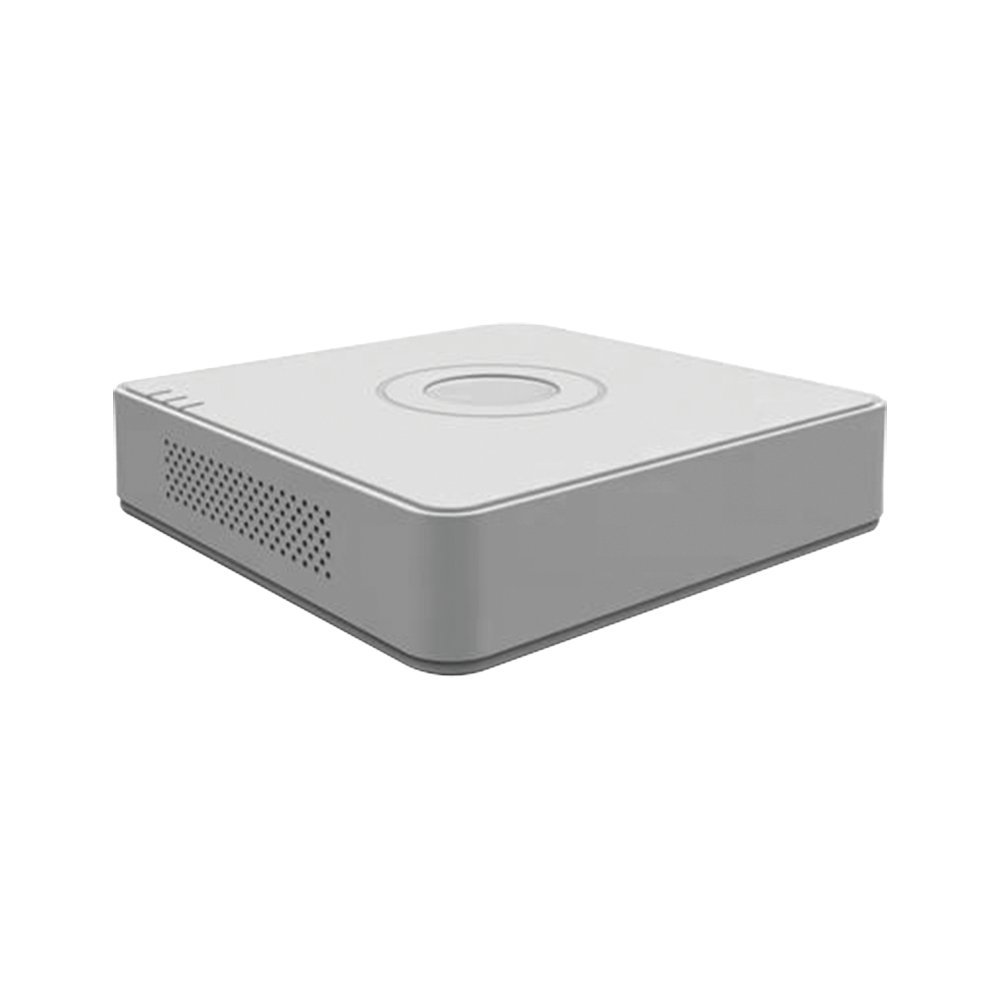
Figure 1: Hikvision DS-7104HGHI-F1 Turbo HD DVR
المميزات الرئيسية:
- 4-channel 720P (1MP) Turbo HD DVR.
- Full channel@720P resolution non-real-time recording.
- HDMI and VGA output at up to 1920x1080P resolution.
- H.264 & Dual-stream video compression.
- Support for HD-TVI /analog and AHD cameras with adaptive access.
- Long transmission distance over coax cable.
- Support for 4-ch synchronous playback at 720P resolution.
- RJ45 Ethernet port and 2 USB ports.
- Supports up to 4TB HDD (Hard Disk Drive not included).
- In-built Free DDNS for mobile viewing (Android and Windows Phone compatible).
2. الإعداد والتثبيت
2.1 محتويات العبوة
قبل البدء بالتثبيت، تأكد من وجود جميع العناصر في العبوة:
- Hikvision DS-7104HGHI-F1 DVR Unit
- محول الطاقة
- ماوس USB
- Screws for HDD installation
- دليل البدء السريع
Note: Hard Disk Drive (HDD) and cameras are not included and must be purchased separately.
2.2 تركيب الأجهزة
- تثبيت محرك الأقراص الصلبة (HDD):
- قم بفك وإزالة الغطاء العلوي لجهاز التسجيل الرقمي.
- Connect the SATA power and data cables from the DVR to the HDD.
- قم بتثبيت القرص الصلب في هيكل جهاز التسجيل الرقمي باستخدام البراغي المرفقة.
- أعد تركيب الغطاء العلوي وثبته بالمسامير.
- ربط الكاميرات:
- Connect your HD-TVI, AHD, or analog cameras to the BNC video input ports on the rear panel of the DVR.
- توصيل الشاشة:
- Connect a monitor to the HDMI or VGA output port on the DVR using an appropriate cable.
- توصيل الماوس:
- قم بتوصيل فأرة USB بأحد منافذ USB الموجودة على جهاز التسجيل الرقمي (DVR).
- ربط الشبكة (اختياري):
- لجهاز التحكم عن بعد viewing and network access, connect an Ethernet cable from the RJ45 port on the DVR to your router or network switch.
- توصيل الطاقة:
- Connect the power adapter to the DVR's power input and then plug it into a power outlet. The DVR will power on automatically.
2.3 التكوين الأولي
عند تشغيل جهاز التسجيل الرقمي لأول مرة، سيرشدك خلال معالج الإعداد الأولي. اتبع التعليمات التي تظهر على الشاشة للقيام بما يلي:
- Set up a strong password for the administrator account.
- تكوين إعدادات التاريخ والوقت.
- Format the installed HDD for recording.
- Configure network settings (DHCP recommended for most home users).
3. تعليمات التشغيل
3.1 مباشر View
بعد الإعداد الأولي، سيعرض جهاز التسجيل الرقمي البث المباشر view من الكاميرات المتصلة على الشاشة. يمكنك التبديل بين وضع الكاميرا الواحدة view وشبكة متعددة الكاميرات view باستخدام عناصر التحكم التي تظهر على الشاشة أو الماوس.
3.2 التسجيل
The DVR is typically configured for continuous recording by default after HDD formatting. You can access the recording schedule settings via the main menu to configure motion-detection recording, scheduled recording, or alarm-triggered recording for individual channels.
3.3 التشغيل
لإعادةview تم تسجيل فوtage:
- انقر بزر الماوس الأيمن على البث المباشر view الشاشة لفتح القائمة الرئيسية.
- اختر "تشغيل".
- Choose the desired camera channel(s) and date/time range.
- استخدم عناصر التحكم في التشغيل (تشغيل، إيقاف مؤقت، تقديم سريع، ترجيع) للتنقل بين مقاطع الفيديوtage.

Figure 2: Video Resolution Comparison
3.4 الجوال Viewing (Hik-Connect / DDNS)
يدعم جهاز التسجيل الرقمي التحكم عن بعد viewing via Hik-Connect P2P service or DDNS.
- تأكد من توصيل جهاز التسجيل الرقمي بالإنترنت.
- Enable the Hik-Connect service or configure DDNS settings in the DVR's network menu.
- Download the Hik-Connect app on your Android or Windows Phone device.
- Register an account and add your DVR by scanning the QR code or entering the serial number.
- يمكنك الآن view يعيش فوtage and playback recordings remotely.

Figure 3: Hik-Connect P2P Service
4. الصيانة
4.1 التنظيف المنتظم
- Keep the DVR unit clean and free from dust. Use a soft, dry cloth for cleaning.
- تأكد من عدم سد فتحات التهوية لمنع ارتفاع درجة الحرارة.
- Do not use liquid or aerosol cleaners directly on the unit.
4.2 تحديثات البرامج الثابتة
تحقق بشكل دوري من موقع هيكفيجن الرسمي website for firmware updates. Firmware updates can improve performance, add new features, and address security vulnerabilities. Follow the instructions provided by Hikvision carefully when performing firmware updates.
4.3 النسخ الاحتياطي للبيانات
قم بعمل نسخة احتياطية من الأطعمة المسجلة المهمة بانتظامtage to an external USB drive or network storage. This ensures data retention in case of HDD failure or other unforeseen issues.
5. استكشاف الأخطاء وإصلاحها
| مشكلة | السبب المحتمل | حل |
|---|---|---|
| لا يوجد إخراج فيديو على الشاشة |
|
|
| لا توجد صورة للكاميرا |
|
|
| لا يمكن الوصول إلى جهاز التسجيل الرقمي عن بُعد |
|
|
| لا تسجيل |
|
|
6. المواصفات
| ميزة | التفاصيل |
|---|---|
| رقم الموديل | DS-7104HGHI-F1 |
| ضغط الفيديو | ح.264 |
| مدخل الفيديو | 4-ch BNC (HD-TVI, AHD, Analog adaptive access) |
| مدخل الصوت | قناة واحدة RCA |
| هدمي / إخراج فغا | 1-ch, 1920 × 1080P/60Hz, 1280 × 1024/60Hz, 1280 × 720/60Hz, 1024 × 768/60Hz |
| دقة التسجيل | 720P (1MP) non-real-time |
| تشغيل متزامن | 4-ch at 720P |
| دعم محركات الأقراص الصلبة | واجهة SATA واحدة، بسعة تصل إلى 4 تيرابايت |
| واجهة الشبكة | واجهة إيثرنت ذاتية التكيف RJ45 بسرعة 10/100 ميجابت في الثانية |
| واجهة USB | 2 واجهات USB 2.0 |
| الأبعاد (الطول × العرض × الارتفاع) | 12 × 3.5 × 10 سم |
| وزن | 1.06 كجم (حوالي 2.34 رطلاً) |

Figure 4: Turbo HD Technology Support
7. معلومات الضمان
This Hikvision DS-7104HGHI-F1 DVR typically comes with a ضمان لمدة 2 سنوات من تاريخ الشراء.
Please note that the warranty generally covers manufacturing defects. It does not cover physical damage or damage caused by burning. For specific terms and conditions, please refer to the warranty card included with your product or contact Hikvision customer support.
8. الدعم والاتصال
For technical assistance, product inquiries, or warranty claims, please contact Hikvision customer support.
- رسمي Webموقع: قم بزيارة موقع هيكفيجن الرسمي webالموقع للحصول على موارد الدعم والأسئلة الشائعة ومعلومات الاتصال.
- الموارد المتاحة على الإنترنت: Check for updated manuals, firmware, and software tools on the Hikvision support portal.
Always refer to the latest documentation available from the manufacturer for the most accurate and up-to-date information.


