1. المقدمة
This manual provides essential information for the proper setup, operation, and maintenance of your Hewlett Packard 813195-B21 Server. This server is designed for various computing tasks, featuring an Intel Xeon E5-2650v4 processor and 64GB of RAM. Please read this manual thoroughly before using the product to ensure optimal performance and longevity.
For additional support and resources, please visit the official Hewlett Packard webموقع.
2. محتويات العبوة
Verify that all items listed below are present in the product packaging. If any items are missing or damaged, contact your vendor or Hewlett Packard support.
- Hewlett Packard 813195-B21 Server Unit
- Power Cable (may vary by region)
- التوثيق (دليل البدء السريع، معلومات السلامة)
ملحوظة: Hard drives are not included and must be purchased separately.
3. الإعداد
3.1 فك التعبئة والتركيب الفعلي
Carefully remove the server from its packaging. Place the server on a stable, level surface in a well-ventilated area. Ensure adequate space around the server for proper airflow to prevent overheating. Avoid placing the server near heat sources or in direct sunlight.
The server dimensions are approximately 5.54 x 51.76 x 18.07 inches (LxWxH) and it weighs approximately 14 pounds.
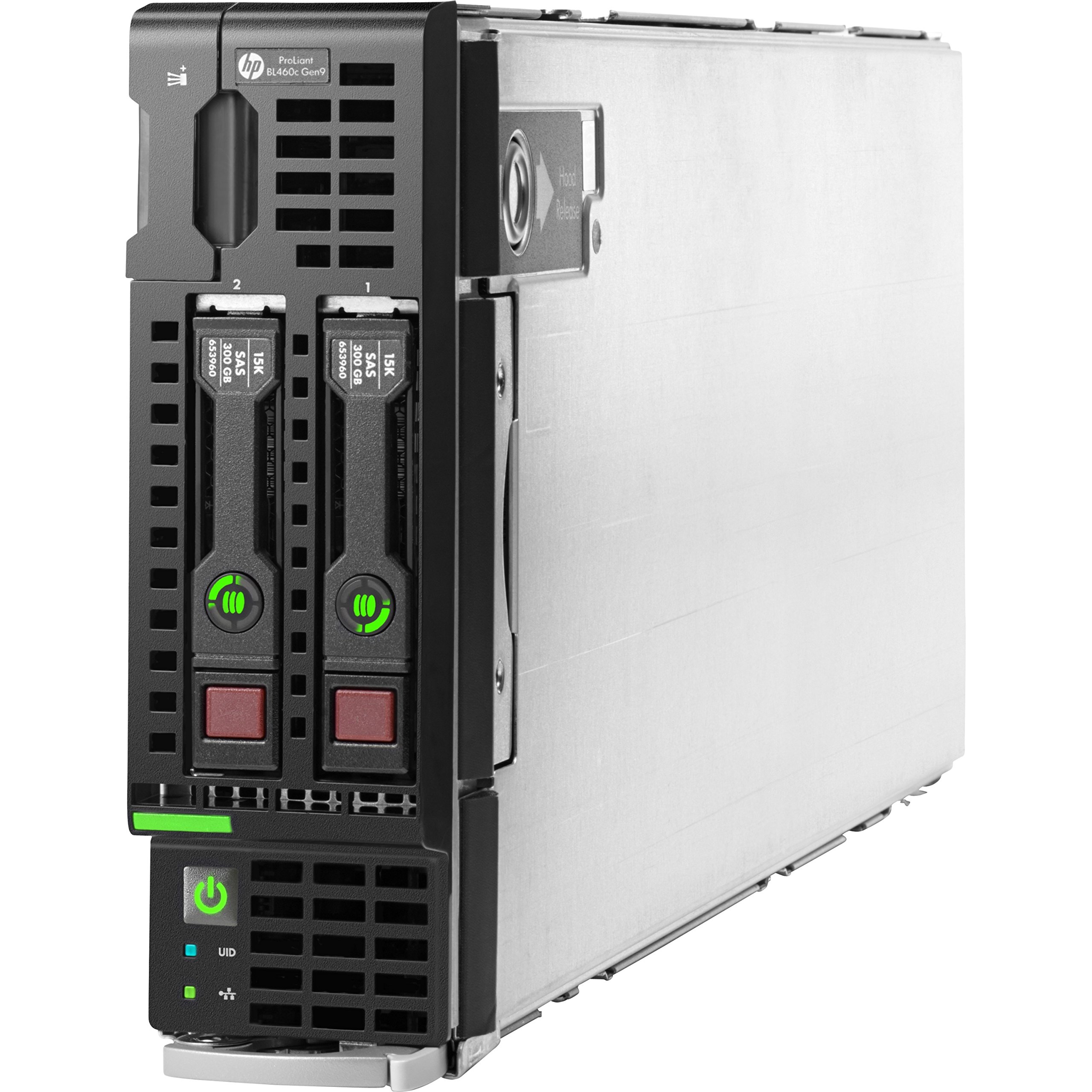
الشكل 3.1: أمام view of the Hewlett Packard 813195-B21 Server. This image shows the general form factor and potential front panel components.
3.2 توصيل الطاقة
- Connect the provided power cable to the power input port on the server.
- قم بتوصيل الطرف الآخر من كابل الطاقة بمأخذ كهربائي مؤرض.
- Ensure the power source meets the server's electrical requirements.
3.3 الاتصالات الطرفية
Connect necessary peripherals such as a monitor, keyboard, and mouse to the available ports. The server includes 2 USB 2.0 ports and 2 USB 3.0 ports for connecting devices.
For network connectivity, connect an Ethernet cable to the Gigabit Ethernet port on the server and to your network switch or router.
3.4 تثبيت نظام التشغيل
The Hewlett Packard 813195-B21 Server does not come with a pre-installed operating system or hard drives. You will need to install a compatible operating system such as Windows, Linux, or VMware. Refer to the operating system's installation guide for detailed instructions.
Ensure you have installed appropriate storage devices (e.g., HDDs or SSDs) before attempting OS installation.
4. تشغيل الخادم
4.1 تشغيل/إيقاف التشغيل
- لتشغيل: Press the power button located on the front panel of the server. The power indicator light will illuminate.
- لإيقاف التشغيل: Perform a graceful shutdown through the installed operating system. If the operating system is unresponsive, press and hold the power button for approximately 5 seconds until the server powers down.
4.2 التكوين الأولي
After the operating system is installed, follow the on-screen prompts for initial configuration, including network settings, user accounts, and software updates. Refer to your operating system's documentation for specific steps.
4.3 مراقبة النظام
Regularly monitor the server's performance, temperature, and disk usage using the tools provided by your operating system or third-party monitoring software. This helps ensure stable operation and identify potential issues early.
5. الصيانة
5.1 العناية العامة
- Keep the server in a clean, dust-free environment.
- تأكد من أن جميع فتحات التهوية خالية من العوائق.
- Avoid spilling liquids on or near the server.
5.2 تحديثات البرامج
Regularly update the operating system, drivers, and firmware to ensure security, stability, and optimal performance. Refer to Hewlett Packard's support website for the latest firmware updates for your server model.
6. استكشاف الأخطاء وإصلاحها
This section provides solutions to common issues you might encounter. For more complex problems, consult the Hewlett Packard support webالموقع أو الاتصال بالدعم الفني.
6.1 Server Does Not Power On
- Verify that the power cable is securely connected to both the server and the electrical outlet.
- تأكد من أن المخرج الكهربائي يعمل عن طريق توصيل جهاز آخر.
- Ensure the power supply unit (PSU) is properly seated (if applicable).
6.2 لا يوجد مخرج عرض
- Ensure the monitor is powered on and connected correctly to the server's video output port.
- جرب كابل فيديو أو شاشة مختلفة لاستبعاد وجود عطل في الجهاز.
- If the server has multiple video outputs, ensure you are using the primary one or the one connected to your monitor.
6.3 فشل نظام التشغيل في الإقلاع
- Verify that hard drives or SSDs are correctly installed and detected by the server's BIOS/UEFI.
- Check the boot order in the BIOS/UEFI settings to ensure the correct boot device is prioritized.
- If recently installed, attempt a re-installation of the operating system.
7. المواصفات
The following table details the technical specifications of the Hewlett Packard 813195-B21 Server:
| ميزة | التفاصيل |
|---|---|
| ماركة | هيوليت باكارد |
| رقم الموديل | -813195 B21 |
| المعالج | Intel Xeon E5-2650v4 (2.2 GHz) |
| كبش | 64 جيجا بايت |
| سرعة الذاكرة | 2400 ميجا هرتز |
| القرص الصلب | No HDD included (supports HDD) |
| شرائح العلامة التجارية | إنتل |
| وصف البطاقة | مدمج |
| منافذ USB 2.0 | 2 |
| منافذ USB 3.0 | 2 |
| منصة الأجهزة | بروليانت |
| دعم نظام التشغيل | Windows, Linux, VMware |
| وزن العنصر | 14 رطل |
| أبعاد المنتج (الطول × العرض × الارتفاع) | 5.54 × 51.76 × 18.07 بوصة |
| لون | أسود |
| أول تاريخ متاح | 2 أبريل 2016 |
8. الضمان والدعم
Warranty information for the Hewlett Packard 813195-B21 Server is typically provided with the product at the time of purchase or can be found on the official Hewlett Packard webيرجى الاحتفاظ بإثبات الشراء الخاص بك للمطالبة بالضمان.
For technical assistance, troubleshooting, driver downloads, and further documentation, please visit the official Hewlett Packard support portal. Contact information for customer service can also be found on their webموقع.