1. المقدمة وما فوقview
The Mad Catz Street Fighter V Arcade FightStick TES+ is designed for serious fighting game enthusiasts, bringing an authentic arcade experience to PlayStation 4 and PlayStation 3 consoles. This FightStick features high-quality Sanwa Denshi components, including a ball-handled joystick and 30mm action buttons, ensuring precision and durability for competitive play.

الصورة 1.1: بزاوية view of the Mad Catz Street Fighter V Arcade FightStick TES+.
This manual provides detailed instructions for setting up, operating, and maintaining your FightStick, along with troubleshooting tips and product specifications.
2. مواصفات المنتج
The TES+ FightStick incorporates several key features to enhance your gaming experience:
- Genuine Arcade Layout: Equipped with highly accurate and durable Sanwa Denshi parts, including a Vewlix-style design with 8 action buttons.
- Versatile Joystick: A 3-way button allows the joystick to emulate a left analog stick, right analog stick, or D-Pad, providing compatibility with various game types.
- ضوابط لوحة اللمس: Full touchpad functionality for PlayStation 4 systems, enabling use in games that require touchpad input.
- Reliable USB Connectivity: Features a 9.8ft (3m) USB cable for a low-latency, stable connection and comfortable distance from your display.
- Lock Option: A dedicated lock switch disables non-essential buttons during gameplay to prevent accidental pauses or menu access.

الصورة 2.1: من أعلى إلى أسفل view illustrating the joystick and button layout.
3. تعليمات الإعداد
Follow these steps to connect your Mad Catz FightStick TES+ to your console or PC:
- Unpack the FightStick: Carefully remove the FightStick from its packaging.
- Connect to Console (PlayStation 4 / PlayStation 3): Locate the USB cable attached to the FightStick. Plug the USB connector into an available USB port on your PlayStation 4 or PlayStation 3 console. The console should automatically detect the FightStick.
- الاتصال بالكمبيوتر الشخصي: Plug the USB connector into an available USB port on your computer. For optimal performance and full functionality, it may be necessary to install specific drivers. While Windows 10 often recognizes the device as a PS4 controller, some features like the joystick toggle may require Mad Catz drivers, which can typically be found on the manufacturer's support website or through community resources.
- Select Platform: Use the PS3/PS4 switch located on the control panel to select the correct platform (PS3 or PS4) for your console.
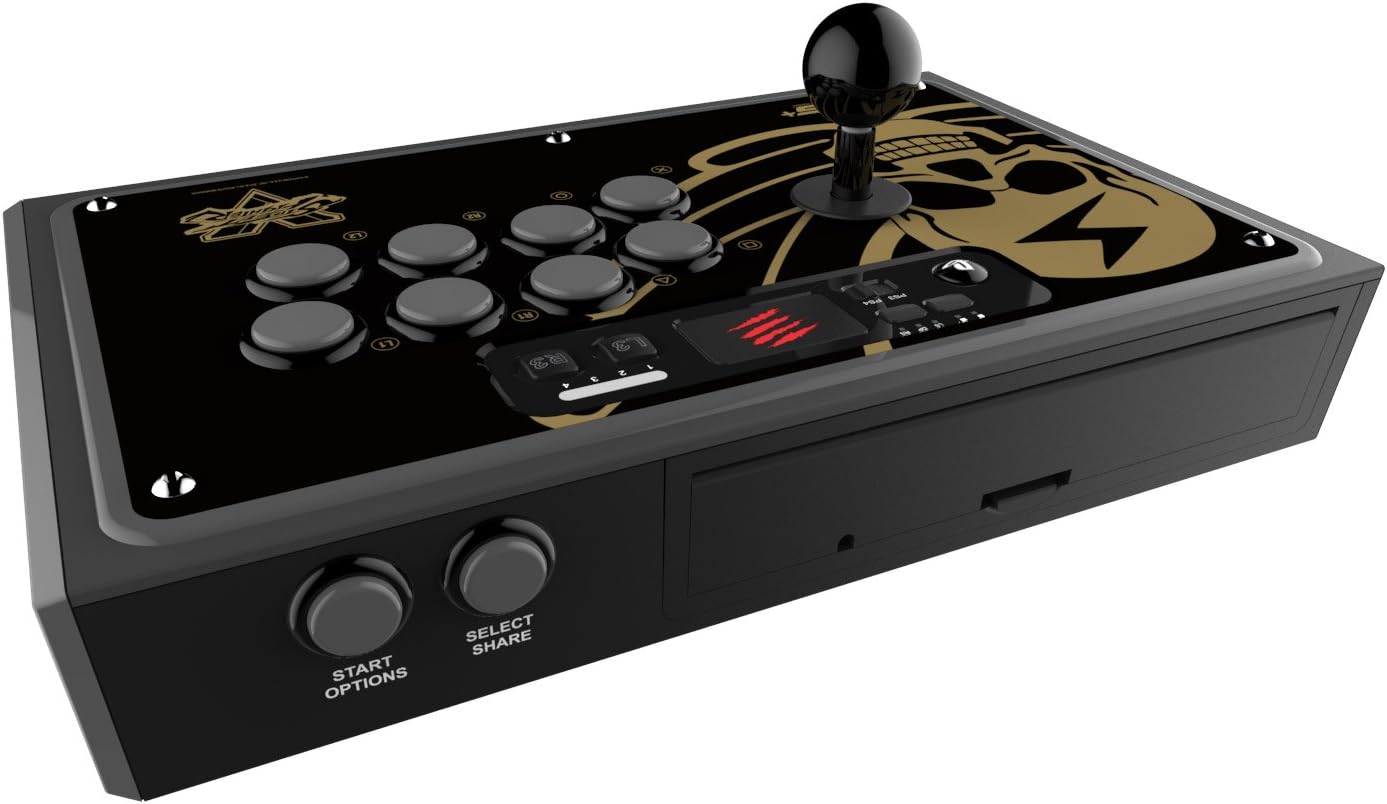
الصورة 3.1: الجانب view displaying the Start/Options and Select/Share buttons, and the cable compartment.
4. تعليمات التشغيل
Understanding the controls and functions of your FightStick is crucial for effective gameplay.
4.1. Joystick Functionality
The primary control is the Sanwa Denshi joystick. It provides precise 8-way directional input. A 3-way switch on the control panel allows you to assign the joystick's input to:
- عصا التحكم التناظرية اليسرى: For games that primarily use the left analog stick for movement.
- عصا التحكم التناظرية اليمنى: For games that use the right analog stick for camera control or other functions.
- D- الوسادة: For traditional directional pad input, common in fighting games.
4.2. أزرار العمل
The FightStick features eight 30mm Sanwa Denshi action buttons arranged in a Vewlix-style layout. These correspond to the face buttons (X, Circle, Square, Triangle) and shoulder buttons (L1, L2, R1, R2) on a standard PlayStation controller. Refer to Image 2.1 for the exact button mapping.
4.3. وظائف خاصة
- لوحة اللمس: The integrated touchpad functions identically to the PlayStation 4 controller's touchpad, allowing for press and swipe inputs in compatible games.
- أزرار L3/R3: Dedicated L3 and R3 buttons are available for additional in-game commands.
- Start/Options & Select/Share Buttons: These buttons are located on the side panel (refer to Image 3.1) and perform their standard console functions.
- مفتاح القفل: To prevent accidental interruptions during intense gameplay, activate the lock switch. This disables the PlayStation button, touchpad, L3, R3, and joystick toggle, allowing only the essential action buttons and joystick to function.
5. الصيانة
Proper care and maintenance will extend the lifespan of your FightStick.
- تنظيف: Use a soft, dry cloth to wipe down the surface of the FightStick. For stubborn grime, a slightly damp cloth with mild soap can be used, ensuring no liquid enters the internal components. Avoid abrasive cleaners.
- تخزين: Store the FightStick in a clean, dry place away from direct sunlight and extreme temperatures. The USB cable can be neatly stored in its dedicated compartment.
- Modding: The FightStick is designed with moddability in mind, featuring easily accessible wiring with connectors. However, exercise caution when opening the unit. Modifying components may void your warranty. Consult online communities or professional modders for guidance if you plan to customize parts like buttons or the joystick gate.
6. استكشاف الأخطاء وإصلاحها
If you encounter issues with your FightStick, try the following solutions:
- FightStick Not Responding:
- Ensure the USB cable is securely connected to both the FightStick and the console/PC.
- Verify the PS3/PS4 switch is set to the correct platform.
- حاول الاتصال بمنفذ USB مختلف.
- أعد تشغيل جهازك أو جهاز الكمبيوتر الخاص بك.
- Joystick or Buttons Not Working on PC:
- Check if necessary drivers are installed. While Windows may recognize it, specific drivers from Mad Catz or community-sourced drivers might be required for full functionality.
- Ensure the joystick 3-way switch is set correctly (e.g., D-Pad for fighting games).
- الضغط على الأزرار عن طريق الخطأ:
- Activate the Lock Switch to disable non-essential buttons during gameplay.
- تأخر الإدخال:
- Ensure you are using a direct USB connection, avoiding USB hubs if possible.
- Check for any background processes on your PC that might be consuming resources.
If these steps do not resolve the issue, please refer to the warranty and support section.
7. المواصفات
| اسم المنتج | Mad Catz Street Fighter V Arcade FightStick TES+ |
| رقم الموديل | SFV893840SA1/01/1 |
| ASIN | B018AW408C |
| التوافق | بلاي ستيشن 4، بلاي ستيشن 3، الكمبيوتر الشخصي |
| عناصر | Sanwa Denshi Joystick, Sanwa Denshi 30mm Buttons |
| الاتصال | USB (9.8ft / 3m cable) |
| أبعاد | 8 × 4 × 2 بوصات (تقريبًا) |
| وزن | 5 رطل (تقريبًا) |
| الشركة المصنعة | ماد كاتز |
| متوفر أولاً | 3 ديسمبر 2015 |
8. الضمان والدعم
For information regarding product warranty, returns, or technical support, please refer to the official Mad Catz website or contact their customer service directly. Warranty terms and conditions may vary based on region and purchase date.
من المستحسن الاحتفاظ بإثبات الشراء الخاص بك لاستخدامه في حالة وجود أي مطالبات بالضمان.


