مقدمة
This manual provides essential information for setting up, operating, maintaining, and troubleshooting your Microsoft Surface Pro 3. The Surface Pro 3 is a versatile device designed to function as both a tablet and a laptop, powered by the Windows 10 operating system.
It features a 12-inch high-resolution screen, ample internal storage, dual HD cameras, and robust connectivity options, including a full-size USB 3.0 port. Its integrated kickstand allows for comfortable viewing in various positions, and the magnesium frame ensures a lightweight and durable design.
معلومات السلامة
- لا تعرض الجهاز لدرجات حرارة عالية، أو أشعة الشمس المباشرة، أو الرطوبة العالية.
- تجنب إسقاط الجهاز أو تعريضه لصدمة شديدة.
- Use only Microsoft-approved power adapters and accessories.
- Keep the device away from liquids. In case of liquid contact, power off immediately and seek professional assistance.
- لا تحاول تفكيك الجهاز أو إصلاحه بنفسك. قد يؤدي ذلك إلى إلغاء الضمان وتلفه.
- Ensure proper ventilation when using the device to prevent overheating.
يثبت
1. فك الصندوق والفحص الأولي
Carefully remove the Surface Pro 3 and all accessories from the packaging. Inspect the device for any visible damage. Retain the packaging for future transport or service needs.
2. التشغيل والإعداد الأولي
- قم بتوصيل مصدر الطاقة بجهاز Surface Pro 3 ومأخذ الطاقة.
- اضغط على زر الطاقة الموجود على الحافة العلوية للجهاز.
- Follow the on-screen prompts to complete the Windows 10 initial setup, including language selection, network connection, and user account creation.
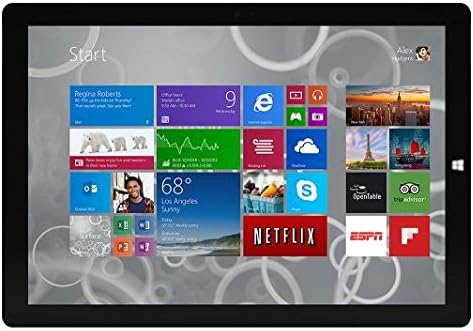
Figure 1: Windows 10 Start Screen during initial setup.
This image shows the Microsoft Surface Pro 3 screen displaying the Windows 10 Start menu, characterized by a grid of live tiles representing various applications and services. This is typically seen during the initial setup or when navigating the operating system.
3. Attaching Accessories (Sold Separately)
The Surface Pro 3 is compatible with various accessories, such as the Surface Type Cover keyboard and the Surface Pen, which are sold separately.
- Surface Type Cover: Align the magnetic connector of the Type Cover with the bottom edge of the Surface Pro 3 until it clicks into place.
- قلم السطح: The Surface Pen can be magnetically attached to the side of the Surface Pro 3 for storage. For initial pairing, follow the instructions provided with the pen.
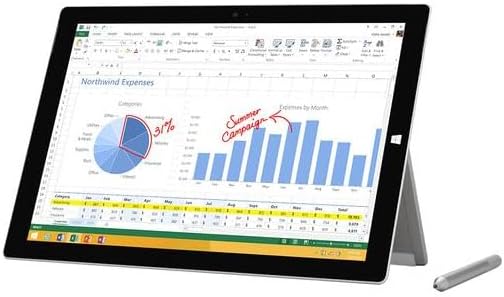
Figure 2: Surface Pro 3 with optional Surface Pen.
This image illustrates the Microsoft Surface Pro 3 in use, displaying an Excel spreadsheet on its screen. A Surface Pen is positioned next to the device, highlighting its compatibility for precise input and navigation.
4. Expanding Storage with a MicroSD Card
You can expand the internal storage of your Surface Pro 3 using a microSD card (sold separately).
- Locate the microSD card slot on the side of the Surface Pro 3, typically behind the kickstand.
- Insert the microSD card into the slot until it clicks into place.
- The device will automatically detect the card. You may need to format it if it's a new card or if prompted by the system.

Figure 3: MicroSD card slot.
This close-up image shows the microSD card slot on the side of the Microsoft Surface Pro 3, with a microSD card partially inserted, demonstrating how to expand the device's storage.
تعليمات التشغيل
1. Navigating Windows 10
- قائمة ابدأ: Click the Windows icon in the bottom-left corner to access applications, settings, and power options.
- شاشة تعمل باللمس: Use gestures for navigation, zooming, and scrolling.
- Edge Browser: Utilize the pre-installed Edge browser for web browsing, which includes features for marking up web الصفحات.

Figure 4: Using the Surface Pro 3 for productivity.
This image depicts the Microsoft Surface Pro 3 in an active use scenario, showcasing a note-taking application open on its screen. The display features handwritten notes, diagrams, and sketches, illustrating the device's capability for creative and productive tasks.
2. Using the Integrated Kickstand
The multi-position kickstand allows you to adjust the viewing angle for optimal comfort, whether you are typing, watching videos, or drawing.
- Gently pull the kickstand out from the back of the device.
- Adjust it to your desired angle. The kickstand offers a wide range of positions for versatility.
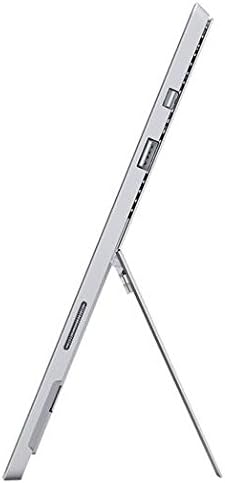
Figure 5: Adjustable kickstand.
تُظهر هذه الصورة جانبًا view of the Microsoft Surface Pro 3, clearly showing its integrated kickstand extended to support the device at an angle, demonstrating its versatile viewقدرات التطوير.
3. وظيفة الكاميرا
The Surface Pro 3 is equipped with 5.0MP front and rear cameras.
- Open the Camera application from the Start Menu.
- Switch between front and rear cameras as needed for photos or video calls.

Figure 6: Front camera.
This close-up image focuses on the front-facing camera and associated sensors located at the top edge of the Microsoft Surface Pro 3 screen.
4. الاتصال
The full-size USB 3.0 port allows for connecting various peripherals and transferring data.
- Insert USB devices (e.g., flash drives, external hard drives, printers) into the USB 3.0 port.
- The device also supports Wi-Fi (802.11a/b/g/n/ac) for wireless internet connectivity.
صيانة
1. Cleaning Your Surface Pro 3
- استخدم قطعة قماش ناعمة وخالية من الوبر دampened with water or a screen cleaner specifically designed for electronics.
- تجنب استخدام المواد الكيميائية القاسية، أو المنظفات الكاشطة، أو البخاخات الهوائية.
- Gently wipe the screen and exterior surfaces.
2. تحديثات البرامج
قم بالتحقق بانتظام من تحديثات نظام التشغيل Windows وتثبيتها لضمان حصول جهازك على أحدث تصحيحات الأمان وتحسينات الأداء.
- اذهب الى إعدادات > التحديث والأمان > تحديث الويندوز.
- Click "Check for updates" and install any available updates.
3. إدارة التخزين
To maintain optimal performance, manage your device's storage space.
- احذف الأشياء غير الضرورية بانتظام fileس والتطبيقات.
- Utilize cloud storage services or external drives for large files.
- Consider using the Disk Cleanup tool in Windows to remove temporary files.
استكشاف الأخطاء وإصلاحها
يتناول هذا القسم المشكلات الشائعة التي قد تواجهها مع جهاز Surface Pro 3.
الجهاز لا يعمل
- تأكد من توصيل مصدر الطاقة بشكل آمن بكل من الجهاز ومأخذ كهربائي يعمل.
- حاول استخدام منفذ طاقة مختلف.
- Press and hold the power button for 10-15 seconds to perform a forced shutdown, then press it again to restart.
مشاكل الاتصال بشبكة Wi-Fi
- تحقق مما إذا كان تم تمكين Wi-Fi في إعدادات Windows.
- أعد تشغيل جهاز توجيه Wi-Fi الخاص بك.
- انسى الشبكة وأعد الاتصال بها، وأدخل كلمة المرور مرة أخرى.
- قم بتشغيل مستكشف أخطاء الشبكة في نظام التشغيل Windows.
الأداء البطيء
- أغلق التطبيقات غير الضرورية التي تعمل في الخلفية.
- التحقق من وجود أي تحديثات Windows معلقة وتثبيتها.
- تأكد من توفر مساحة تخزين كافية لديك.
- قم بإجراء فحص للفيروسات.
For more detailed troubleshooting or issues not covered here, please refer to the official Microsoft Support webالموقع أو الاتصال بخدمة العملاء.
تحديد
| ميزة | التفاصيل |
|---|---|
| نموذج | Microsoft Surface 1631 Pro 3 |
| نظام التشغيل | ويندوز 10 |
| حجم الشاشة | 12 بوصة |
| دقة الشاشة | 2160 × 1440 |
| المعالج | إنتل كور i3 بسرعة 1.5 جيجاهرتز |
| كبش | 4 جيجا بايت |
| التخزين الداخلي | 128 GB Flash Storage |
| معالج الرسوميات المساعد | رسومات Intel HD |
| الكاميرات | 5.0MP Front and Rear |
| نوع لاسلكي | 802.11b، 802.11a، 802.11g |
| الموانئ | Full-size USB 3.0 |
| وزن العنصر | 1.8 رطل |
| أبعاد المنتج | 11.5 × 0.36 × 7.93 بوصة |
| لون | فضي |
الضمان والدعم
Your Microsoft Surface Pro 3 comes with a standard manufacturer's warranty. For detailed warranty terms and conditions, please refer to the documentation included with your purchase or visit the official Microsoft support webموقع.
For technical assistance, troubleshooting guides, driver downloads, and service requests, please visit the دعم مايكروسوفت سيرفس صفحة.


