1. المقدمة
The Arducam 5MP OV5647 Camera Module is a high-definition video camera designed for various Raspberry Pi models, including Model A, B, B+, 2, 3, 3B+, 4, and 5. It features a 5-megapixel Omnivision OV5647 sensor with a fixed-focus lens, capable of capturing still pictures at 2592 x 1944 resolution and video at 1080p. This module connects to the Raspberry Pi via the dedicated MIPI Camera Serial Interface (CSI) connector, offering a compact and efficient solution for imaging projects.
2. معلومات السلامة
- Handle the camera module with care to avoid damage to the lens or circuit board.
- Ensure the Raspberry Pi is powered off before connecting or disconnecting the camera module.
- Avoid touching the sensor or lens surface directly to prevent smudges or scratches.
- Keep the module away from moisture, extreme temperatures, and static electricity.
- Do not use excessive force when inserting the FPC cable into the CSI connector.
3. محتويات العبوة
تأكد من وجود جميع العناصر في الحزمة الخاصة بك:
- 1x Arducam 5MP OV5647 Camera Module
- 1x 15cm 15-pin to 15-pin FPC Cable
- 1x 15cm 15-pin to 22-pin FPC Cable (for Raspberry Pi models requiring a 22-pin connector)
- 1x USB Cable (if included in your specific kit)

Image: Arducam 5MP OV5647 Camera Module with a short flexible printed circuit (FPC) cable attached.
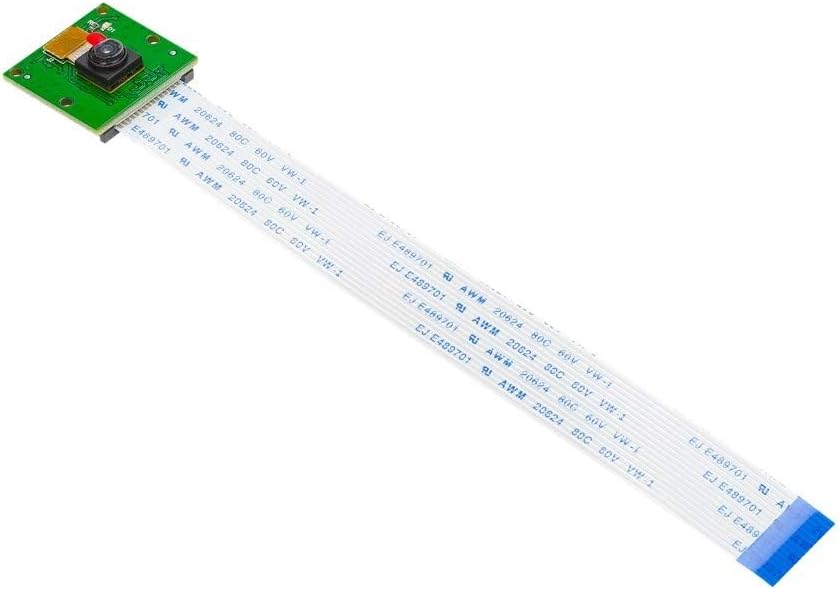
Image: Arducam 5MP OV5647 Camera Module with a longer flexible printed circuit (FPC) cable attached, showing the full length of the cable.
4. تعليمات الإعداد
4.1 اتصال الأجهزة
- Power Off Raspberry Pi: Before connecting the camera, ensure your Raspberry Pi is completely powered off and disconnected from its power source.
- Locate CSI Connector: Identify the CSI (Camera Serial Interface) connector on your Raspberry Pi board. This is typically a long, narrow slot.
- موصل مفتوح: Gently pull up the plastic clip on the top edge of the CSI connector.
- Insert FPC Cable: Carefully insert the FPC cable from the camera module into the CSI connector. Ensure the silver contacts on the cable are facing the correct direction (towards the HDMI port on most Raspberry Pi models). Use the appropriate FPC cable (15-pin or 22-pin) for your specific Raspberry Pi model.
- إغلاق الموصل: Push the plastic clip back down to secure the FPC cable in place.
- تشغيل الطاقة: Reconnect the power to your Raspberry Pi.

Image: The Arducam 5MP OV5647 Camera Module connected to a Raspberry Pi board via its FPC cable, illustrating the proper hardware connection.

Image: The Arducam 5MP OV5647 Camera Module connected to a Raspberry Pi Zero board using a different, narrower FPC cable. Note: This cable for Raspberry Pi Zero is typically not included with the standard module and must be purchased separately.
4.2 تكوين البرنامج
After connecting the hardware, you need to enable and configure the camera module in your Raspberry Pi's operating system.
- Enable Camera Interface:
- Open a terminal on your Raspberry Pi.
- قم بتشغيل الأمر:
sudo raspi-config - انتقل إلى خيارات الواجهة -> آلة تصوير وقم بتمكينه.
- Reboot your Raspberry Pi when prompted.
- Edit config.txt for OV5647: For optimal performance and detection, it is recommended to manually configure the
config.txtfile.- افتح
config.txtfile using a text editor:sudo nano /boot/config.txt - Locate the line
camera_auto_detect=1وتغييره إلىcamera_auto_detect=0. - تحت
[all]section, add the line:dtoverlay=ov5647 - Save the changes (Ctrl+O, then Enter for nano) and exit the editor (Ctrl+X).
- Reboot your Raspberry Pi:
sudo reboot
- افتح

Image: A visual note detailing the required changes to the Raspberry Pi's config.txt file for the OV5647 camera module, specifically changing 'camera_auto_detect' and adding 'dtoverlay=ov5647'.

Image: The Arducam 5MP OV5647 Camera Module with a red dashed circle highlighting the power indicator LED (D1) on the circuit board.
5. تعليمات التشغيل
Once the camera module is connected and configured, you can use various tools to capture images and videos.
5.1 Basic Usage with libcamera (Raspberry Pi OS Bookworm or newer)
- Take a still picture:
libcamera-still -o test.jpg - تسجيل فيديو:
libcamera-vid -t 10000 -o test.h264(records for 10 seconds) - قبلview the camera feed:
libcamera-hello
5.2 Basic Usage with raspistill/raspivid (Legacy Raspberry Pi OS Bullseye or older)
- Take a still picture:
raspistill -o image.jpg - تسجيل فيديو:
raspivid -o video.h264 -t 10000(records for 10 seconds) - قبلview the camera feed:
raspistill -t 0
For more advanced options and parameters, refer to the official Raspberry Pi camera documentation online. The camera supports a maximum still picture resolution of 2592 x 1944 and video resolution of 1080p at 30fps.
6. الصيانة
- تنظيف العدسة: استخدم قطعة قماش ناعمة وخالية من الوبر مصنوعة من الألياف الدقيقة ومصممة خصيصًا للبصريات لتنظيف العدسة برفق. تجنب استخدام المواد الكاشطة أو المواد الكيميائية القاسية.
- تخزين: When not in use, store the camera module in an anti-static bag or a protective case to prevent dust accumulation and physical damage.
- إدارة الكابلات: Ensure the FPC cable is not sharply bent or crimped, as this can damage the internal conductors.
- الظروف البيئية: Operate and store the camera within recommended temperature and humidity ranges to prolong its lifespan.
7. استكشاف الأخطاء وإصلاحها
- لم يتم اكتشاف الكاميرا:
- Ensure the FPC cable is correctly inserted into both the camera module and the Raspberry Pi's CSI connector, with the silver contacts facing the correct direction.
- Verify that the camera interface is enabled in
raspi-configوأنconfig.txtmodifications (as described in Section 4.2) have been applied and the Pi rebooted. - Check if the correct FPC cable (15-pin or 22-pin) is being used for your specific Raspberry Pi model.
- Test the camera on another Raspberry Pi if available, or try a different FPC cable to rule out component failure.
- Dim or Poor Image Quality:
- Ensure adequate lighting in the environment. This camera module performs best in well-lit conditions.
- نظف عدسة الكاميرا برفق باستخدام قطعة قماش من الألياف الدقيقة.
- The OV5647 module has a fixed-focus lens. Ensure your subject is within the optimal focus range (1m to infinity).
- Update your Raspberry Pi OS to the latest version to ensure you have the most recent camera drivers and software.
- Lens Fell Off / Physical Damage:
- Physical damage, such as a detached lens, typically indicates a manufacturing defect or improper handling. Contact Arducam support for assistance.
8. المواصفات
| ميزة | وصف |
|---|---|
| المستشعر | Omnivision OV5647, 5 Megapixels |
| دقة الصورة الثابتة | 2592 × 1944 بكسل |
| أقصى دقة للفيديو | 1080p (1920x1080) بمعدل 30 إطارًا في الثانية |
| مجال View | 54 × 41 درجة |
| Fixed Focus Range | 1 meter to infinity |
| الواجهة | MIPI Camera Serial Interface (CSI) |
| أبعاد | 0.94 x 2.36 x 0.98 inches (approx. 24mm x 25mm for the board) |
| وزن | 0.32 أونصات |
| التوافق | Raspberry Pi Model A, B, B+, 2, 3, 3B+, 4, 5 (NOT for Pi Zero without specific cable) |

Image: The Arducam 5MP OV5647 Camera Module with dimensions indicated, showing the board size of approximately 25mm x 24mm.
9. الضمان والدعم
Arducam products are designed for reliability and performance. For warranty information, technical support, or further assistance, please visit the official Arducam webالموقع أو اتصل بخدمة العملاء الخاصة بهم مباشرة.
Official Arducam Webموقع: www.arducam.com


