مقدمة
This manual provides comprehensive instructions for the effective use of Avery 5162 Easy Peel Laser Mailing Labels. These labels are designed for laser printers and feature a unique Pop-up Edge for simplified peeling. They are suitable for various applications, including addressing envelopes, organizing, and labeling items.

Image: Packaging for Avery 5162 Easy Peel Laser Mailing Labels, highlighting the 'Pop-up Edge' feature and label dimensions.
Setup: Preparing Your Labels for Printing
To achieve optimal results with your Avery 5162 labels, it is recommended to use Avery's free online design and print software. This software provides templates that ensure proper alignment and professional-looking labels.
- Access Avery Design & Print: يزور avery.com/templates فيك web المتصفح.
- Select Your Product: Enter "5162" in the search bar to find the correct template for your labels.
- صمم ملصقاتك: Use the online tool to choose from various templates, add text, images, and customize your label design. You can also import data from spreadsheets like Excel or contact lists from Outlook for mail merge functionality.
- Prepare Your Printer: Ensure your laser printer is clean and loaded with the Avery 5162 label sheets. Follow your printer's instructions for loading specialty paper or labels.

Image: A visual representation of the Avery Design & Print Online process, showing steps to choose templates, personalize, and print labels from a computer.
Operating: Printing and Applying Labels
Once your design is complete and your printer is ready, proceed with printing and applying your labels.
- Print Your Labels: Follow the prompts in the Avery Design & Print software to print your labels. It is advisable to print a test sheet on plain paper first to check alignment before printing on actual label sheets.
- Utilize Easy Peel Feature: To peel a label, gently bend the label sheet along the perforations. This action will expose the Pop-up Edge of the labels, making them easier to grasp and peel.
- تطبيق الملصقات: Carefully peel the desired label from the sheet and apply it to your envelope, package, or item. Press firmly to ensure proper adhesion.
- Flatten the Sheet: After peeling, the label sheet can be folded back to its flat position, keeping the remaining labels organized and ready for future use.

الصورة: لقطة مقربة view of Avery Easy Peel labels being separated from the sheet, demonstrating the Pop-up Edge feature for easy removal.
التطبيقات الشائعة
- البريد: Address envelopes and packages efficiently.
- منظمة: ملصق files, folders, storage bins, and office supplies.
- الاستخدام الشخصي: Ideal for labeling gifts, books, or other personal items.

Image: A white Avery label applied to a standard white mailing envelope, showing a printed address.
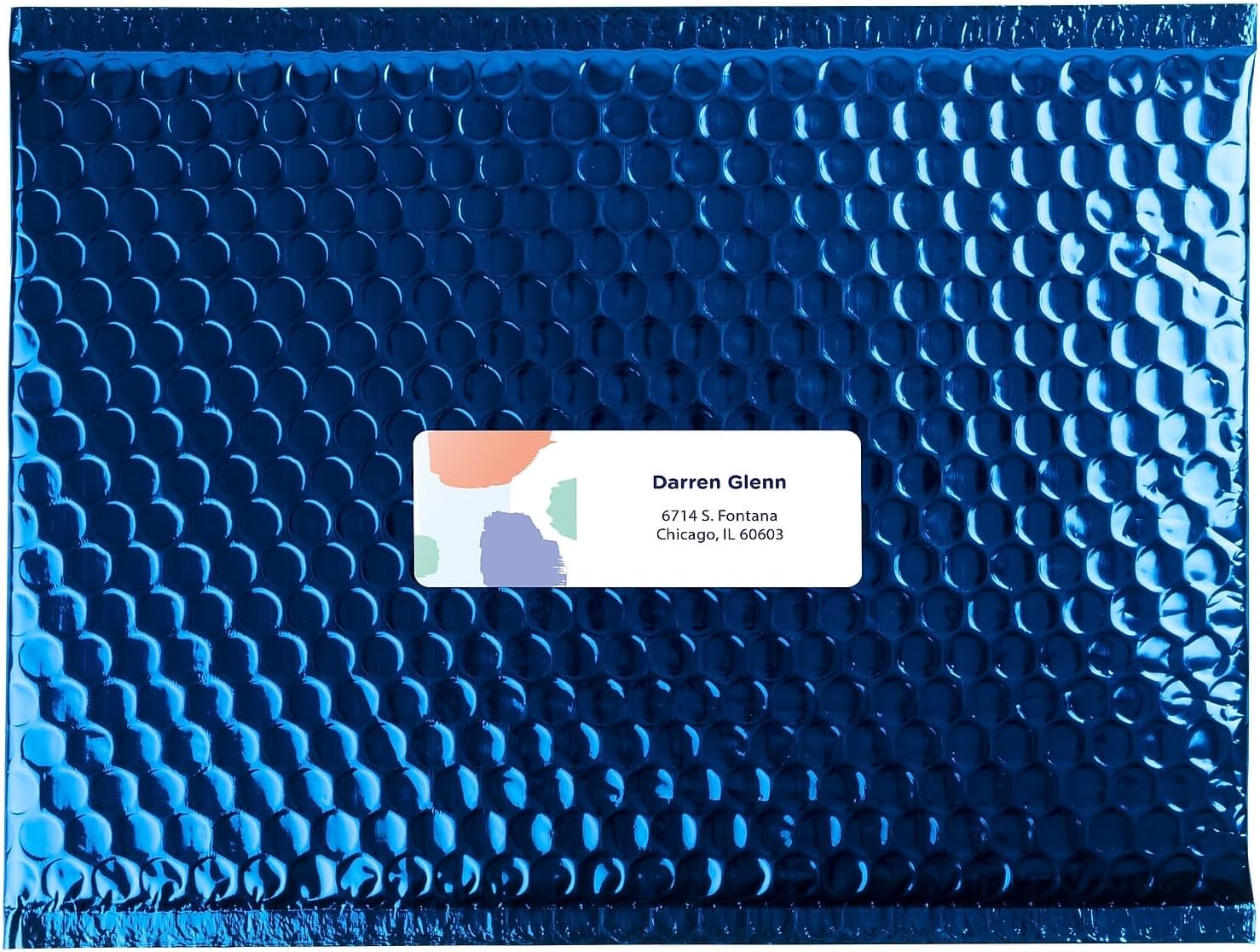
Image: A customized Avery label with a colorful design and address applied to a blue bubble mailer.

Image: A white Avery label with "Pens & Pencils" text applied to a clear plastic pencil box containing various writing instruments.

Image: Multiple Avery labels applied to different clear storage containers and a binder, organizing items like "STOCKROOM SUPPLIES", "RUBBER BANDS", "MICRO TOOLS", "WIRES", "CONSTRUCTION PAPER", "NOTEPADS", and "PUSH PINS".
الصيانة والتخزين
Proper handling and storage will help maintain the quality and performance of your Avery 5162 labels.
- تخزين: Store unused label sheets in their original packaging in a cool, dry place away from direct sunlight and excessive humidity.
- التعامل: Avoid touching the adhesive side of the labels to prevent dust or oils from compromising adhesion. Handle sheets by the edges.
- Printer Care: Regularly clean your laser printer according to the manufacturer's instructions to prevent dust or toner buildup that could affect print quality or cause jams.
استكشاف الأخطاء وإصلاحها
Avery 5162 labels are designed to be jam-free and smudge-free when used with laser printers and Avery templates. If you encounter issues, consider the following:
- Print Alignment Issues:
- Ensure you are using the correct Avery template (5162) in the Avery Design & Print software.
- Perform a test print on plain paper to verify alignment before using label sheets. Adjust printer settings if necessary.
- Check your printer's paper type settings; select "Labels" or a heavier paper setting if available.
- Smudged Print:
- Confirm your printer is a laser printer. These labels are specifically designed for laser printing.
- Ensure your printer's toner cartridge is not low or faulty.
- Allow printed sheets to dry for a few moments before handling excessively.
- Printer Jams:
- Ensure label sheets are loaded correctly and not bent or damaged.
- Do not feed label sheets that have already had labels removed, as this can cause jams.
- Clean your printer's paper path rollers if jams persist.
تحديد
| رقم الموديل | 5162 |
| ماركة | أفيري |
| نوع الملصق | Laser Mailing Labels, Easy Peel |
| أبعاد التسمية | 1-1/3 inches x 4 inches (3.4 cm x 10.2 cm) |
| ملصقات لكل ورقة | 14 |
| Sheets Per Box | 100 |
| Total Labels Per Box | 1400 |
| لون | أبيض غير لامع |
| نوع المادة | Wood-sourced (from certified managed forest) |
| وزن العنصر | 2.4 رطل (1.09 كجم) |
| أبعاد المنتج | 11.3 × 8.6 × 1.1 بوصة (28.7 × 21.8 × 2.8 سم) |
| رقم قطعة الشركة المصنعة | 05162 |

Image: A diagram illustrating the layout of 14 labels on a single sheet, indicating the number of labels per sheet.

الصورة: لقطة مقربة view of a single label, clearly displaying its dimensions as 1-1/3 inches by 4 inches.
معلومات الضمان
Specific warranty details for Avery 5162 Easy Peel Laser Mailing Labels are typically provided by the manufacturer. For the most current and detailed warranty information, please refer to the official Avery website or contact Avery customer support directly.
Avery guarantees these labels to be professional, jam-free, and smudge-free when used as directed with laser printers and Avery templates.
دعم العملاء
For further assistance, technical support, or to explore additional products and templates, please visit the official Avery webموقع:
- شركة أفيري الرسمية Webموقع: www.avery.com
- Templates & Software: avery.com/templates
- معلومات الاتصال: Refer to the "Contact Us" section on the Avery website for phone numbers, email support, or live chat options.


