مقدمة
The Sky MINI SD501 Wireless Connector is designed to enable your compatible Sky box to access on-demand content by connecting it to your broadband router wirelessly. This device allows you to watch Catch Up TV, full series box sets, comedies, kids' shows, and more, depending on your Sky TV package.
This manual provides essential information for setting up, operating, maintaining, and troubleshooting your Sky MINI SD501 Wireless Connector.
المنتج انتهىview
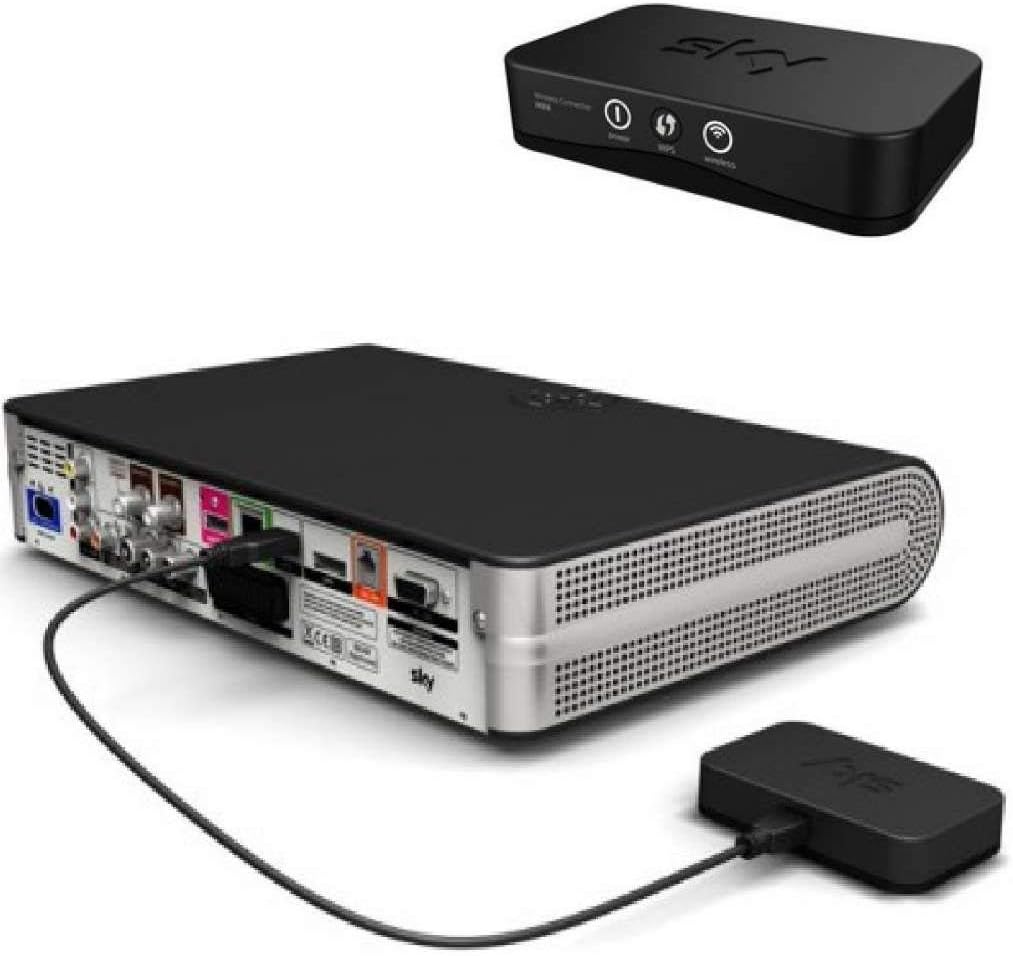
Figure 1: The Sky MINI SD501 Wireless Connector (top) and connected to the rear of a Sky+HD box (bottom).
The Sky MINI SD501 Wireless Connector is a compact device that facilitates wireless internet connectivity for your Sky box. It connects via a USB port on your Sky box and draws power directly from the USB connection, eliminating the need for an external power adapter.

الشكل 2: الجبهة view of the Sky Wireless Connector MINI packaging, highlighting "TV ON DEMAND".
The packaging emphasizes the ease of use with the slogan "UNWRAP PLUG IN WATCH" and "Plug in & Watch. This little box lets you open up a whole world of On Demand."
تعليمات الإعداد
Follow these steps to set up your Sky MINI SD501 Wireless Connector:
- التحقق من التوافق: Ensure your Sky box is compatible. Box versions beginning with 4F31 (e.g., Amstrad DRX890 or DRX895) are known to be compatible with the On Demand Connector MINI.
- Connect the Connector: Plug the USB connector of the Sky MINI SD501 Wireless Connector into an available USB port on the back of your Sky box. The device draws power directly from this USB connection.
- Power On Sky Box: Ensure your Sky box is powered on.
- إتصال شبكة: You have two primary methods to connect to your Wi-Fi network:
- WPS (إعداد Wi-Fi المحمي): If your broadband router has a WPS button, press it. Then, press the WPS button on the Sky Wireless Connector. The devices should automatically connect.
- الاتصال اليدوي: If WPS is not available or preferred, navigate to the network settings on your Sky box. Select your Wi-Fi network name (SSID) from the list and enter your network password. The Sky controller allows for both uppercase and lowercase letters for password entry.
- تَحَقّق: Once connected, your Sky box should indicate a successful network connection. You are now ready to access on-demand content.
تعليمات التشغيل
Once the Sky MINI SD501 Wireless Connector is successfully set up and connected to your home network, you can begin utilizing its features:
- Access On Demand: Navigate to the "On Demand" section of your Sky box menu. This section will now be populated with content available for streaming.
- Browse Content: Explore various categories such as Catch Up TV (including ITV Player and Demand 5), Box Sets, Movies, Kids, and more, depending on your Sky TV subscription.
- جاري: Select your desired program or movie to begin streaming. Ensure a stable broadband connection for optimal viewتجربة رائعة.
- تنزيل المحتوى: Some content may be available for download to your Sky box's hard drive, allowing for offline viewعمل.
The connector enables your Sky box to function as a connected device, bringing a wide range of internet-delivered content directly to your television.
صيانة
To ensure the longevity and optimal performance of your Sky MINI SD501 Wireless Connector, consider the following maintenance guidelines:
- تنظيف: Gently wipe the exterior of the connector with a soft, dry, lint-free cloth. Avoid using liquid cleaners, aerosols, or abrasive materials.
- الموقع: Ensure the connector is placed in a well-ventilated area, away from direct sunlight, heat sources, and moisture. Do not block any ventilation openings.
- التعامل: تعامل مع الجهاز بحذر. تجنب إسقاطه أو تعريضه لصدمات قوية.
- تخزين: If storing the device for an extended period, disconnect it from the Sky box and store it in a cool, dry place.
استكشاف الأخطاء وإصلاحها
If you encounter issues with your Sky MINI SD501 Wireless Connector, refer to the following common troubleshooting steps:
- لا يوجد اتصال بالشبكة:
- Verify the connector is securely plugged into the USB port of your Sky box.
- Ensure your broadband router is powered on and functioning correctly.
- Restart your broadband router and then your Sky box.
- Re-attempt the network connection process (WPS or manual password entry). Double-check your Wi-Fi password for manual entry.
- Check if your Sky box model is compatible with the SD501 MINI connector.
- Slow Streaming/Buffering:
- Ensure your Sky box and the wireless connector are within a reasonable range of your Wi-Fi router. Obstacles like thick walls can degrade signal strength.
- Check your internet broadband speed. Other devices on your network might be consuming bandwidth.
- Restart your router and Sky box.
- "No On Demand Content" Message:
- Confirm that your Sky box is successfully connected to the internet via the wireless connector.
- Ensure your Sky TV package includes access to the desired on-demand content.
- الجهاز لا يعمل:
- The connector is powered via the Sky box's USB port. Ensure the Sky box is powered on and the USB port is functional.
- الاستخدام الدولي: Please note that this product is primarily designed for use with Sky services in the United Kingdom. Functionality may be limited or non-existent in other regions due to differing broadcast standards and service availability.
If problems persist after following these steps, contact Sky customer support for further assistance.
تحديد
| رقم الموديل | SD501R |
| الشركة المصنعة | سماء |
| الاتصال | Wireless (Wi-Fi) via USB |
| مصدر الطاقة | USB powered (from Sky box) |
| أبعاد الحزمة | 12.2 × 10.6 × 2.4 سم |
| وزن | 120 جرام |
| متوفر أولاً | 17 سبتمبر 2013 |
الضمان والدعم
إخلاء المسؤولية القانونية: Please be aware that this product is an original Sky product, but it is sold with لا يوجد ضمان from the original manufacturer. Any warranty or return policy will be subject to the terms provided by your retailer at the time of purchase.
For technical support related to your Sky services or Sky box, please contact Sky customer support directly through their official channels. For issues specifically with the Sky MINI SD501 Wireless Connector, refer to the troubleshooting section of this manual or contact your point of purchase.


