مقدمة
This manual provides instructions for the installation and operation of your Intel Centrino 2230 Mini PCI Express Wi-Fi/Bluetooth Combo Adapter. This adapter integrates both Wi-Fi (802.11n) and Bluetooth 4.0 capabilities into a single Mini PCI Express card, designed for compatible laptop systems.
Important Compatibility Note: This adapter does NOT support HP and Lenovo computers due to specific hardware whitelists implemented by these manufacturers. Please verify your system's compatibility before installation.
معلومات السلامة
- Always disconnect power from your computer before opening the chassis or installing any internal components.
- Use appropriate anti-static precautions (e.g., anti-static wrist strap) to prevent electrostatic discharge (ESD) damage to components.
- Handle the adapter by its edges to avoid touching sensitive components.
- Keep small parts (screws, antenna connectors) away from children.
محتويات الحزمة
يجب أن تحتوي الحزمة الخاصة بك على العناصر التالية:
- Intel Centrino 2230 Mini PCI Express Wi-Fi/Bluetooth Combo Adapter (Model: 2230BNHMW)
- (Note: Additional accessories like screws or antenna cables may vary by retailer and are not always included.)
الإعداد والتثبيت
1. فحوصات ما قبل التثبيت
- التوافق: Ensure your laptop has a Mini PCI Express slot and is not an HP or Lenovo model. Refer to your laptop's service manual for slot location and compatibility.
- أدوات: You will typically need a small Phillips head screwdriver.
- السائقين: It is recommended to download the latest drivers for the Intel Centrino 2230 from the official Intel support website onto a USB drive before starting the installation. بحث عن "Intel Centrino Wireless-N 2230 drivers".
2. التثبيت المادي
- إيقاف التشغيل: Shut down your laptop completely and disconnect the power adapter and battery.
- لوحة الوصول: Locate and remove the access panel on the bottom of your laptop that covers the Mini PCI Express slot. Consult your laptop's service manual for exact instructions.
- إزالة البطاقة القديمة (إن وجدت): If replacing an existing Wi-Fi card, carefully disconnect the antenna cables (MAIN and AUX) and remove the screw securing the card. The card should pop up slightly, allowing you to slide it out.
- إدراج بطاقة جديدة: Align the Intel Centrino 2230 adapter with the Mini PCI Express slot. Gently push the card into the slot at an angle until it is fully seated.
- بطاقة آمنة: Push the card down and secure it with the screw.
- ربط الهوائيات: Carefully connect the antenna cables to the corresponding connectors on the adapter. The main antenna typically connects to the "MAIN" (1) connector, and the auxiliary antenna to the "AUX" (2) connector. These are small, delicate connectors; apply gentle, even pressure until they click into place.
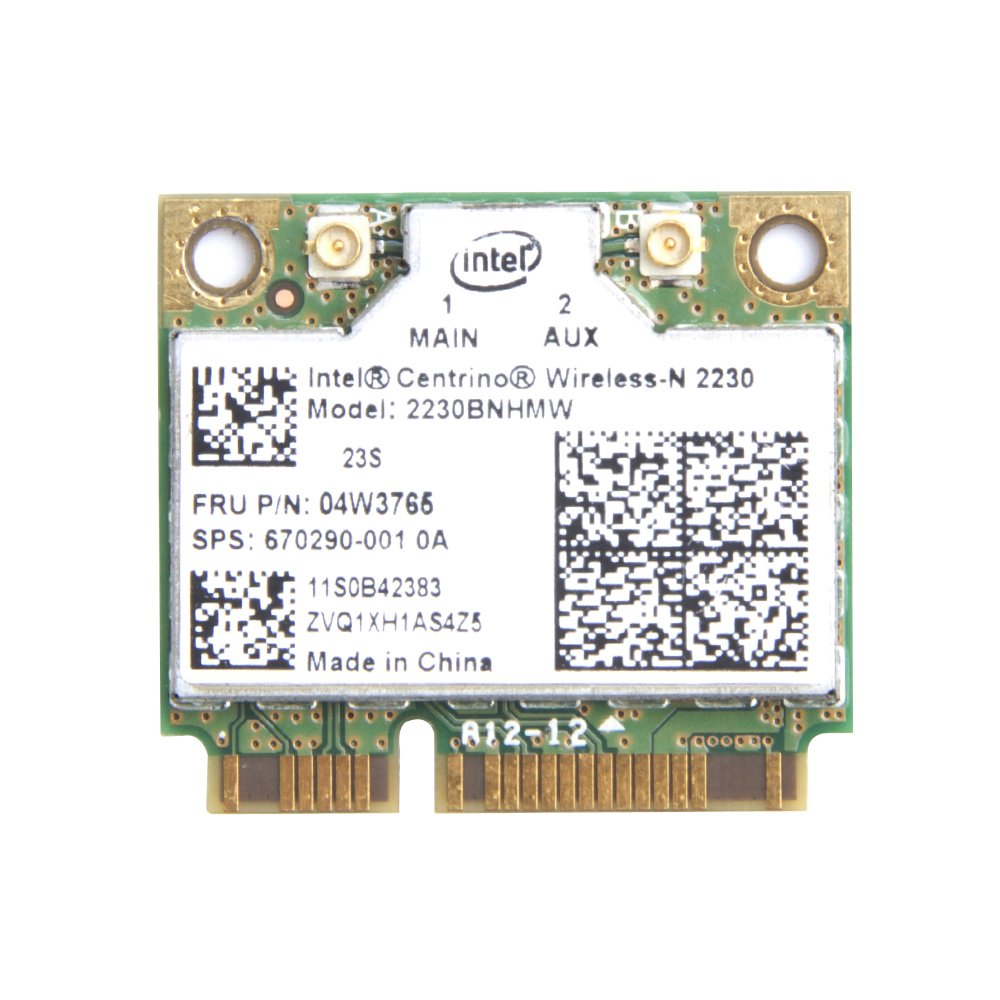
Image: Intel Centrino 2230 Mini PCI Express Wi-Fi/Bluetooth Combo Adapter. The image displays the top side of the card, highlighting the "MAIN" (1) and "AUX" (2) antenna connectors, the Intel logo, and the model number "2230BNHMW" clearly printed on the label.
- إعادة التجميع: Replace the access panel and reconnect the battery and power adapter.
3. تثبيت برنامج التشغيل
- تشغيل الطاقة: Start your laptop.
- تثبيت برامج التشغيل: Navigate to the downloaded driver files (from step 1) and run the installer. Follow the on-screen prompts to complete the installation for both Wi-Fi and Bluetooth components.
- إعادة تشغيل: أعد تشغيل جهاز الكمبيوتر بعد اكتمال تثبيت برنامج التشغيل.
تعليمات التشغيل
اتصال واي فاي
- After successful driver installation and system restart, the Wi-Fi icon should appear in your system tray (Windows) or menu bar (Linux/macOS).
- Click on the Wi-Fi icon to view الشبكات اللاسلكية المتاحة.
- اختر الشبكة التي تريدها وانقر على "اتصال".
- أدخل مفتاح أمان الشبكة (كلمة المرور) إذا طُلب منك ذلك.
- Once connected, the icon will indicate an active Wi-Fi connection.
إقران جهاز بلوتوث
- Ensure Bluetooth is enabled on your computer. This can usually be done through system settings or a dedicated function key.
- Put your Bluetooth device (e.g., headphones, mouse) into pairing mode. Refer to your device's manual for specific instructions.
- On your computer, go to Bluetooth settings (e.g., "Bluetooth & other devices" in Windows).
- انقر فوق "إضافة بلوتوث أو جهاز آخر" وحدد "بلوتوث".
- Select your device from the list of discovered devices and follow any on-screen prompts to complete the pairing process.
صيانة
- تحديثات برنامج التشغيل: Periodically check the official Intel support website for updated Wi-Fi and Bluetooth drivers. Keeping drivers current can improve performance and resolve compatibility issues.
- تنظيف: If your laptop requires internal cleaning, ensure the adapter is free from dust accumulation, which can affect performance and heat dissipation. Always power off and disconnect the laptop before cleaning.
استكشاف الأخطاء وإصلاحها
- Adapter not detected or not working:
- Ensure the card is fully seated in the Mini PCI Express slot and secured with a screw.
- Verify that the antenna cables are securely connected to the "MAIN" and "AUX" ports on the adapter.
- Check Device Manager (Windows) to see if the device is listed. If there are yellow exclamation marks, drivers may be missing or corrupted.
- Reinstall the drivers from the Intel support webموقع.
- لمستخدمي Windows 10: Some users have reported issues with this specific card on Windows 10, including dropped connections or the card disappearing. Ensure you have the absolute latest drivers directly from Intel, not generic Windows drivers.
- Confirm your laptop is not an HP or Lenovo model, as these are known to have compatibility restrictions.
- Wi-Fi connection issues (drops, slow speed):
- Update Wi-Fi drivers to the latest version from Intel.
- تأكد من أن البرامج الثابتة لجهاز التوجيه الخاص بك محدثة.
- Try connecting to a different Wi-Fi network to rule out router-specific issues.
- التحقق من عدم وجود تداخل من أجهزة 2.4 جيجاهرتز الأخرى.
- Bluetooth not pairing or connecting:
- Ensure Bluetooth drivers are correctly installed and up to date.
- Verify that Bluetooth is enabled in your system settings.
- ضع جهاز البلوتوث في وضع الإقران.
- قم بإزالة أي عمليات اقتران سابقة للجهاز من جهاز الكمبيوتر الخاص بك وحاول الاقتران مرة أخرى.
- أعد تشغيل الكمبيوتر الخاص بك.
تحديد
| رقم الموديل | 2230BNHMW |
| نوع لاسلكي | IEEE 802.11b/g/n |
| معدل نقل البيانات | سرعة تصل إلى 300 ميجابت في الثانية (واي فاي) |
| نسخة البلوتوث | بلوتوث 4.0 |
| الواجهة | ميني يسي إكسبريس |
| الأبعاد (الطول × العرض × الارتفاع) | 2.9 × 2 × 1.1 بوصات (تقريبًا) |
| وزن | 0.16 ounces / 4.54 g (approximate) |
معلومات الضمان
This Intel product is typically covered by a limited warranty provided by Intel or the reseller. Warranty terms and duration may vary depending on your region and point of purchase. Please retain your proof of purchase for warranty claims. For detailed warranty information, refer to the official Intel warranty policy available on their webالموقع أو اتصل بتاجر التجزئة الخاص بك.
يدعم
For technical assistance, driver downloads, and further product information, please visit the official Intel support website. You can typically find support resources by searching for "Intel Centrino Wireless-N 2230 support" on their site. For issues related to your purchase, please contact your retailer.
دعم إنتل Webموقع: https://www.intel.com/content/www/us/en/support.html


