1. المقدمة
The ASUS USB-N10 Wireless-N USB Adapter provides a convenient solution for adding or upgrading wireless connectivity to your computer. This compact adapter supports IEEE 802.11b/g/n standards, offering wireless data rates of up to 150Mbps for both transmit and receive functions. It features a fast USB 2.0 interface and includes software-based WPS (Wi-Fi Protected Setup) button support for easy and secure network connections.
2. الميزات الرئيسية
- Excellent Connection: Strong and convenient USB connection for fast downloads, rapid file transfers, and low-latency media streaming.
- PSP Xlink Kai Support: Play system games with PSP users worldwide via the internet.
- EZ WPS: Improve Wi-Fi security with easy WPS Wizard.
- دعم نظام التشغيل: Compatible with Windows 7 and Mac 10.6 Operating Systems (and newer versions).
- المعايير: IEEE 802.11b، IEEE 802.11g، IEEE 802.11n.
- واجهة المضيف: يو إس بي 2.0.
- تردد التشغيل: 2.4 - 2.5 GHz.
- الهوائي: 2x Internal Antenna (MIFA antenna on USB connector).
- أوضاع التشغيل: 11 for N. America, 14 Japan, 13 Europe (ETSI).
- تعديل: OFDM - BPSK, QPSK, 16-QAM, 64-QAM, DBPSK, DQPSK, CCK.
- يتراوح: حتى 150 م.
- معدل البيانات: 802.11n: Tx - 150Mbps (Max); Rx - 150Mbps (Max), 802.11g: 6, 9, 12, 18, 24, 36, 48, 54Mbps, 802.11b: 1, 2, 5.5, 11Mbps.
- Wireless Setting: Diagnose and configure your wireless network settings with on-line troubleshooting feature.
- WPS Wizard: High-speed wireless network is just a few clicks away.
- حساسية المستقبل: -84 dBm @11 Mbps, -70 dBm @54 Mbps, -67 dBm @64-QAM, 20MHz channel spacing, -64 dBm @64-QAM, 40MHz channel spacing.
3. محتويات العبوة
The ASUS USB-N10 Wireless-N USB Adapter package typically includes:
- ASUS USB-N10 Wireless-N USB Adapter
- دليل البدء السريع / دليل التعليمات
- Driver CD or USB Drive (containing necessary software)
4. الإعداد والتثبيت
Follow these steps to install your ASUS USB-N10 Wireless-N USB Adapter:
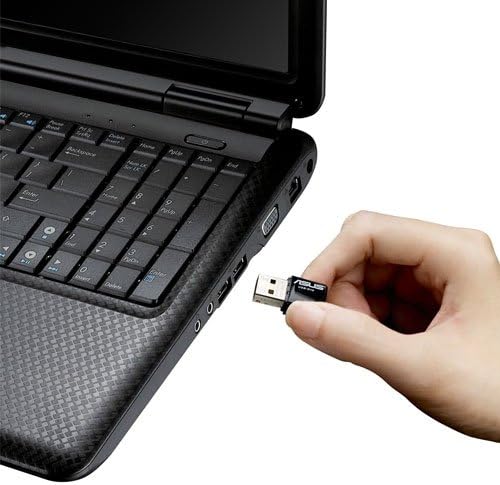
- أدخل المحول: Carefully plug the ASUS USB-N10 adapter into an available USB 2.0 port on your computer. For optimal performance, especially if your computer has USB 3.0 ports, consider using one of those, though the adapter itself is USB 2.0.
- تثبيت برامج التشغيل:
- Insert the provided driver CD or USB drive into your computer.
- Locate and double-click the 'Setup.exe' file.
- Follow the on-screen instructions to complete the Wi-Fi driver installation. It is recommended to use the manufacturer's drivers for best compatibility and performance.
- الاتصال بشبكة واي فاي:
- Once the drivers are installed, click on the network icon in your system tray (usually in the bottom-right corner of your screen on Windows, or top-right on Mac).
- قم باختيار شبكة Wi-Fi المطلوبة من قائمة الشبكات المتاحة.
- أدخل مفتاح أمان الشبكة (كلمة المرور) إذا طُلب منك ذلك.
- انقر على "اتصال". يجب أن يكون جهاز الكمبيوتر الخاص بك متصلاً الآن بشبكة Wi-Fi.

5. تشغيل المحول
Once installed and connected, the ASUS USB-N10 adapter operates seamlessly in the background, providing wireless internet access. You can manage your wireless connection through your operating system's network settings.
5.1. استخدام WPS (إعداد Wi-Fi المحمي)
The adapter supports WPS for quick and secure connection to compatible routers. If your router has a WPS button:
- اضغط على زر WPS على جهاز التوجيه اللاسلكي الخاص بك.
- Within two minutes, activate the WPS function on your computer. This is typically done through the ASUS utility software installed with the drivers, or via your operating system's network settings.
- The adapter will automatically connect to the router securely.
6. الصيانة والعناية
- حافظ على نظافة: Gently wipe the adapter with a soft, dry cloth to remove dust. Avoid using liquid cleaners.
- تجنب الأضرار الجسدية: Handle the adapter with care. Avoid dropping it or exposing it to excessive force, which could damage the USB connector or internal components.
- الوضع الأمثل: For best signal strength, ensure the adapter is not obstructed by other objects or placed in an area with high electromagnetic interference.
- تحديثات برنامج التشغيل: تحقق من دعم ASUS بشكل دوري website for updated drivers to ensure optimal performance and compatibility with the latest operating system versions.
7. استكشاف الأخطاء وإصلاحها
7.1. No Wireless Connection
- تحقق من الاتصال الفعلي: Ensure the USB-N10 adapter is securely plugged into a functioning USB port.
- تثبيت برنامج التشغيل: Verify that the drivers were installed correctly. You can check this in your computer's Device Manager (Windows) or System Information (Mac). Reinstall drivers if necessary.
- تمكين الواي فاي: Make sure your computer's Wi-Fi is enabled.
- حالة جهاز التوجيه: Confirm that your wireless router is powered on and broadcasting a Wi-Fi signal.
7.2. بطء سرعة الاتصال
- قوة الإشارة: Check the signal strength of your Wi-Fi network. Move closer to your wireless router or access point if the signal is weak.
- تدخل: Other electronic devices (microwaves, cordless phones) can cause interference. Try to minimize these or move the adapter away from them.
- منفذ USB: Ensure the adapter is connected to a USB 2.0 port. While compatible with USB 1.1, performance will be significantly reduced.
- إعدادات جهاز التوجيه: Ensure your router is configured for 802.11n mode for maximum speed.
7.3. لم يتم التعرف على المحول
- جرب منفذ USB آخر: اختبر المحول في منفذ USB مختلف على جهاز الكمبيوتر الخاص بك.
- إعادة تشغيل الكمبيوتر: يمكن أن تؤدي إعادة التشغيل البسيطة في كثير من الأحيان إلى حل مشكلات التعرف.
- إعادة تثبيت برامج التشغيل: Uninstall any existing drivers for the adapter, restart your computer, and then perform a clean installation of the drivers.
8. المواصفات
| يصف | قيمة |
|---|---|
| أبعاد المنتج | 0.67 × 1.18 × 0.35 بوصة |
| وزن العنصر | 2.4 أونصات |
| رقم موديل العنصر | يو إس بي-N10 |
| تاريخ أول توفر | 26 مارس 2010 |
| الشركة المصنعة | أسوس |


9. الضمان والدعم
9.1. إخلاء المسؤولية القانونية
Actual data throughput and Wi-Fi coverage will vary from network conditions and environmental factors, including the volume of network traffic, building material and construction, and network overhead, resulting in lower actual data throughput and wireless coverage.
9.2. دعم العملاء
للحصول على الدعم الفني أو مطالبات الضمان أو أي مساعدة إضافية، يرجى زيارة موقع دعم ASUS الرسمي. website or contact their customer service. Refer to the product packaging or the ASUS webالموقع للحصول على أحدث معلومات الاتصال وتفاصيل الضمان.


