مقدمة
This manual serves as a comprehensive reference for Cubase SX/SL, the powerful music production software by Steinberg. It expands upon the standard operation manual with an exclusive introduction by Mark Wherry, offering practical insights and contextual usage exampليز.
The guide is designed to help users understand and utilize key features of Cubase SX/SL effectively, from fundamental operations to advanced techniques. It covers essential topics such as key commands, mixing within the Project window, applying insert and send effects, integrating VST instruments and MIDI plug-ins, and achieving precise tempo synchronization when importing audio loops.
An accompanying CD-ROM (if applicable to your version) includes a demo version of Cubase SX and supplementary materials to enhance your learning experience.
Getting Started: Installation and Setup
Before you begin using Cubase SX/SL, ensure your system meets the minimum requirements and follow the installation procedures outlined below.
متطلبات النظام
While specific system requirements may vary slightly between versions, generally, Cubase SX/SL for Windows requires:
- نظام التشغيل: Windows 2000/XP (or later compatible versions)
- المعالج: Pentium III 500 MHz or faster (Pentium 4/Athlon 1.4 GHz recommended)
- كبش: 256 MB (512 MB or more recommended)
- مساحة القرص الصلب: 700 MB for installation, plus additional space for projects and sampليه
- أجهزة الصوت: ASIO compatible audio hardware recommended for optimal performance
- عرض: 1024 x 768 resolution (1280 x 1024 recommended)
- محرك أقراص CD-ROM: مطلوب للتثبيت
إجراءات التثبيت
- Insert the Cubase SX/SL installation CD-ROM into your computer's drive.
- The installer should launch automatically. If not, navigate to the CD-ROM drive in 'My Computer' and double-click 'setup.exe'.
- Follow the on-screen prompts to complete the installation. This typically involves accepting the license agreement, choosing an installation directory, and selecting components.
- After installation, it is recommended to restart your computer.
- Ensure all necessary drivers for your audio interface and MIDI devices are installed and up-to-date.
Operating Cubase SX/SL: Core Functions
This section details the fundamental operations and key features of Cubase SX/SL, guiding you through common tasks and workflows.
Understanding Key Commands
Efficient use of Cubase SX/SL heavily relies on mastering its extensive set of key commands. These shortcuts accelerate your workflow by allowing quick access to functions without navigating through menus.
- Customizing Key Commands: Access the Key Commands editor via File > Key Commands ل view, modify, or create custom shortcuts.
- الاختصارات الشائعة: Familiarize yourself with frequently used commands such as Spacebar (Play/Stop), P (Locators to Selection), G/H (Zoom In/Out), and Ctrl+Z (Undo).
Mixing in the Project Window
The Project window is your central hub for arranging, editing, and mixing. Effective mixing involves adjusting levels, panning, and applying effects to individual tracks.
- عناصر التحكم في المسار: Each track in the Project window has controls for volume, pan, mute, and solo.
- الأتمتة: Use automation lanes to create dynamic changes in volume, pan, and effect parameters over time.
- Mixer Console: For a detailed mixing environment, open the Mixer (F3) to access channel strips with inserts, sends, and EQ.
Using Insert and Send Effects
Cubase SX/SL offers a wide array of built-in effects and supports VST plug-ins. Effects can be applied as inserts (directly on a track) or sends (via an FX channel).
- Insert Effects: Ideal for effects that process the entire signal of a single track, such as compressors, EQs, or distortion. Add inserts in the Inspector or Mixer.
- Send Effects: Best for time-based effects like reverb or delay, where a single effect instance can be shared across multiple tracks, saving CPU resources and creating a cohesive sound. Configure sends in the Inspector or Mixer, routing to an FX channel.
VST Instruments and MIDI Plug-ins
Virtual Studio Technology (VST) instruments allow you to create sounds directly within Cubase, while MIDI plug-ins process MIDI data before it reaches an instrument.
- Adding VST Instruments: Create an Instrument Track or add a VST Instrument to the VST Instruments Rack (F11).
- مدخلات MIDI: Route MIDI tracks to VST instruments to play them using a MIDI keyboard or by drawing notes in the Key Editor.
- MIDI Plug-ins: Insert MIDI plug-ins (e.g., Arpeggiator, Chorder) on MIDI tracks to transform MIDI data in real-time.
Tempo Synchronization and Audio Loops
Maintaining a consistent tempo is crucial for professional-sounding productions, especially when working with audio loops.
- Tempo Track: Use the Tempo Track to define tempo changes throughout your project.
- Audio Warp: Cubase's Audio Warp features allow you to stretch or compress audio events to fit the project tempo without altering pitch.
- Importing Loops: When importing audio loops, ensure they are correctly analyzed for tempo and set to 'Musical Mode' to automatically adapt to project tempo changes.
استكشاف الأخطاء وإصلاحها للمشكلات الشائعة
This section addresses common problems users might encounter with Cubase SX/SL and provides solutions.
Audio Dropouts or Latency
- Increase Buffer Size: اذهب الى Devices > Device Setup > VST Audio System and increase the ASIO buffer size. This reduces CPU strain but increases latency.
- تحديث برامج التشغيل: Ensure your audio interface drivers are the latest version from the manufacturer's webموقع.
- Disable Unused Tracks/Effects: Deactivate or remove tracks and effects that are not currently in use to free up CPU resources.
- Optimize System: Close other demanding applications, disable Wi-Fi/Bluetooth if not needed, and set your power plan to 'High Performance'.
MIDI Device Not Detected
- التحقق من الاتصالات: Ensure your MIDI device is properly connected and powered on.
- تثبيت برامج التشغيل: Verify that the correct MIDI drivers for your device are installed.
- VST Audio System Setup: In Cubase, go to Devices > Device Setup > MIDI Port Setup and ensure your MIDI input/output ports are visible and activated.
Software Crashes or Freezes
- Save Regularly: Save your project frequently to avoid data loss.
- Update Cubase: Check for official updates or service packs for Cubase SX/SL from the Steinberg webموقع.
- Isolate Problematic Plug-ins: If crashes occur after adding a specific VST instrument or effect, try removing it to see if it's the cause. Ensure all third-party plug-ins are compatible and up-to-date.
- إعادة التثبيت: As a last resort, a clean reinstallation of Cubase SX/SL might resolve persistent issues.
الدعم والموارد
For further assistance and to stay updated, refer to the following resources:
- Official Steinberg Webموقع: يزور www.steinberg.net for product updates, FAQs, and support forums.
- Online Forums and Communities: Engage with other Cubase users in online forums for tips, tricks, and community support.
- وثائق إضافية: Consult the official Cubase SX/SL operation manual and any included PDF guides for in-depth information.
عن المؤلف
This reference guide features an exclusive introduction and insights from Mark Wherry. Mark Wherry is a distinguished Reviews Editor at Sound On Sound magazine in the UK, where he regularly contributes articles, including the popular monthly Cubase Notes column.
Specializing in software studios, Mark has collaborated with Steinberg on tutorial materials for Cubasis VST and is also the author of The Official Guide To Cubase SX/SL, published by Wizoo and Music Sales. Beyond his writing, Mark is a classically trained pianist and frequently works in the studio, arranging strings and exploring unique soundscapes.
المنتج انتهىview صورة
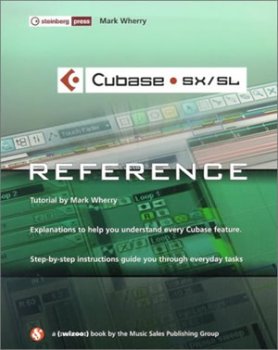
Image: The cover of the "Cubase SX/SL: The Reference" book, featuring the Cubase logo, the title, and the author's name, Mark Wherry. The background shows a blurred image of the Cubase software interface.


