1. المقدمة
Thank you for choosing the VEVOR Thermal Imaging Camera HT-W01. This portable device is designed to provide high-resolution thermal imaging capabilities directly to your Android or iOS smartphone, enabling quick diagnosis and easy troubleshooting across various applications. With its advanced features and user-friendly design, you can efficiently identify temperature anomalies in electrical systems, plumbing, HVAC, and building inspections.

2. معلومات السلامة
يرجى قراءة جميع تعليمات السلامة وفهمها جيدًا قبل استخدام هذا المنتج. قد يؤدي عدم اتباع هذه التعليمات إلى صدمة كهربائية أو حريق أو إصابة خطيرة.
- لا تعرض الجهاز لدرجات حرارة عالية، أو أشعة الشمس المباشرة، أو الرطوبة العالية.
- احتفظ بالجهاز بعيدًا عن الماء والسوائل الأخرى.
- لا تحاول تفكيك الجهاز أو تعديله. يجب أن يُجري الإصلاحات فنيون مؤهلون فقط.
- Use only the specified charging cable (TYPE-C) to charge the device.
- Avoid pointing the thermal camera directly at intense heat sources for prolonged periods, as this may damage the sensor.
- Ensure the device is securely attached to your smartphone to prevent accidental drops.
3. محتويات العبوة
تأكد من وجود جميع العناصر في الحزمة الخاصة بك:
- VEVOR Thermal Imaging Camera HT-W01
- كابل شحن TYPE-C
- دليل المستخدم (هذا المستند)
4. انتهى المنتجview
The VEVOR HT-W01 Thermal Imaging Camera offers advanced features for precise thermal analysis:
- High-Definition Thermal Imaging: 256 x 192 IR resolution for clear visuals.
- نطاق واسع لدرجة الحرارة: Detects temperatures from -4°F to 1022°F (-20°C to 550°C).
- High Thermal Sensitivity: 32.18°F / 0.1°C for capturing subtle temperature variations.
- توافق الهاتف الذكي: Connects wirelessly to most Android and iOS smartphones.
- معدل التحديث السريع: 25Hz ensures smooth, real-time image display without lag.
- كاميرا الضوء المرئي: Integrated 640 x 480 pixels visible light camera for image overlay (Picture-in-Picture, PIP).
- التركيز التلقائي: No manual focusing required for easier operation.
- تتبع النقاط الساخنة: Automatically identifies and tracks the hottest point in the image.
- تصميم متين: IP54 rated for waterproof and shockproof protection.
- عمر بطارية طويل: Built-in Lithium-ion battery provides approximately 2 hours of continuous use.
- معيار File التنسيقات: Saves images as JPG and videos as MPEG-4 (MOV for iOS, MP4 for Android).


5. المواصفات
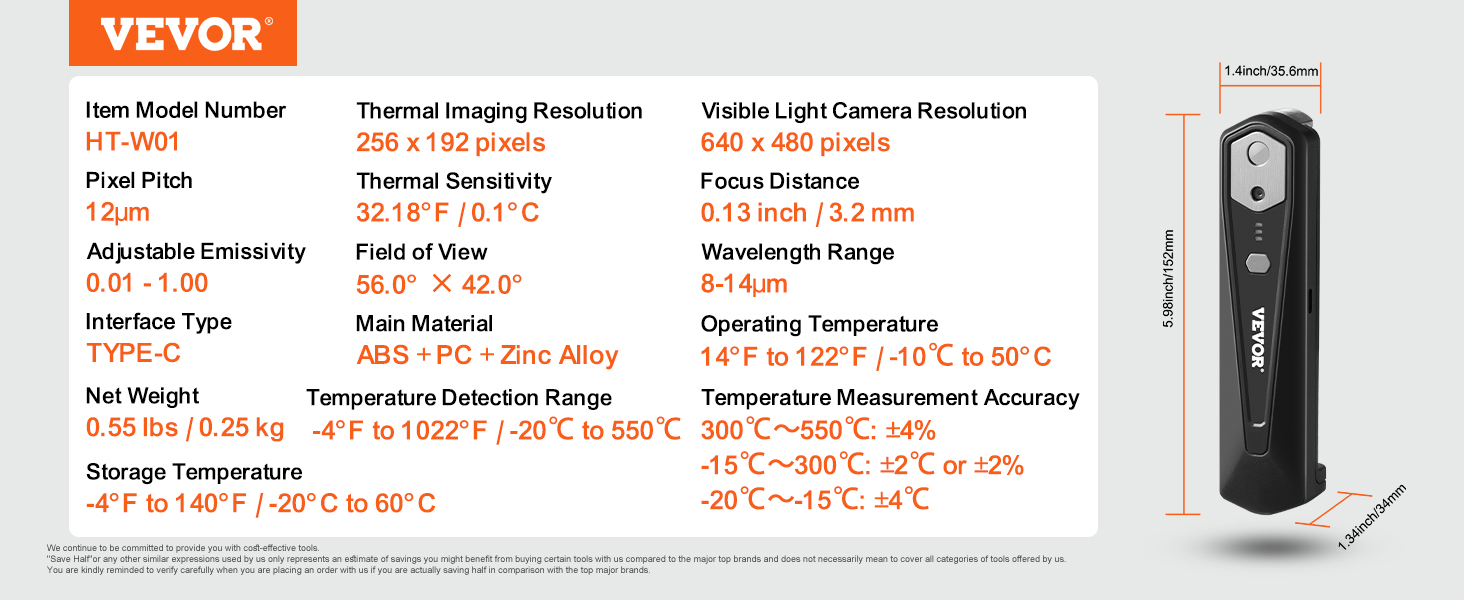
| ميزة | مواصفة |
|---|---|
| رقم موديل العنصر | HT-W01 |
| Thermal Imaging Resolution | 256 × 192 بكسل |
| Visible Light Camera Resolution | 640 × 480 بكسل |
| درجة البكسل | 12 ميكرومتر |
| الحساسية الحرارية | 32.18 درجة فهرنهايت / 0.1 درجة مئوية |
| مسافة التركيز | 0.13 بوصة / 3.2 مم |
| الابتعاثية القابلة للتعديل | 0.01 - 1.00 |
| مجال View | 56.0 درجة × 42.0 درجة |
| نطاق الطول الموجي | 8-14 ميكرومتر |
| نوع الواجهة | النوع ج |
| المادة الرئيسية | ABS + PC + Zinc Alloy |
| درجة حرارة التشغيل | 14°F إلى 122°F / -10°C إلى 50°C |
| الوزن الصافي | 0.55 رطل / 0.25 كجم |
| نطاق الكشف عن درجة الحرارة | -4 درجة فهرنهايت إلى 1022 درجة فهرنهايت / -20 درجة مئوية إلى 550 درجة مئوية |
| درجة حرارة التخزين | -4 درجة فهرنهايت إلى 140 درجة فهرنهايت / -20 درجة مئوية إلى 60 درجة مئوية |
| دقة قياس درجة الحرارة | 300°C ~ 550°C: ±4%; -15°C ~ 300°C: ±2°C or ±2%; -20°C ~ -15°C: ±4% |
| أبعاد المنتج | 5.98 × 1.4 × 1.34 بوصة / 152 × 35.6 × 34 ملم |
| بطارية | Lithium-ion, approx. 2 hours battery life |
| تصنيف الحماية | IP54 (Waterproof and Shockproof) |

6. الإعداد
- اشحن الجهاز: Before first use, fully charge the thermal imaging camera using the provided TYPE-C charging cable. Connect the cable to the camera's TYPE-C port and a suitable USB power source.
- تثبيت التطبيق: Download and install the official VEVOR thermal imaging application from your smartphone's app store (Google Play Store for Android, Apple App Store for iOS). بحث عن "VEVOR Thermal Imager" or refer to the QR code in the product packaging if available.
- الاتصال بالهاتف الذكي:
- Attach the thermal imaging camera to your smartphone. The camera is designed to connect wirelessly.
- Open the VEVOR thermal imaging application on your smartphone.
- Follow the on-screen prompts within the app to establish a wireless connection with the camera. The camera typically creates its own Wi-Fi network or connects via Wi-Fi Direct.

7. تعليمات التشغيل
- تشغيل الطاقة: Press and hold the power button on the thermal imaging camera until the indicator lights illuminate.
- إطلاق التطبيق: Open the VEVOR thermal imaging application on your connected smartphone. The app should automatically detect and connect to the camera.
- Real-time Thermal View: The app will display a live thermal image feed. The 25Hz refresh rate ensures a smooth, real-time view of temperature changes.
- Visible Light & PIP Mode: Utilize the visible light camera feature to overlay thermal and visual images. This can be activated within the app settings, often referred to as Picture-in-Picture (PIP) mode, to enhance detail and context.
- تتبع النقاط الساخنة: The camera automatically tracks and highlights the hottest point in the frame. This feature is useful for quickly identifying areas of concern.
- التقاط الصور/مقاطع الفيديو: Use the dedicated buttons within the app to capture thermal images (JPG) or record videos (MOV for iOS, MP4 for Android).
- ضبط الإعدادات: Explore the app's settings to adjust emissivity, color palettes, temperature units, and other parameters to suit your inspection needs.
- إيقاف التشغيل: After use, press and hold the power button on the camera until the indicator lights turn off. Close the application on your smartphone.


8. الصيانة
- تنظيف: Use a soft, dry cloth to clean the camera lens and body. Do not use abrasive cleaners or solvents.
- تخزين: قم بتخزين الجهاز في مكان بارد وجاف بعيدًا عن أشعة الشمس المباشرة ودرجات الحرارة القصوى.
- العناية بالبطارية: للحصول على عمر بطارية مثالي، تجنب تفريغ البطارية بالكامل بشكل متكرر. اشحن الجهاز بانتظام، حتى في حال عدم استخدامه لفترات طويلة.
9. استكشاف الأخطاء وإصلاحها
- الجهاز لا يعمل:
- Ensure the battery is charged. Connect the device to a power source using the TYPE-C cable and try again.
- تعذر الاتصال بالهاتف الذكي:
- Verify that the VEVOR app is installed and updated to the latest version. Ensure your smartphone's Wi-Fi is enabled and try reconnecting through the app. Restart both the camera and your smartphone if the issue persists.
- Image appears blurry or inaccurate:
- The camera features automatic focusing, so manual adjustment is not needed. Ensure the lens is clean and free from obstructions. Check the emissivity settings in the app, as incorrect emissivity can affect temperature readings.
- عمر بطارية قصير:
- Ensure the device is fully charged before use. Battery performance can degrade over time. Operating in very cold environments may also reduce battery life.
10 نصائح المستخدم
- اتصال مثالي: The camera connects wirelessly to your smartphone, likely creating its own Wi-Fi network or using Wi-Fi Direct. Ensure no other strong Wi-Fi signals are interfering during operation for a stable connection.
- اتصال متعدد الاستخدامات: The TYPE-C interface is primarily for charging. While the main data transfer is wireless, the TYPE-C port might also support direct data transfer or firmware updates depending on the app's functionality.
- تعديل الابتعاثية: For accurate temperature measurements, especially on different materials, adjust the emissivity setting in the app. Different surfaces emit infrared radiation differently.
- تتبع النقاط الساخنة: Use the hotspot tracking feature to quickly locate overheating components in electrical panels or insulation gaps in buildings.
- Image Overlay: Leverage the visible light camera and PIP mode to get a clearer understanding of the thermal anomalies in context with the real-world view.
11. الضمان والدعم
للحصول على معلومات الضمان والدعم الفني، يرجى الرجوع إلى موقع VEVOR الرسمي webيمكنك زيارة الموقع أو الاتصال بخدمة عملاء VEVOR مباشرةً. احتفظ بإيصال الشراء كإثبات للشراء.


