
1. المقدمة
The Huawei OptiXstar K251a-21 is a sub-FTTR (Fiber to the Room) unit designed to extend the high-speed network provided by the Huawei FTTR OptiXstar F50 Plus main unit. This device supports ultra-Gigabit high-speed access via upstream fiber optic lines and delivers Ultra Gigabit dual-band Wi-Fi and ultra-Gigabit network ports to users. It integrates next-generation Wi-Fi 7 technology for higher speeds and lower latency, ensuring a superior home network experience.
2. معلومات السلامة
Please read and understand all safety instructions before using this device. Failure to follow these instructions may result in injury, damage to the device, or property damage.
- استخدم فقط محول الطاقة المرفق مع الجهاز.
- لا تعرض الجهاز للماء أو الرطوبة أو درجات الحرارة العالية.
- تجنب وضع الجهاز بالقرب من مصادر الحرارة أو تحت أشعة الشمس المباشرة.
- تأكد من التهوية المناسبة لمنع ارتفاع درجة الحرارة.
- Do not attempt to open or repair the device yourself. Contact qualified service personnel for assistance.
- احتفظ بالجهاز بعيدًا عن متناول الأطفال والحيوانات الأليفة.
3. محتويات العبوة
تأكد من وجود جميع العناصر في الحزمة الخاصة بك:
- Huawei OptiXstar K251a-21 Sub FTTR Device
- كابل الطاقة
- دليل البدء السريع (إذا كان متضمنًا)
4. انتهى المنتجview
تعرّف على مكونات الجهاز ومؤشراته.
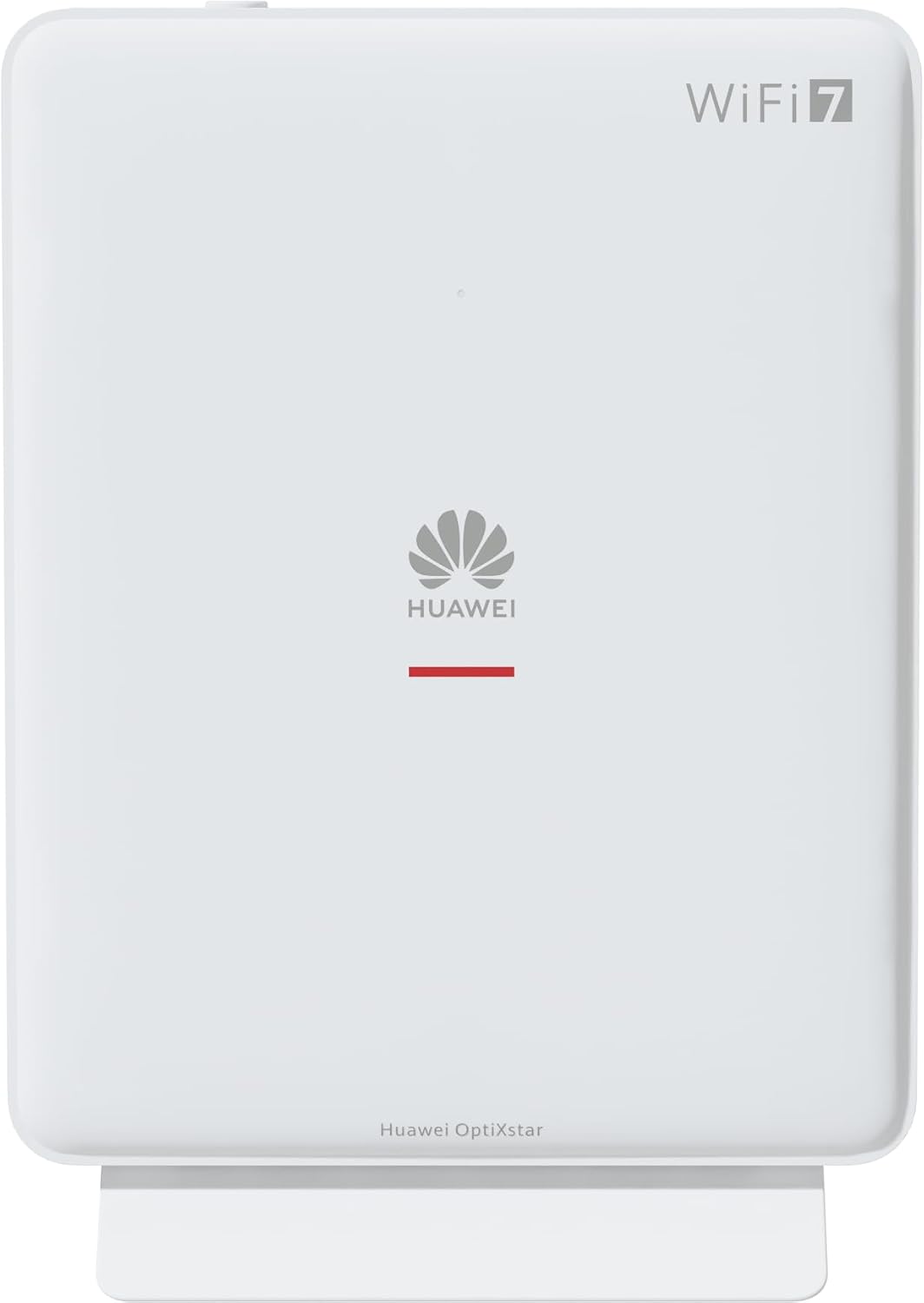
الشكل 1: الجبهة view of the Huawei OptiXstar K251a-21 Sub FTTR device, showing the Huawei logo and "WiFi 7" branding.

الشكل 2: الجانب الأمامي المائل view of the Huawei OptiXstar K251a-21 Sub FTTR, highlighting its sleek design and ventilation.

الشكل 3: خلفي view of the Huawei OptiXstar K251a-21 Sub FTTR, displaying the ports (Reset, 2-GE, 1-2.5GE, Power, FTTR) and mounting options.

الشكل 4: الجانب الإيجابيfile of the Huawei OptiXstar K251a-21 Sub FTTR, showing its slim form factor and ventilation grilles.

الشكل 5: الزاوية الخلفية view of the Huawei OptiXstar K251a-21 Sub FTTR, providing a clear look at the port labels and layout.

الشكل 6: الجزء العلوي view of the Huawei OptiXstar K251a-21 Sub FTTR, featuring the WPS/LED button.
المنافذ والأزرار:
- FTTR Port: Connects to the main FTTR unit via a fiber optic cable.
- 1-2.5GE Port: Gigabit Ethernet port for high-speed wired connections.
- 2-GE Port: منفذ إيثرنت جيجابت للاتصالات السلكية.
- منفذ الطاقة: يتصل بمحول الطاقة.
- زر إعادة الضبط: Used to restore factory settings (press and hold for 5-10 seconds).
- WPS/LED Button: Initiates Wi-Fi Protected Setup (WPS) for easy device connection and controls LED indicators.
5. الإعداد
Follow these steps to set up your Huawei OptiXstar K251a-21 Sub FTTR device:
- الموقع: Choose a central location in your home for optimal Wi-Fi coverage. The device is suitable for various installation scenarios, including vertical placement on a desk, wall-mounting, plugging into a power strip, or mounting in an 86mm junction box with a bracket.
- توصيل كابل الألياف البصرية: Connect one end of the fiber optic cable to the FTTR port on the Sub FTTR unit and the other end to the corresponding FTTR port on your Huawei FTTR OptiXstar F50 Plus main unit or wall outlet. Ensure the connection is secure.
- توصيل الطاقة: Plug the power adapter into the Power port on the Sub FTTR unit, then plug the other end into a power outlet.
- تشغيل الطاقة: The device will automatically power on. Wait for the indicator lights to stabilize, typically indicating a successful connection to the main FTTR unit and active Wi-Fi.
- Wired Connections (Optional): For wired devices, connect an Ethernet cable from the 1-2.5GE or 2-GE ports on the Sub FTTR to your computer, gaming console, or other network devices.
6. التشغيل
Once set up, your OptiXstar K251a-21 provides seamless Wi-Fi 7 connectivity.
- اتصال واي فاي: بحث عن the Wi-Fi network name (SSID) broadcast by your FTTR system on your devices (smartphones, laptops, etc.). Enter the Wi-Fi password. The system's unique SRCN (Seamless Roaming Coordinate Network) technology ensures seamless roaming throughout your home.
- C-WAN Architecture: The C-WAN architecture centrally controls and coordinates network-wide Wi-Fi resources via the Main FTTR, providing an ultra-Gigabit high-speed experience.
- IoT Casing: The device features an IoT casing designed to protect home network security and privacy.
- وظيفة WPS: Press the WPS/LED button briefly to use Wi-Fi Protected Setup (WPS) for quick connection of compatible devices without entering the password.
- مؤشرات LED: The LED indicators provide status information. Refer to the main FTTR unit's manual or the device's specific documentation for detailed LED status meanings.
7. الصيانة
Regular maintenance helps ensure optimal performance and longevity of your device.
- تنظيف: Gently wipe the device with a soft, dry cloth. Do not use liquid cleaners or abrasive materials.
- تحديثات البرامج الثابتة: Huawei periodically releases firmware updates to improve performance and security. These updates are typically managed through the main FTTR unit or a dedicated mobile application. Ensure your system is always running the latest firmware.
- تهوية: تأكد من عدم انسداد فتحات التهوية لمنع ارتفاع درجة الحرارة.
- إدارة الكابلات: Keep fiber optic and power cables neatly organized and free from kinks or excessive bending.
8. استكشاف الأخطاء وإصلاحها
إذا واجهتك مشكلات، فحاول اتباع خطوات استكشاف الأخطاء وإصلاحها التالية:
- لا يوجد طاقة: Check if the power cable is securely connected to both the device and the power outlet. Try a different outlet.
- لا يوجد اتصال بالإنترنت:
- Verify that the fiber optic cable is correctly connected to the FTTR port.
- Check the status indicators on both the Sub FTTR and the main FTTR unit.
- Restart both the Sub FTTR and the main FTTR unit by unplugging them from power for 30 seconds and then plugging them back in.
- Ensure your main FTTR unit has an active internet connection.
- سرعة الواي فاي بطيئة:
- Ensure the device is placed optimally, away from obstructions and interference sources.
- Check if too many devices are connected to the network.
- Update the firmware of your FTTR system.
- Consider using a wired connection for bandwidth-intensive tasks.
- لا يمكن الاتصال بشبكة Wi-Fi:
- تأكد من إدخال كلمة مرور Wi-Fi الصحيحة.
- Try using the WPS button to connect.
- Restart your device and the Sub FTTR unit.
- اعدادات المصنع: If issues persist, you may need to perform a factory reset. With the device powered on, use a pointed object (like a paperclip) to press and hold the Reset button for 5-10 seconds until the indicators change. Note that this will erase all custom settings.
9. المواصفات
| ميزة | مواصفة |
|---|---|
| ماركة | هواوي |
| رقم الموديل | K8M251a-21G02 |
| الأبعاد (العبوة) | 24.5 × 23.7 × 7.4 سم |
| الوزن (الحزمة) | 300 جرام |
| ميزة خاصة | أمن الإنترنت |
| فئة نطاق التردد | النطاق المزدوج |
| معيار الاتصال اللاسلكي | 802.11ax (Wi-Fi 7 Generation) |
| الأجهزة المتوافقة | كمبيوتر شخصي |
| الاستخدامات الموصى بها | بيت |
| المكونات المضمنة | كابل الطاقة |
| تكنولوجيا الاتصال | Ethernet, FTTR, Wi-Fi, Fiberglass |
| لون | أبيض |
| عدد المنافذ | 4 (FTTR, 1-2.5GE, 2-GE, Power) |
| معدل نقل البيانات | 1 Gigabits per second |
| التوافق مع المنزل الذكي | Compatible with smart home systems |
| الاتصال بالإنترنت | نعم |
| بروتوكول الاتصال | واي فاي |
10. الضمان والدعم
For warranty information and technical support, please refer to the official Huawei website or contact your local Huawei customer service. Keep your purchase receipt for warranty claims.
الموارد المتاحة على الإنترنت: Visit the official Huawei support webموقع للأسئلة الشائعة، والأدلة المحدثة، وتنزيلات البرامج.
خدمة العملاء: Contact details for customer support can typically be found on the Huawei website or in the documentation provided with your main FTTR unit.