
1. الإعداد
1.1 محتويات العبوة
قبل التجميع، يرجى التأكد من وجود جميع المكونات في العبوة:
- KTC H24F7 24 Inch 240Hz Monitor
- قاعدة الشاشة
- حامل مراقب
- محول الطاقة
- كابل HDMI
- دليل البدء السريع (QSG)
1.2 تعليمات التجميع
اتبع الخطوات التالية لتجميع الشاشة الخاصة بك:
- قم بإزالة الشاشة وجميع المكونات من العبوة بعناية.
- Attach the monitor stand to the monitor base. Ensure it clicks securely into place.
- Connect the assembled stand and base to the back of the monitor. The stand is designed for easy snap-in installation.
- ضع الشاشة على سطح ثابت ومستو.

1.3 تركيب حامل VESA
The KTC H24F7 monitor supports VESA 100mm x 100mm mounting for alternative stand or wall mount solutions. Ensure you use M4-0.7 x 10mm screws (not included) for secure installation.

1.4 الاتصال بالأجهزة
قم بتوصيل جهاز الكمبيوتر أو الأجهزة الأخرى بالشاشة باستخدام الكابلات المناسبة.
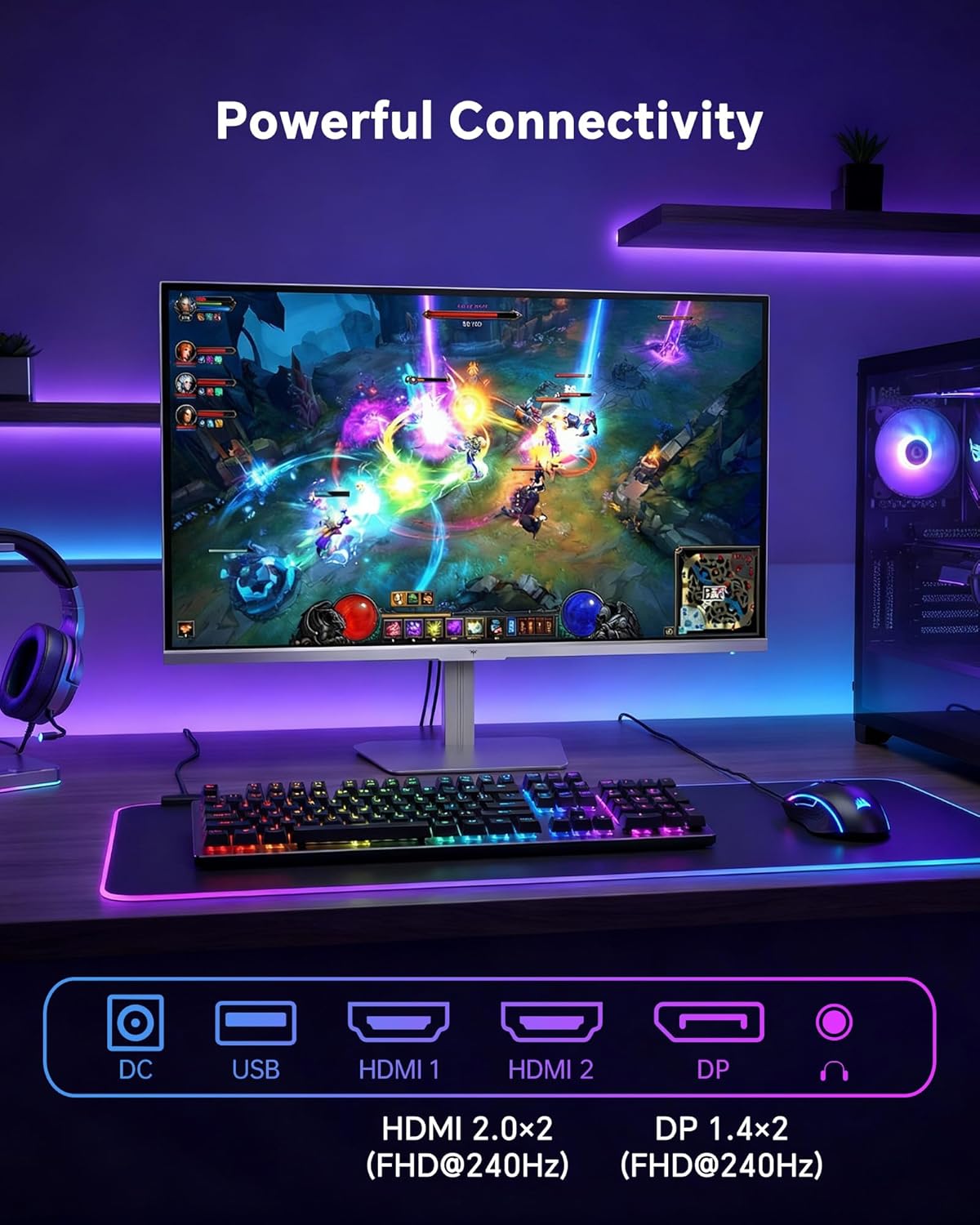
- HDMI: Use an HDMI cable to connect to devices with HDMI output. The monitor has two HDMI 2.0 ports, supporting FHD at 240Hz.
- منفذ العرض: Use a DisplayPort cable for devices with DisplayPort output. The monitor has one DisplayPort 1.4, supporting FHD at 240Hz.
- قوة: Connect the power adaptor to the DC input on the monitor and then to a power outlet.
- USB: A USB 2.0 port is available for connecting peripherals.
- الصوت خارج: A 3.5mm audio jack is available for connecting headphones or external speakers.
2. تعليمات التشغيل
2.1 تشغيل/إيقاف التشغيل
اضغط على زر التشغيل الموجود على الشاشة لتشغيلها أو إيقافها. سيضيء مؤشر الطاقة عند تشغيل الشاشة.
2.2 قائمة العرض على الشاشة (OSD)
The OSD menu allows you to adjust various monitor settings. Use the control buttons (typically located on the back or bottom of the monitor) to navigate the menu and select options. Refer to the Quick Start Guide for specific button functions.
2.3 إعدادات العرض
تحسين الخاص بك viewتحسين تجربة المستخدم من خلال ضبط الإعدادات التالية:
- معدل التحديث: The monitor supports a 240Hz refresh rate for smooth motion. Ensure your graphics card settings are configured to utilize this rate.

- المزامنة التكيفية: This technology synchronizes the monitor's refresh rate with your graphics card's frame rate to eliminate screen tearing and stuttering. Enable Adaptive Sync in the OSD menu and ensure it is also enabled in your graphics card control panel (FreeSync/G-Sync compatible).

- HDR 400: High Dynamic Range 400 provides enhanced contrast and color accuracy, delivering brighter highlights and deeper shadows. Activate HDR in the OSD menu and your operating system display settings for compatible content.

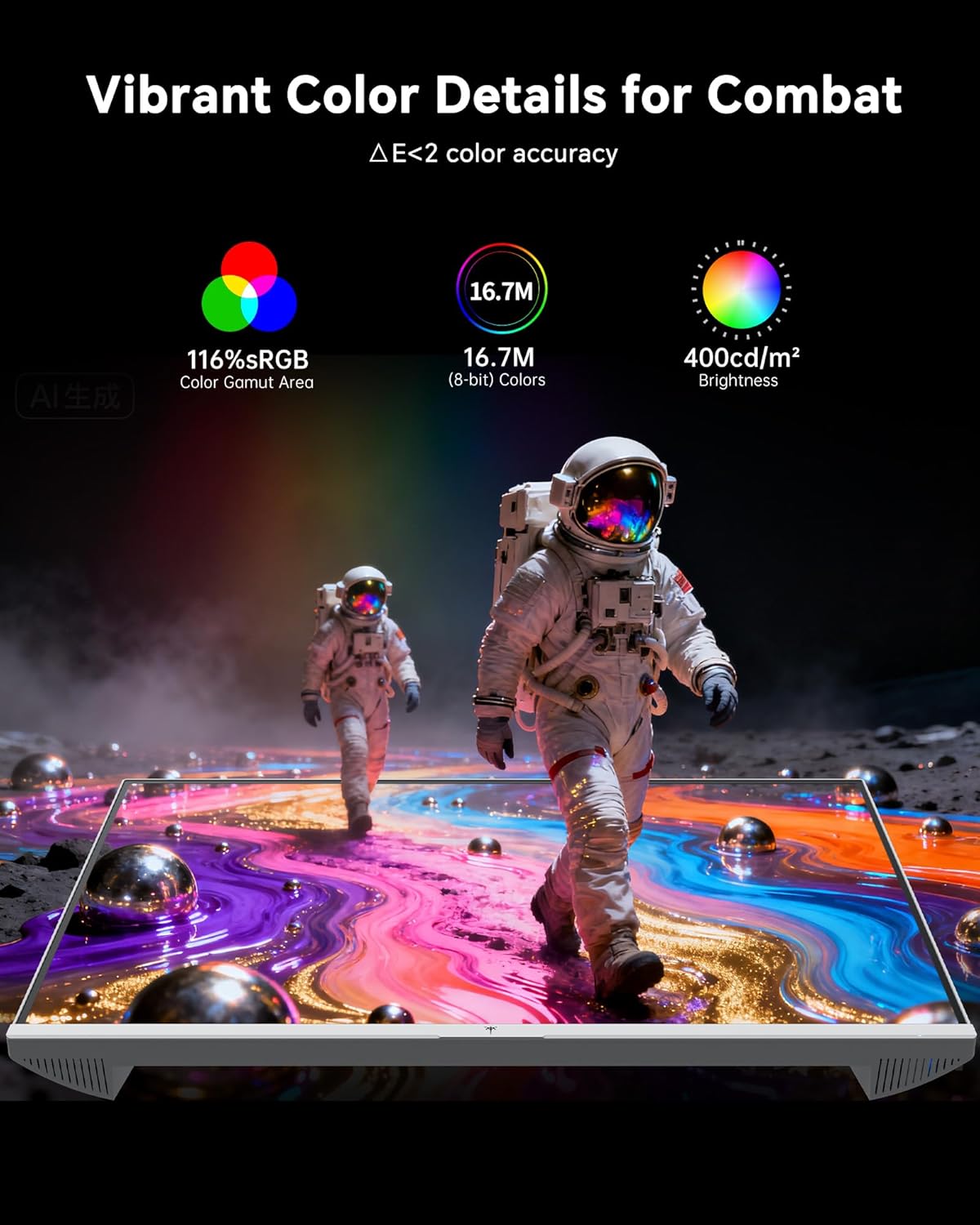
- إعدادات الألوان: The monitor offers 116% sRGB color gamut and 16.7 million colors. Adjust brightness (up to 400 cd/m²) and color temperature through the OSD menu to suit your preference.
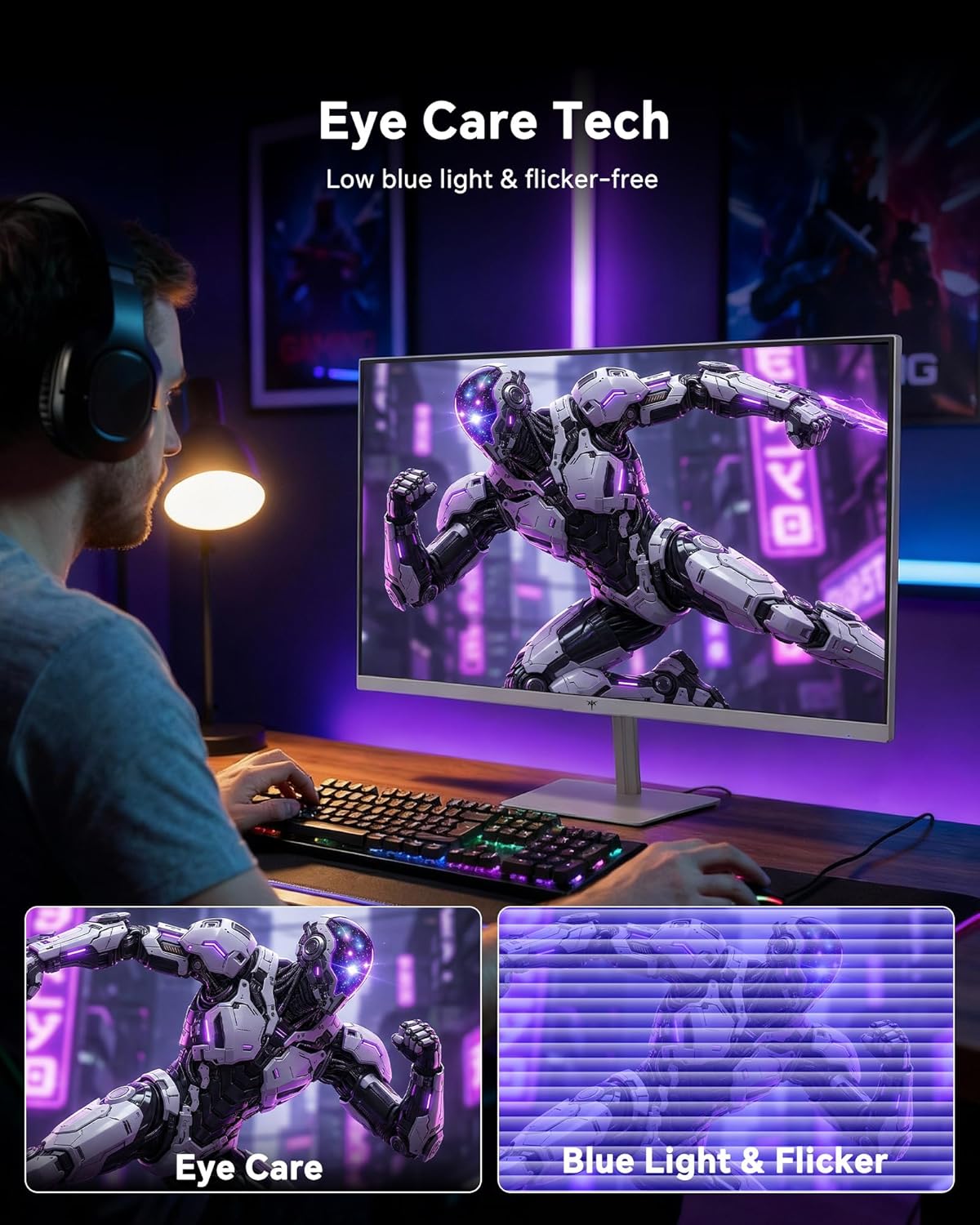
- تقنية العناية بالعيون: The monitor features low blue light and flicker-free technology to reduce eye strain during prolonged use. These settings can typically be adjusted or enabled within the OSD menu.
2.4 ضبط إمالة الشاشة
The monitor supports tilt adjustment from -5° to 15° (±3°). Gently adjust the monitor panel to your desired viewزاوية جي.
3. الصيانة
3.1 تنظيف الشاشة
لتنظيف شاشة العرض وasing:
- قم دائمًا بإيقاف تشغيل الشاشة وفصل سلك الطاقة قبل التنظيف.
- استخدم قطعة قماش ناعمة وخالية من الوبر وامسحها برفق.ampيُنظف بالماء أو بمنظف شاشات خفيف وغير كاشط.
- امسح الشاشة برفق لإزالة الغبار والبقع. تجنب الضغط المفرط.
- من أجل جasing, use a dry, soft cloth. Do not use alcohol, ammonia, or abrasive cleaners, as these can damage the surface.
3.2 العناية العامة
- تجنب وضع أشياء ثقيلة على الشاشة أو كابلاتها.
- لا تعرض الشاشة لأشعة الشمس المباشرة أو الحرارة الزائدة أو البرودة الشديدة.
- أبقِ الشاشة بعيدة عن السوائل والرطوبة العالية.
- تأكد من التهوية المناسبة حول الشاشة لمنع ارتفاع درجة الحرارة.
4. استكشاف الأخطاء وإصلاحها
If you encounter issues with your KTC H24F7 monitor, refer to the following common problems and solutions:
| مشكلة | السبب المحتمل | حل |
|---|---|---|
| لا توجد صورة على الشاشة | Power cable disconnected; Video cable disconnected or loose; Incorrect input source selected; Monitor is off. | Ensure power cable is securely connected and monitor is on. Check video cable connections (HDMI/DisplayPort) at both the monitor and computer. Press the input source button on the monitor to cycle through inputs. |
| تذبذب أو تمزق الصورة | Adaptive Sync not enabled; Graphics card driver issues; Faulty video cable. | Enable Adaptive Sync in the OSD menu and your graphics card control panel. Update graphics card drivers. Try a different video cable. If using DisplayPort 1, try DisplayPort 2 or HDMI if available, as some units may experience issues with specific ports. |
| Colors appear incorrect or washed out | Color settings incorrect; HDR not properly configured; Faulty video cable. | Adjust color settings (brightness, contrast, color temperature) in the OSD menu. Ensure HDR is enabled in both the OSD and your operating system for HDR content. Try a different video cable. |
| لا تصل شاشة العرض إلى 240 هرتز | Graphics card limitations; Incorrect display settings in OS; Cable bandwidth limitations. | Ensure your graphics card supports 240Hz at 1080p. Verify display settings in your operating system (e.g., Windows Display Settings or NVIDIA/AMD control panel) are set to 240Hz. Use the provided HDMI cable or a certified DisplayPort 1.4 cable. |
| Stuck or dead pixels | عيب في التصنيع. | A small number of stuck or dead pixels (typically 1-3) may be considered normal for LCD panels. If the issue is severe or persistent, contact customer support. |
5. المواصفات
| ميزة | التفاصيل |
|---|---|
| ماركة | KTC |
| رقم الموديل | ح24ف7 |
| حجم الشاشة | 24 بوصة |
| دقة | دقة عالية كاملة 1080 بكسل (1920 × 1080 بكسل) |
| نوع اللوحة | IPS سريع |
| معدل التحديث | 240 هرتز |
| وقت الاستجابة | 1 مللي ثانية (MPRT) |
| نسبة العرض إلى الارتفاع | 16:9 |
| سطوع | 400 شمعة لكل متر مربع |
| نسبة التباين | 1000:1 |
| مجموعة الألوان | 116% إس آر جي بي |
| دعم HDR | النطاق الديناميكي العالي 400 |
| المزامنة التكيفية | FreeSync, G-Sync Compatible |
| الاتصال | 2x HDMI 2.0, 1x DisplayPort 1.4, 1x USB 2.0, 1x Audio Out (3.5mm) |
| ميزات العناية بالعيون | Low Blue Light, Flicker-Free, Anti-Glare Screen |
| التعديلات | Tilt (-5° to 15°) |
| VESA Mount | 100 مم × 100 مم |
| الأبعاد (D x W x H) | 5.39 بوصة عمق × 21.25 بوصة عرض × 15.74 بوصة ارتفاع |
| وزن العنصر | 3.2 كيلوغرام |
| لون | أبيض |
6. الضمان والدعم
6.1 معلومات الضمان
The KTC H24F7 monitor comes with a ضمان الشركة المصنعة لمدة ثلاث سنواتيغطي هذا الضمان عيوب المواد والصناعة في ظل الاستخدام العادي.
يرجى الاحتفاظ بإثبات الشراء الخاص بك لمطالبات الضمان.
6.2 دعم العملاء
For technical assistance, warranty claims, or any questions regarding your KTC H24F7 monitor, please contact KTC customer support. KTC aims to provide responsive customer support and typically responds within 12 hours.
You can usually find contact information on the official KTC website or through the retailer where you purchased the product. When contacting support, please have your monitor model number (H24F7) and purchase details ready.