
مقدمة
This manual provides essential information for setting up, operating, maintaining, and troubleshooting your HP OMEN Transcend 14 AI Gaming Laptop. Please read this guide thoroughly to ensure optimal performance and longevity of your device.
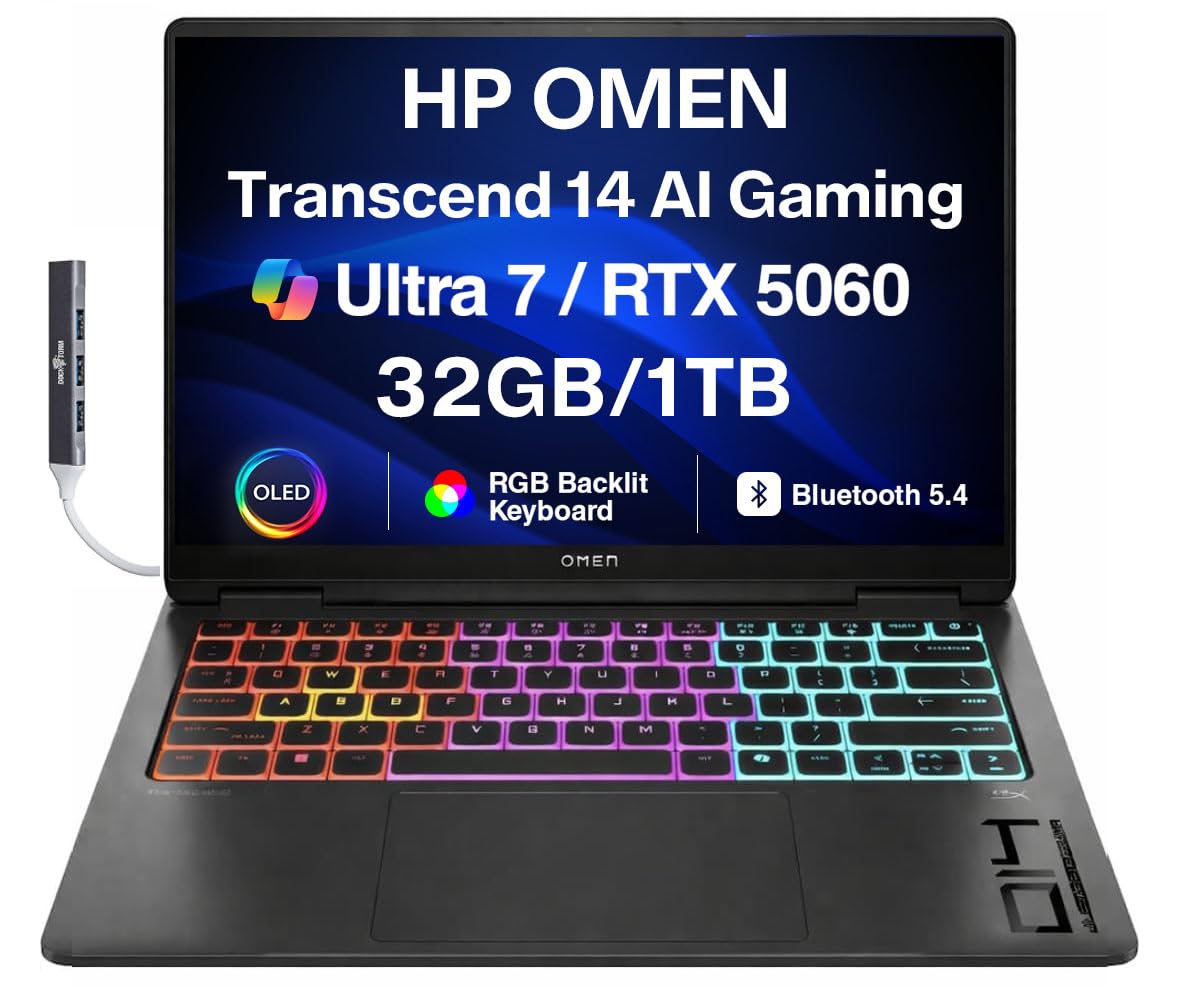
Figure 1: HP OMEN Transcend 14 AI Gaming Laptop.
ماذا يوجد في الصندوق
تأكد من وجود جميع العناصر في العبوة:
- HP OMEN Transcend 14 AI Gaming Laptop
- محول الطاقة والكابل
- موزع USB محمول من Dockztorm
- الوثائق (دليل البدء السريع، معلومات الضمان)

Figure 2: Included Dockztorm Portable USB Hub.
المنتج انتهىview
المنافذ والموصلات
Familiarize yourself with the various ports on your laptop for connecting peripherals and power.

الشكل 3: انتهىview of laptop ports.
- HDMI 2.1: للاتصال بالشاشات الخارجية.
- USB Type-C (معدل الإشارة 10 جيجابت في الثانية): Supports USB Power Delivery and DisplayPort 1.4a.
- USB Type-A (معدل الإشارة 10 جيجابت في الثانية): للأجهزة USB القياسية.
- مقبس سماعة الرأس/الميكروفون المشترك: لإدخال وإخراج الصوت.
- Thunderbolt 4 مع USB Type-C (معدل نقل بيانات 40 جيجابت في الثانية): Supports USB Power Delivery, DisplayPort 2.1, HP Sleep and Charge.
عرض
The laptop features a 14.0-inch 3K (2880x1800) 120Hz OLED display with 500 nits brightness, offering vibrant visuals and quick response times for an immersive experience.

Figure 4: The OLED display in action.
يثبت
- فك حزمة الكمبيوتر المحمول: قم بإزالة الكمبيوتر المحمول وجميع الملحقات من العبوة بعناية.
- توصيل الطاقة: Plug the power adapter into the laptop's power port (USB Type-C) and then into a wall outlet. Ensure the battery is sufficiently charged before first use.
- التمهيد الأولي: Open the laptop lid and press the power button. The laptop will guide you through the initial Windows 11 Pro setup process. Follow the on-screen instructions to configure your operating system, network, and user account.
- توصيل الأجهزة الطرفية: Connect any external devices such as a mouse, keyboard, or external monitor to the appropriate ports.
- تثبيت التحديثات: After initial setup, connect to the internet and check for Windows updates and HP driver updates to ensure your system is running the latest software.
تعليمات التشغيل
تشغيل/إيقاف الطاقة
- تشغيل الطاقة: اضغط على زر الطاقة الموجود على لوحة المفاتيح.
- اغلق: انقر فوق زر البدء، ثم الطاقة > إيقاف التشغيل.
- إعادة تشغيل: انقر فوق زر البدء، ثم الطاقة > إعادة التشغيل.
- ينام: أغلق الغطاء أو انقر فوق زر البدء، ثم الطاقة > السكون.
لوحة المفاتيح ولوحة اللمس
The laptop features an RGB backlit keyboard and a precision touchpad. Customize keyboard lighting and touchpad settings through Windows settings or the OMEN Gaming Hub software.

Figure 5: RGB Backlit Keyboard.
مركز الألعاب OMEN
The OMEN Gaming Hub software provides centralized control for system performance, lighting, network booster, and other gaming-specific features. It allows you to monitor system vitals, adjust performance modes, and customize RGB lighting effects.

Figure 6: OMEN Gaming Hub interface.
صيانة
- تنظيف: Use a soft, lint-free cloth to clean the screen and chassis. For stubborn marks, dampاشطف القماش برفق بالماء أو بمنظف مناسب للشاشات. تجنب المواد الكيميائية القاسية.
- تحديثات البرامج: Regularly check for and install operating system updates (Windows Update) and driver updates (HP Support Assistant or OMEN Gaming Hub) to ensure system stability and security.
- العناية بالبطارية: لإطالة عمر البطارية، تجنب درجات الحرارة القصوى وحاول الحفاظ على شحن البطارية بين 20% و80% عندما يكون ذلك ممكنًا.
- تهوية: Ensure the laptop's vents are clear of obstructions to prevent overheating. Use the laptop on a hard, flat surface.
استكشاف الأخطاء وإصلاحها
المشاكل الشائعة والحلول
- الكمبيوتر المحمول لا يعمل:
- تأكد من توصيل محول الطاقة بشكل آمن بالكمبيوتر المحمول ومأخذ الطاقة العامل.
- حاول استخدام منفذ طاقة مختلف.
- قم بإجراء إعادة ضبط صلبة عن طريق الضغط على زر الطاقة لمدة 15 ثوانٍ.
- الشاشة فارغة أو سوداء:
- Connect an external monitor to check if the display output is working.
- اضبط سطوع الشاشة باستخدام مفاتيح الوظائف.
- أعد تشغيل الكمبيوتر المحمول.
- مشاكل الاتصال بشبكة Wi-Fi:
- تأكد من تمكين Wi-Fi في إعدادات Windows.
- أعد تشغيل جهاز التوجيه والمودم.
- قم بتحديث برامج تشغيل الواي فاي.
- ارتفاع درجة الحرارة:
- Ensure vents are clear and the laptop is on a hard, flat surface.
- قم بتنظيف الغبار من فتحات التهوية باستخدام الهواء المضغوط.
- Adjust performance settings in OMEN Gaming Hub to a cooler mode.
تحديد
| ماركة | HP |
| اسم الموديل | OMEN Transcend 14 |
| نظام التشغيل | ويندوز 11 برو |
| نموذج وحدة المعالجة المركزية | Intel Ultra 7-255H (15th Gen) |
| سرعة وحدة المعالجة المركزية | 2.00GHz (up to 5.1 GHz) |
| معالج الرسوميات المساعد | GeForce RTX 5060 8GB GDDR7 |
| حجم الشاشة | 14 بوصة |
| نوع العرض | OLED 3K (2880x1800) 120Hz |
| حجم ذاكرة الوصول العشوائي المثبتة | 32 جيجابايت LPDDR5X |
| تخزين | محرك أقراص الحالة الصلبة PCIe NVMe بسعة 1 تيرابايت |
| الاتصال | 802.11ax Wi-Fi, Bluetooth 5.4, Thunderbolt 4, USB 3.2 Type-C, USB 3.2 Type-A, HDMI 2.1 |
| بطارية | بطارية رباعية الخلايا 71 واط/ساعة |
| أبعاد العنصر (LxWxH) | 12.4 × 9.25 × 0.9 بوصة |
الضمان والدعم
معلومات الضمان
Your HP OMEN Transcend 14 AI Gaming Laptop comes with a ضمان الشركة المصنعة لمدة عامين from GreatPriceTech. Please refer to the warranty documentation included in your product packaging for full terms and conditions.
دعم العملاء
للحصول على المساعدة الفنية أو تنزيلات برامج التشغيل أو المزيد من الدعم، يرجى زيارة موقع دعم HP الرسمي website or contact HP customer service. Keep your product's serial number handy when contacting support.
- دعم HP Webموقع: الدعم.hp.com
- مركز ألعاب OMEN: Utilize the built-in OMEN Gaming Hub for system diagnostics and updates.