
1. المقدمة
The Strong 4G LTE N300 WiFi Router provides high-speed internet access using a 4G SIM card, offering reliable Cat4 LTE speeds up to 150 Mbps and stable N300 Mbps Wi-Fi coverage. This device is designed for easy setup and use, supporting up to 32 devices simultaneously, making it suitable for both home and small office environments where wired broadband may not be available.
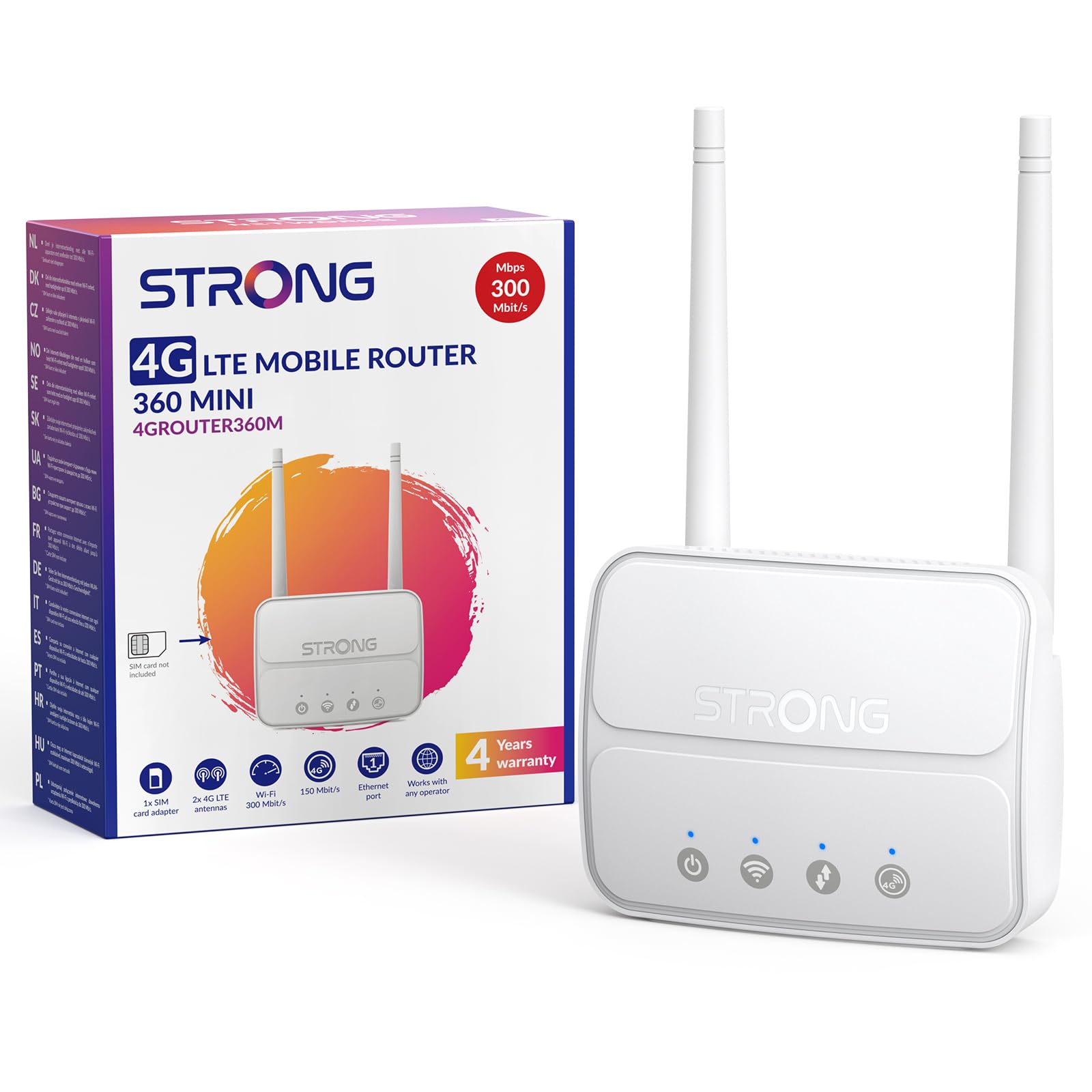
Image 1: The Strong 4G LTE N300 WiFi Router, a compact device with two external antennas for enhanced signal reception.
2. ماذا يوجد في الصندوق
يرجى التحقق من محتويات الطرد بعناية. في حال وجود أي نقص أو تلف في المنتجات، يرجى التواصل مع خدمة العملاء.
- Strong 4G LTE N300 WiFi Router
- External Antennas (2 units)
- كابل إيثرنت RJ45
- مصدر الطاقة الخارجي
- Nano to Micro SIM Card Adapter
- دليل التثبيت السريع
- بطاقة السلامة والضمان
3. دليل الإعداد
Follow these steps for a quick and easy setup of your Strong 4G LTE N300 WiFi Router.
3.1. Prepare Your SIM Card
Before inserting your SIM card, ensure that any PIN protection is disabled. You can do this by inserting the SIM card into a smartphone and disabling the PIN request through the phone's settings.
3.2. Insert the SIM Card
- حدد مكان فتحة بطاقة SIM على جهاز التوجيه.
- If you have a Nano SIM, use the provided Nano to Micro SIM adapter to fit it into the standard SIM slot.
- Gently insert the prepared SIM card into the slot until it clicks into place.
3.3. Attach External Antennas
Screw the two external 4G antennas onto the designated connectors at the back of the router. Adjust their orientation for optimal signal reception.
3.4. Power On the Router
Connect the external power supply to the router's DC-in port and then plug it into a power outlet. The router will automatically power on and begin the startup sequence.
3.5. Connect to the Network (Plug & Play)
The router is designed for Plug & Play operation. Once powered on and with a valid SIM card, it will automatically connect to the 4G LTE network. You can then connect your devices via Wi-Fi or Ethernet.

Image 2: Visual guide for SIM card insertion and powering on the router for instant connection. The image also shows the SIM card slot supporting standard, micro, and nano SIMs with an adapter.
3.6. الوصول إلى Web الواجهة
For advanced settings and network management, access the router's web واجهة عن طريق الكتابة 192.168.188.1 في داخلك web browser's address bar. Refer to the Quick Installation Guide for default login credentials.
4. تعليمات التشغيل
This section details how to use your Strong 4G LTE N300 WiFi Router for optimal performance.
4.1. توصيل الأجهزة
The router supports connections for up to 32 devices simultaneously.
- اتصال واي فاي: Locate the Wi-Fi network name (SSID) and password printed on the label at the bottom of the router. Select this network on your device and enter the password to connect.
- اتصال إيثرنت: Use an RJ45 Ethernet cable to connect devices such as PCs, game consoles, or Smart TVs to the router's 100 Mbps LAN port for a stable wired connection.
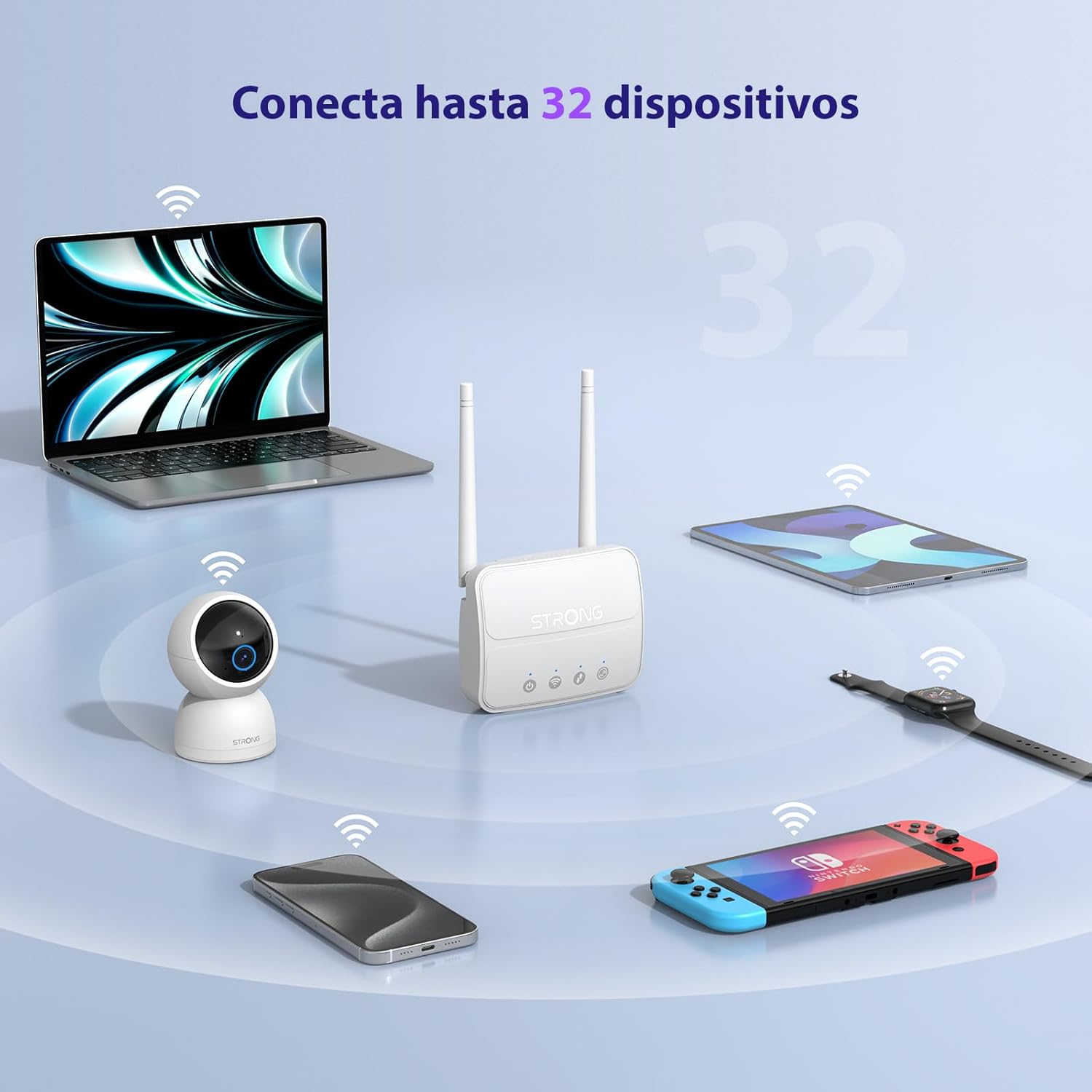
Image 3: The router connecting various devices including laptops, tablets, smartphones, and gaming consoles, demonstrating its capacity for up to 32 simultaneous connections.
4.2. Network Management and Security
The router offers robust security features to protect your network:
- تشفير WPA / WPA2: Ensures secure wireless communication.
- PIN Control: Manage SIM card PIN settings.
- تصفية ماك: تحكم في الأجهزة التي يمكنها الاتصال بشبكتك بناءً على عناوين MAC الخاصة بها.
- Advanced Firewall Settings: Customize firewall rules for enhanced protection.
All these settings can be managed through the easy-to-use web واجهة (192.168.188.1).

Image 4: A user managing network settings on a laptop, illustrating the router's WPA/WPA2 encryption and PIN control features for secure network management.
5. الصيانة
تضمن الصيانة المناسبة طول عمر جهاز التوجيه الخاص بك وأدائه الأمثل.
- تنظيف: استخدم قطعة قماش ناعمة وجافة لتنظيف الجزء الخارجي من جهاز التوجيه. لا تستخدم المنظفات السائلة أو البخاخات.
- الموقع: ضع جهاز التوجيه في منطقة جيدة التهوية، بعيدًا عن أشعة الشمس المباشرة ومصادر الحرارة والمجالات الكهرومغناطيسية القوية.
- تحديثات البرامج الثابتة: The router features a USB port specifically for firmware updates. Regularly check the Strong official website for the latest firmware versions to ensure improved performance and security. Follow the instructions provided with the firmware update package carefully.
6. استكشاف الأخطاء وإصلاحها
If you encounter issues with your router, refer to the following common troubleshooting steps:
- لا يوجد اتصال بالإنترنت:
- تأكد من إدخال بطاقة SIM بشكل صحيح وأنها تحتوي على خطة بيانات نشطة.
- Verify that the SIM card's PIN protection is disabled.
- Check the signal strength indicators on the router. If the signal is weak, try adjusting the external antennas or relocating the router.
- أعد تشغيل جهاز التوجيه عن طريق فصل محول الطاقة وإعادة توصيله.
- شبكة الواي فاي غير مرئية أو غير متصلة:
- Ensure the Wi-Fi function is enabled (check the router's LED indicators).
- Verify you are entering the correct Wi-Fi password (SSID and password are on the router's label).
- Try connecting a device via Ethernet to confirm the router has internet access.
- السرعات البطيئة:
- Check the 4G signal strength. Weak signal can lead to slower speeds.
- Ensure no other applications or devices are consuming excessive bandwidth.
- Consider the number of connected devices; the router supports up to 32, but performance may vary with heavy usage.
- لا يمكن الوصول Web الواجهة:
- تأكد من أن جهازك متصل بشبكة جهاز التوجيه (واي فاي أو إيثرنت).
- Confirm you are typing the correct IP address: 192.168.188.1.
- جرب طريقة مختلفة web المتصفح.
If these steps do not resolve the issue, please contact Strong customer support.
7. المواصفات
Detailed technical specifications for the Strong 4G LTE N300 WiFi Router (Model 4GROUTER360M).
| ميزة | مواصفة |
|---|---|
| ماركة | قوي |
| اسم الموديل | 4 جرام راوتر 360 م |
| تكنولوجيا الاتصال | 4G, Ethernet, LTE, Wi-Fi |
| المعيار اللاسلكي | 802.11n (N300 Mbps) |
| سرعة 4G LTE | Up to 150 Mbps (Cat4) |
| منافذ إيثرنت | 1 x 100 Mbps LAN Port |
| فتحة بطاقة SIM | Standard (2FF), includes Nano to Micro adapter |
| نوع الهوائي | 2 x External, Detachable 4G Antennas; 2 x Internal Wi-Fi Antennas |
| ماكس الأجهزة المتصلة | حتى 32 |
| ميزات الأمان | WPA/WPA2 Encryption, PIN Control, MAC Filtering, Firewall |
| نظام التشغيل | StrongOS |
| الأبعاد (العبوة) | 18.1 × 15.6 × 7.3 سم |
| وزن المنتج | 204 جرام |
| مزود الطاقة | محول طاقة خارجي |
| المميزات الخاصة | Secure Network Management, Plug & Play, Connect up to 32 devices, USB port for firmware updates |
8. الضمان والدعم
Strong is committed to providing reliable products and excellent customer service.
8.1. معلومات الضمان
Your Strong 4G LTE N300 WiFi Router comes with a 4-year protection plan, ensuring long-term peace of mind. Please refer to the included Safety and Warranty Card for detailed terms and conditions.
8.2. دعم العملاء
For any technical assistance, troubleshooting, or warranty inquiries, please contact our expert support team:
- بريد إلكتروني: support_at@strong-eu.com
Our support team offers solid service and extended coverage to assist you.

Image 5: Visual representation of Strong's reliable support, highlighting the 4-year protection and contact email for assistance.