
معلومات هامة حول السلامة
Please read all instructions carefully before using this monitor. Keep this manual for future reference.
- Do not place the monitor near water or in humid environments.
- تأكد من التهوية المناسبة حول الشاشة لمنع ارتفاع درجة الحرارة.
- استخدم فقط محول الطاقة المرفق مع الشاشة.
- تجنب تعريض الشاشة لأشعة الشمس المباشرة أو درجات الحرارة القصوى.
- لا تحاول إصلاح الشاشة بنفسك. قم بإحالة جميع أعمال الصيانة إلى فنيين مؤهلين.
- نظّف الشاشة بقطعة قماش ناعمة وخالية من الوبر. تجنّب استخدام المواد الكيميائية القاسية.
محتويات الحزمة
يرجى التأكد من تضمين جميع العناصر التالية في الحزمة الخاصة بك:
- 31.5-inch 2K 120Hz Monitor (x1)
- Monitor Stand (x1)
- دليل البدء السريع (QSG) (x1)
- كابل اتش دي ام اي (×1)
- محول الطاقة (x1)
- سلك الطاقة (x1)

An image showing the monitor's dimensions and a list of included accessories: monitor, QSG, HDMI cable, adapter, power cord, and monitor stand.
يثبت
تجميع الشاشة
اتبع الخطوات التالية لتجميع حامل الشاشة وربطه بلوحة العرض:
- قم بإزالة مكونات الشاشة والحامل من العبوة بعناية.
- Attach the base to the stand column, securing it with the provided screw.
- Align the assembled stand with the mounting points on the back of the monitor panel.
- ادفع الحامل برفق إلى مكانه حتى تسمع صوت طقطقة يثبته بإحكام.
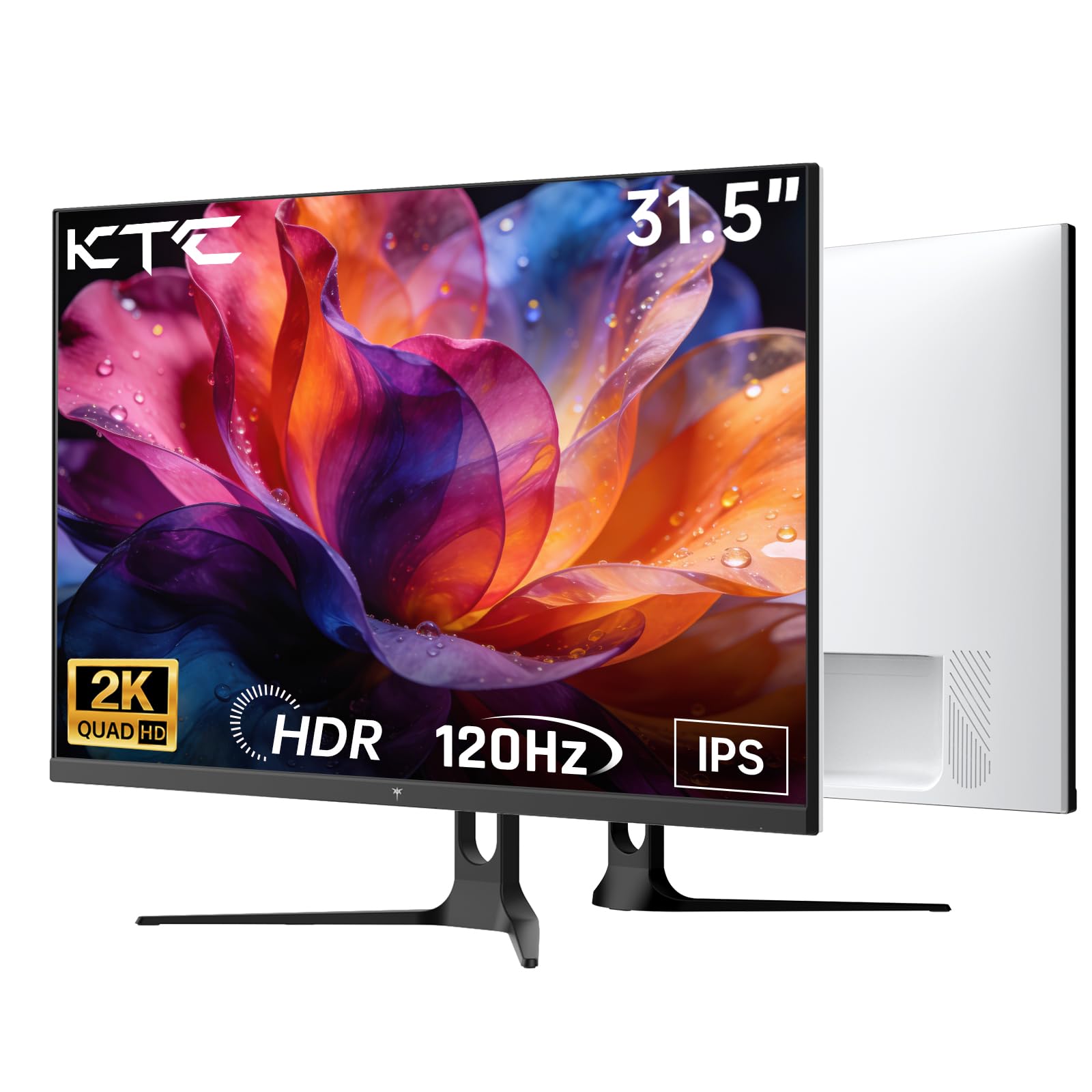
أمام view of the KTC H32D6 31.5-inch monitor on its stand.
الاتصال
Connect your monitor to a power source and your computer using the appropriate cables:
- Connect the power adapter to the monitor's DC input port, then plug the power cord into an electrical outlet.
- For video input, connect one end of the HDMI or DisplayPort cable to your computer's graphics card and the other end to the corresponding port on the monitor.
- إذا رغبت في ذلك، قم بتوصيل سماعات الرأس أو مكبرات الصوت الخارجية بمقبس سماعة الأذن.

Close-up of the monitor's rear panel, highlighting the HDMI 2.0 ports (x2), DisplayPort 1.4 (x1), and earphone jack.
يقدم هذا الفيديو أكثر منview of the KTC 32 Inch 2K 120Hz Computer Monitor, showcasing its features and benefits in a dynamic presentation.
تعليمات التشغيل
تشغيل/إيقاف الطاقة
Press the power button (usually located on the back or bottom right of the monitor) to turn the monitor on or off. The power indicator light will illuminate when the monitor is on.
التنقل في قائمة العرض على الشاشة (OSD).
The monitor features an intuitive OSD menu for adjusting various settings. Use the joystick or buttons (depending on your model) on the back of the monitor to navigate the menu:
- اضغط على عصا التحكم/الزر لفتح قائمة OSD.
- Move the joystick up/down or left/right to select menu options.
- اضغط على عصا التحكم/الزر مرة أخرى لتأكيد الاختيار أو للدخول إلى قائمة فرعية.
- To exit the OSD menu, navigate to the 'Exit' option or hold the joystick/button for a few seconds.
ضبط إعدادات العرض
داخل قائمة OSD، يمكنك ضبط الإعدادات مثل:
- دقة: Set to QHD (2560x1440) for optimal clarity.
- معدل التحديث: Adjust to 120Hz for ultra-smooth visuals.
- السطوع والتباين: Fine-tune for your preferred viewتجربة رائعة.
- إعدادات الألوان: اضبط درجة حرارة اللون، ومعامل جاما، ومعايير اللون الأخرى.

An image demonstrating the superior clarity of QHD (2560x1440) resolution compared to FHD (1920x1080) on the monitor screen.

A visual representation of smooth motion on the monitor, illustrating the benefit of a 120Hz refresh rate for seamless visuals.
المزامنة التكيفية
This monitor supports Adaptive Sync technology (FreeSync, G-Sync Compatible) to eliminate screen tearing and stuttering during gaming or fast-paced video. Ensure Adaptive Sync is enabled in both your monitor's OSD settings and your graphics card control panel for optimal performance.

A side-by-side comparison showing the visual difference with Adaptive Sync ON (smooth image) and OFF (screen tearing) during fast-paced action.
دعم HDR10
The monitor supports HDR10, providing a wider range of colors and contrast for a more immersive viewing experience. To utilize HDR10, ensure your content and graphics card support HDR, and enable it in your operating system display settings.

An image highlighting the enhanced color and contrast provided by HDR10 technology.
ميزات العناية بالعيون
The KTC H32D6 monitor includes Low Blue Light and Flicker-Free technologies to reduce eye fatigue during prolonged use. These features are designed to provide a more comfortable viewتجربة رائعة.

An image illustrating the eye care features, including low blue light and flicker-free technology, designed to reduce eye strain.
ضبط الإمالة
The monitor stand allows for tilt adjustment from -5° to 20°. Gently adjust the monitor panel to your desired viewزاوية لراحة مريحة.

An image demonstrating the wide 178-degree viewing angle provided by the IPS panel, ensuring consistent image quality from various positions.
صيانة
تضمن الصيانة المناسبة طول عمر الشاشة والأداء الأمثل لها.
- تنظيف الشاشة: امسح الشاشة برفق بقطعة قماش ناعمة وجافة وخالية من الوبر. لإزالة البقع الصعبة، امسح برفق.ampen the cloth with water or a screen-cleaning solution specifically designed for monitors. Never spray liquid directly onto the screen.
- تنظيف Casing: استخدم قطعة قماش ناعمة وجافة لتنظيف سطح الشاشة.asinز. تجنب استخدام المنظفات أو المذيبات الكاشطة.
- إيقاف التشغيل عند عدم الاستخدام: Turn off the monitor when not in use to save energy and extend its lifespan.
- تجنب العوائق: Ensure that the ventilation openings on the monitor are not blocked to prevent overheating.
استكشاف الأخطاء وإصلاحها
إذا واجهت مشكلات مع شاشتك، فراجع المشكلات والحلول الشائعة التالية:
| مشكلة | الحل المحتمل |
|---|---|
| لا توجد صورة على الشاشة | تأكد من توصيل كابل الطاقة بإحكام وتشغيل الشاشة. تحقق من توصيل كابل الفيديو (HDMI/DP) بإحكام بكل من الشاشة وجهاز الكمبيوتر. حدد مصدر الإدخال الصحيح من خلال قائمة العرض على الشاشة (OSD). |
| الصورة تومض أو غير مستقرة | Check the video cable connection. Ensure your graphics card drivers are up to date. Verify that the refresh rate is set correctly in your computer's display settings. Enable Adaptive Sync if supported by your graphics card. |
| الألوان تظهر غير صحيحة | Adjust color settings (brightness, contrast, color temperature) in the OSD menu. Ensure HDR is correctly configured in your operating system if you are using HDR content. |
| Monitor not recognized by computer | أعد تشغيل جهاز الكمبيوتر. جرب منفذ فيديو أو كابلًا مختلفًا. قم بتحديث برامج تشغيل بطاقة الرسومات. |
تحديد
Key technical specifications for the KTC H32D6 monitor:
| ميزة | مواصفة |
|---|---|
| ماركة | KTC |
| رقم الموديل | H32D6 |
| حجم الشاشة | 31.5 بوصة |
| دقة | QHD Wide 1440p (2560 × 1440 بكسل) |
| معدل التحديث | 100 Hz (up to 120Hz overclocked) |
| نوع العرض | اي بي اس |
| وقت الاستجابة | 7 ميلي ثانية |
| نسبة العرض إلى الارتفاع | 16:9 |
| سطوع | 350 شمعة (cd/m²) |
| نسبة التباين | 1000:1 |
| Viewزاوية جي | 178 درجة |
| مجموعة الألوان | 109% إس آر جي بي |
| Picture Quality Enhancement | النطاق الديناميكي العالي 10 |
| الاتصال | 2 x HDMI 2.0, 1 x DisplayPort 1.4, Earphone Jack |
| المزامنة التكيفية | FreeSync, G-Sync Compatible |
| مميزات اضافية | Eye Care, Flicker-Free, Tilt Adjustment, VESA 100x100mm Compatible |
| استهلاك الطاقة | 48 واط |
| أبعاد المنتج (العمق × العرض × الارتفاع) | 7.09 بوصة عمق × 28.23 بوصة عرض × 20.08 بوصة ارتفاع |
الضمان والدعم
معلومات الضمان
This KTC H32D6 monitor comes with a ضمان المصنع لمدة عاميغطي هذا الضمان عيوب المواد والتصنيع في ظل الاستخدام العادي. يُرجى الاحتفاظ بإيصال الشراء للمطالبة بالضمان.
The warranty does not cover damage caused by misuse, accidents, unauthorized modifications, or external factors such as power surges.
دعم العملاء
For technical assistance, warranty claims, or any other inquiries, please contact KTC customer support through the official website or the contact information provided with your purchase. You may also refer to the Quick Start Guide for additional support resources.