
1. المقدمة
Thank you for choosing the Pisichen 27-inch 4K UHD Touchscreen Monitor with Webcam. This manual provides essential information for the safe and efficient operation of your new monitor. Please read it thoroughly before use and retain it for future reference.
2. معلومات السلامة
- مصدر الطاقة: Use only the power adapter supplied with the monitor. Ensure the power outlet meets the voltagالمتطلبات.
- تهوية: لا تسد فتحات التهوية. اترك مساحة كافية حول الشاشة لضمان تدفق الهواء بشكل صحيح.
- التعرض السائل: أبقِ الشاشة بعيدًا عن السوائل. لا تُعرِّضها للمطر أو الرطوبة.
- تنظيف: Disconnect the power cable before cleaning. Use a soft, dry cloth. Avoid abrasive cleaners.
- الموقع: ضع الشاشة على سطح ثابت ومستوٍ لمنع سقوطها.
- الخدمة: لا تحاول صيانة الشاشة بنفسك. قم بإحالة جميع أعمال الصيانة إلى فنيين مؤهلين.
3. محتويات العبوة
يرجى التحقق من محتويات العبوة عند فتحها. في حال وجود أي نقص أو تلف في المنتجات، يرجى الاتصال بالبائع.
- Pisichen 27-inch 4K UHD Touchscreen Monitor
- حامل شاشة (قاعدة وذراع)
- محول الطاقة
- كابل HDMI
- USB-B to USB-A Cable (for Touch Function)
- دليل المستخدم
4. انتهى المنتجview
4.1 الميزات الرئيسية
- Ultra HD 4K Touchscreen Display: 27-inch 4K Ultra HD screen with vibrant colors, sharp details, and wide viewing angles. Features a responsive 10-point touchscreen for intuitive control.
- Built-in High-Definition Webكام: مدمج webcam for video calls, online meetings, and streaming, reducing desk clutter.
- اتصال متعدد الاستخدامات: Multiple ports including HDMI, DisplayPort, and USB-C for easy connections to various devices. Supports both touch and traditional input.
- Optimized for Productivity and Creativity: Large 4K touch display for precise control and streamlined workflows, ideal for graphic designers, content creators, and multitasking.
- Sleek and Functional Design: Modern design with an adjustable stand for optimal viewing angles and comfort during extended use.
4.2 منافذ الشاشة
The monitor features various ports for connecting to your devices. Refer to the image below for port identification.
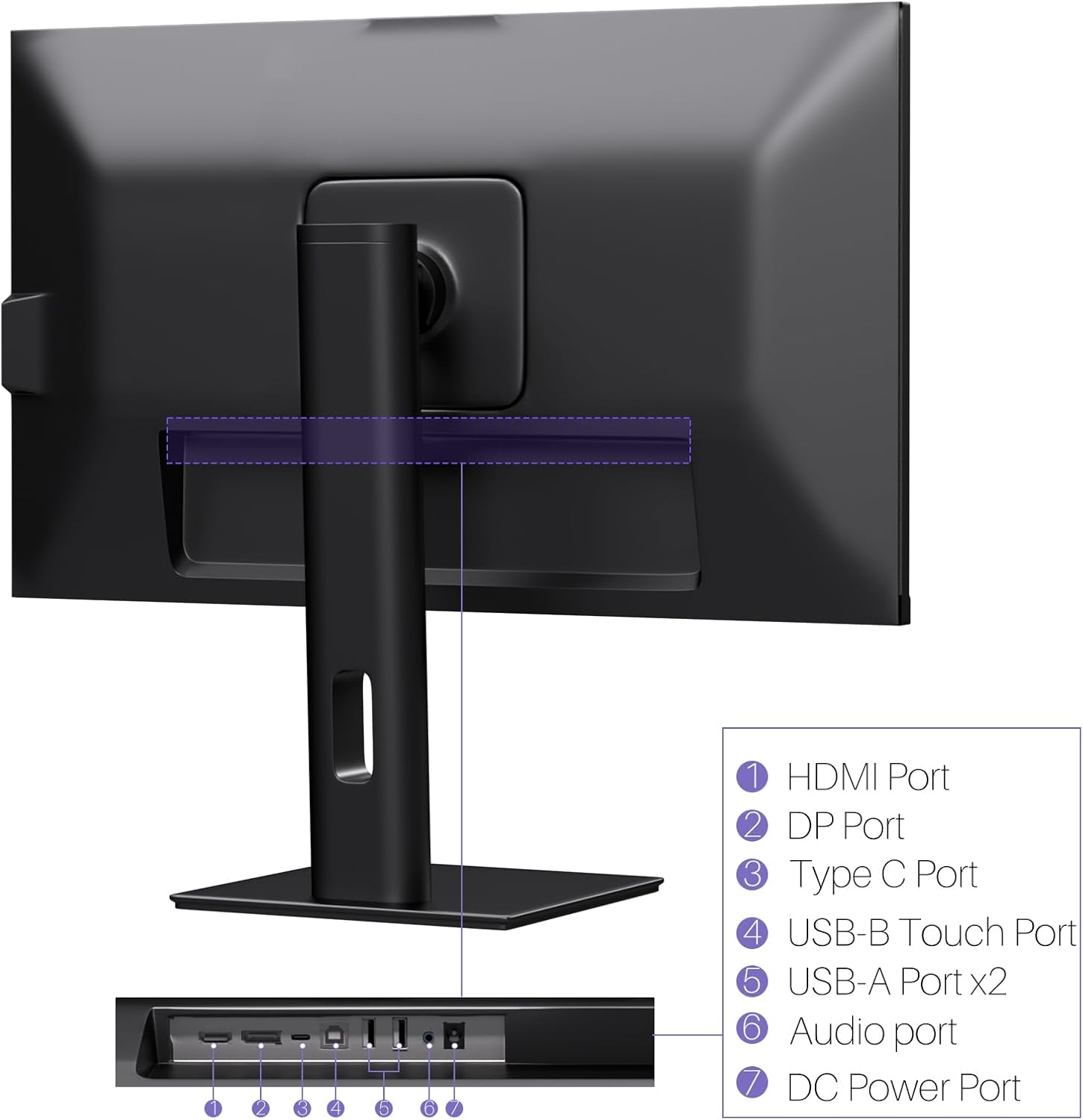
الصورة: الخلفية view of the monitor displaying the HDMI, DP, Type-C, USB-B Touch, USB-A, Audio, and DC Power ports.
- منفذ HDMI: Connects to devices via HDMI cable for video and audio input.
- منفذ DP: Connects to devices via DisplayPort cable for video and audio input.
- ميناء من النوع C: Connects to devices via USB-C cable for video, audio, and power delivery. (Requires USB-C port on signal device to support DisplayPort Alternate Mode for touch functionality).
- USB-B Touch Port: Connects to your computer via USB-B to USB-A cable to enable touchscreen functionality.
- منفذ USB-A (x2): لتوصيل الأجهزة الطرفية عبر منفذ USB.
- منفذ الصوت: لتوصيل أجهزة الصوت الخارجية.
- منفذ طاقة تيار مستمر: يتصل بمحول الطاقة.
5. تعليمات الإعداد
5.1 تجميع الحامل
- قم بإزالة مكونات الشاشة والحامل من العبوة بعناية.
- Attach the stand arm to the monitor's VESA mounting points.
- Secure the stand base to the arm using the provided screws.
- Ensure all connections are tight and the monitor is stable.
5.2 الاتصال بجهاز
The monitor supports various connection types. Choose the appropriate cable for your device.

Image: Connection diagrams illustrating how to connect the monitor as a secondary display (HDMI/DP + DC), a touchscreen monitor (HDMI/DP + USB-B + DC), or via USB-C (USB-C + DC).
- For Video and Audio (Non-Touch): Connect an HDMI or DisplayPort cable from your computer to the corresponding port on the monitor.
- For Video, Audio, and Touch (Windows PC): Connect an HDMI or DisplayPort cable for video/audio. Additionally, connect the USB-B to USB-A cable from the monitor's USB-B Touch Port to a USB-A port on your computer.
- For Video, Audio, and Touch (USB-C Compatible Device): Connect a USB-C cable from your device to the monitor's Type-C port. Ensure your device's USB-C port supports DisplayPort Alternate Mode for touch functionality.
5.3 توصيل الطاقة
- Connect the power adapter to the monitor's DC Power Port.
- قم بتوصيل محول الطاقة بمأخذ الحائط.
6. تعليمات التشغيل
6.1 تشغيل/إيقاف التشغيل
اضغط على زر الطاقة الموجود على الشاشة لتشغيلها أو إيقاف تشغيلها.
6.2 قائمة العرض على الشاشة (OSD)
Use the control buttons (typically located on the back or bottom of the monitor) to navigate the OSD menu. This menu allows you to adjust settings such as brightness, contrast, color temperature, input source, and other display parameters.
6.3 وظيفة شاشة اللمس
The monitor features a 10-point multi-touch screen. Ensure the USB-B to USB-A cable (or USB-C cable for compatible devices) is connected to enable touch functionality.

Image: A user's hand interacting with the monitor screen, highlighting the responsive 10-point touch experience.
- اللمسة الأساسية: Tap to click, swipe to scroll.
- إيماءات اللمس المتعدد: Use two fingers to zoom in/out, rotate, or pan, depending on the application.
- Touch Calibration (Windows Only): If the cursor does not align with your touch, calibration may be required. Go to Control Panel > Hardware and Sound > Tablet PC Settings > Calibrate. Follow the on-screen prompts.
6.4 Using the Built-in Webكاميرا
المتكامل webcam is automatically detected by most operating systems and video conferencing applications. No additional drivers are typically required.

Image: The monitor displaying a video conference call, showcasing its integrated webcam for seamless communication.
- افتح برنامج مؤتمرات الفيديو المفضل لديك (مثل Zoom أو Microsoft Teams أو Skype).
- Select the integrated webcam as your video input device in the application's settings.
6.5 Adjusting Display Resolution
To set the resolution of the monitor (Windows):
- Right-click on your desktop and select "Display Settings."
- Find your monitor (if multiple displays are connected).
- Under "Display resolution," select the recommended resolution of 3840 x 2160.
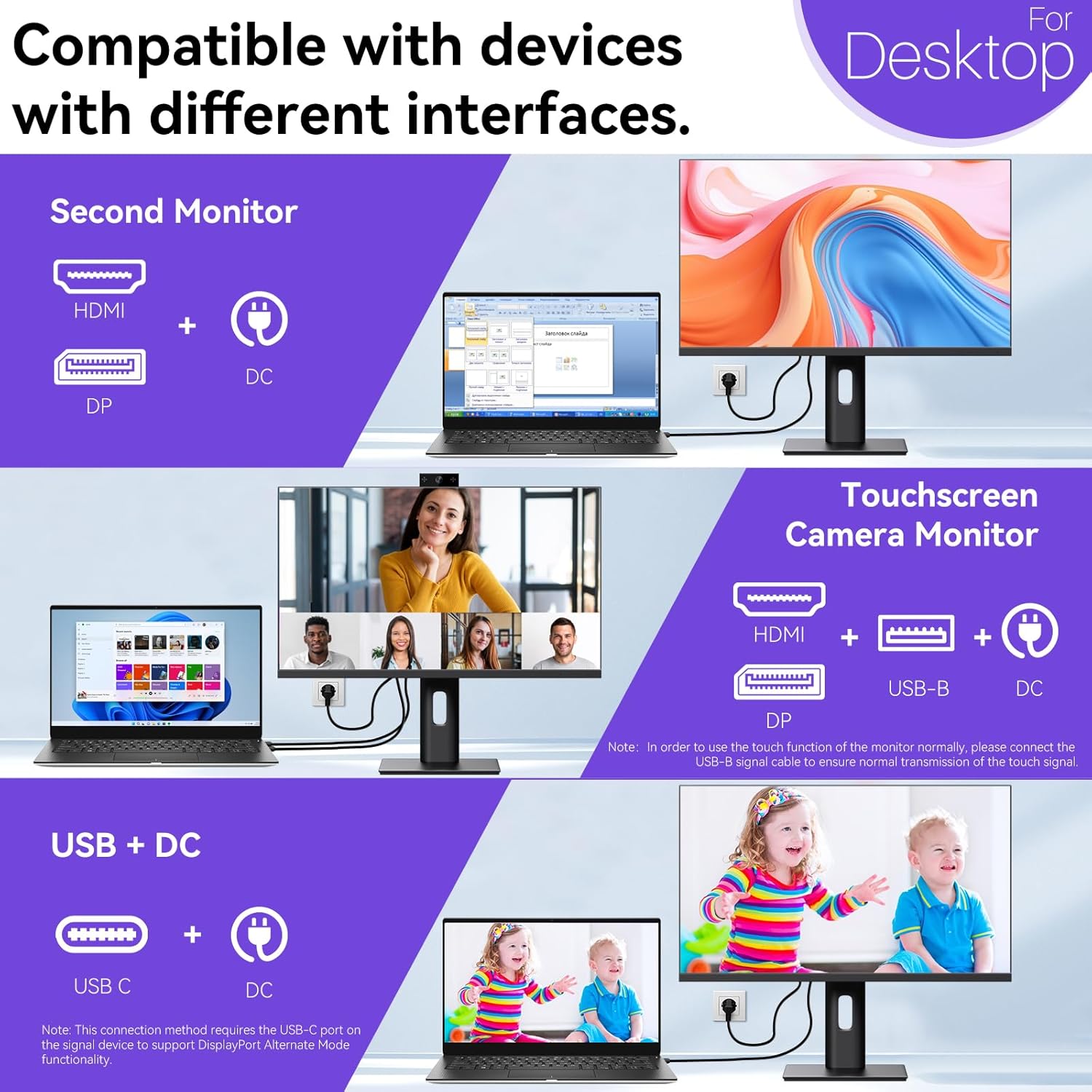
Image: A visual comparison demonstrating the superior clarity of 4K UHD (3840x2160) compared to FHD (1920x1080) and QHD (2560x1440) resolutions.
7. الصيانة
- تنظيف الشاشة: امسح الشاشة برفق بقطعة قماش ناعمة وخالية من الوبر. لإزالة البقع الصعبة، امسح برفقampبلّل قطعة القماش بالماء أو بمحلول تنظيف مخصص للشاشة. لا ترش السائل مباشرة على الشاشة.
- تنظيف Casing: استخدم قطعة قماش ناعمة وجافة لتنظيف الشاشة.asing.
- تخزين: If storing the monitor for an extended period, disconnect it from power, pack it in its original packaging, and store it in a cool, dry place.
8. استكشاف الأخطاء وإصلاحها
If you encounter issues with your monitor, refer to the following troubleshooting guide. For problems not listed, please contact customer support.
| مشكلة | السبب المحتمل | حل |
|---|---|---|
| لا توجد صورة على الشاشة | تم فصل كابل الطاقة؛ تم فصل كابل الفيديو؛ تم تحديد مصدر إدخال غير صحيح. | Ensure power cable is securely connected. Check video cable (HDMI/DP/USB-C) connections. Select correct input source via OSD menu. |
| شاشة اللمس لا تستجيب | USB-B cable not connected; USB-C port not supporting DisplayPort Alternate Mode; Device incompatibility (e.g., iPhone). | Ensure the USB-B to USB-A cable is connected from the monitor to your computer. If using USB-C, verify your device's USB-C port supports DisplayPort Alternate Mode. Note: Touch function is not supported when connected to an iPhone due to iOS system restrictions. |
| Cursor moves incorrectly (Windows) | Touchscreen calibration required. | Perform touchscreen calibration: Go to Control Panel > Hardware and Sound > Tablet PC Settings > Calibrate. |
| Webلم يتم الكشف عن الكاميرا | USB connection issue; Software settings. | Ensure all necessary USB cables are connected. Check your application's settings to select the correct webكام. |
9. المواصفات
| ميزة | التفاصيل |
|---|---|
| ماركة | بيسيشين |
| رقم الموديل | 27INTSCMR-4K |
| حجم الشاشة | 27 بوصة |
| دقة | 3840 × 2160 بكسل (4K UHD 2160p) |
| نسبة العرض إلى الارتفاع | 16:9 |
| سطوع الصورة | 400 كانديلا |
| وصف سطح الشاشة | لامع |
| أبعاد المنتج | 14.37 × 24.21 × 16.54 بوصة |
| وزن العنصر | 16.59 رطل |
| الشركة المصنعة | شركة شنتشن كونوا للإلكترونيات المحدودة |
| الاتصال | HDMI, DisplayPort, USB-C, USB-B (for touch), USB-A (x2), Audio Port |
10. الضمان والدعم
This product comes with a manufacturer's warranty. Please refer to the warranty card included in your package for specific terms and conditions. For technical support or inquiries, please contact Pisichen customer service at الدعم_2308@163.com. When contacting support, please provide your model number and a detailed description of the issue, including any relevant pictures or videos.