
1. المقدمة
Thank you for choosing the GooDee AC321 Video Projector. This manual provides essential information for setting up, operating, and maintaining your device to ensure optimal performance and longevity. Please read this manual thoroughly before using the projector.

Image: The GooDee AC321 Video Projector, a compact device with a lens on the front, resting on its adjustable stand.
2. ماذا يوجد في الصندوق
تأكد من وجود جميع العناصر في العبوة:
- GooDee AC321 Projector
- سلك الطاقة
- كابل HDMI
- جهاز التحكم عن بعد
- دليل المستخدم (هذا المستند)

Image: A visual representation of the items included with the GooDee AC321 projector: the projector unit, remote control, power cable, lens cover, and a 90-degree HDMI cable.
3. الإعداد
3.1 توصيل الطاقة
- قم بتوصيل سلك الطاقة بمنفذ إدخال الطاقة الخاص بجهاز العرض.
- قم بتوصيل الطرف الآخر من سلك الطاقة بمأخذ كهربائي مناسب.
- اضغط على زر الطاقة الموجود على جهاز العرض أو جهاز التحكم عن بعد لتشغيل الجهاز.
3.2 التموضع والتحديد
The GooDee AC321 features a flexible hovering stand, allowing for versatile placement options:
- عرض على سطح الطاولة: Place the projector on a flat surface and adjust the stand to direct the image onto a wall or screen.
- إسقاط السقف: The projector can be tilted upwards to project onto a ceiling, ideal for comfortable viewأثناء الاستلقاء.
- ترايبود تصاعد: Utilize the 1/4-inch screw holes at the bottom of the projector to mount it on a tripod for stable and precise positioning.

Image: The GooDee AC321 projector demonstrating its flexible stand, capable of adjusting the projection angle up to 120 degrees for various viewing positions, including ceiling projection.
3.3 Initial Power On and Focus
Upon powering on, the projector will automatically perform autofocus and keystone correction to provide a clear and rectangular image. Further adjustments can be made via the remote control.
Video: A demonstration of the GooDee Mini Projector's initial setup, showing the power-on sequence, automatic focus adjustment, and the main user interface with various streaming apps.
4. تعليمات التشغيل
4.1 التنقل وواجهة المستخدم
The GooDee AC321 runs on Movin 2.0 OS, providing a smart TV experience with pre-installed streaming applications. Use the included remote control to navigate the interface:
- لوحة الاتجاهات: Use the arrow buttons to move between apps and menu options.
- زر موافق: حدد عنصرًا أو قم بتأكيد إجراء.
- زر الصفحة الرئيسة: العودة إلى الشاشة الرئيسية.
- زر الرجوع: ارجع إلى الشاشة السابقة.
- أزرار التحكم في الصوت: ضبط مستوى إخراج الصوت.
- أزرار التطبيقات المخصصة: Quickly access Netflix, YouTube, and Prime Video.

Image: The GooDee AC321 projector's home screen, showcasing a variety of pre-installed streaming applications like Netflix, YouTube, and Prime Video, ready for selection.
4.2 الوصول إلى التطبيقات والبث
The projector comes pre-licensed with major streaming platforms. Connect to your Wi-Fi network to access over 10,000 streaming channels and a built-in app store for additional content.
4.3 انعكاس الشاشة
The GooDee AC321 supports various casting protocols including DLNA, AirPlay, and Miracast, allowing seamless screen mirroring from iOS, Android, and Windows devices.

Image: The GooDee AC321 projector casting content from a mobile device to a large screen, illustrating its screen mirroring capabilities across different operating systems.
5. الاتصال
يوفر جهاز العرض خيارات اتصال متعددة:
- HDMI: Connect to computers, gaming consoles, TV boxes, or DVD players.
- USB: تشغيل الوسائط مباشرة من أجهزة التخزين USB.
- مقبس صوت 3.5 ملم: قم بتوصيل مكبرات الصوت الخارجية أو سماعات الرأس.
- واي فاي 6: For high-speed wireless internet and streaming.
- بلوتوث شنومكس: For stable connection to external audio devices like speakers or headphones.
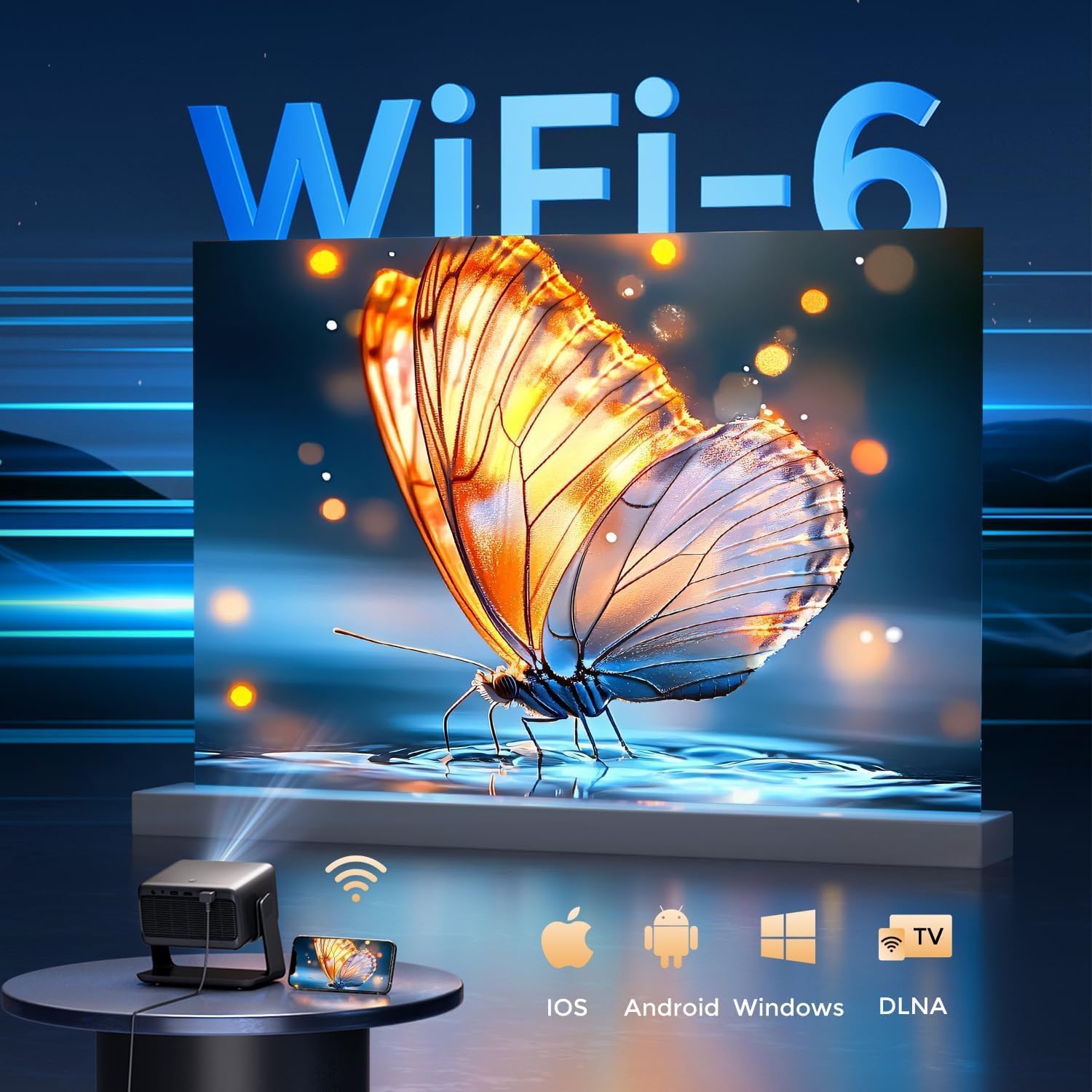
Image: The rear panel of the GooDee AC321 projector, highlighting its connectivity ports including a 3.5mm audio jack, USB port, HDMI input, and power connector.
6. Display & Audio Features
6.1 Visual Performance
Experience an immersive visual feast with the following display capabilities:
- الدقة الأصلية: 1080p (1920 x 1080) for sharp and clear images.
- 4K Video Decoding: Supports 4K video input for smooth playback of high-definition content.
- سطوع: 1200 ANSI lumens ensures clear picture quality even in ambient light conditions.
- AI Image Quality Optimization: Utilizes deep learning algorithms to analyze and optimize picture pixels in real-time, enhancing HDR10+ color and 25000:1 contrast ratio.
- Large Screen Zooming: Project images from 60 to 200 inches, with adjustable zoom from 50-100%.
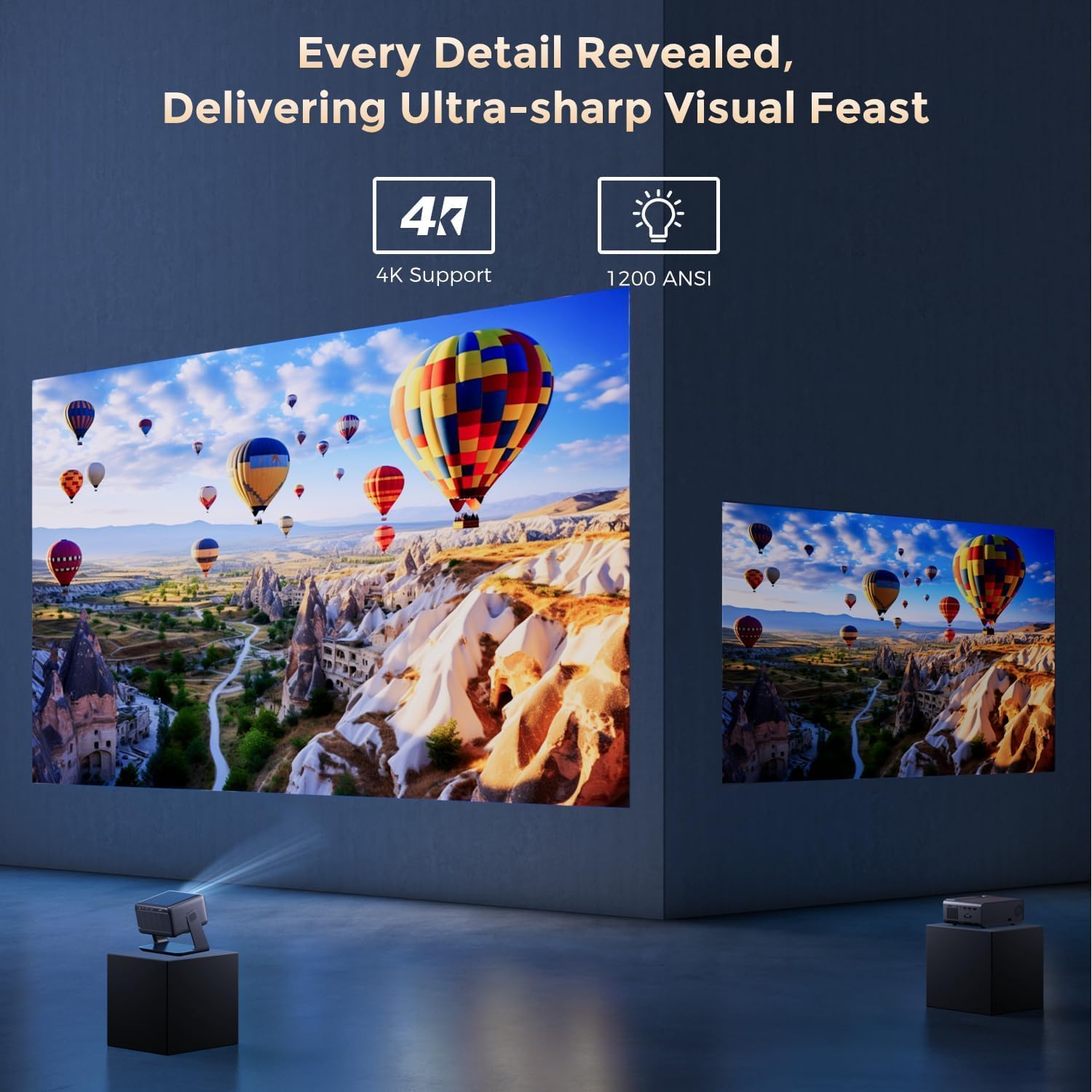
Image: The GooDee AC321 projector showcasing its visual capabilities with a bright, detailed image, emphasizing 4K support and 1200 ANSI lumens for superior clarity.
6.2 تجربة الصوت
The projector is equipped with built-in features for an immersive audio experience:
- صوت دولبي: Integrated Dolby Audio speakers provide rich and immersive sound.
- بلوتوث شنومكس: Connect wirelessly to external Bluetooth speakers or soundbars for enhanced audio.
7. الميزات المتقدمة
The GooDee AC321 incorporates intelligent features for effortless setup and optimal viewعمل:
- التركيز التلقائي: Automatically adjusts the image clarity in seconds.
- تصحيح الانحراف التلقائي: Intelligently corrects vertical and horizontal trapezoidal distortion, ensuring a perfectly rectangular image even from an angled projection.
- محاذاة الشاشة التلقائية: Automatically fits the projected image to your screen.
- نظام تجنب العوائق التلقائي: يكتشف ويضبط الإسقاط لتجنب العوائق في مسار الإسقاط.

الصورة: شفافة view of the GooDee AC321 projector, illustrating its AI 3D ToF Technology for automatic keystone correction, obstacle avoidance, focus, and screen fitting.
Video: A demonstration of the GooDee Mini Smart Projector's automatic keystone correction and focus features, showing how the image quickly adjusts to a perfect rectangle and sharp clarity.
8. المواصفات
| ميزة | وصف |
|---|---|
| رقم الموديل | ايه سي 321 |
| ماركة | جودي |
| دقة العرض | 1920 × 1080 (أصلي) |
| فك تشفير الفيديو | يدعم 4K |
| سطوع | شموم شمعة أنسي |
| تكنولوجيا الاتصال | 3.5mm Jack, Bluetooth 5.4, HDMI, USB, Wi-Fi 6 |
| المميزات الخاصة | Auto Focus, Auto Keystone, Auto Screen Alignment, Auto Obstacle Avoidance, Built-In Cooling System, Built-In Speaker, Smart TV OS (Movin 2.0), Dolby Audio |
| وزن العنصر | 4.66 رطل |
| أبعاد المنتج | 8.1 × 6.1 × 7.1 بوصة |
| القدرة المقدرة | 65 واط |
9. الصيانة
To ensure the longevity and optimal performance of your GooDee AC321 projector, follow these maintenance guidelines:
- تنظيف العدسة: استخدم قطعة قماش ناعمة وخالية من الوبر مصممة خصيصًا للعدسات البصرية. امسح العدسة برفق لإزالة الغبار أو البقع. تجنب استخدام المواد الكاشطة أو المواد الكيميائية القاسية.
- تنظيف فتحات التهوية: Regularly check and clean the air intake and exhaust vents to prevent dust buildup, which can hinder cooling and affect performance. Use a soft brush or compressed air.
- تخزين: When not in use for extended periods, store the projector in a cool, dry place, away from direct sunlight and extreme temperatures. Use the provided lens cover to protect the lens.
- إيقاف التشغيل بشكل صحيح: قم دائمًا بإيقاف تشغيل جهاز العرض باستخدام زر الطاقة المخصص واتركه يكمل دورة إيقاف التشغيل قبل فصله عن الكهرباء.
10. استكشاف الأخطاء وإصلاحها
If you encounter any issues with your GooDee AC321 projector, refer to the following common troubleshooting steps:
- لا توجد صورة:
- تأكد من توصيل سلك الطاقة بإحكام وتشغيل جهاز العرض.
- Check the input source (HDMI, USB) and ensure it is correctly selected.
- تأكد من أن الجهاز المتصل (الكمبيوتر المحمول، وحدة التحكم) يعمل ويخرج إشارة.
- لا يوجد صوت:
- اضبط مستوى الصوت على كل من جهاز العرض وجهاز المصدر المتصل.
- في حالة استخدام مكبرات صوت خارجية، تأكد من توصيلها بشكل صحيح عبر البلوتوث أو مقبس الصوت 3.5 ملم.
- تحقق من إعدادات إخراج الصوت على جهاز المصدر المتصل.
- صورة غير واضحة:
- Allow the auto-focus function to complete its cycle.
- تأكد من أن عدسة جهاز العرض نظيفة.
- Adjust the projector's distance from the screen/wall.
- الصورة مشوهة (شكل شبه منحرف):
- Allow the auto-keystone correction to complete.
- Manually adjust keystone settings via the remote control if needed.
- مشاكل الاتصال بشبكة الواي فاي/البلوتوث:
- تأكد من أن جهاز العرض يقع ضمن نطاق جهاز توجيه الواي فاي أو جهاز البلوتوث الخاص بك.
- أعد تشغيل جهاز العرض وجهاز التوجيه/جهاز البلوتوث.
- تحقق من كلمة مرور الواي فاي وإعدادات الشبكة.
11. الضمان والدعم
The GooDee AC321 Video Projector comes with a ضمان لمدة 12 شهرًا. For any product-related inquiries, technical assistance, or warranty claims, please contact GooDee customer support.
GooDee offers دعم الدردشة المباشرة على مدار الساعة طوال أيام الأسبوع to assist you with any issues. You can also visit the official GooDee website for more information and to register your product for warranty activation.
- Webموقع: www.top-goodee.com
- خدمة العملاء: يرجى الرجوع إلى معلومات الاتصال المقدمة على الموقع الرسمي webالموقع أو في عبوة منتجك.