
مقدمة
Thank you for choosing the EMG Gaming Controller Artic Devo PC01. This manual provides essential information for the proper setup, operation, and maintenance of your new gaming controller. Please read this manual thoroughly before use to ensure optimal performance and longevity of the device.
The EMG Artic Devo PC01 is a versatile gaming controller designed for multi-platform compatibility, offering advanced features for an enhanced gaming experience. It supports PC, Nintendo Switch, Android, and iOS devices.
المنتج انتهىview
مكونات جهاز التحكم
The EMG Artic Devo PC01 features a standard controller layout with several advanced components:
- Mechanical ABXY Buttons: For precise and responsive input.
- عصا التحكم ذات التأثير القاعة: Provides drift-free, accurate control.
- محفزات تأثير هول: Offers smooth and precise analog input with adjustable travel distance.
- أزرار خلفية قابلة للبرمجة (M1، M2): Two customizable buttons on the rear for advanced control.
- مستشعر الحركة المدمج: For motion-controlled gaming experiences.
- Changeable Faceplate: Allows for customization of the controller's appearance.
- منفذ USB-C: للشحن والاتصال السلكي.
- تخزين دونجل USB: A dedicated slot under the faceplate for the PC USB dongle.
محتويات الحزمة
- EMG Gaming Controller Artic Devo PC01
- كابل شحن USB-C
- USB Dongle (for PC connection)
- Interchangeable D-pad options
- Interchangeable Thumbstick options
- دليل المستخدم
- حقيبة الحمل

الصورة: الجبهة view of the EMG Gaming Controller Artic Devo PC01, showcasing its button layout and design.

Image: The EMG Gaming Controller Artic Devo PC01 with its customizable faceplate detached, revealing the internal structure.

الصورة: الخلفية view of the EMG Gaming Controller Artic Devo PC01, highlighting the programmable back buttons and charging pins.
يثبت
شحن وحدة التحكم
- Connect the provided USB-C cable to the controller's USB-C port (located on the top edge).
- Connect the other end of the USB-C cable to a USB power source (e.g., PC, USB wall adapter).
- The indicator lights on the controller will show charging status. Once fully charged, the lights will change or turn off.
الاتصال بالأجهزة
The EMG Artic Devo PC01 supports multiple connection methods:
1. PC Connection (Wireless via USB Dongle)
- Retrieve the USB dongle from its storage slot under the controller's faceplate.
- أدخل USB dongle في منفذ USB متاح على جهاز الكمبيوتر الخاص بك.
- Turn on the controller. It should automatically pair with the dongle. The indicator lights will confirm a successful connection.

الصورة: أعلى view of the EMG Gaming Controller Artic Devo PC01, showing the USB-C port for charging and wired connection.
2. PC Connection (Wired)
- قم بتوصيل وحدة التحكم بجهاز الكمبيوتر الخاص بك باستخدام كابل USB-C المرفق.
- The PC should automatically detect the controller.
3. اتصال نينتندو سويتش
- On your Nintendo Switch, go to System Settings > Controllers and Sensors > Disconnect Controllers.
- Then, go to Change Grip/Order.
- Press and hold the pairing button on the EMG controller until the indicator lights flash rapidly.
- بمجرد إقران الجهاز، سيتعرف عليه جهاز Switch.
4. Android/iOS Connection (Bluetooth 5.3)
- تأكد من تفعيل البلوتوث على جهازك الذي يعمل بنظام Android أو iOS.
- Turn on the EMG controller and press and hold the pairing button until the indicator lights flash rapidly.
- On your device, search for Bluetooth devices and select "EMG PC01" (or similar name) from the list.
- بمجرد الاقتران، ستستقر أضواء المؤشر الموجودة على وحدة التحكم.
Customizing D-pad and Thumbsticks
The controller comes with interchangeable D-pad and thumbstick options to suit your preference.
- Gently pull off the existing D-pad or thumbstick from the controller.
- Align the desired D-pad or thumbstick with its base and push it firmly into place until it clicks.

Image: Various D-pad options for the EMG Gaming Controller Artic Devo PC01, allowing users to customize their control preference.
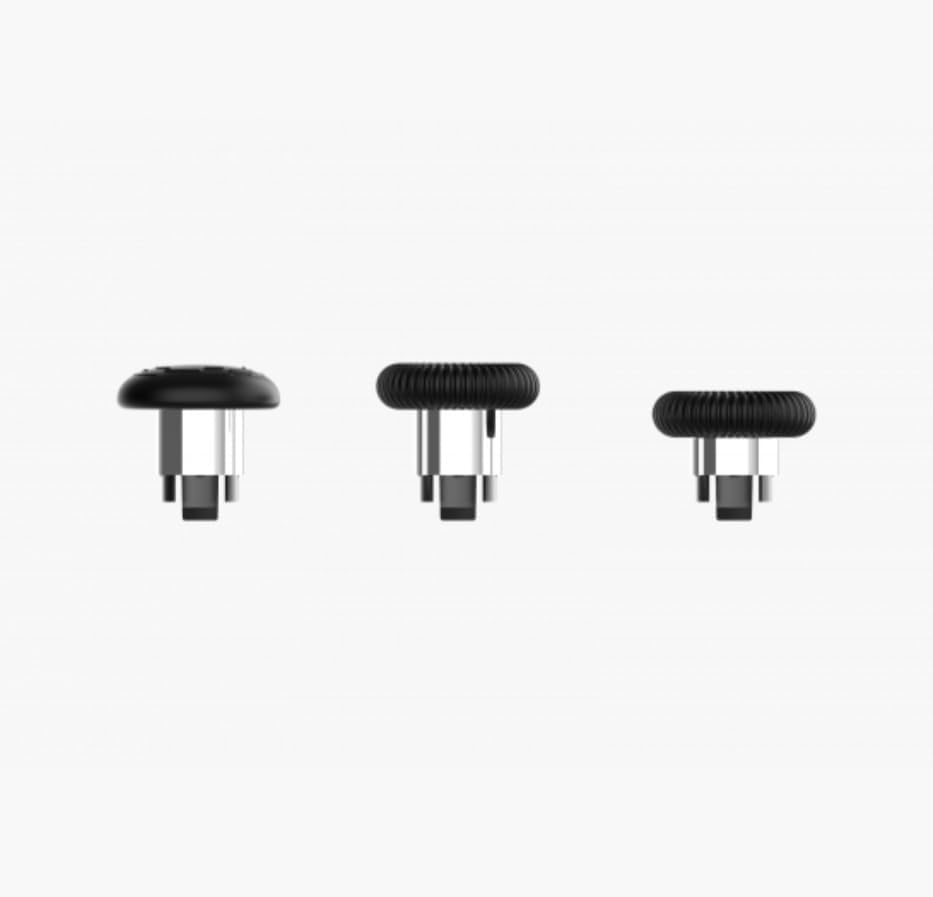
Image: A selection of interchangeable thumbstick options for the EMG Gaming Controller Artic Devo PC01, providing different heights and grips.
تعليمات التشغيل
تشغيل/إيقاف الطاقة
- تشغيل الطاقة: Press the Home button once.
- إيقاف التشغيل: Press and hold the Home button for 3-5 seconds. The controller will also automatically power off after a period of inactivity.
Adjusting Trigger Travel Distance
The Hall Effect triggers offer three adjustable travel distance options. Consult the controller's specific buttons or switches (usually located near the triggers) to cycle through the short, medium, and long travel settings. This allows for optimization based on game type (e.g., short travel for shooting games, long for racing games).
Programming Back Buttons (M1, M2)
The two back buttons (M1 and M2) can be programmed to replicate other button inputs for convenience.
- Press and hold the Program button (refer to controller diagram for location) for 3 seconds until the indicator light flashes.
- اضغط على الزر M1 أو M2 الذي ترغب في برمجته.
- Press the button (e.g., A, B, X, Y, L1, R1, etc.) you want M1/M2 to emulate.
- Press the Program button again to save the setting. The indicator light will stop flashing.
وظيفة مستشعر الحركة
The built-in motion sensor is automatically active when connected to compatible platforms (e.g., Nintendo Switch) and games that support motion controls. No additional setup is typically required.
صيانة
تنظيف
- استخدم قطعة قماش ناعمة وجافة لمسح سطح وحدة التحكم.
- بالنسبة للأوساخ العنيدة، قم بإزالة الأوساخ برفق.ampانقع قطعة القماش في الماء أو محلول تنظيف خفيف. تجنب الرطوبة الزائدة.
- لا تستخدم مواد كيميائية قاسية، أو منظفات كاشطة، أو مذيبات.
تخزين
When not in use, store the controller in a cool, dry place away from direct sunlight and extreme temperatures. The provided carrying case is ideal for protection during storage and transport.
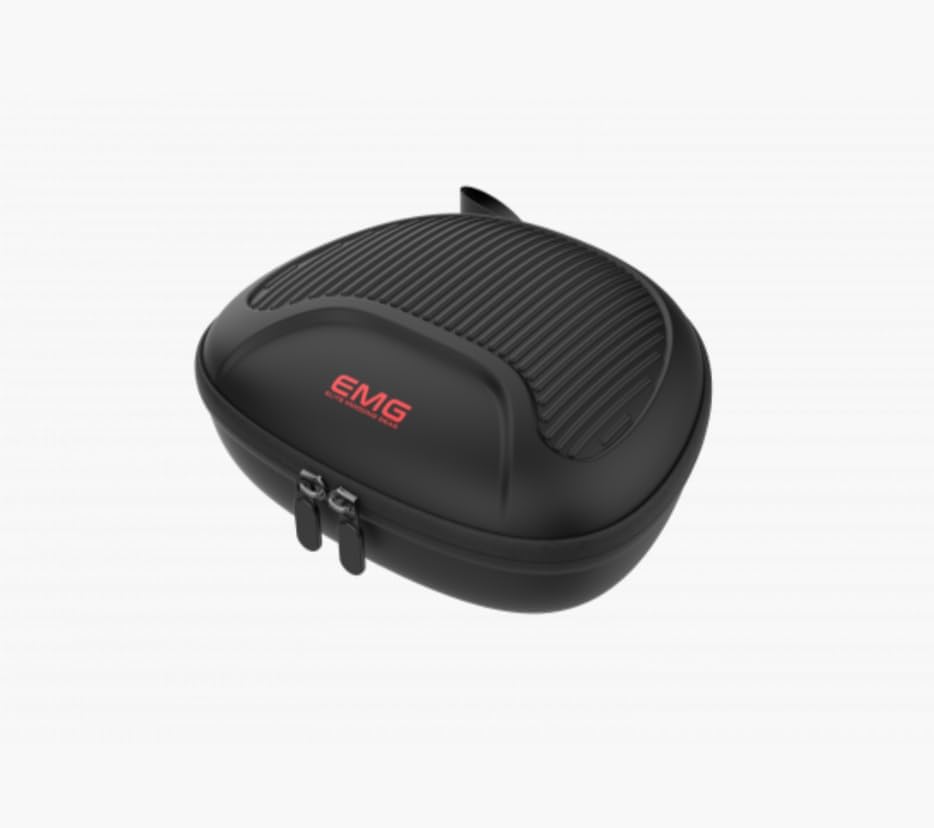
Image: The protective carrying case for the EMG Gaming Controller Artic Devo PC01, designed for safe storage and transport.
العناية بالبطارية
- تجنب تفريغ البطارية بالكامل بشكل متكرر.
- في حالة التخزين لفترة طويلة، اشحن البطارية إلى حوالي 50% لإطالة عمرها الافتراضي.
استكشاف الأخطاء وإصلاحها
Controller Not Turning On
- Ensure the controller is charged. Connect it to a power source and wait a few minutes before attempting to power on.
- If the issue persists, try a different charging cable or power adapter.
مشاكل الاتصال
- For Wireless (PC): Ensure the USB dongle is securely inserted into the PC and the controller is within range. Try re-pairing by pressing the pairing button on the controller.
- للبلوتوث (أندرويد/آي أو إس/سويتش): Ensure Bluetooth is enabled on your device. Forget the controller from your device's Bluetooth settings and attempt to pair again. Ensure the controller is in pairing mode (rapidly flashing lights).
- للأجهزة السلكية: Try a different USB-C cable or a different USB port on your device.
Buttons/Joysticks Not Responding
- Ensure the controller is properly connected and powered on.
- أعد تشغيل وحدة التحكم والجهاز المتصل.
- تحقق من وجود أي عوائق مادية أو حطام حول الأزرار أو عصا التحكم.
- If using a PC, ensure controller drivers are up to date.
مستشعر الحركة لا يعمل
- Verify that the game and platform you are using support motion controls.
- Ensure the controller is properly connected to the device.
- Try recalibrating the motion sensor if your device or game offers this option.
تحديد
| ميزة | التفاصيل |
|---|---|
| رقم الموديل | الكمبيوتر الشخصي 01 |
| الاتصال | Bluetooth 5.3, Wired (USB-C), 2.4GHz Wireless (via USB Dongle) |
| التوافق | PC, Nintendo Switch, Android, iOS |
| سعة البطارية | بطارية ليثيوم 1000 مللي أمبير |
| نوع المستشعر | Hall Effect (Joysticks & Triggers), Built-in Motion Sensor |
| أزرار قابلة للبرمجة | 2 Back Buttons (M1, M2) |
| ضبط الزناد | 3 Travel Distance Options |
| أبعاد | 19 × 17 × 7 سم |
| وزن | 700 جرام |
| ASIN | B0FPCY6TM5 |
| تاريخ الافراج عنه | 2025 أغسطس 31 |
الضمان والدعم
For warranty information and technical support, please refer to the warranty card included with your product or visit the official EMG webالموقع. احتفظ بإثبات الشراء الخاص بك لتقديم مطالبات الضمان.
إذا واجهت أي مشاكل غير مذكورة في هذا الدليل، فيرجى الاتصال بدعم العملاء للحصول على المساعدة.


