
مقدمة
This manual provides detailed instructions for the installation, operation, and maintenance of the ASUS B760M-AYW WiFi D4 II microATX motherboard. Please read this manual thoroughly before installing or using the product to ensure correct setup and optimal performance.
معلومات السلامة
- افصل كابل الطاقة دائمًا من مقبس الحائط قبل لمس أي مكونات داخلية.
- Wear an anti-static wrist strap or frequently touch a grounded object to prevent electrostatic discharge (ESD) damage to components.
- تعامل مع المكونات من حوافها لتجنب لمس الأجزاء الحساسة.
- تأكد من وجود تهوية مناسبة داخل صندوق الكمبيوتر الخاص بك لمنع ارتفاع درجة الحرارة.
يثبت
1. تثبيت وحدة المعالجة المركزية
The motherboard supports Intel LGA 1700 socket processors. Carefully align the CPU with the socket, ensuring the triangular mark on the CPU matches the mark on the socket. Lower the CPU gently into the socket, then close the load plate and secure the retention lever.
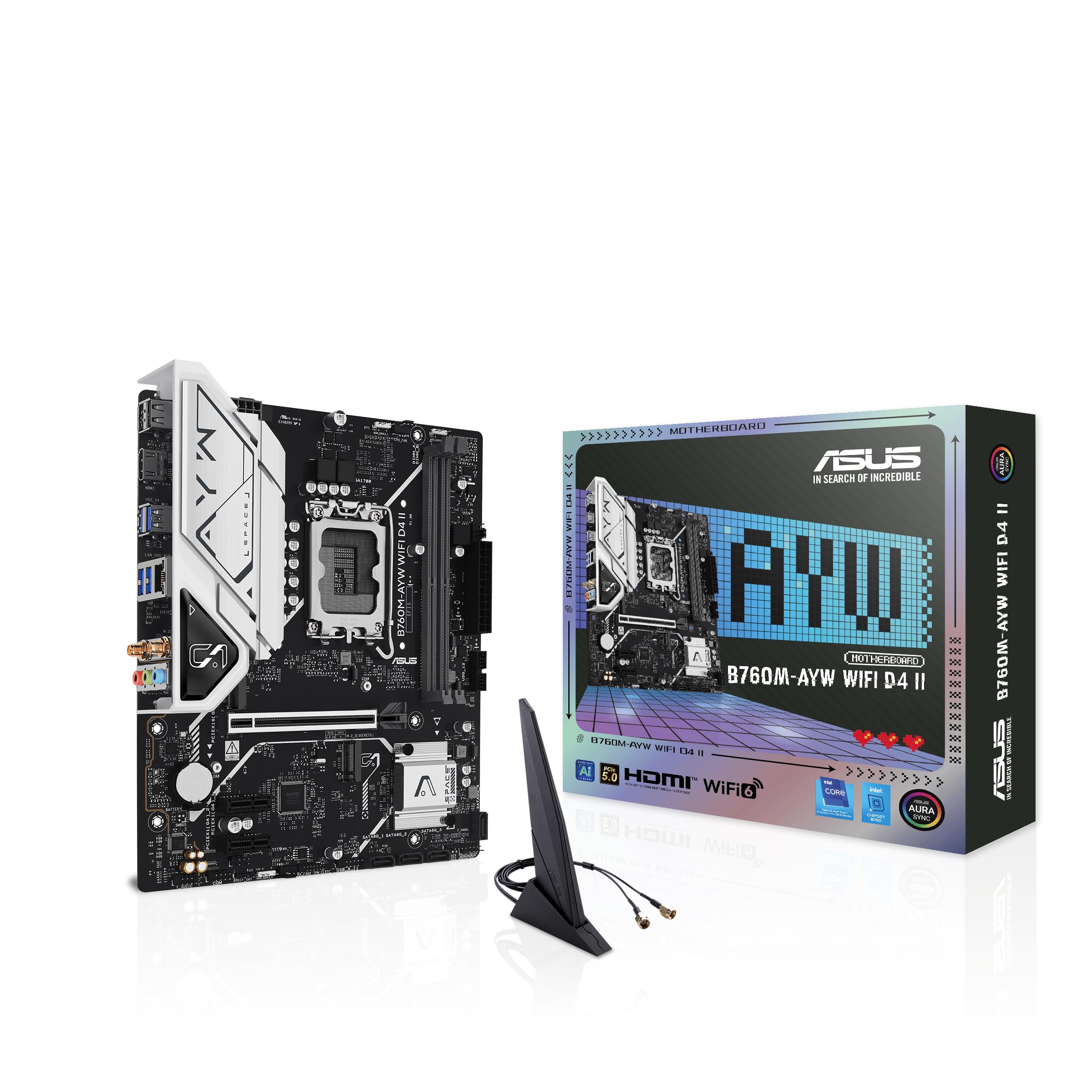
الصورة: من أعلى إلى أسفل view of the ASUS B760M-AYW WiFi D4 II motherboard, highlighting the LGA 1700 CPU socket.
2. تثبيت الذاكرة (RAM)
This motherboard features two DDR4 DIMM slots. For optimal performance, install memory modules in a dual-channel configuration. Open the clips on both ends of the DIMM slot, align the memory module with the slot key, and press down firmly until the clips snap into place.
3. تركيب وحدات التخزين (M.2 وSATA)
The motherboard includes two M.2 slots for NVMe SSDs and four SATA 6 Gbps ports for traditional hard drives or SSDs.
- M.2 SSD: Insert the M.2 SSD into the slot at a 30-degree angle, then push it down and secure it with the provided M.2 screw package.
- محركات SATA: Connect SATA data cables from your storage drives to the SATA ports on the motherboard. Connect power cables from your power supply to the drives.

Image: The ASUS B760M-AYW WiFi D4 II motherboard shown with its retail box, Wi-Fi antenna, SATA cables, and M.2 screw packages.
4. تركيب بطاقة التوسعة (PCIe)
The motherboard features one PCIe 5.0 x16 slot for graphics cards and additional PCIe 4.0 x1 slots for other expansion cards. Insert the card firmly into the desired slot until it clicks into place and secure it with a case screw.
5. توصيلات الطاقة
قم بتوصيل موصل الطاقة ATX ذو 24 سنًا وموصل طاقة وحدة المعالجة المركزية ذو 8 أسنان من مزود الطاقة الخاص بك بالمنافذ المقابلة على اللوحة الأم.
6. توصيلات اللوحة الأمامية
Connect your PC case's front panel cables (USB 5Gbps, audio, power switch, reset switch, power LED, HDD LED) to the corresponding headers on the motherboard. Refer to the motherboard layout for exact header locations.
7. منافذ الإدخال/الإخراج الخلفية
Connect your peripherals to the rear I/O ports. These include HDMI, USB 5Gbps Type-A, Realtek 2.5Gb Ethernet, and audio jacks.
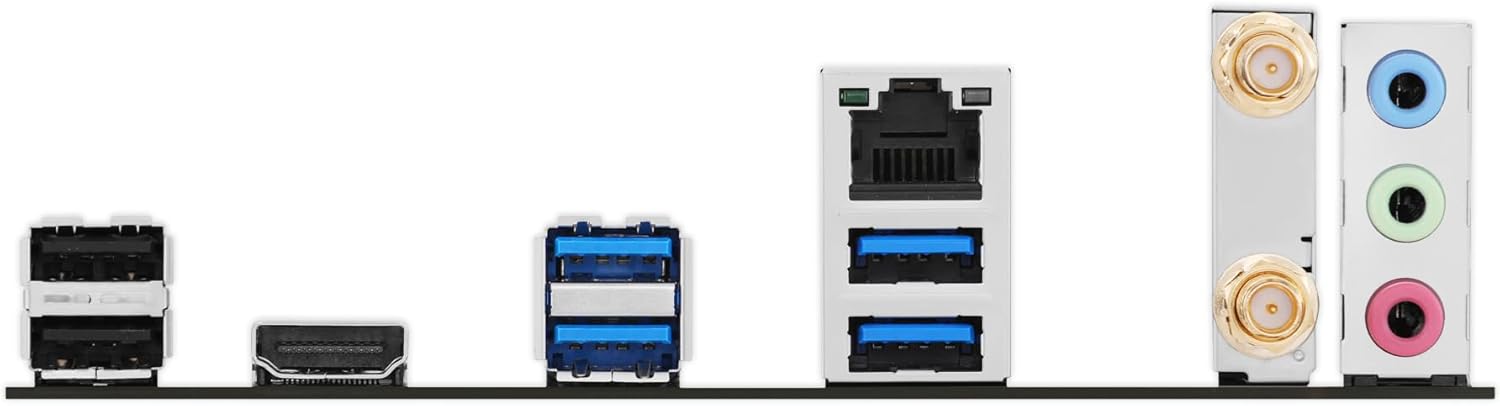
الصورة: تفصيلية view of the rear input/output panel of the ASUS B760M-AYW WiFi D4 II motherboard, showing USB ports, Ethernet, and audio jacks.
8. Wi-Fi Antenna Installation
Screw the included Wi-Fi antenna onto the two antenna connectors on the rear I/O panel. Position the antenna for optimal signal reception.
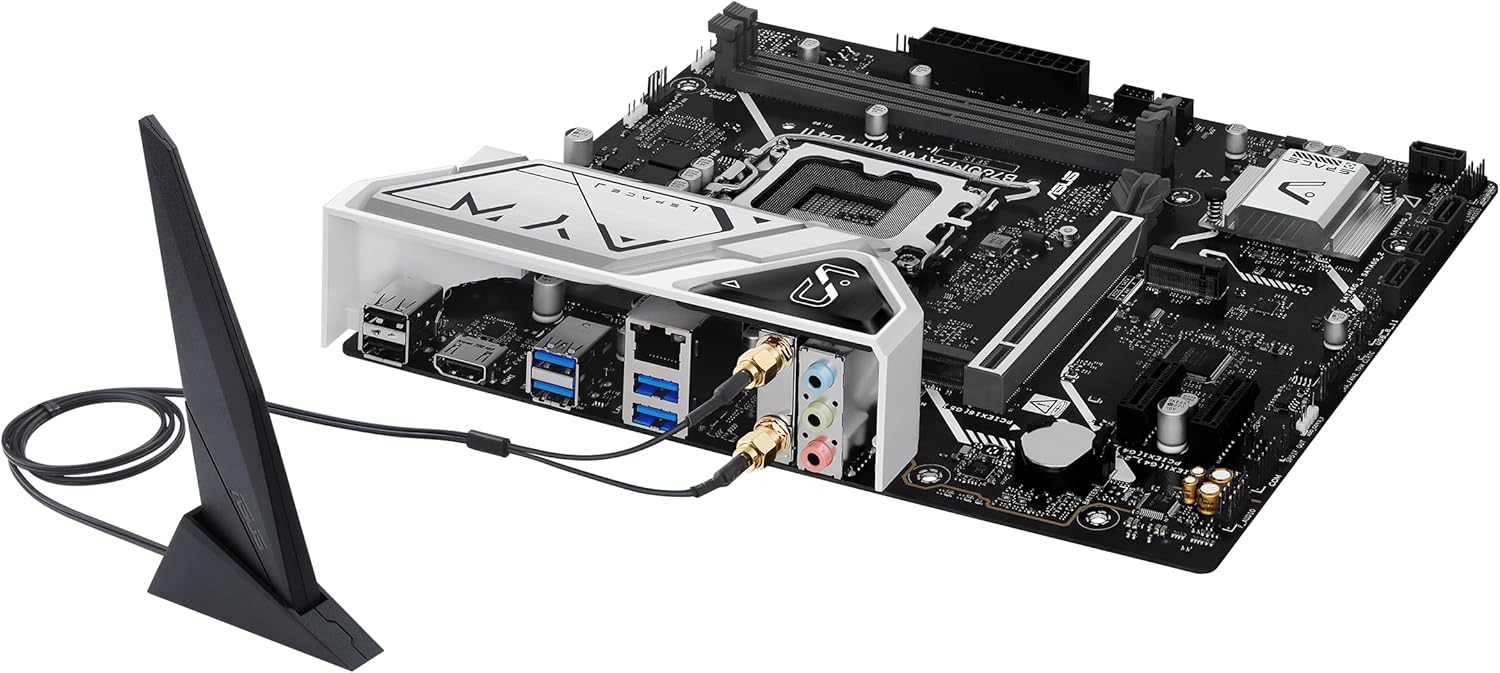
Image: The ASUS B760M-AYW WiFi D4 II motherboard with its external Wi-Fi antenna connected to the rear I/O ports.
التشغيل
1. تهيئة BIOS/UEFI
للوصول إلى أداة إعداد BIOS/UEFI، اضغط على يمسح key during the Power-On Self-Test (POST). Here you can configure boot order, enable XMP for memory, adjust fan speeds, and manage other system settings.
2. تثبيت برنامج التشغيل
After installing your operating system, install the necessary drivers for the motherboard's components. These include chipset drivers, LAN drivers, Wi-Fi drivers, and audio drivers. Drivers can be found on the ASUS support webالموقع الإلكتروني الخاص بطراز اللوحة الأم الخاص بك.
3. أدوات البرمجيات
ASUS provides several utilities to enhance your system experience:
- مزامنة الهالة: For controlling RGB lighting on compatible components.
- Fan Xpert 2+: للتحكم المتقدم في المروحة وتحسين تبريد النظام.
- صندوق الأسلحة: A centralized software suite for system monitoring, driver updates, and utility management.
صيانة
1. تحديثات BIOS
تحقق من دعم ASUS بشكل دوري website for BIOS updates. BIOS updates can improve system stability, add support for new hardware, or fix bugs. Use the ASUS EZ Flash utility within the BIOS to perform updates, following the instructions carefully.
2. تحديثات برامج التشغيل
Keep your drivers updated to ensure optimal performance and compatibility. Regularly check the ASUS support webموقع للحصول على أحدث برامج التشغيل للوحة الأم الخاصة بك.
3. التنظيف
To maintain optimal performance and longevity, regularly clean dust from your PC case and motherboard components. Use compressed air to remove dust from heatsinks, fans, and slots. Ensure the system is powered off and unplugged before cleaning.
استكشاف الأخطاء وإصلاحها
1. Q-LED Core Indicators
The motherboard features Q-LED Core indicators that light up to indicate the status of key components during POST. These LEDs can help diagnose issues:
- مؤشر LED الخاص بوحدة المعالجة المركزية: Indicates CPU initialization status.
- مؤشر LED لذاكرة الوصول العشوائي الديناميكية (DRAM): Indicates memory detection status.
- شاشة VGA LED: Indicates graphics card detection status.
- مؤشر LED الخاص بالتشغيل: Indicates boot device detection status.
If an LED remains lit, it suggests an issue with the corresponding component.
2. المشكلات الشائعة
- لا يوجد طاقة: Check all power connections (24-pin ATX, 8-pin CPU, GPU power). Ensure the power supply is switched on.
- لا يوجد عرض: Verify the graphics card is properly seated and connected to power. Ensure the monitor cable is connected to the graphics card, not the motherboard (unless using integrated graphics).
- عدم استقرار النظام: Check memory seating, run memory diagnostic tools, ensure CPU cooler is properly installed, and verify BIOS settings.
- لم يتم اكتشاف الجهاز الطرفي: Ensure the device is properly connected and its drivers are installed. Try a different port if available.
تحديد
| ميزة | مواصفة |
|---|---|
| ماركة | أسوس |
| اسم الموديل | B760M-AYW WIFI D4 II |
| مقبس وحدة المعالجة المركزية | إل جي إيه 1700 |
| المعالجات المتوافقة | Intel Core 14th, 13th, 12th Gen, Pentium Gold, Celeron Processors |
| نوع الشريحة | إنتل B760 |
| تقنية ذاكرة الوصول العشوائي (RAM) | دي دي ار 4 |
| فتحات الذاكرة المتاحة | 2 |
| أقصى سعة تخزين للذاكرة | 96 جيجا بايت |
| واجهة بطاقة الرسوميات | منفذ PCI Express 5.0 x16 |
| Total M.2 Slots | 2 |
| Total SATA Ports | 4 |
| إيثرنت | إيثرنت Realtek بسرعة 2.5 جيجابت |
| واي فاي | واي فاي 6 |
| منافذ HDMI | 1 |
| أوسب الأمامي | USB 5Gbps support |
| USB خلفي | USB بسرعة 5 جيجابت في الثانية من النوع A |
| عامل الشكل | مايكرو ايه تي اكس |
| أبعاد العنصر (الطول × العرض × الارتفاع) | 9.6 بوصة طول × 8.3 بوصة عرض × 1.4 بوصة ارتفاع |
معلومات الضمان
The ASUS B760M-AYW WiFi D4 II motherboard comes with a 3-year limited warranty. For detailed terms and conditions, please refer to the warranty card included with your product or visit the official ASUS support webموقع.
يدعم
For technical support, driver downloads, BIOS updates, and further product information, please visit the official ASUS support webموقع:
You can also find FAQs and troubleshooting guides on the support portal.