
1. المقدمة
Thank you for choosing the Pisichen 24 inch Touch Screen Gaming Monitor. This manual provides essential information for setting up, operating, and maintaining your monitor. Please read it thoroughly before use to ensure optimal performance and safety.
This monitor features a 24-inch QHD (2560x1440P) display with a 165Hz refresh rate, 2ms response time, and 10-point projected capacitive touchscreen functionality. It supports FreeSync and HDR, offering a vibrant and responsive visual experience for both gaming and professional applications.

Image: The Pisichen 24-inch 2K 165Hz Touch Screen Monitor highlighting its key features like HDR, IPS Panel, and 10-point Touch.
2. محتويات العبوة
قبل المتابعة في عملية التثبيت، يرجى التأكد من وجود جميع المكونات في العبوة:
- Pisichen 24 inch Touch Screen Monitor
- حامل الشاشة (القاعدة والرقبة)
- كابل دي بي
- كابل HDMI
- USB B Touch Cable
- كابل USB CC
- محول طاقة التيار المستمر
- دليل المستخدم (هذا المستند)
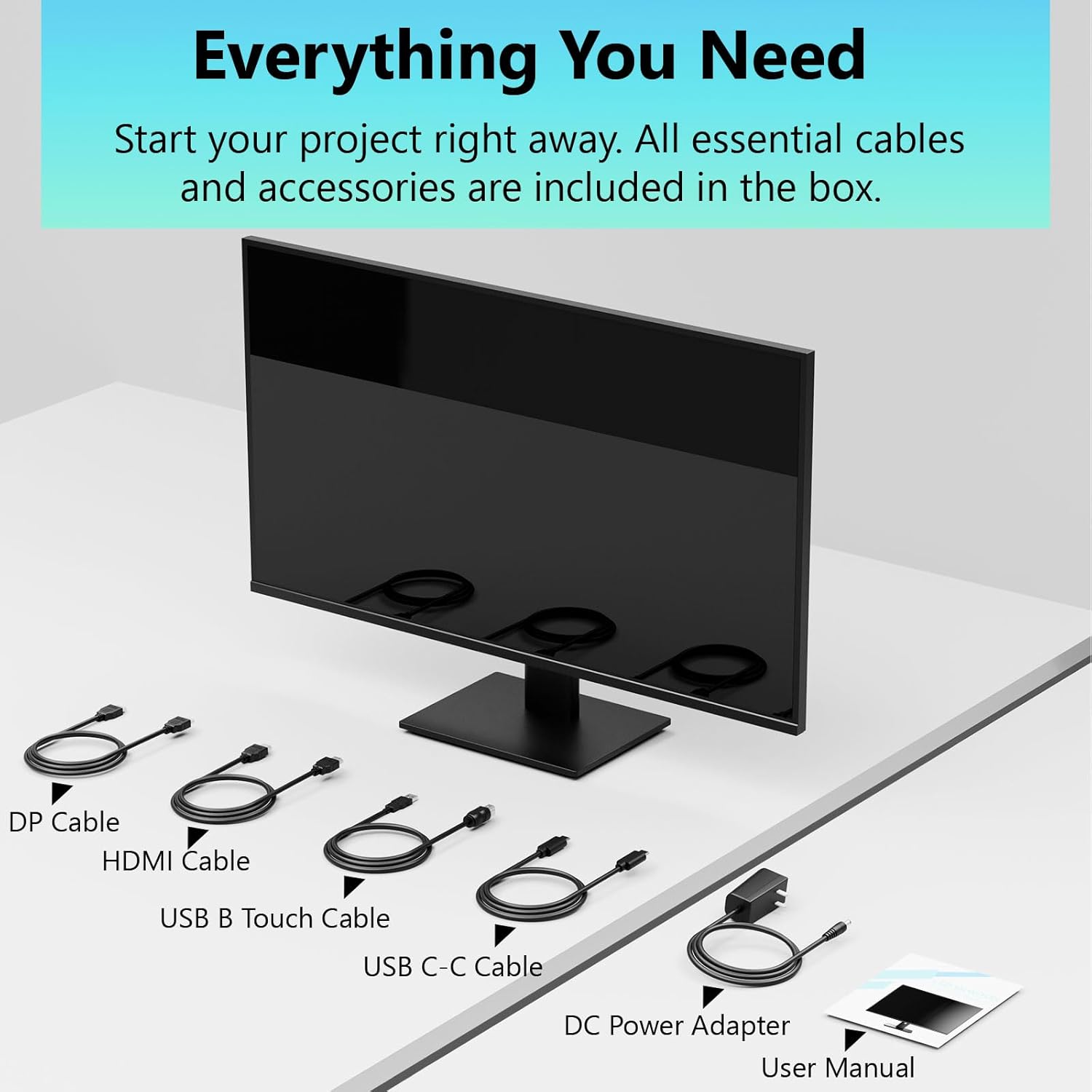
Image: All essential cables and accessories included in the box for the monitor setup.
3. تعليمات الإعداد
3.1 تجميع الحامل
- قم بإزالة الشاشة بعناية من عبوتها، وضعها على سطح ناعم ونظيف بحيث يكون وجهها لأسفل لمنع الخدوش.
- Attach the stand neck to the monitor's rear panel.
- قم بتثبيت قاعدة الحامل على رقبة الحامل باستخدام البراغي المرفقة.
- تأكد من إحكام جميع التوصيلات قبل وضع الشاشة في وضع مستقيم.
3.2 تركيب حامل VESA (اختياري)
This monitor supports VESA mounting. If you plan to use a VESA-compatible arm or wall mount, remove the stand and attach the VESA mount according to the mount's instructions. The VESA pattern is typically 75x75mm or 100x100mm (refer to specifications for exact details).
3.3 الاتصال بجهاز
توفر الشاشة خيارات اتصال متعددة:
- HDMI: قم بتوصيل أحد طرفي كابل HDMI بمنفذ HDMI الخاص بالشاشة والطرف الآخر بمنفذ HDMI الخاص بجهاز الكمبيوتر.
- منفذ العرض (DP): Connect one end of the DP cable to the monitor's DP port and the other end to your computer's DP output.
- USB نوع-C: For compatible devices, connect the USB C-C cable to the monitor's USB Type-C port and your device's USB Type-C port. This single cable can transmit video, data, and power (charging).
- USB Type-B (for Touch Functionality): To enable the touch screen feature, connect the USB B Touch Cable from the monitor's USB Type-B port to an available USB Type-A port on your computer.

Image: The monitor's rear panel with various connectivity options, including HDMI, DisplayPort, and USB-C ports.
3.4 توصيل الطاقة
Connect the DC Power Adapter to the monitor's power input port, then plug the adapter into a power outlet.
3.5 Initial Power On and Touch Compatibility
Press the power button on the monitor. The display should light up. If no image appears, ensure all cables are securely connected and the correct input source is selected on the monitor (via the OSD menu).
For touch functionality, ensure the USB B Touch Cable is connected to your computer. Touch compatibility may vary by operating system and device. Most Windows PCs support multi-touch. For Mac devices, single-touch click is generally supported, but multi-touch may require specific drivers or configurations. Game consoles (PS3/4/5, Xbox, Steam Deck) and some other devices (Fire TV, Apple products like iPhone/iPad) typically do not support touch functionality.

Image: A compatibility chart illustrating which devices support multi-touch or single-touch, and which devices do not support touch functionality with the monitor.
4. تعليمات التشغيل
4.1 تشغيل/إيقاف التشغيل
اضغط على زر الطاقة الموجود على الشاشة لتشغيلها أو إيقاف تشغيلها. سيُظهر ضوء مؤشر الطاقة حالة الشاشة.
4.2 قائمة العرض على الشاشة (OSD)
The OSD menu allows you to adjust various monitor settings. Use the control buttons (usually located on the back or bottom of the monitor) to navigate the menu. Common menu options include:
- إعدادات الصورة: Brightness, Contrast, Sharpness, Color Temperature, HDR mode.
- اعدادات العرض: Aspect Ratio, Input Source selection (HDMI, DP, USB-C).
- إعدادات الألعاب: FreeSync, Response Time (Overdrive), Crosshair.
- إعدادات الصوت: Volume (if internal speakers or audio output are present).
- إعدادات النظام: Language, OSD Transparency, Reset to Factory Defaults.
4.3 وظيفة شاشة اللمس
The monitor supports 10-point multi-touch, allowing for intuitive interaction directly on the screen. Ensure the USB B Touch Cable is connected to your computer for this feature to work.
- نقرة واحدة: Equivalent to a left-click.
- انقر مع الاستمرار: ما يعادل النقر بزر الماوس الأيمن.
- التكبير والتصغير: استخدم إصبعين للتكبير أو التصغير.
- انتقاد: Navigate through content or scroll.

Image: A user interacting with the monitor's touch screen, highlighting its precision and responsiveness for creative tasks.
4.4 التعديلات المريحة
The monitor stand allows for tilt adjustments to achieve the most comfortable viewing and touch angle. Gently adjust the screen to your preferred position.
4.5 ميزات العناية بالعين
The monitor includes advanced eye-comfort features such as Flicker-Free technology and Low Bluelight mode to reduce eye strain during prolonged use. These settings can typically be adjusted within the OSD menu.

Image: Visual representation of the monitor's advanced eye-comfort features, including Flicker-Free and Low Bluelight technologies.
5. الصيانة
5.1 تنظيف الشاشة
- قم دائمًا بإيقاف تشغيل الشاشة وفصل سلك الطاقة قبل التنظيف.
- استخدم قطعة قماش ناعمة وخالية من الوبر برفق دampيُنظف بالماء أو بمنظف شاشات خفيف وغير كاشط.
- لا ترشّ المنظف مباشرةً على الشاشة، بل ضعه على قطعة القماش أولًا.
- تجنب استخدام البنزين أو المذيبات أو المنظفات التي تحتوي على الأمونيا أو المواد الكاشطة، لأن هذه المواد يمكن أن تتلف سطح الشاشة.
5.2 التخزين
When storing the monitor for an extended period, ensure it is powered off, unplugged, and stored in a cool, dry place away from direct sunlight and extreme temperatures. Use the original packaging if available for best protection.
6. استكشاف الأخطاء وإصلاحها
إذا واجهت مشكلات مع شاشتك، فراجع خطوات استكشاف الأخطاء وإصلاحها الشائعة التالية:
- لا يوجد طاقة: تأكد من توصيل محول الطاقة بإحكام بكل من الشاشة ومأخذ كهربائي يعمل. تحقق من إضاءة مؤشر الطاقة.
- لا توجد صورة/إشارة:
- Verify that the video cable (HDMI, DP, or USB-C) is securely connected to both the monitor and your computer.
- تأكد من تحديد مصدر الإدخال الصحيح في قائمة العرض على الشاشة.
- Check your computer's display settings to ensure the monitor is detected and enabled.
- خاصية عدم اللمس:
- Confirm the USB B Touch Cable is connected from the monitor to your computer.
- Check your computer's device manager to see if the touch screen driver is installed and functioning correctly.
- Refer to the "Initial Power On and Touch Compatibility" section for device-specific limitations.
- صورة متقطعة أو مشوهة:
- افحص كابل الفيديو بحثًا عن أي تلف أو اتصالات فضفاضة.
- جرب كابل فيديو أو منفذًا مختلفًا.
- اضبط معدل التحديث في إعدادات شاشة جهاز الكمبيوتر الخاص بك.
- البكسل الميت: A small number of bright or dark pixels are common in LCD/LED technology and are not considered a defect unless they exceed manufacturer specifications.
إذا استمرت المشكلة بعد تجربة هذه الخطوات، فيرجى الاتصال بدعم العملاء.
7. المواصفات
| ميزة | مواصفة |
|---|---|
| ماركة | بيسيشين |
| رقم الموديل | 24IN165HZ-QHD |
| حجم الشاشة | 23.8 بوصة |
| دقة | QHD Wide 1440p (2560 x 1440) |
| نسبة العرض إلى الارتفاع | 16:9 |
| معدل التحديث | 165 هرتز |
| وقت الاستجابة | 2 ميلي ثانية |
| نوع العرض | LED IPS |
| سطوع | 400 شمعة (cd/m²) |
| نسبة التباين | 3000:1 |
| Viewزاوية جي | 178 درجة |
| مجموعة الألوان | 99% |
| Picture Quality Enhancement | النطاق الديناميكي العالي |
| المزامنة التكيفية | فري سينك |
| تكنولوجيا الاتصال | DisplayPort, HDMI, USB Type-C, USB Type-B |
| مميزات اضافية | Tilt Adjustment, 10-Point Touchscreen |
| أبعاد المنتج (العمق × العرض × الارتفاع) | 0.75 بوصة عمق × 21.5 بوصة عرض × 12.7 بوصة ارتفاع |
| وزن العنصر | 5.38 كيلوغرام |
| لون | أسود |
8. معلومات الضمان
This product comes with a 1-year limited warranty from the date of purchase. The warranty covers manufacturing defects and workmanship under normal use. It does not cover damage caused by misuse, accidents, unauthorized modifications, or external factors. Please retain your proof of purchase for warranty claims.
9. دعم العملاء
For technical assistance, warranty claims, or further inquiries, please contact Pisichen customer support. You may find contact information on the official Pisichen webالموقع أو من خلال بائع التجزئة الخاص بك.
للحصول على موارد إضافية ومعلومات عن المنتج، قم بزيارة Pisichen Store on Amazon.