
1. المقدمة
الأسودview MP60 Mini PC is a compact and powerful computing solution designed for various applications, including office work, multimedia creation, and home server use. Featuring the Intel Twin Lake N150 processor, 16GB RAM, and a 512GB M.2 SSD, it offers efficient performance in a small form factor. This manual provides essential information for setting up, operating, and maintaining your device.

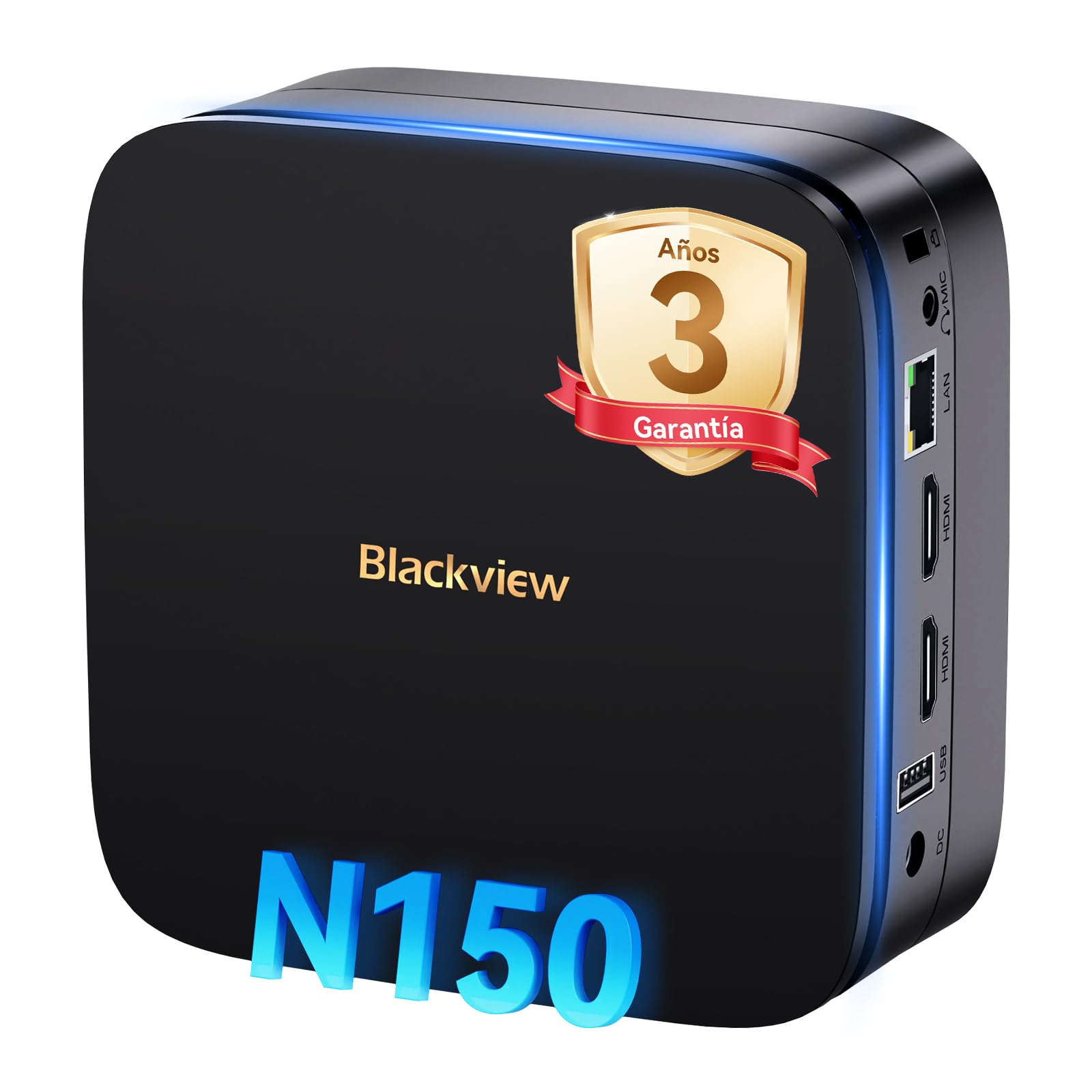
صورة: ذا بلاكview MP60 Mini PC, highlighting its compact design and Intel Twin Lake N150 processor.
2. ماذا يوجد في الصندوق
تأكد من وجود جميع العناصر في العبوة:
- أسودview Mini PC MP60 N150 (x1)
- كابل اتش دي ام اي (×1)
- محول الطاقة (x1)
- VESA Mount with Screws (x1)
- معلومات الضمان والدعم
3. انتهى المنتجview
الأسودview MP60 Mini PC features a compact design with essential ports for connectivity and expansion. Its small footprint makes it suitable for various environments.
الصورة: الأمامية والخلفية view من السودview MP60 Mini PC, illustrating its various ports including USB, HDMI, and Ethernet.
المميزات الرئيسية:
- المعالج: Intel Twin Lake N150 (up to 3.6 GHz)
- كبش: 16 جيجا بايت DDR4
- تخزين: 512GB M.2 SSD (expandable up to 2TB)
- الرسومات: بطاقة رسومات Intel UHD مدمجة
- نظام التشغيل: ويندوز 11 برو
- الاتصال: Dual-band Wi-Fi (2.4Ghz & 5Ghz), Bluetooth 4.2, Gigabit Ethernet (RJ45)
- إخراج الفيديو: 2x HDMI 2.0 (supports dual 4K displays)
- منافذ USB: 4x USB ports (USB 2.0 Type A, USB 3.0 Type A)
4. تعليمات الإعداد
اتبع هذه الخطوات لإعداد جهاز بلاك الخاص بكview MP60 Mini PC:
- الاتصال بشاشة العرض: Use the provided HDMI cable to connect the Mini PC to your monitor or TV. The device supports dual 4K displays.
- توصيل الأجهزة الطرفية: قم بتوصيل لوحة المفاتيح والماوس بمنفذ USB المتاح.
- الاتصال بالطاقة: قم بتوصيل محول الطاقة بمنفذ DC-in الموجود على جهاز الكمبيوتر الصغير، ثم قم بتوصيل المحول بمأخذ الطاقة.
- تشغيل الطاقة: Press the power button located on the front of the Mini PC. The device will boot up, and you will see the Windows 11 Pro setup screen.
- الإعداد الأولي لنظام التشغيل Windows: اتبع الإرشادات التي تظهر على الشاشة لإكمال إعداد Windows 11 Pro، بما في ذلك اللغة والمنطقة واتصال الشبكة وإنشاء حساب المستخدم.

صورة: ذا بلاكview MP60 Mini PC demonstrating its micro size and portability, fitting easily into a bag.
5. تعليمات التشغيل
5.1 التشغيل الأساسي
Once Windows 11 Pro is set up, you can begin using your Mini PC. The Intel Twin Lake N150 processor provides sufficient power for daily tasks, office applications, and multimedia consumption.
- تشغيل/إيقاف التشغيل: Press the power button to turn the device on. To shut down, go to the Start Menu in Windows and select Power > Shut down.
- إعادة تشغيل: From the Start Menu, select Power > Restart.
- وضع السكون: From the Start Menu, select Power > Sleep.
5.2 توسيع التخزين
الأسودview MP60 Mini PC allows for easy storage expansion with a 2.5-inch SSD/HDD. This feature is useful for storing large files, videos, or creating a home NAS.
- Locate the removable base of the Mini PC.
- Carefully remove the base to access the 2.5-inch drive bay.
- Install your 2.5-inch SSD or HDD (up to 2TB, not included) into the bay.
- Secure the drive and reattach the base.
- After booting, you may need to initialize and format the new drive in Windows Disk Management.

Image: Step-by-step illustration of how to install a 2.5-inch SSD into the Blackview MP60 Mini PC for storage expansion.
5.3 Dual 4K Display Setup
The Mini PC supports connecting two 4K displays simultaneously via its two HDMI 2.0 ports, enhancing productivity for tasks requiring multiple screens.
- Connect your primary monitor to one HDMI port.
- Connect your secondary monitor to the second HDMI port.
- Once both monitors are connected and the PC is powered on, Windows will automatically detect them.
- To configure display settings (e.g., extend, duplicate, resolution), right-click on the desktop and select "Display settings."

صورة: ذا بلاكview MP60 Mini PC powering two 4K monitors, demonstrating its dual display capability for enhanced productivity.
5.4 الشبكة والاتصال اللاسلكي
The MP60 offers robust connectivity options:
- واي فاي: Supports dual-band 2.4GHz and 5GHz Wi-Fi for fast and stable wireless internet access. Connect via Windows network settings.
- إيثرنت: A Gigabit RJ45 port provides a wired connection for maximum stability and speed (up to 1000 MB/s).
- بلوتوث: Bluetooth 4.2 allows for easy connection of wireless peripherals like keyboards, mice, and audio devices.
6. الصيانة
To ensure optimal performance and longevity of your Blackview MP60 Mini PC, follow these maintenance guidelines:
- حافظ على النظافة: Regularly clean the exterior of the Mini PC with a soft, dry cloth. Use compressed air to clear dust from vents to maintain efficient cooling.
- تحديثات البرامج: Keep your Windows operating system and drivers updated to ensure security and performance.
- تجنب العوائق: تأكد من عدم انسداد فتحات التهوية لمنع ارتفاع درجة الحرارة.
- الاغلاق الآمن: Always shut down the PC properly through the operating system rather than simply unplugging it.

الصورة: داخلية view من السودview MP60 Mini PC, illustrating its silent heat dissipation system with a cooling fan and heatpipes.
7. استكشاف الأخطاء وإصلاحها
إذا واجهت مشاكل مع جهازك الأسودview MP60 Mini PC, refer to the following common troubleshooting steps:
- لا يوجد طاقة:
- تأكد من توصيل محول الطاقة بشكل آمن بكل من جهاز الكمبيوتر الصغير ومأخذ الطاقة العامل.
- اختبار منفذ الطاقة بجهاز آخر.
- لا يوجد عرض:
- Check HDMI cable connections to both the Mini PC and the monitor.
- تأكد من تشغيل الشاشة وضبطها على مصدر الإدخال الصحيح (HDMI).
- حاول استخدام كابل HDMI أو شاشة أخرى إذا كان ذلك ممكنًا.
- لا يوجد اتصال بالإنترنت:
- For Wi-Fi, ensure the Wi-Fi adapter is enabled in Windows settings and you are connected to the correct network with the correct password.
- For Ethernet, ensure the cable is securely plugged into both the Mini PC and your router/modem. Check router status.
- أعد تشغيل جهاز التوجيه/المودم وجهاز الكمبيوتر الصغير.
- الأداء البطيء:
- أغلق التطبيقات غير الضرورية التي تعمل في الخلفية.
- التحقق من وجود أي تحديثات Windows معلقة وتثبيتها.
- تأكد من وجود مساحة كافية على محرك الأقراص الرئيسي.
- قم بإجراء فحص للفيروسات.
إذا استمرت المشاكل، يُرجى الرجوع إلى قسم الضمان والدعم للحصول على مزيد من المساعدة.
8. المواصفات
المواصفات الفنية التفصيلية للأسودview MP60 Mini PC:
| ميزة | مواصفة |
|---|---|
| المعالج | Intel Twin Lake N150 (up to 3.6 GHz, 4 Cores, 4 Threads, 6MB Cache) |
| الرسومات | بطاقة رسومات Intel UHD مدمجة |
| كبش | 16 جيجابايت DDR4 (3200 ميجاهرتز) |
| تخزين | 512GB M.2 SSD (PCIe x4 interface), expandable with 2.5" SSD/HDD up to 2TB |
| نظام التشغيل | ويندوز 11 برو |
| مخرج الفيديو | 2x HDMI 2.0 (supports dual 4K @ 60Hz displays) |
| منافذ USB | 4x USB (USB 2.0 Type A, USB 3.0 Type A) |
| شبكة | Gigabit Ethernet (RJ45), Wi-Fi 5G (802.11ac, dual-band 2.4GHz/5GHz) |
| بلوتوث | بلوتوث 4.2 |
| مخرج الصوت | شنومكسم جاك الصوت |
| طريقة التبريد | Air Cooling (Silent design with fan and heatpipes) |
| أبعاد | 12.8 × 12.8 × 5.2 سم |
| وزن | 1.01 كجم |
| مزود الطاقة | External Power Adapter (Type E/F: 2 pins for EU) |
9. الضمان والدعم
أسودview is committed to providing high-quality products and excellent customer service.
معلومات الضمان:
أسودكview MP60 Mini PC comes with a ضمان رسمي لمدة عامين covering parts and labor for manufacturing defects. This ensures prompt replacement or repair in case of product failure.

صورة: أسودview's commitment to customer satisfaction, highlighting a 3-year warranty and lifetime technical support.
الدعم الفني:
أسودview العروض الدعم الفني مدى الحياة. Our expert team is available via email, live chat, or phone to assist you with software updates, troubleshooting, and optimization tips to keep your device running smoothly for years. Please refer to the contact information provided with your product or visit the official Blackview webموقع للحصول على تفاصيل الدعم.