
مقدمة
This manual provides essential information and instructions for the Blackview Tab 20 WiFi tablet. Please read this manual carefully before using your device to ensure proper operation and to maximize its features. Keep this manual for future reference.
ماذا يوجد في الصندوق
تأكد من وجود جميع العناصر في العبوة:
- أسودview تاب 20 واي فاي اللوحي
- حافظة حماية من مادة TPU
- دليل المستخدم
- محول الطاقة
- كابل يو اس بي
Note: The user manual included in the box may not be in English. This digital manual provides English instructions.
المنتج انتهىview
Familiarize yourself with the key components and features of your Blackview Tab 20 WiFi tablet.
الشكل 1: أمام view من السودview Tab 20 WiFi tablet, showing the display and front camera.

الشكل 2: خلف view من السودview Tab 20 WiFi tablet, highlighting the rear camera module.

الشكل 3: جانب view من السودview Tab 20 WiFi tablet, illustrating the USB Type-C charging port.

الشكل 4: جانب view من السودview Tab 20 WiFi tablet, showing the dual speaker grilles.
المميزات الرئيسية:
- Gemini AI 2.0: Integrated AI assistant for intelligent control and real-time interaction.
- 10.1-inch HD+ Display: Expansive screen with 800 x 1200 pixel resolution for clear visuals.
- مكبرات صوت مزدوجة الصندوق: Enhanced audio experience with Smart-K powered dual speakers.
- الكاميرات: كاميرا خلفية بدقة 8 ميجابكسل وكاميرا أمامية بدقة 5 ميجابكسل للصور ومكالمات الفيديو.
- تخزين الذاكرة: Up to 12GB RAM (4GB physical + 8GB expansion) and 64GB internal storage, expandable up to 2TB via microSD.
- بطارية 6000 مللي أمبير: High-capacity battery designed for extended usage.
- أوضاع حماية العين: Three dedicated modes (Reading, Night Light, Dark) to reduce eye strain.
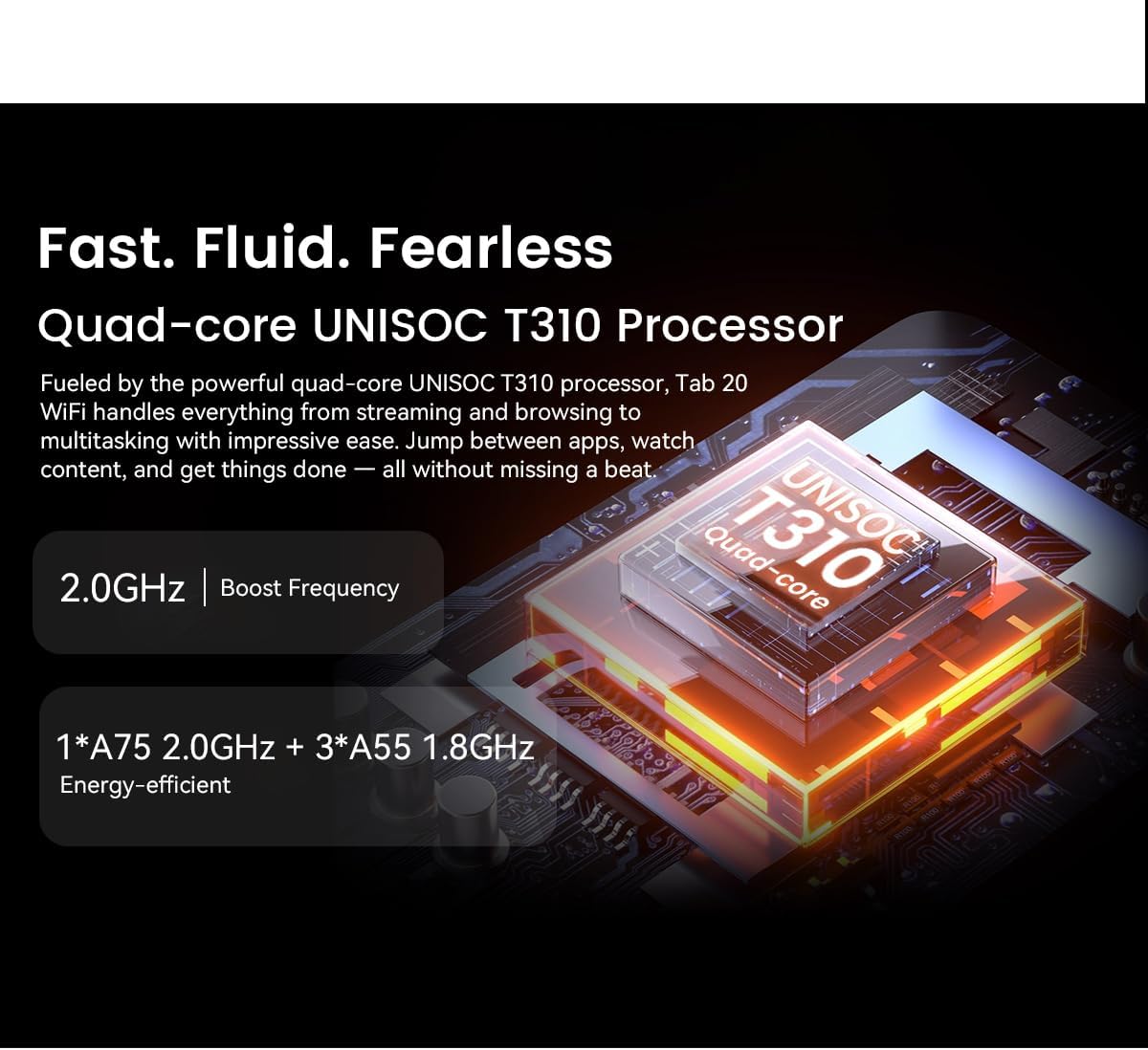
- UNISOC T310 Processor: Quad-core processor for smooth multitasking and performance.
يثبت
- شحن الجهاز اللوحي:
Before first use, fully charge the tablet using the provided power adapter and USB cable. Connect the USB cable to the tablet's Type-C port and the adapter to a power outlet. The charging indicator will show the charging status.
- تشغيل/إيقاف التشغيل:
To power on, press and hold the power button until the Blackview logo appears. To power off, press and hold the power button, then select "Power off" from the options.
- الإعداد الأولي:
Follow the on-screen prompts to complete the initial setup. This includes selecting your language, connecting to a Wi-Fi network, setting up your Google account, and configuring facial unlock.
- إدخال بطاقة MicroSD (اختياري):
If you wish to expand storage, locate the SIM/microSD card tray on the side of the tablet. Use the provided ejector tool to open the tray. Insert a microSD card (up to 2TB) into the designated slot, ensuring correct orientation, then close the tray securely.
تعليمات التشغيل
الملاحة الأساسية:
- إيماءات اللمس: اضغط لتحديد، واسحب للتمرير، واضغط للتكبير.
- الشاشة الرئيسية: الوصول إلى التطبيقات والأدوات والإشعارات.
- لوحة الإشعار: اسحب لأسفل من أعلى الشاشة إلى view الإشعارات والإعدادات السريعة.
الاتصال بشبكة Wi-Fi:
- اذهب الى إعدادات > الشبكات والانترنت > واي فاي.
- قم بتشغيل Wi-Fi.
- اختر الشبكة التي تريدها من القائمة وأدخل كلمة المرور إذا لزم الأمر.
Using Gemini AI:
الأسودview Tab 20 WiFi integrates Gemini AI 2.0 for intelligent assistance. You can activate it via voice commands or specific gestures (refer to on-screen tutorials during initial setup or in the AI settings). Gemini AI can assist with tasks, provide information, and control smart features.

الشكل 5: Visual representation of Gemini AI 2.0's integration with various applications and smart controls.
تشغيل الكاميرا:
افتح تطبيق الكاميرا لالتقاط الصور ومقاطع الفيديو.
- الكاميرا الخلفية (8 ميجابكسل): Suitable for general photography and document scanning.
- الكاميرا الأمامية (5 ميجابكسل): مثالية لمكالمات الفيديو وصور السيلفي.
Tap the shutter button to take a photo. Switch between photo and video modes as needed.

الشكل 6: عن قرب view of the tablet's rear and front cameras.
أوضاع حماية العين:
To reduce eye strain, activate one of the three eye protection modes:
- وضع القراءة: Adjusts screen color temperature for a paper-like reading experience.
- وضع الإضاءة الليلية: Filters blue light to reduce eye fatigue during evening use.
- الوضع المظلم: Inverts colors to a dark theme, reducing brightness in low-light environments.
These modes can typically be found in إعدادات > عرض or via the quick settings panel.

الشكل 7: Visual guide to the tablet's eye protection modes.
صيانة
- تنظيف: استخدم قطعة قماش ناعمة وخالية من الوبر لتنظيف شاشة الجهاز اللوحي وجسمه. تجنب استخدام المواد الكيميائية القاسية أو المواد الكاشطة.
- تحديثات البرامج: قم بفحص وتثبيت تحديثات النظام بانتظام لضمان الأداء الأمثل والأمان. انتقل إلى إعدادات > نظام > تحديث النظام.
- العناية بالبطارية: لإطالة عمر البطارية، تجنب درجات الحرارة القصوى. لا تدع البطارية تُفرغ تماماً بشكل متكرر.
- ادارة التخزين: قم بإزالة غير الضروري بشكل دوري fileقم بإلغاء تثبيت التطبيقات غير المستخدمة لتحرير مساحة التخزين والحفاظ على الأداء.
استكشاف الأخطاء وإصلاحها
| مشكلة | السبب المحتمل | حل |
|---|---|---|
| الجهاز اللوحي لا يعمل. | بطارية منخفضة؛ تعطل البرنامج. | اشحن جهازك اللوحي لمدة 30 دقيقة على الأقل. اضغط مع الاستمرار على زر التشغيل لمدة 10-15 ثانية لإعادة تشغيله قسرًا. |
| لا يمكن الاتصال بشبكة Wi-Fi. | كلمة المرور غير صحيحة؛ مشكلة في جهاز التوجيه؛ تم تعطيل شبكة Wi-Fi. | Ensure correct password. Restart your Wi-Fi router. Check if Wi-Fi is enabled in settings. |
| التطبيقات بطيئة أو متجمدة. | تشغيل عدد كبير جدًا من التطبيقات؛ مساحة تخزين منخفضة؛ برامج قديمة. | Close background apps. Clear cache/data for problematic apps. Free up storage. Update system software. |
| يتم استنزاف البطارية بسرعة. | سطوع الشاشة العالي؛ تطبيقات تعمل في الخلفية؛ الاستخدام المفرط. | Reduce screen brightness. Close unused apps. Limit background data usage. Check battery usage in settings. |
| لا يعمل نظام فتح القفل بالوجه. | Poor lighting; face not recognized; sensor obstruction. | Ensure adequate lighting. Clean the front camera. Re-register your face in settings. |
تحديد
| ميزة | التفاصيل |
|---|---|
| ماركة | أسودview |
| اسم الموديل | TAB 20 WIFI |
| نظام التشغيل | أندرويد 15 |
| المعالج | UNISOC T310 (Quad-core) |
| كبش | Up to 12GB (4GB physical + 8GB expansion) |
| التخزين الداخلي | 64 جيجا بايت |
| تخزين قابل للتوسيع | microSD slot, up to 2TB |
| حجم الشاشة | 10.1 بوصة |
| دقة الشاشة | 800 × 1200 بكسل |
| الكاميرا الخلفية | 8 ميجا بكسل |
| الكاميرا الأمامية | 5 ميجا بكسل |
| سعة البطارية | 6000 مللي أمبير |
| الاتصال | واي فاي، بلوتوث، USB Type-C |
| المميزات الخاصة | Gemini AI Assistant, Facial Unlock, Google Lens |
| الأبعاد (الطول × العرض × السماكة) | 24.2L x 16W x 0.9Thickness cm |
| رقم GTIN/الرمز العالمي للمنتج | 810154306572 |
الضمان والدعم
معلومات الضمان:
الأسودview Tab 20 WiFi tablet comes with a ضمان محدود. Please refer to the warranty card included in your product packaging for specific terms and conditions, including coverage duration and claim procedures. Keep your proof of purchase for warranty claims.
دعم العملاء:
For technical assistance, troubleshooting beyond this manual, or warranty inquiries, please contact Blackview customer support. You can typically find contact information on the official Blackview website or through the retailer where you purchased the tablet.
Always provide your product model (TAB 20 WIFI) and serial number when contacting support for faster service.