
مقدمة
Thank you for choosing the Rii RK211 Wireless Keyboard and Mouse Combo. This product provides a reliable 2.4G wireless connection for your computer, laptop, or other compatible devices. This manual will guide you through the setup, operation, maintenance, and troubleshooting of your new wireless keyboard and mouse.
تعليمات الإعداد
Follow these steps to set up your Rii RK211 Wireless Keyboard and Mouse Combo:
- تركيب البطاريات: The keyboard requires 1 AAA battery, and the mouse requires 1 AA battery. Open the battery compartments on both devices and insert the batteries, ensuring correct polarity.
- حدد موقع جهاز استقبال USB: The tiny nano USB receiver is stored in the compartment next to the mouse battery slot. Open the mouse battery cover to find it.
- توصيل جهاز الاستقبال: قم بتوصيل جهاز استقبال USB بمنفذ USB متاح على جهاز الكمبيوتر أو الكمبيوتر المحمول الخاص بك.
- تشغيل الطاقة: Turn on the mouse using the ON/OFF switch located on its underside. The keyboard does not have a separate power switch and will activate upon battery installation and key press.
- الاتصال التلقائي: The keyboard and mouse will automatically connect to your device. No additional drivers are required for most operating systems.
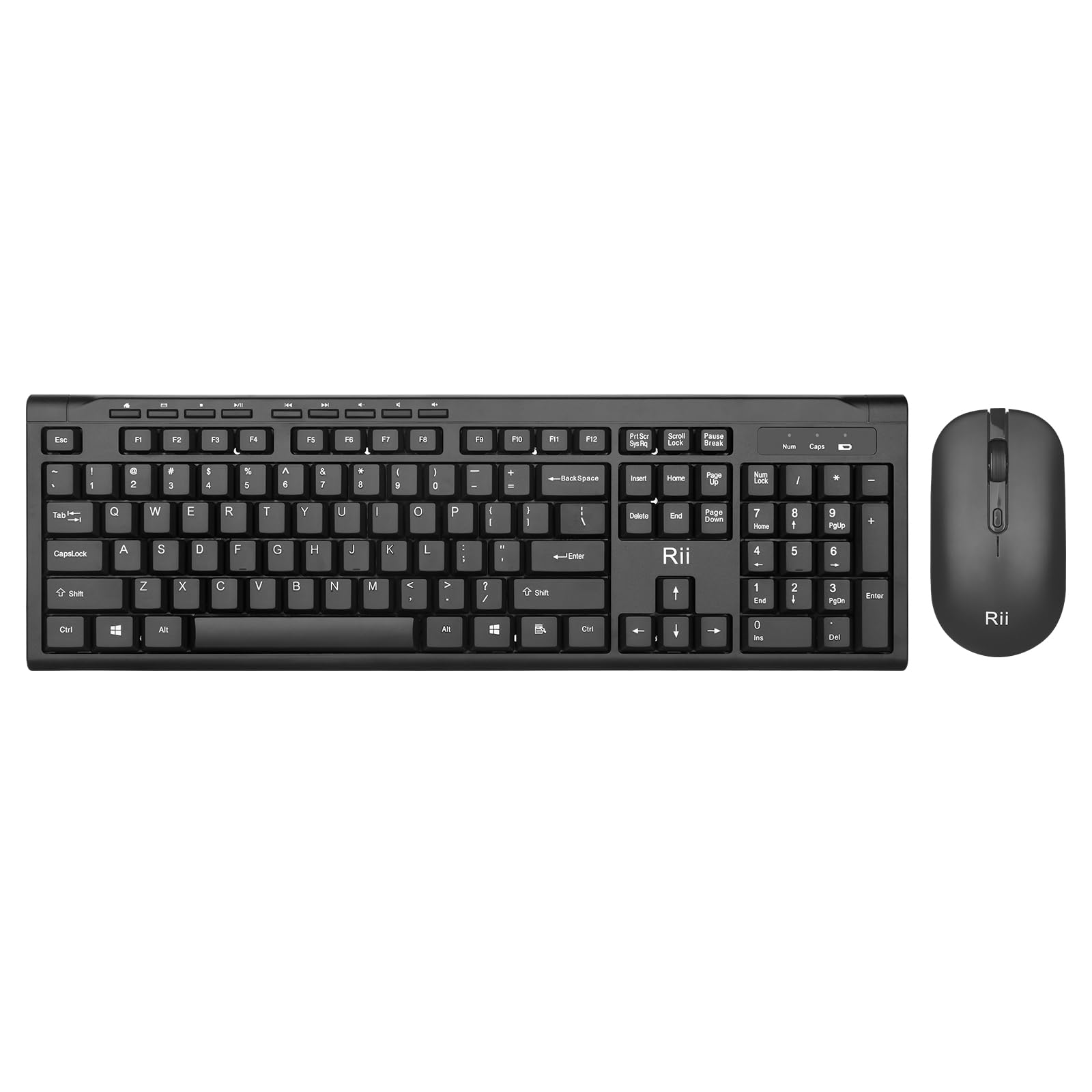
Image: The Rii RK211 wireless keyboard and mouse connected to a laptop using a single unifying nano receiver for plug-and-play functionality.

Image: The USB receiver is conveniently stored inside the mouse's battery compartment for safekeeping.
تعليمات التشغيل
This section details the usage of your Rii RK211 Wireless Keyboard and Mouse Combo.
مميزات لوحة المفاتيح:
- التخطيط بالحجم الكامل: The keyboard features a standard US QWERTY layout with a numeric keypad for efficient typing.
- زاوية الميل قابلة للتعديل: Utilize the adjustable legs on the underside of the keyboard to set a comfortable typing position and reduce wrist fatigue.
- مفاتيح التشغيل السريع للوسائط المتعددة: Access 9 dedicated multimedia hotkeys for quick control over media playback, email, internet browser, volume, and more. Note: These shortcuts may have limited compatibility with Mac operating systems.

Image: The keyboard features an ergonomic design with adjustable legs to enhance typing comfort.
ميزات الماوس:
- تصميم مريح: The mouse is contoured to fit comfortably in your hand, supporting extended use.
- DPI قابل للتعديل: Cycle through DPI settings of 800, 1000, 1200, and 1600 to adjust cursor sensitivity and precision on various surfaces. The DPI button is typically located near the scroll wheel.

Image: The mouse features an ergonomic design for comfortable use.
صيانة
Proper maintenance ensures the longevity and optimal performance of your wireless combo.
- استبدال البطارية: Replace batteries when performance degrades. The keyboard uses 1 AAA battery, and the mouse uses 1 AA battery.
- تنظيف: استخدم قطعة قماش ناعمة وجافة لتنظيف أسطح لوحة المفاتيح والماوس. بالنسبة للأوساخ المستعصية، استخدم قطعة قماش ناعمة قليلاً.amp يمكن استخدام قطعة قماش، مع الحرص على عدم دخول الرطوبة إلى المكونات الداخلية. تجنب استخدام المواد الكيميائية القاسية.
- تخزين: عند عدم استخدام الماوس لفترات طويلة، قم بإيقاف تشغيله لتوفير طاقة البطارية. احتفظ بجهاز استقبال USB في حجرة بطارية الماوس لمنع فقدانه.
- توفير الطاقة التلقائي: Both devices feature an automatic sleep function. If inactive for more than 10 minutes, they will enter sleep mode. To reactivate, simply click any mouse button or press any key on the keyboard.
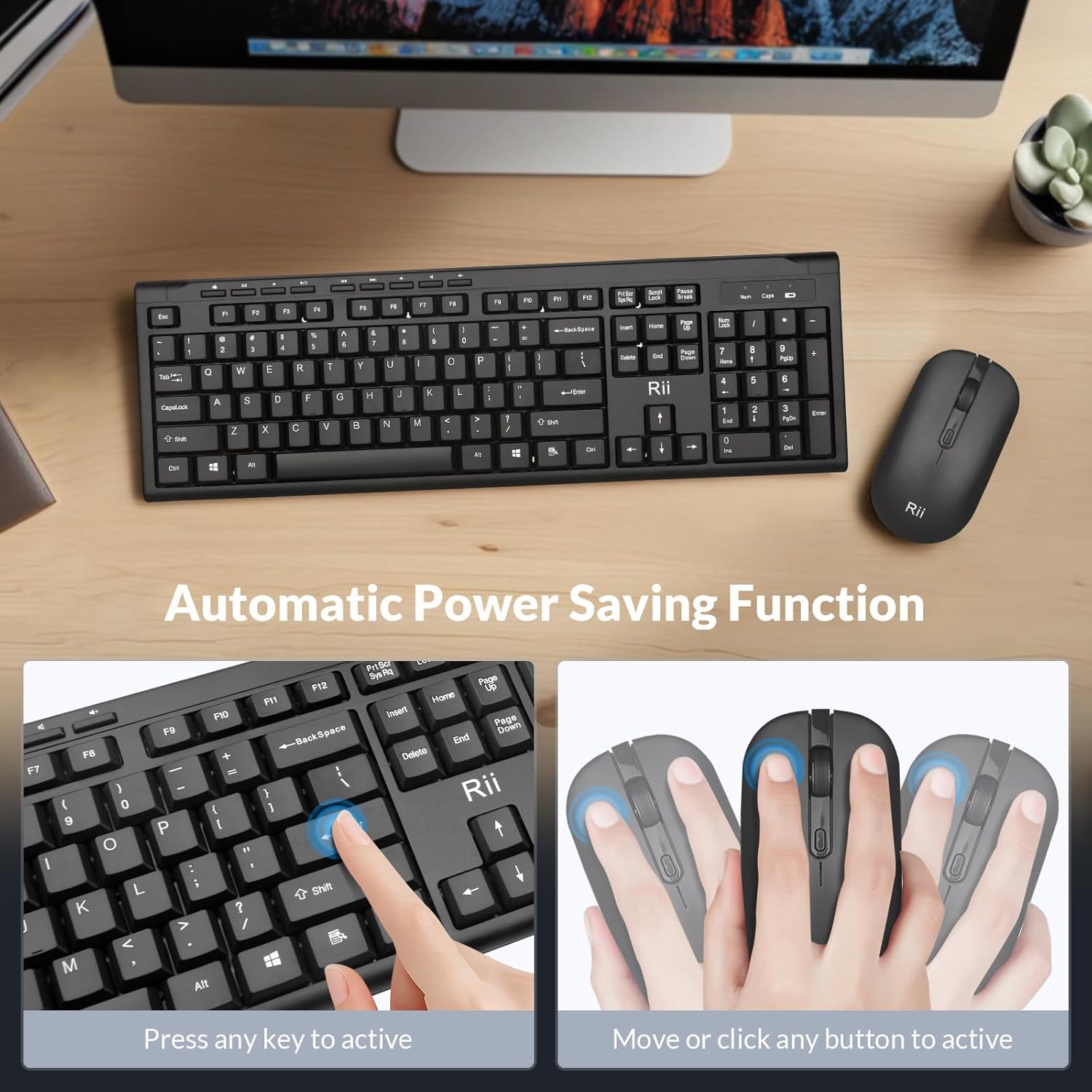
Image: The keyboard and mouse feature an automatic power saving function, activated by pressing any key or moving/clicking the mouse.
استكشاف الأخطاء وإصلاحها
في حال واجهت مشاكل، يُرجى الرجوع إلى نصائح استكشاف الأخطاء وإصلاحها التالية:
- لا يوجد اتصال/تأخر:
- تأكد من توصيل جهاز الاستقبال USB بشكل آمن بمنفذ USB العامل.
- Check if the mouse is turned ON.
- Replace batteries in both the keyboard and mouse.
- Move the devices closer to the USB receiver to rule out range issues (max 33 ft).
- حاول توصيل جهاز الاستقبال USB بمنفذ USB مختلف على جهاز الكمبيوتر الخاص بك.
- Mouse Cursor Jumps/Inaccurate:
- Change the DPI setting using the DPI button on the mouse.
- تأكد من استخدام الماوس على سطح مناسب (ليس عاكساً أو شفافاً للغاية).
- قم بتنظيف المستشعر البصري الموجود على الجانب السفلي للفأرة.
- Keyboard Not Typing:
- اضغط على أي مفتاح لتنبيه لوحة المفاتيح من وضع السكون.
- Replace the AAA battery in the keyboard.
- Ensure the USB receiver is connected.
- مفاتيح الوسائط المتعددة لا تعمل على نظام ماك:
- Some multimedia shortcuts may not be fully compatible with Mac OS. This is expected behavior.
تحديد
| ماركة | Rii ل |
| رقم الموديل | آر كيه 211 |
| لون | أسود |
| تكنولوجيا الاتصال | 2.4 جيجا لاسلكي |
| ميزة خاصة | تصميم مريح |
| الأجهزة المتوافقة | Laptop, Desktop, PC, Chromebook, Notebook (Windows 11/10/8/7/Vista/XP, Chrome OS, Linux, Mac OS) |
| البطاريات المطلوبة | Yes (1 AAA for keyboard, 1 AA for mouse - Not Included) |
| وزن العنصر | 0.7 كيلوغرام |
| وصف لوحة المفاتيح | الوسائط المتعددة |
| إعدادات الماوس DPI | شنومكس-شنومكس-شنومكس-شنومكس دبي |

Image: Detailed dimensions of the Rii RK211 keyboard and mouse.
معلومات الضمان
The Rii RK211 Wireless Keyboard and Mouse Combo comes with a ضمان لمدة 365 يومًا يسري هذا الضمان من تاريخ الشراء. ويغطي عيوب التصنيع ويضمن عمل المنتج على النحو الأمثل في ظل الاستخدام العادي. يرجى الاحتفاظ بإثبات الشراء لتقديم مطالبات الضمان.
يدعم
For further assistance, technical support, or warranty inquiries, please refer to the contact information provided with your product packaging or visit the official Rii webموقع. يمكنك أيضًا زيارة Rii Store on Amazon لمزيد من المعلومات وموارد المنتج.