
1. ماذا يوجد في الصندوق
The DBIT AX1500 WiFi 6 Mesh Wi-Fi System (2-Pack) includes the following components:
- 2 وحدات راوتر شبكية
- 2 محولات طاقة
- 1 كابل إيثرنت RJ45
- دليل التثبيت السريع

Image: Contents of the DBIT AX1500 WiFi 6 Mesh Wi-Fi System box.
2. الإعداد
2.1. انتهى النظامview
The DBIT AX1500 Mesh Wi-Fi System provides whole-home Wi-Fi 6 coverage, eliminating dead zones and supporting up to 120 devices across 3,900 sq ft. It operates on dual bands (2.4GHz and 5GHz) and features 4 Gigabit Ethernet ports per unit for stable wired connections.

الصورة: أكثر منview of the DBIT AX1500 Mesh Wi-Fi System features.
2.2. الإعداد الأولي لجهاز التوجيه الشبكي الرئيسي
Follow these steps to set up your primary mesh router:
- تشغيل الطاقة: Insert the power adapter into the mesh router and plug the other end into a power outlet. The LED indicator will turn solid red, then flash yellow as it starts up.
- الاتصال بالمودم: Turn off your cable modem. Plug one end of the included Ethernet cable into your modem and the other end into the WAN/LAN port of your primary mesh router.
- تشغيل المودم: Turn on your cable modem and wait for it to complete its startup sequence.
- تحقق من الاتصال: Wait for the LED indicator light on the mesh router to turn solid green, indicating a normal network connection.
Video: Instructions on how to set up the primary mesh router.

الصورة: الخلفية view of a mesh router unit with Gigabit Ethernet ports.
2.3. إضافة المزيد من عقد الشبكة
You can add additional mesh nodes to expand your network coverage using either the mobile app or the Mesh button.
Method 1: Add nodes via APP
- Power up the secondary mesh router(s). Wait for the secondary node's light to blink yellow.
- Connect your phone to the primary mesh router's Wi-Fi SSID. The default SSID is printed on the product label.
- Download, install, and launch the MU-LINK APP. Log in using the details on the product label.
- The APP will automatically detect the number of devices to be mesh-networked. Click to complete the networking process.
- The LED turning solid green indicates a successful connection. If the LED doesn't turn solid green, reset the secondary nodes and try the process again.
Method 2: One-button networking via Mesh button
- Press the Mesh button on the connected primary node. The green light will blink rapidly.
- Press the Mesh button on the powered-up secondary node. The yellow light will blink rapidly.
- Both devices will enter the automatic networking process.
- The LED turning solid green on both nodes indicates a successful connection.
Note: Complete the networking process sequentially; do not operate multiple nodes at the same time.
Video: Instructions on how to add more mesh nodes to your system.
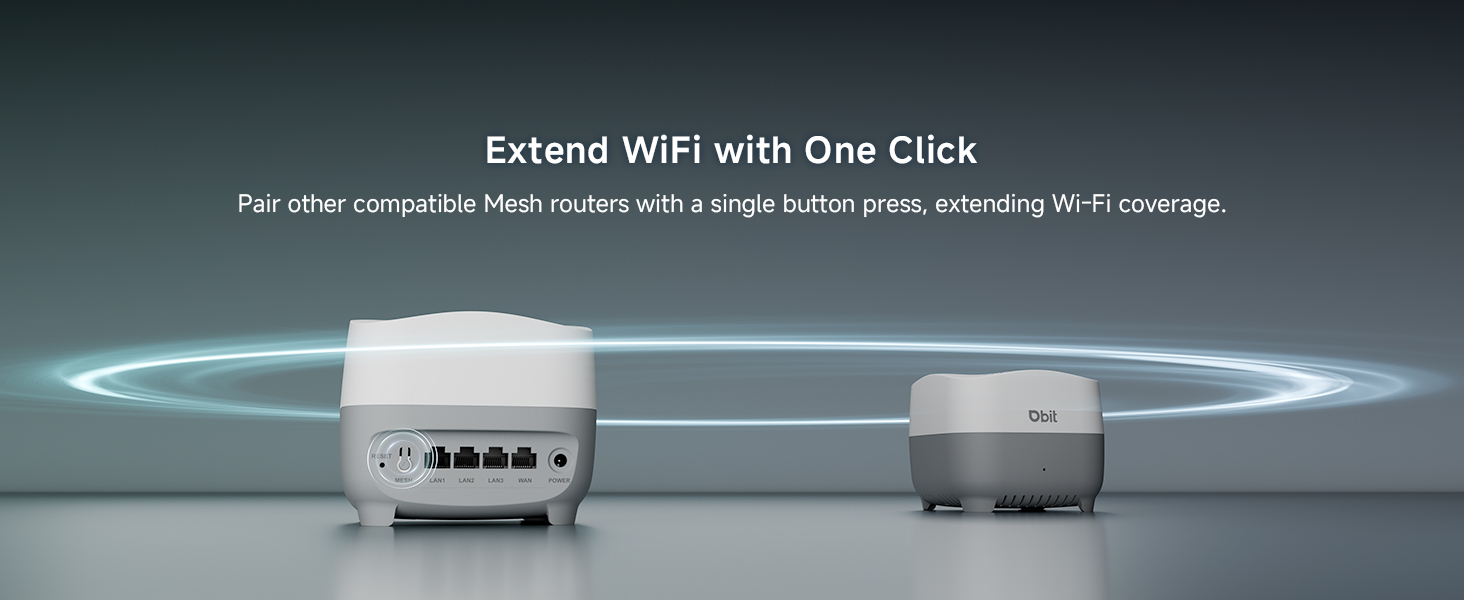
Image: One-Click Mesh pairing via button or app.

Image: Quick Setup with MU-LINK APP.
3. تعليمات التشغيل
3.1. تغطية شاملة للمنزل وتجوال سلس
The AX1500 Mesh System provides up to 3,900 sq ft of Wi-Fi coverage, eliminating dead zones. With smart roaming technology, your devices automatically switch between nodes without dropped connections as you move around your home, ensuring a stable and continuous internet experience.
فيديو: انتهىview of the DBIT Mesh WiFi System for whole home coverage.

Image: Whole-Home WiFi Coverage illustration.

Image: Seamless Roaming in a multi-story home.
3.2. اتصال عالي السعة
The mesh system supports over 120 simultaneous connections without lag, making it suitable for smart homes, offices, and gaming setups. Advanced mesh technology maintains fast speeds even with multiple devices streaming 4K/8K content, gaming online, and video conferencing.
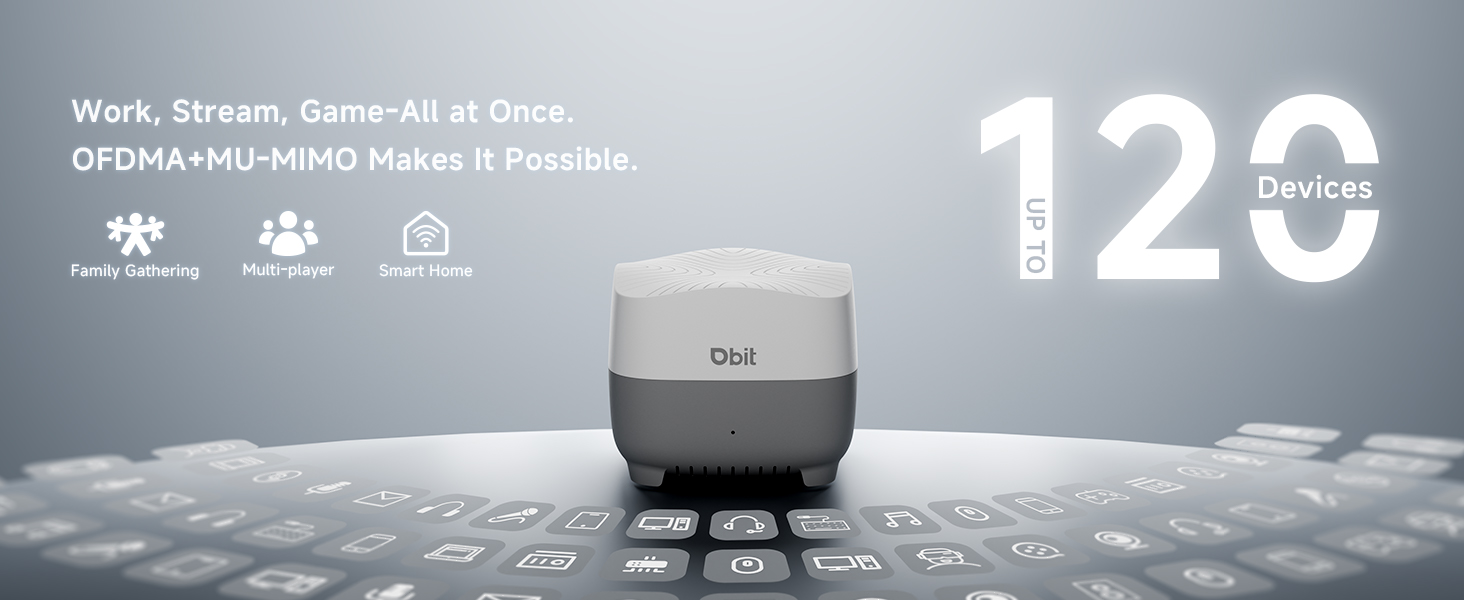
Image: High-speed connectivity for multiple devices.

Image: High-speed connectivity for multiple devices.
3.3. الرقابة الأبوية
Utilize the parental control features through the intuitive mobile app or web GUI to manage internet access for your family. You can block harmful content, balance screen time, and ensure a safe online environment for all home devices.
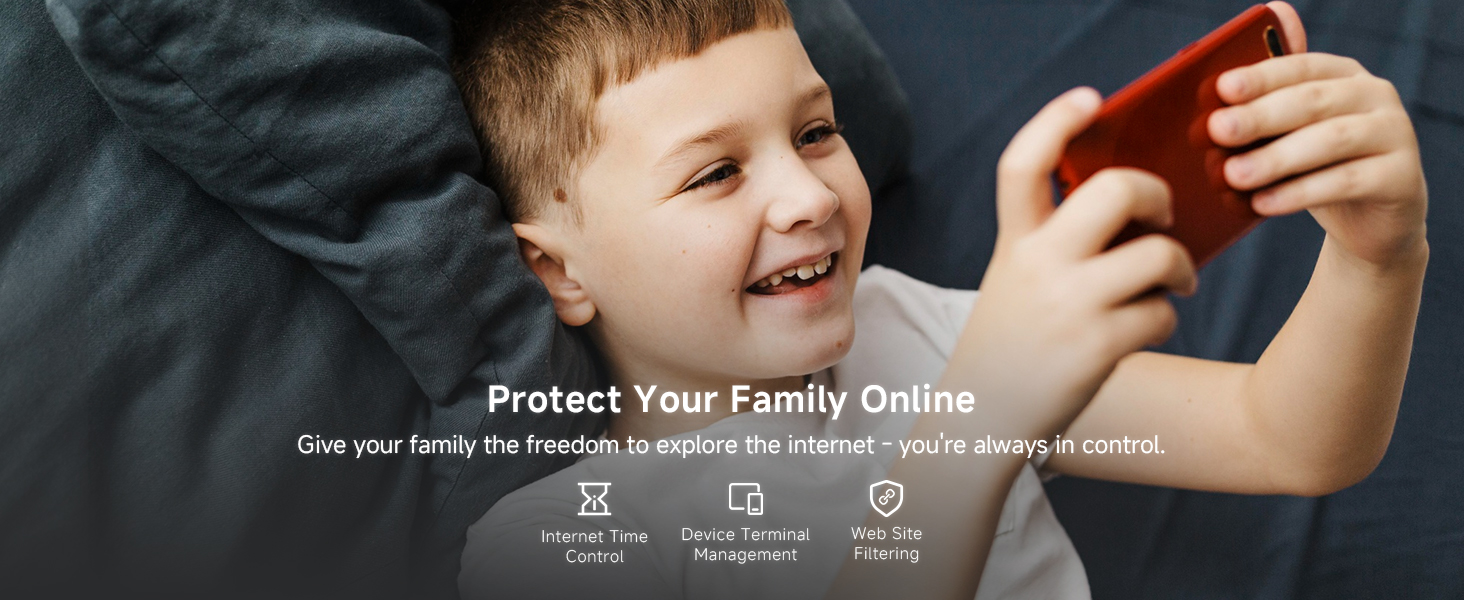
Image: Parental Controls features.
3.4. شبكة الضيوف
Create an isolated guest network to provide Wi-Fi access for visitors while maintaining the privacy and security of your main network and smart home devices. This ensures complete separation between guest and private network traffic.
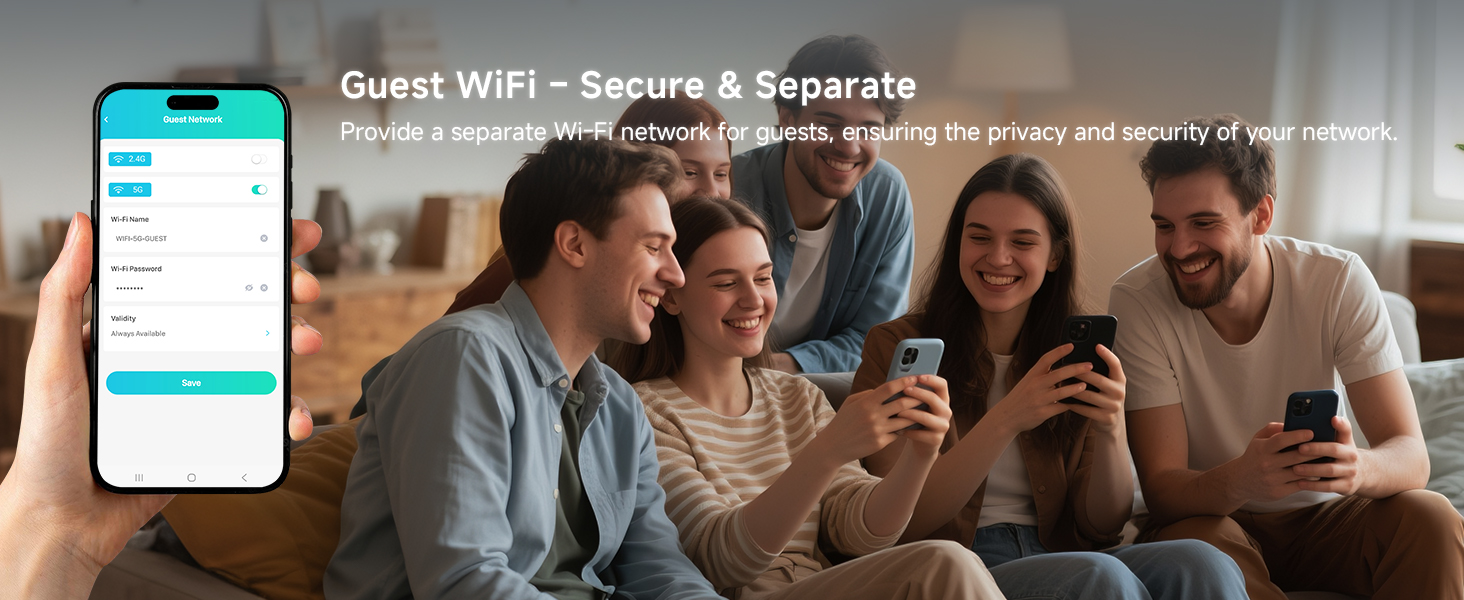
Image: Guest Network setup for secure visitor access.
3.5. أمن الشبكة
The DBIT AX1500 Mesh Wi-Fi System incorporates enterprise-grade WPA3-SAE encryption to safeguard your entire network. This advanced security protocol proactively blocks unauthorized access and cyber threats, protecting your sensitive data.
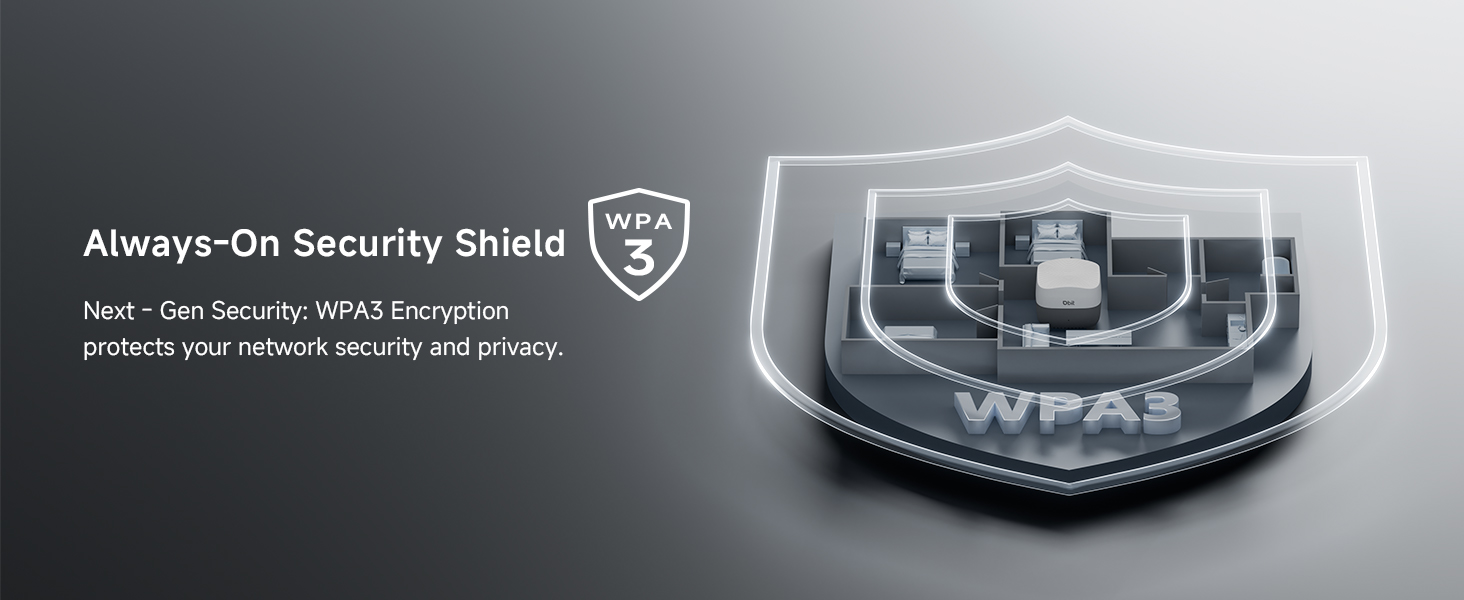
Image: WPA3 Encryption for enhanced network security.
4. الصيانة
To ensure optimal performance and longevity of your DBIT AX1500 Mesh Wi-Fi System, consider the following maintenance tips:
- الموقع: Regularly check for and install firmware updates through the MU-LINK app or web واجهة المستخدم. غالبًا ما تتضمن التحديثات تحسينات في الأداء، وتصحيحات أمنية، وميزات جديدة.
- تحديثات البرامج الثابتة: Periodically restart your mesh system (both primary and secondary nodes) to refresh network connections and resolve minor performance issues.
- تنظيف: Keep the mesh units clean and free from dust to prevent overheating. Use a soft, dry cloth for cleaning.
- إعادة تشغيل: Place mesh nodes in central locations within your home, avoiding obstructions like thick walls or large metal objects. Refer to the "Flexible Node Placement" image for suggestions.
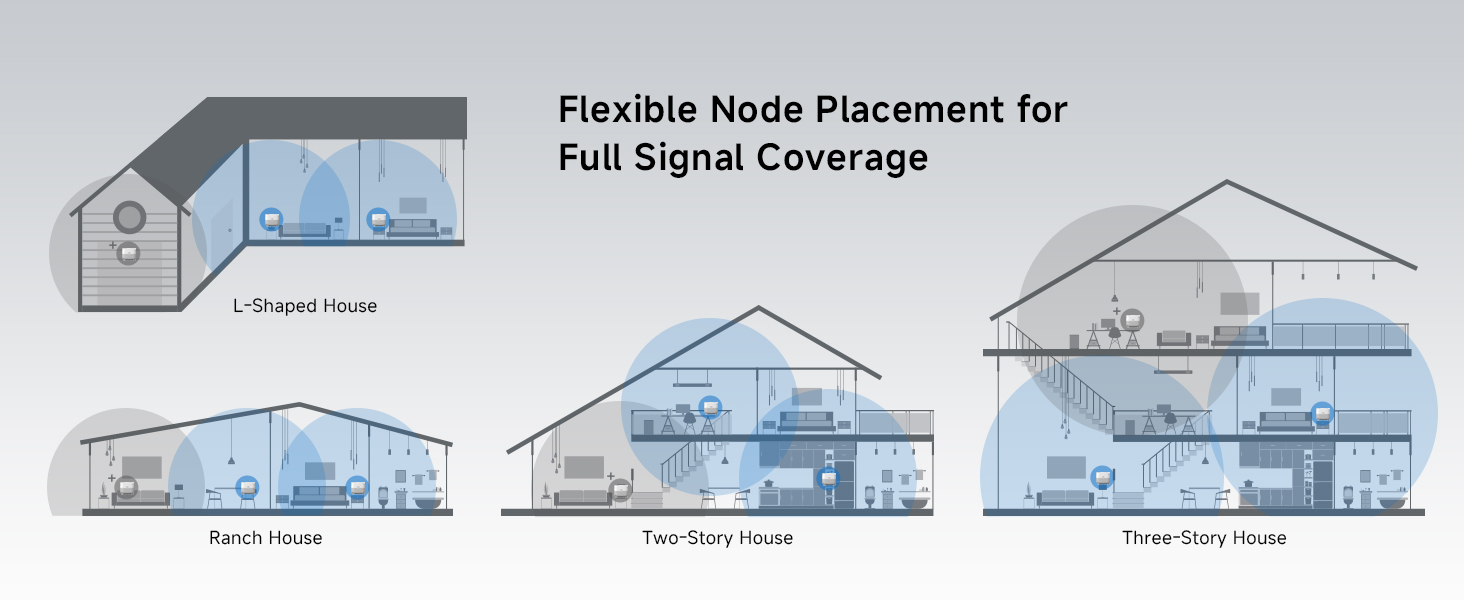
Image: Flexible Node Placement for Full Signal Coverage.
5. استكشاف الأخطاء وإصلاحها
If you encounter issues with your DBIT AX1500 Mesh Wi-Fi System, try the following steps:
- لا يوجد اتصال بالإنترنت:
- تأكد من أن المودم الخاص بك يعمل بشكل صحيح.
- تأكد من توصيل جميع كابلات الإيثرنت بشكل آمن.
- أعد تشغيل المودم وجهاز التوجيه الشبكي الرئيسي.
- إشارة واي فاي ضعيفة/مناطق ميتة:
- Relocate secondary mesh nodes closer to the primary node or to areas with weak signals.
- Ensure there are no major obstructions (e.g., large appliances, concrete walls) between nodes.
- Add more mesh nodes for extended coverage if necessary.
- الأجهزة غير المتصلة:
- تحقق من كلمة مرور شبكة الواي فاي.
- Check if the device is within the mesh network's range.
- Ensure the device is not blocked by parental controls or guest network settings.
- Restart the problematic device and the mesh node it's trying to connect to.
- حالة مؤشر LED:
- أحمر ثابت: بدء التشغيل.
- وميض أصفر: Startup complete, pending mesh networking or network connection.
- أخضر ثابت: Successful connection / Normal network operation.
Video: General guide on how to set up the mesh system, which can help with troubleshooting initial setup issues.
6. المواصفات
| ميزة | التفاصيل |
|---|---|
| ماركة | ديبيت |
| اسم الموديل | D-MAX4 2-PACK |
| فئة نطاق التردد | النطاق المزدوج (2.4 جيجاهرتز، 5 جيجاهرتز) |
| معيار الاتصال اللاسلكي | 802.11ac، 802.11ax، 802.11b، 802.11g، 802.11n |
| معدل نقل البيانات | 1500 Megabits Per Second (300Mbps on 2.4GHz + 1201Mbps on 5GHz) |
| التغطية | 3,900 قدم مربع |
| عدد المنافذ | 4 Gigabit Ethernet ports per unit (3 LAN, 1 WAN/LAN) |
| بروتوكول الأمان | WPA-PSK, WPA2-PSK, WPA3 |
| المميزات الخاصة | تقنية توجيه الإشارة، وضع الضيف، أمان الإنترنت، الرقابة الأبوية، التجوال السلس |
| الأجهزة المتوافقة | جهاز ألعاب، حاسوب شخصي، جهاز لوحي، تلفزيون ذكي، هاتف ذكي، طابعة، كاميرا مراقبة |
| طريقة التحكم | التطبيق، زر الضغط |
| وزن العنصر | 1.39 رطل |
| أبعاد العنصر (الطول × العرض × الارتفاع) | 5.04 بوصة طول × 5.04 بوصة عرض × 4.01 بوصة ارتفاع |
7. الضمان والدعم
ضمان: The DBIT AX1500 WiFi 6 Mesh Wi-Fi System comes with a 1-Year Manufacturer Warranty.
يدعم: For technical assistance, troubleshooting, or warranty claims, please contact DBIT customer support through their official website or the contact information provided in your Quick Installation Guide.