
YOWHICK DP08
YOWHICK 4K Projector (Model DP08) Instruction Manual
Your guide to setting up and operating your YOWHICK projector.
1. المقدمة
This manual provides detailed instructions for the setup, operation, and maintenance of your YOWHICK 4K Projector (Model DP08). Please read this manual thoroughly before using the product to ensure proper function and to maximize your viewتجربة جي. الحفاظ على هذا الخط للرجوع إليها في المستقبل.
2. ماذا يوجد في الصندوق
تأكد من وجود جميع المكونات عند إخراج المنتج من العلبة:
- جهاز عرض × 1
- كابل HDMI x 1
- كابل AV × 1
- كابل الطاقة × 1
- جهاز التحكم عن بعد (البطاريات غير مدرجة) × 1
- Lens Cap x 1
- دليل المستخدم × 1
3. انتهى المنتجview والميزات
The YOWHICK 4K Projector is designed for versatile home theater and outdoor use, offering a range of features for an enhanced viewتجربة رائعة.
المميزات الرئيسية:
- التوافق مع نتفليكس: Officially certified for Netflix and HDCP 2.2 compliant, supporting 4K HDR playback. Includes pre-loaded Netflix, Prime Video, and YouTube.
- Dolby Audio & Bluetooth 5.3: Integrated Dolby Audio for surround sound. Dual-purpose Bluetooth 5.3 for external speakers or built-in HiFi speakers.
- 4K Support & High Brightness: Native 1080p resolution with 4K input support. Features a 7-layer anti-reflective lens for clarity and reduced eye strain.
- Electric Focus & AI Auto Keystone: Automatic focus and keystone correction for instant image clarity. Projects 40-450 inch screens from 3.6-29 ft, with 15° auto-correction.
- اتصال واي فاي 6: Dual-band WiFi 6 (2.4G/5G) for stable streaming, gaming, and screen mirroring.
- منافذ متعددة: HDMI, USB, VGA, AV, and Audio ports for wide compatibility with various devices (iOS/Android, TV sticks, USB drives, PCs, PS5).
- تصميم سهل الاستخدام: Supports desktop, tripod, or ceiling mounting. Includes an auto-shutoff timer.

Figure 3.1: YOWHICK 4K Projector with remote, showcasing built-in streaming apps like Netflix, YouTube, and Prime Video on a large projected screen.

Figure 3.2: Internal lens system and resolution comparison, highlighting the projector's native 1080p resolution.

Figure 3.3: Projector highlighting Dolby Audio and AI Audio Balance features for enhanced sound.
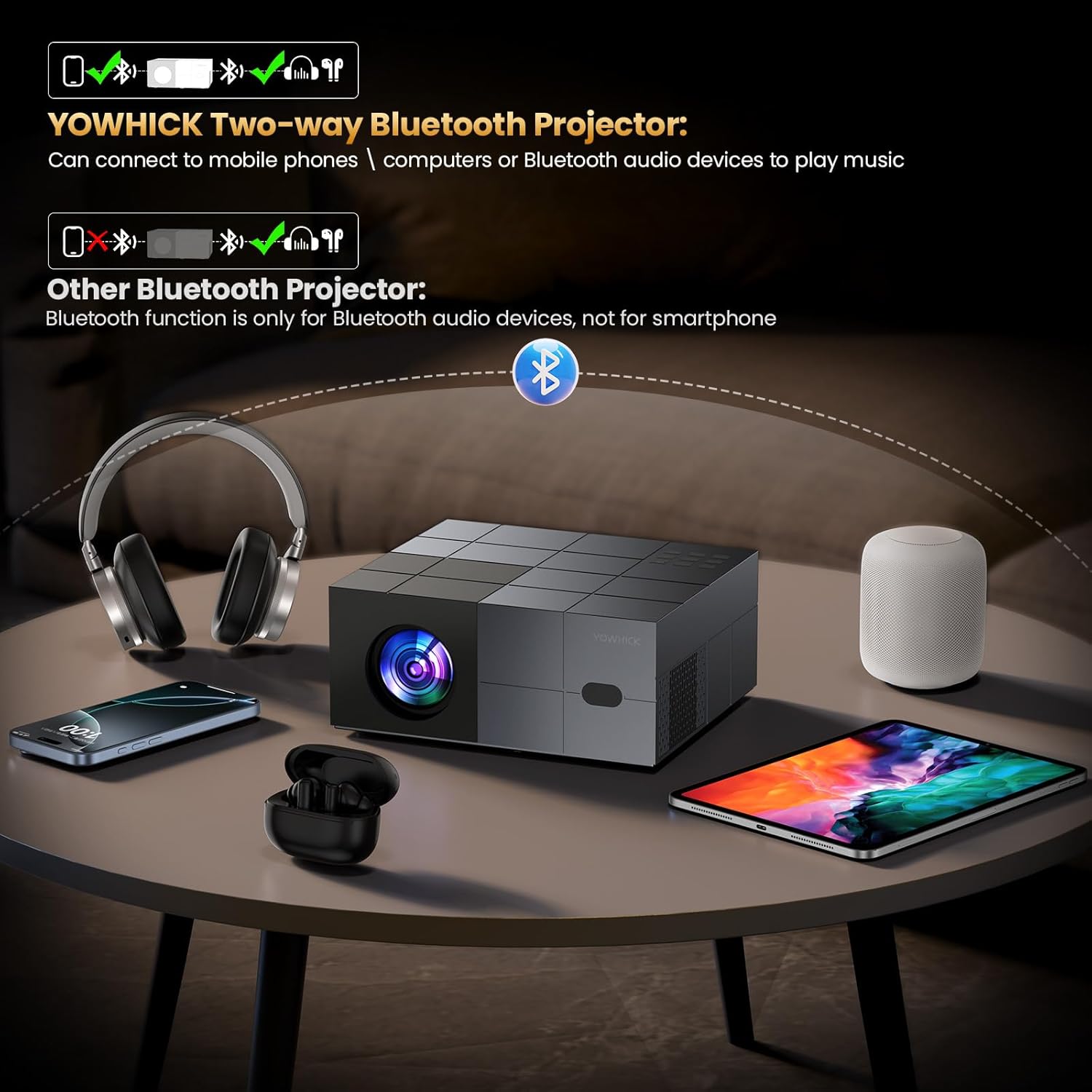
Figure 3.4: Explanation of the projector's two-way Bluetooth functionality, allowing connection to various audio devices.

Figure 3.5: The projector in an outdoor setting, demonstrating its use for large-screen entertainment.
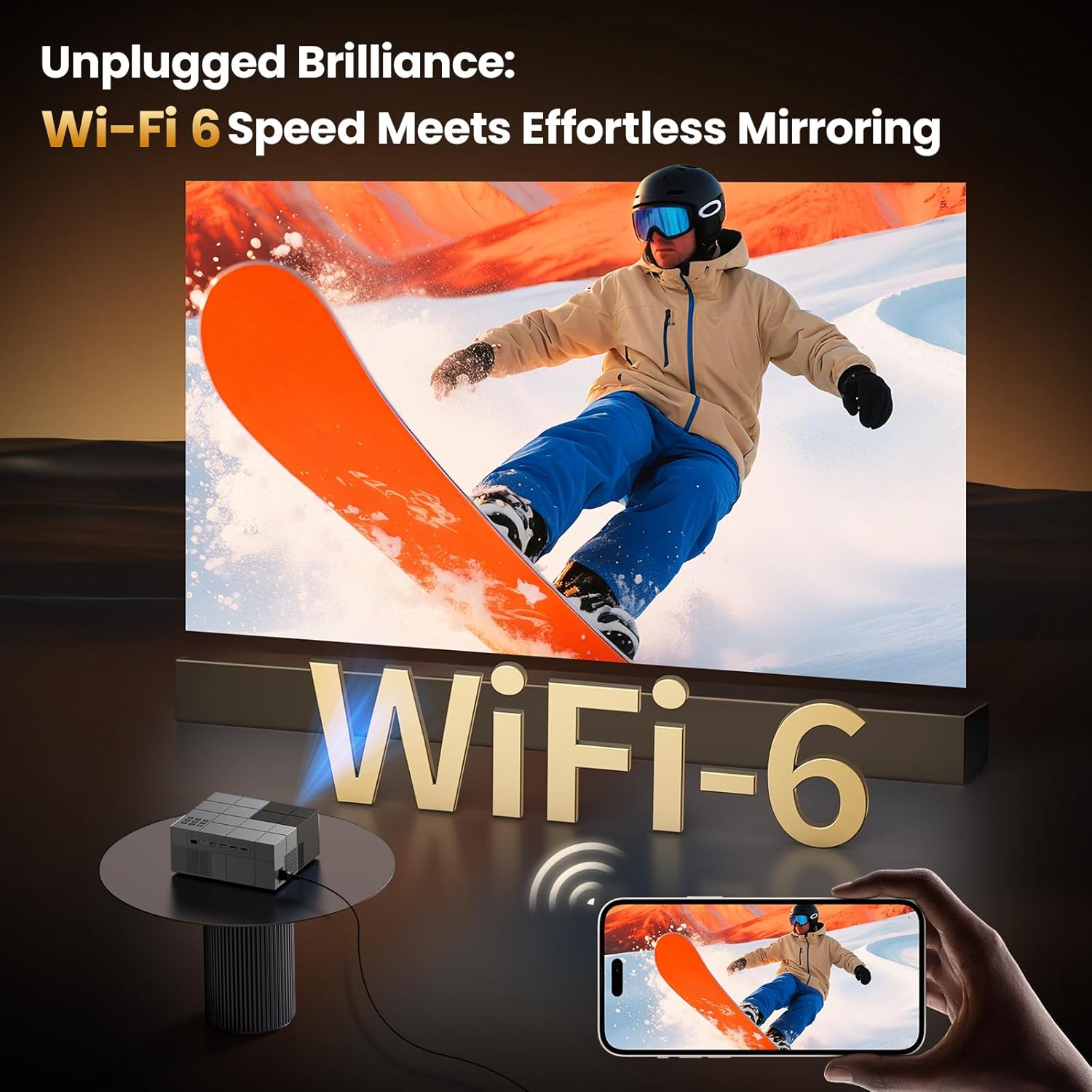
Figure 3.6: Projector showcasing WiFi 6 capabilities for seamless screen mirroring from mobile devices.
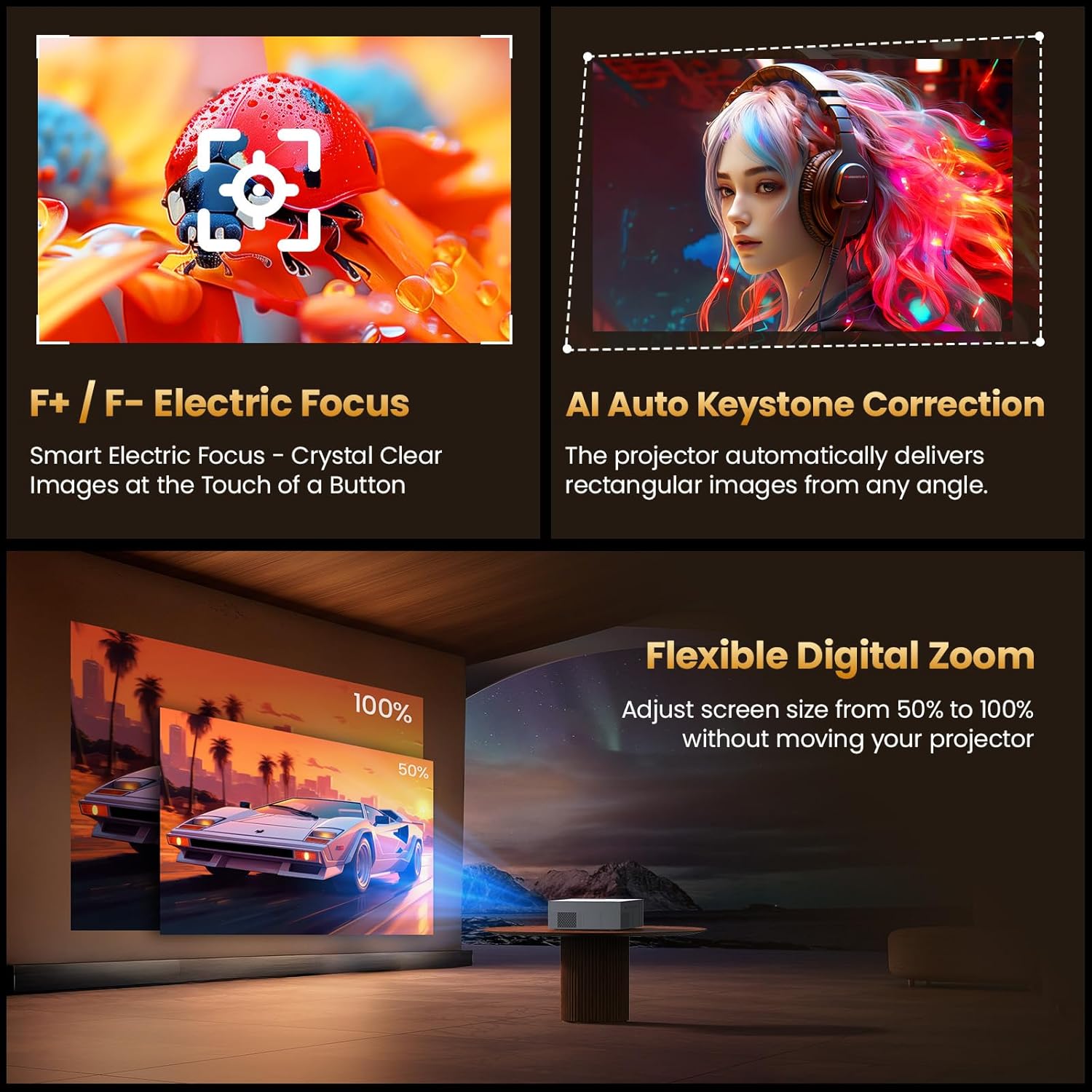
Figure 3.7: Visual representation of Electric Focus, AI Auto Keystone, and Digital Zoom functions.
4. الإعداد
4.1 التنسيب
Position the projector on a stable, flat surface. Ensure adequate ventilation around the unit. The projector can be placed on a desktop, mounted on a tripod, or installed on the ceiling. For optimal image quality, project onto a smooth, light-colored wall or a dedicated projector screen.
- مسافة الرمية: The projector can project a screen size from 40 inches to 450 inches, with a throw distance ranging from 3.6 feet to 29 feet. Adjust the distance to achieve your desired screen size.
- التركيب: If using a tripod or ceiling mount, ensure it is securely fastened and can support the projector's weight (2.08 kg).
4.2 توصيل الطاقة
- قم بتوصيل كابل الطاقة المرفق بمنفذ إدخال الطاقة الخاص بجهاز العرض.
- قم بتوصيل الطرف الآخر من كابل الطاقة بمأخذ كهربائي مناسب.
- سوف يضيء مؤشر الطاقة الموجود على جهاز العرض.
4.3 التشغيل المبدئي
Press the power button on the projector or the remote control to turn on the device. The projector will display the startup screen.
5. تعليمات التشغيل
5.1 التحكم عن بعد
The included remote control is used to navigate the projector's menu and control playback. Insert two AAA batteries (not included) into the remote control before use.
5.2 تصفح القائمة
Use the arrow keys on the remote to navigate through the on-screen menus. Press the "OK" button to confirm selections. The "Back" button returns to the previous menu or screen.
5.3 اختيار المصدر
To select an input source (HDMI, USB, AV), press the "Source" button on the remote control and choose the desired input from the menu.
5.4 Smart Features (Built-in Apps)
The projector comes with pre-installed streaming applications like Netflix, Prime Video, and YouTube. Ensure the projector is connected to a Wi-Fi network to access these services.
- From the home screen, select the desired application icon.
- قم بتسجيل الدخول باستخدام بيانات اعتماد حسابك إذا طُلب منك ذلك.
- ابدأ ببث المحتوى.
Video 5.1: Demonstration of the YOWHICK Smart Projector's WiFi 6 and Bluetooth 5.3 features, showing its smart capabilities.
6. الاتصال
6.1 Wi-Fi Connection (WiFi 6)
Connect the projector to your wireless network for internet access and screen mirroring.
- اذهب الى إعدادات > الشبكات والانترنت.
- حدد شبكة Wi-Fi الخاصة بك من القائمة.
- أدخل كلمة المرور وأكدها.
6.2 اتصال بلوتوث (بلوتوث 5.3)
Pair the projector with external Bluetooth speakers or headphones for enhanced audio.
- اذهب الى إعدادات > بلوتوث.
- Ensure Bluetooth is enabled on both the projector and your audio device.
- Select your device from the available list to pair.
6.3 الاتصالات السلكية
The projector supports various wired inputs:
- HDMI: Connect devices like laptops, gaming consoles (PS5), TV sticks, or Blu-ray players using an HDMI cable.
- USB: أدخل محركات أقراص USB لتشغيل الوسائط fileس مباشرة.
- من: Use the AV cable for older devices with composite video and stereo audio outputs.
- صوت 3.5 ملم: قم بتوصيل مكبرات الصوت الخارجية أو سماعات الرأس عبر مقبس الصوت مقاس 3.5 ملم.
7. إعدادات الصورة والصوت
7.1 التركيز الكهربائي
The projector features electric focus for quick image clarity. Use the F+/F- buttons on the remote control to adjust the focus until the image is sharp.
7.2 AI Auto Keystone Correction
The projector automatically corrects image distortion (trapezoidal effect) to ensure a rectangular display. This feature activates automatically upon startup or movement. Manual adjustment options may be available in the settings menu under صورة > كيستون.
الفيديو 7.1: مقدمة قصيرةview demonstrating the projector's picture quality and streaming capabilities.
الفيديو 7.2: مقدمة قصيرةview highlighting the projector's zoom, focus, and picture quality features.
7.3 تقريب رقمي
Adjust the screen size from 50% to 100% without moving the projector. This setting can be found in the صورة قائمة طعام.
7.4 إعدادات الصوت
Adjust volume using the +/- buttons on the remote. Access advanced audio settings, including Dolby Audio options, through the صوت menu in settings.
8. استكشاف الأخطاء وإصلاحها
8.1 لا يوجد طاقة
- تأكد من توصيل كابل الطاقة بشكل آمن بكل من جهاز العرض ومأخذ الطاقة.
- تأكد من أن منفذ الطاقة يعمل.
- Check the power indicator light on the projector.
8.2 لا توجد صورة أو صورة ضبابية
- التحقق من مصدر الإدخال: تأكد من تحديد مصدر الإدخال الصحيح (HDMI، USB، AV).
- ضبط التركيز: Use the F+/F- buttons on the remote to adjust the electric focus.
- تصحيح الانحراف: Allow AI Auto Keystone to correct the image, or manually adjust in settings if needed.
- اتصال سلكي: تأكد من توصيل جميع كابلات الفيديو بشكل آمن.
- دقة: Verify the input device's resolution is compatible with the projector (native 1080p, supports 4K input).
8.3 لا يوجد صوت
- مستوى الصوت: Increase the volume on both the projector and the connected source device.
- وظيفة كتم الصوت: تحقق مما إذا كان جهاز العرض أو جهاز المصدر في وضع كتم الصوت.
- مخرج الصوت: Ensure the correct audio output is selected (internal speakers, Bluetooth, 3.5mm audio out).
- اتصال بلوتوث: إذا كنت تستخدم البلوتوث، فتأكد من إقران الجهاز وتوصيله بشكل صحيح.
8.4 مشاكل الاتصال بشبكة Wi-Fi/Bluetooth
- إعادة تشغيل: Restart both the projector and your router/Bluetooth device.
- مسافة: تأكد من أن جهاز العرض يقع ضمن نطاق جهاز توجيه الواي فاي أو جهاز البلوتوث الخاص بك.
- تدخل: تقليل التداخل من الأجهزة اللاسلكية الأخرى.
- إعدادات الشبكة: Re-enter Wi-Fi password or re-pair Bluetooth device.
9. المواصفات
| ماركة | سميك |
| نموذج | DP08 (Derived) |
| الدقة الأصلية | 1920 x 1080 (Supports 4K input) |
| نوع العرض | شاشة الكريستال السائل |
| تكنولوجيا الاتصال | HDMI, USB (x2), AV, 3.5mm Audio, WiFi 6, Bluetooth 5.3 |
| المميزات الخاصة | Netflix Compatible, Dolby Audio, Electric Focus, AI Auto Keystone, 450" Max Screen, 50-100% Zoom |
| الحد الأقصى لحجم الصورة | 450 بوصة |
| الحد الأدنى لحجم الصورة | 40 بوصة |
| Throw Distance Range | 3.6 - 29 قدم |
| عمر تشغيل مصدر الضوء | 150,000 ساعة |
| وزن العنصر | 2.08 كيلوغرام |
| أبعاد العنصر (الطول × العرض × الارتفاع) | 13 بوصة × 9 بوصة × 5.6 بوصة |
10. الضمان والدعم
Your YOWHICK projector comes with a ضمان المصنع لمدة عام. For any product inquiries, technical assistance, or warranty claims, please contact YOWHICK customer support. YOWHICK is committed to providing professional and considerate support.
- فترة الضمان: 2 سنة
- يدعم: Lifetime support is available.
- اتصال: Refer to the contact information provided in the product packaging or on the official YOWHICK website for 24/7 assistance.
Ask a question about this manual
Ask about setup, troubleshooting, compatibility, parts, safety, or missing instructions. Manuals+ will review the question and use this page’s manual context to help answer it.