
مقدمة
This manual provides step-by-step instructions for users of the Samsung Galaxy Tab S10 FE and S10 FE Plus. It covers essential setup procedures, navigation, feature utilization, and troubleshooting to help you maximize your tablet's potential. Whether you are a new user or upgrading from a previous model, this guide is designed to enhance your experience.
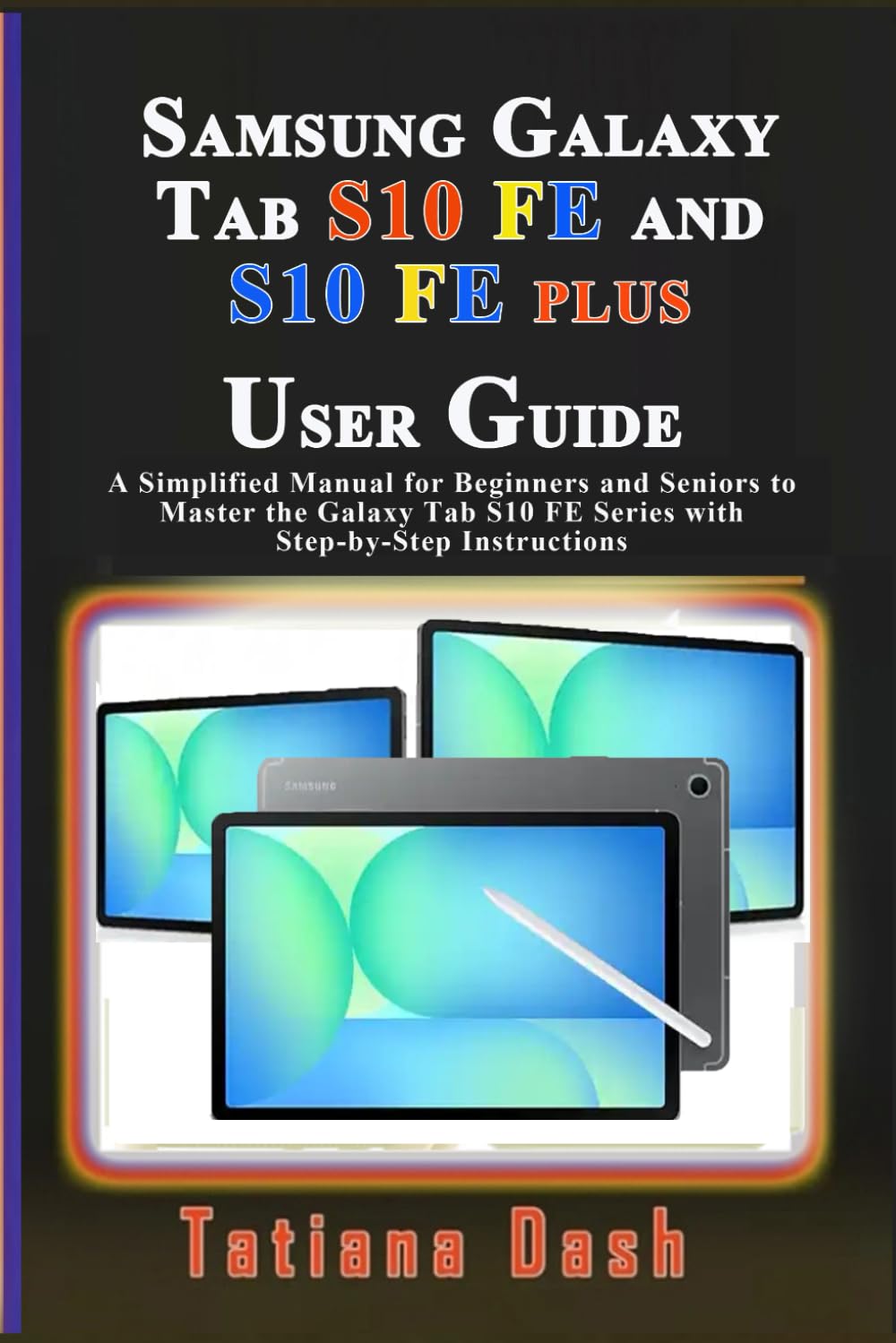
Image: Front cover of the user guide for Samsung Galaxy Tab S10 FE and S10 FE Plus.
1. البدء
1.1 الإعداد الأولي
- SIM and eSIM Setup: Follow on-screen prompts to activate your physical SIM card or configure your eSIM for cellular connectivity.
- إدخال بطاقة microSD: Locate the SIM/microSD card tray, insert your microSD card for expanded storage, and close the tray securely.
- Data Transfer with Smart Switch: Use the Smart Switch application to seamlessly transfer data from your old device to your new Galaxy Tab S10 FE or S10 FE Plus.
1.2 Basic Device Navigation
- Buttons and Soft Keys: Familiarize yourself with the physical buttons (power, volume) and on-screen soft keys for navigation.
- نصائح الشحن: Connect the provided charger to the USB-C port. Ensure proper charging practices for optimal battery life.
2. تصفح الواجهة
Understand the key elements of the Samsung interface for efficient tablet use.
- لوحة الإشعار: مرر لأسفل من أعلى الشاشة للوصول إلى الإشعارات والإعدادات السريعة.
- شريط المهام: Utilize the taskbar for quick access to frequently used apps and recent applications.
- الإعدادات السريعة: Customize and manage essential settings like Wi-Fi, Bluetooth, and screen brightness from the quick settings panel.
- تسجيل الشاشة: Access the screen recording feature from the quick settings to capture your tablet's screen activity.
- Customizing Home Screen: Personalize your home screen with widgets, wallpapers, and app layouts.
- Edge Panels: Configure and use Edge Panels for quick access to contacts, apps, and tools.
3. S Pen Features
Explore the versatile functionalities of the S Pen.
- قيادة القوات الجوية: Access a menu of S Pen features by hovering the S Pen over the screen and pressing its button.
- التحديد الذكي: التقاط مناطق محددة من الشاشة واستخراج النصوص أو الصور.
- هواء View: قبلview content by hovering the S Pen over items like emails or gallery images.
- Screen Off Memos: Jot down quick notes directly on the screen even when it's off.
- S Pen to Text: Convert your handwritten notes into digital text.
4. Productivity and Creativity
Utilize your tablet for enhanced productivity and creative tasks.
- Samsung Notes App: Create, organize, and sync notes, drawings, and voice recordings.
- دائرة للبحث: Use the S Pen or your finger to circle objects on your screen and instantly search for information.
- Second Screen Features: Extend your PC display to your tablet for a dual-monitor setup.
- استخدام الكاميرا: Learn to take photos, record videos, scan documents, and adjust advanced camera settings.
- Gallery Management: Organize your photos and videos, create albums, and sync media to cloud services.
- رؤية بيكسبي: Use Bixby Vision for object recognition, text translation, and shopping.
5. Multitasking and Apps
Enhance your workflow with multitasking features and integrated applications.
- نوافذ متعددة: Run multiple applications simultaneously in split-screen or pop-up view.
- سامسونج ديكس: Transform your tablet into a desktop-like experience for increased productivity.
- Samsung Flow: Seamlessly connect your tablet and smartphone to share content and notifications.
- Exploring Key Apps: Discover and utilize pre-installed applications such as Samsung Internet, Samsung Health, Gaming Hub, SmartThings, and Samsung Pass.
6. الأمان والخصوصية
Protect your device and personal information.
- Face or Fingerprint Recognition: Set up biometric authentication for secure and convenient unlocking.
- Managing Secure Folder: Create a private, encrypted space for sensitive apps and data.
- Adjusting Privacy Settings: Review and customize app permissions and data usage settings.
7. الاتصال
Connect your tablet to other devices and networks.
- واي فاي مباشر: يشارك files directly with other Wi-Fi Direct enabled devices without a router.
- بلوتوث: Pair your tablet with Bluetooth accessories like headphones or keyboards.
- الطباعة: Connect to compatible printers to print documents and images directly from your tablet.
- نقطة ساخنة: Share your tablet's cellular data connection with other devices.
- الربط: Connect your tablet to a computer via USB to share its internet connection.
8. Customization and Wellbeing
Personalize your tablet experience and manage digital habits.
- Configuring Modes and Routines: Automate settings based on your activities or time of day.
- إعدادات الصوت: Adjust volume levels, notification sounds, and audio enhancements.
- مراقبة البطارية: Track battery usage and optimize settings for extended battery life.
- الرفاهية الرقمية والرقابة الأبوية: Monitor screen time, set app timers, and manage parental controls for a balanced digital life.
9. الصيانة
Ensure the longevity and optimal performance of your device.
- تحديثات البرامج: قم بالتحقق بانتظام من وجود تحديثات النظام وتثبيتها لضمان حصول جهازك اللوحي على أحدث الميزات والتصحيحات الأمنية.
- تنظيف: Use a soft, lint-free cloth to gently clean the screen and body of your tablet. Avoid harsh chemicals.
- ادارة التخزين: إعادة بشكل دوريview ومسح غير الضروري fileوالتطبيقات للحفاظ على الأداء الأمثل.
10. استكشاف الأخطاء وإصلاحها
يوفر هذا القسم حلولاً للمشكلات الشائعة التي قد تواجهها.
- الجهاز لا يستجيب: If your tablet is unresponsive, press and hold the Power button and Volume Down button simultaneously for about 7 seconds to force restart.
- مشاكل الاتصال: For Wi-Fi or Bluetooth problems, try toggling the respective setting off and on, or restart your tablet. Ensure you are within range of the network or device.
- أعطال التطبيق: If an app is not working correctly, try clearing its cache and data in the app settings, or uninstall and reinstall the app.
- استنزاف البطارية: Check battery usage in settings to identify apps consuming excessive power. Adjust screen brightness and disable unnecessary features like GPS or always-on display when not in use.
- الأداء البطيء: أغلق التطبيقات غير المستخدمة، وامسح ذاكرة التخزين المؤقت، وتأكد من وجود مساحة تخزين كافية. يمكن لإعادة ضبط المصنع حل مشاكل الأداء المستمرة، ولكن انسخ بياناتك احتياطيًا أولًا.