
مقدمة
Thank you for choosing the SENGBIRCH Keyboard Case for your Lenovo Tab M11 11" 2024. This manual provides essential information for the proper setup, operation, and maintenance of your new keyboard case. Please read it thoroughly before use to ensure optimal performance and longevity of the product.
محتويات الحزمة
- 1 x Protective Case with Bluetooth Keyboard
- كابل شحن 1 x USB-C
- 1 × دليل المستخدم
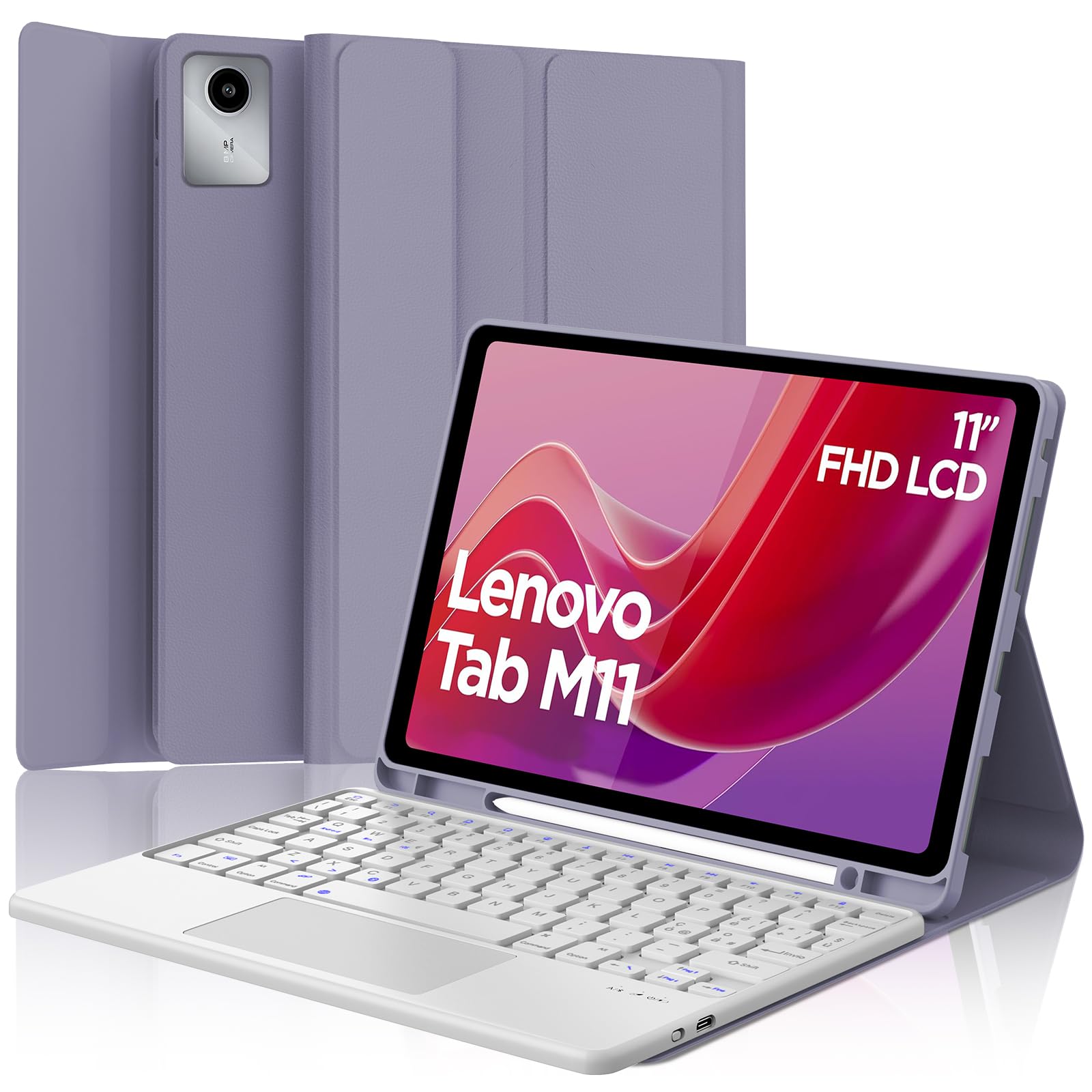
Image: The SENGBIRCH Keyboard Case for Lenovo Tab M11 11" 2024, showcasing the keyboard and protective cover.
تعليمات الإعداد
1. التحقق من التوافق
صُممت حافظة لوحة المفاتيح هذه خصيصًا لـ Lenovo Tab M11 11" 2024 (Models TB330FU/TB330XU). Please verify your tablet model before proceeding.

Image: A visual guide illustrating compatibility with the Lenovo Tab M11 11" 2024 and incompatibility with other models like Lenovo Tab M10 Plus Gen 3 and Lenovo Tab M10.
2. شحن لوحة المفاتيح
- قم بتوصيل كابل الشحن USB-C المقدم بمنفذ الشحن الخاص بلوحة المفاتيح.
- قم بتوصيل الطرف الآخر من الكابل بمحول طاقة USB (غير متضمن) أو بمنفذ USB الخاص بالكمبيوتر.
- The charging indicator light will illuminate. Allow 2-3 hours for a full charge.

Image: Close-up of the keyboard showing the USB-C charging port and a charging cable connected, indicating battery life and silent scissor keys.
3. اقتران بلوتوث
- Ensure the keyboard is charged. Turn on the keyboard by sliding the power switch.
- اضغط على يتصل button on the keyboard (usually indicated by a Bluetooth icon). The Bluetooth indicator light will start blinking.
- On your Lenovo Tab M11, go to إعدادات > بلوتوث وقم بتشغيل البلوتوث.
- Your tablet will search for available devices. Select "Bluetooth Keyboard" or a similar name from the list.
- Once paired, the Bluetooth indicator light on the keyboard will stop blinking.

Image: A diagram illustrating the wireless Bluetooth connection of the keyboard to various devices, including smartphones, tablets, and laptops, supporting iOS, Android, and Windows operating systems.
4. Inserting the Tablet into the Case
Carefully align your Lenovo Tab M11 with the protective case. Ensure all ports, buttons, and the camera are correctly aligned with the case's precise cutouts. The magnetic design will help secure the tablet and keyboard in place.
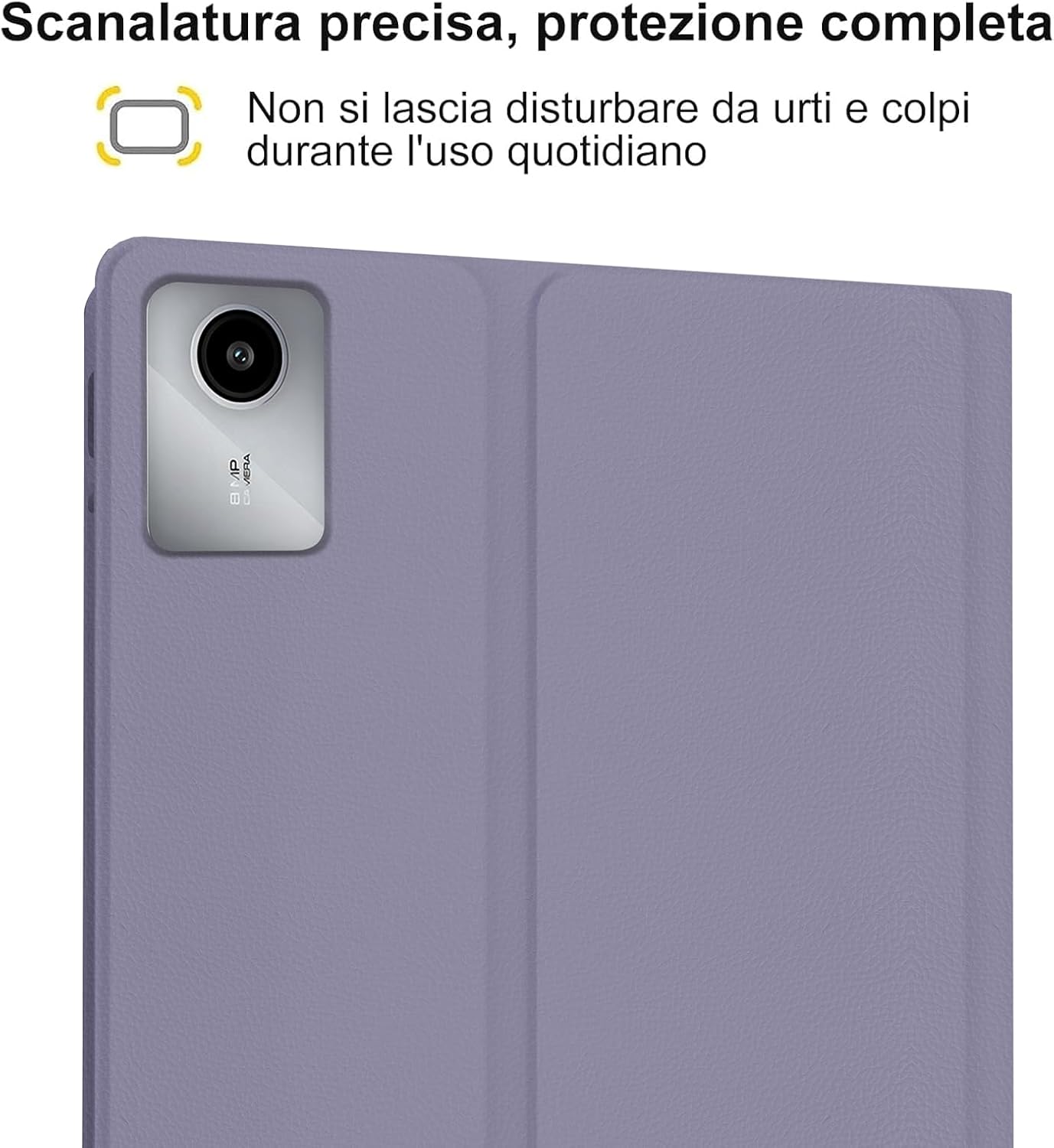
Image: A close-up of the tablet's camera module perfectly aligned with the precise cutout in the protective case, emphasizing full protection against daily impacts.
تعليمات التشغيل
1. استخدام لوحة المفاتيح
The keyboard features an Italian QWERTY layout. It provides a tactile typing experience with scissor-key mechanisms for comfortable and efficient input. Familiarize yourself with the function keys (Fn) for shortcuts.

الصورة: تفصيلية view of the Italian QWERTY keyboard layout, highlighting its magnetic attachment, over 100 hours of battery life, and USB-C charging capability.
2. Using the Trackpad
The integrated trackpad allows for precise navigation and control, similar to a laptop. It supports multi-touch gestures (e.g., two-finger scroll, pinch-to-zoom) depending on your tablet's operating system settings.
3. ضبط الإضاءة الخلفية
The keyboard features 7-color backlighting with 3 adjustable brightness levels. Use the dedicated backlight key (often indicated by a light bulb icon or Fn + a specific key) to cycle through colors and brightness settings.
4. Automatic Wake/Sleep Function
The case supports automatic wake/sleep functionality. Opening the case will wake your tablet, and closing it will put your tablet to sleep, conserving battery life.

Image: Two illustrations demonstrating the automatic wake-up function when the case is opened and the automatic sleep function when the case is closed.
5. قابل للتعديل Viewزوايا جي
The case allows you to adjust the tablet's viewing angle for comfortable use, whether typing, watching videos, or browsing. The non-slip grooves ensure stability at various angles.
Image: A diagram showing the tablet case propped up at different viewing angles (120°, 125°, 130°) with non-slip grooves for stability, illustrating ergonomic viewالمواقف.
صيانة
تنظيف الهيكل ولوحة المفاتيح
- امسح الجزء الخارجي من العلبة بقطعة قماش ناعمة و...amp القماش. تجنب المواد الكيميائية القاسية أو المنظفات الكاشطة.
- For the keyboard, use a soft, dry cloth or a can of compressed air to remove dust and debris from between the keys.
- تأكد من إيقاف تشغيل لوحة المفاتيح قبل التنظيف.
العناية بالبطارية
- اشحن لوحة المفاتيح بانتظام للحفاظ على صحة البطارية.
- تجنب تفريغ البطارية بالكامل بشكل متكرر.
- إذا كنت ستخزن لوحة المفاتيح لفترة طويلة، فاشحنها إلى حوالي 50% وخزنها في مكان بارد وجاف.
استكشاف الأخطاء وإصلاحها
لوحة المفاتيح غير متصلة عبر البلوتوث
- التحقق من البطارية: تأكد من أن لوحة المفاتيح مشحونة بالكامل.
- دورة الطاقة: أطفئ لوحة المفاتيح ثم أعد تشغيلها.
- بصلح: Delete the keyboard from your tablet's Bluetooth device list and attempt to pair it again.
- Tablet Bluetooth: Ensure your tablet's Bluetooth is enabled and functioning correctly.
الإضاءة الخلفية لا تعمل
- التحقق من الطاقة: تأكد من أن لوحة المفاتيح بها شحنة كافية للبطارية.
- مفتاح الإضاءة الخلفية: Press the backlight key (or Fn + backlight key) to cycle through brightness levels and colors.
Trackpad Not Responding
- اتصال بلوتوث: تأكد من توصيل لوحة المفاتيح بشكل صحيح عبر البلوتوث.
- إعادة تشغيل: قم بإيقاف تشغيل لوحة المفاتيح وتشغيلها.
- Tablet Settings: Check your tablet's settings for trackpad or mouse options to ensure it's enabled.
مشاكل الشحن
- فحص الكابل: تأكد من توصيل كابل USB-C بشكل آمن بكل من لوحة المفاتيح ومصدر الطاقة.
- مصدر الطاقة: Try a different USB power adapter or computer USB port.
- تلف الكابل: Inspect the charging cable for any signs of damage.
تحديد
| ميزة | التفاصيل |
|---|---|
| ماركة | سينجبيرش |
| الأجهزة المتوافقة | Lenovo Tab M11 11" 2024 (TB330FU/TB330XU) |
| تكنولوجيا الاتصال | بلوتوث |
| وصف لوحة المفاتيح | Accessible (Italian QWERTY Layout) |
| ميزة خاصة | Trackpad, Backlit Keyboard (7 colors, 3 brightness levels) |
| مصدر الطاقة | يعمل بالبطارية (ليثيوم بوليمر) |
| عمر البطارية (الاستخدام المستمر) | حتى 24 ساعة (3 يومًا) |
| وقت الاستعداد | 3 أشهر |
| وقت الشحن | 2-3 hours (via USB-C) |
| مادة | TPU, ABS, Synthetic Leather |
| وزن العنصر | 700 جرام |
| أبعاد الحزمة | 26 × 18 × 3 سم |
معلومات الضمان
This SENGBIRCH product comes with a ضمان لمدة سنتين يسري هذا الضمان من تاريخ الشراء. ويغطي عيوب التصنيع والمشاكل الناجمة عن الاستخدام العادي. ولا يغطي الأضرار الناتجة عن سوء الاستخدام أو الحوادث أو التعديلات غير المصرح بها أو التلف الناتج عن الاستخدام العادي.
يرجى الاحتفاظ بإثبات الشراء الخاص بك لمطالبات الضمان.
يدعم
If you encounter any problems or have questions regarding your SENGBIRCH Keyboard Case, please do not hesitate to contact our customer support team. We are committed to providing satisfactory service and assistance.
For support, please refer to the contact information provided on the product packaging or the official SENGBIRCH webموقع.