
Nillkin DZD3JCWZG01CA
Nillkin Foldable Wireless Keyboard with Touchpad and Numeric Pad User Manual
Model: DZD3JCWZG01CA
المنتج انتهىview
The Nillkin Foldable Wireless Keyboard is a portable, full-size keyboard designed for productivity on the go. It features an integrated touchpad and a convertible numeric pad, offering a comprehensive input solution for various devices. Its compact, foldable design ensures easy transport, while robust construction provides durability.

Image: The Nillkin Foldable Wireless Keyboard, showcasinتصميمها المدمج.
دليل الإعداد
1. شحن لوحة المفاتيح
Before initial use, fully charge the keyboard using the provided USB-C cable. Connect the cable to the keyboard's charging port and a compatible USB power source. The charging indicator light will show the charging status. A full charge provides up to 30 hours of typing or 140 days of standby time.

Image: The keyboard connected to a power source, illustrating its long battery life and USB-C charging port.
2. تشغيل / إيقاف التشغيل
To power on the keyboard, unfold it completely. The keyboard will automatically power on. To power off, fold the keyboard. It will automatically enter sleep mode when folded.
3. اقتران بلوتوث
The Nillkin keyboard can connect to up to three devices simultaneously via Bluetooth 5.0.
- افتح لوحة المفاتيح لتشغيله.
- تفعيل البلوتوث on your device (PC, laptop, tablet, smartphone).
- اضغط مع الاستمرار one of the Bluetooth channel keys (BT1, BT2, or BT3) for 3-5 seconds until the indicator light flashes, indicating pairing mode.
- على جهازك، ابحث عن أجهزة Bluetooth وحدد "Nillkin Keyboard" (أو اسم مشابه) من القائمة.
- اتبع التعليمات التي تظهر على الشاشة لإكمال عملية الاقتران. سيتوقف ضوء المؤشر الموجود على لوحة المفاتيح عن الوميض بمجرد إتمام عملية الاقتران بنجاح.
- To switch between paired devices, simply press the corresponding Bluetooth channel key (BT1, BT2, or BT3) once. The keyboard will automatically reconnect to the selected device.

Image: The keyboard connected to multiple devices, highlighting its Bluetooth 5.0 multi-device pairing capability.
تعليمات التشغيل
1. خبرة في الطباعة
The keyboard features a standard QWERTY layout with well-spaced, scissor-structured keys for a comfortable and efficient typing experience. A full row of function keys provides quick access to common commands.

الصورة: مفصلة view of the keyboard layout, emphasizing key structure and function keys.
2. وظائف لوحة اللمس
The integrated sensitive multi-touch touchpad allows for precise navigation and clicking. It supports various multi-touch gestures for enhanced efficiency, including scrolling, swiping, zooming, and application switching. The touchpad also features automatic palm rejection to prevent accidental input during typing.
- النقر بإصبع واحد: الزر الأيسر
- النقر بإصبعين: انقر بزر الماوس الأيمن
- التمرير بإصبعين: قم بالتمرير لأعلى/لأسفل أو لليسار/لليمين
- الضغط للتكبير: تكبير/تصغير
- Note: Specific multi-touch gestures may vary or not be fully supported on iOS and macOS.

Image: A user interacting with the touchpad, illustrating its multi-touch capabilities.
3. Numeric Keypad Mode
The touchpad can be quickly switched to a numeric keypad for efficient data entry. To activate the numeric keypad, press the dedicated numeric keypad toggle key (usually indicated by a calculator icon or "Num Lock" function). Press it again to revert to touchpad mode.

Image: The touchpad transformed into a numeric keypad, ready for number input.
4. توافق النظام
The keyboard is compatible with a wide range of operating systems, including Android, Windows, iPadOS, macOS, iOS, and Chrome OS. It automatically recognizes the operating system of the connected device for optimal functionality.
5. Portable Workstation Setup
The Nillkin Foldable Wireless Keyboard is designed to create a portable workstation anywhere. Its compact size when folded allows it to be easily carried, and when unfolded, it provides a full-size typing and navigation experience, making it suitable for various environments such as travel, business trips, or cafes.
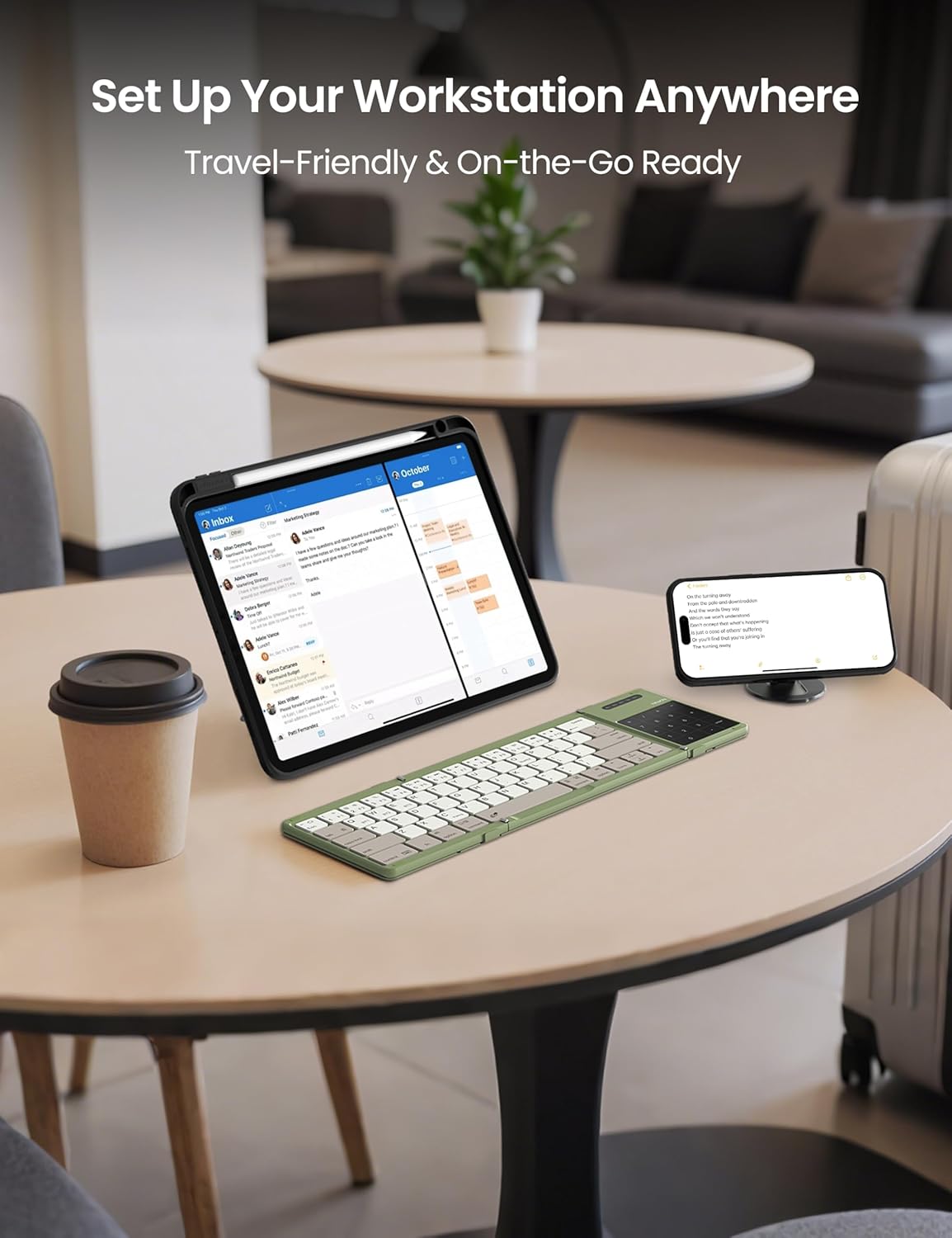
Image: The keyboard in use with multiple devices, illustrating its role in a portable workstation setup.
صيانة
1. التنظيف
To clean the keyboard, use a soft, damp cloth. For the silicone leather back, a mild cleaning solution can be used if necessary. Avoid harsh chemicals or abrasive materials that could damage the surface. Ensure the keyboard is powered off and disconnected from any power source before cleaning.
2. التخزين
When not in use, fold the keyboard to protect the keys and touchpad. The strong magnetic attraction ensures the keyboard remains securely folded. Store it in the provided storage bag to prevent scratches and dust accumulation.
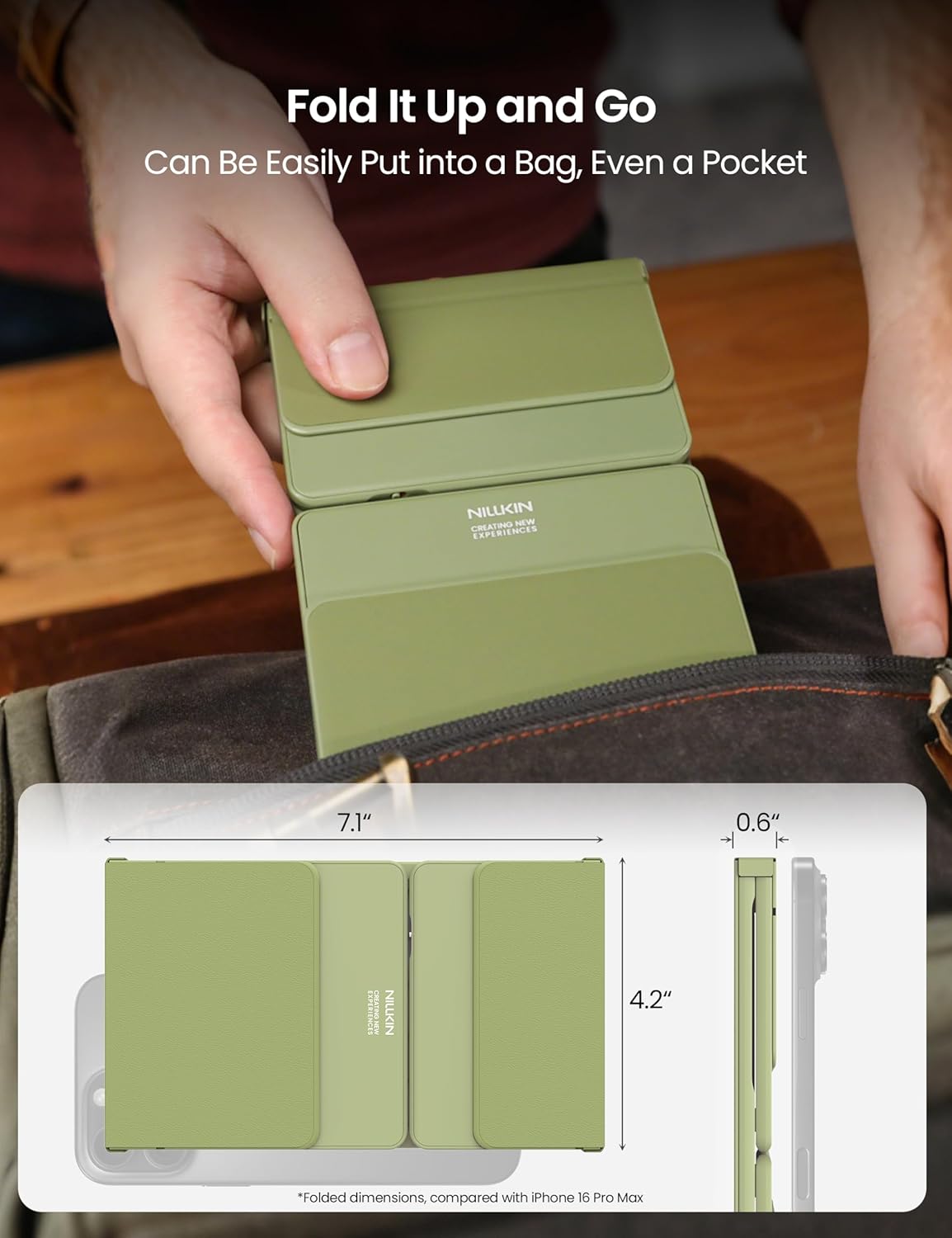
Image: The keyboard folded and ready for storage or transport, demonstrating its portability.
3. المتانة
The keyboard is constructed with a premium silicone leather back, offering superior resistance to wear, scratches, and stains compared to synthetic leather. The robust metal hinge is designed to withstand over 50,000 opening and closing cycles, ensuring long-term reliability.

الصورة: مفصلة view of the keyboard's durable silicone leather material and sturdy metal hinge.
استكشاف الأخطاء وإصلاحها
لوحة المفاتيح غير متصلة عبر البلوتوث
- Ensure Keyboard is Charged: A low battery can prevent successful pairing. Charge the keyboard fully.
- Check Pairing Mode: Make sure the keyboard is in pairing mode (indicator light flashing) by pressing and holding a BT channel key.
- تشغيل البلوتوث في الجهاز: تأكد من تفعيل البلوتوث على جهازك المضيف.
- نسيت الجهاز: If previously paired, try "forgetting" or "removing" the keyboard from your device's Bluetooth settings and then re-pair.
- مسافة: Ensure the keyboard is within the 10-meter (33 feet) Bluetooth range of your device.
- تدخل: ابتعد عن الأجهزة اللاسلكية الأخرى التي قد تسبب تداخلاً.
Touchpad Not Responding or Gestures Not Working
- Check Numeric Pad Mode: Ensure the touchpad is not in numeric keypad mode. Toggle it back to touchpad mode if necessary.
- تنظيف لوحة اللمس: Ensure the touchpad surface is clean and free of debris.
- OS Limitations: Remember that some multi-touch gestures may not be fully supported on iOS and macOS.
- إعادة تشغيل: Try powering off and on both the keyboard and your host device.
المفاتيح لا تستجيب
- تحقق من اتصال: تأكد من توصيل لوحة المفاتيح بشكل صحيح عبر البلوتوث.
- إعادة شحن: A very low battery might cause intermittent key response.
- إعادة تشغيل: Power cycle the keyboard and the connected device.
تحديد
| ماركة | نيلكين |
| رقم الموديل | DZD3JCWZG01CA |
| تكنولوجيا الاتصال | بلوتوث 5.0 |
| الأجهزة المتوافقة | Laptop, PC, Smartphone, Tablet, Smart TV (Android, Windows, iPadOS, macOS, iOS, Chrome OS) |
| تخطيط لوحة المفاتيح | لوحة مفاتيح كويرتي |
| عدد المفاتيح | 64 |
| المميزات الخاصة | Numeric Pad, Touchpad, Foldable, Rechargeable, Silent Keys |
| الأبعاد المطوية (الطول × العرض × الارتفاع) | 18 x 10.7 x 1.5 cm (7.1 x 4.2 x 0.6 inches) |
| الأبعاد غير المطوية (الطول × العرض × الارتفاع) | 34 × 10.7 × 0.8 سم |
| وزن | 0.2 كجم |
| عمر البطارية | Up to 30 hours typing, 140 days standby |
| مادة | Silicone Leather, ABS |
| Hinge Durability | أكثر من 50,000،XNUMX دورة |
| Maximum Connection Range | 10 أمتار (33 قدم) |
| مصدر الطاقة | تعمل بالبطارية |
| ماذا يوجد في الصندوق | Foldable Wireless Keyboard, USB Cable, Storage Bag, User Manual |
معلومات الضمان
Specific warranty details for the Nillkin Foldable Wireless Keyboard are typically provided with the product packaging or on the official Nillkin webيرجى الرجوع إلى هذه المصادر للحصول على أدق وأحدث شروط وأحكام الضمان.
دعم العملاء
For any questions, technical assistance, or issues not covered in this manual, please contact Nillkin customer service. Contact information can usually be found on the product packaging, the official Nillkin webالموقع، أو من خلال بائع التجزئة الخاص بك.
Nillkin is committed to providing satisfactory customer service and support for their products.
Ask a question about this manual
Ask about setup, troubleshooting, compatibility, parts, safety, or missing instructions. Manuals+ will review the question and use this page’s manual context to help answer it.