
مقدمة
يوفر هذا الدليل تعليمات مفصلة لإعداد وتشغيل وصيانة واستكشاف أعطال جهازك ATTACK SHARK R6 Superlight Wireless Gaming Mouse و MAMBASNAKE X60 HE Magnetic Switch Keyboard combo set. Please read this manual thoroughly before using the products to ensure optimal performance and longevity.
المنتج انتهىview
ATTACK SHARK R6 Wireless Gaming Mouse
The R6 mouse is designed for high-performance gaming, featuring advanced sensor technology and a lightweight design.
- المستشعر: PixArt PAW3950MAX flagship sensor for precise tracking.
- رقاقة: Nordic 52840 Chip for efficient wireless communication.
- وزن: Approximately 39 grams, contributing to rapid movement.
- نقطة لكل بوصة: Up to 42000 DPI for adjustable sensitivity.
- معدل التصويت: Up to 8000Hz for minimal input lag.
- الطلاء: Ice-feel coating for enhanced grip and comfort.

Image: The ATTACK SHARK R6 mouse, showcasing its Nordic 52840 chip, 8000Hz polling rate, PixArt PAW 3950 sensor, tri-mode connectivity, 39g ultra-light design, and up to 42000 DPI.

الصورة: شفافة view of the ATTACK SHARK R6 mouse, emphasizing the integrated Nordic 52840 MCU for high-performance and low latency.

Image: The ATTACK SHARK R6 mouse with an illustration of the PAW 3950 sensor, detailing 50G acceleration, 42000 MAX DPI, 8K Hz polling rate, and 750 IPS. It also visually compares 1000Hz and 8000Hz polling rates.
MAMBASNAKE X60 HE Magnetic Switch Keyboard
The X60 HE keyboard features magnetic switches for rapid response and customizable actuation.
- المفاتيح: Hall effect magnetic switches for faster actuation and durability.
- نقطة التشغيل: Adjustable from 0.1mm to 3.2mm.
- معدل التصويت: 8000Hz in wired mode, 1000Hz in wireless mode.
- الاتصال: Three modes: Bluetooth, 2.4GHz wireless, and wired USB-C.
- سمات: RGB lighting, DKS, Snap Tap, Zero Deadzone support.
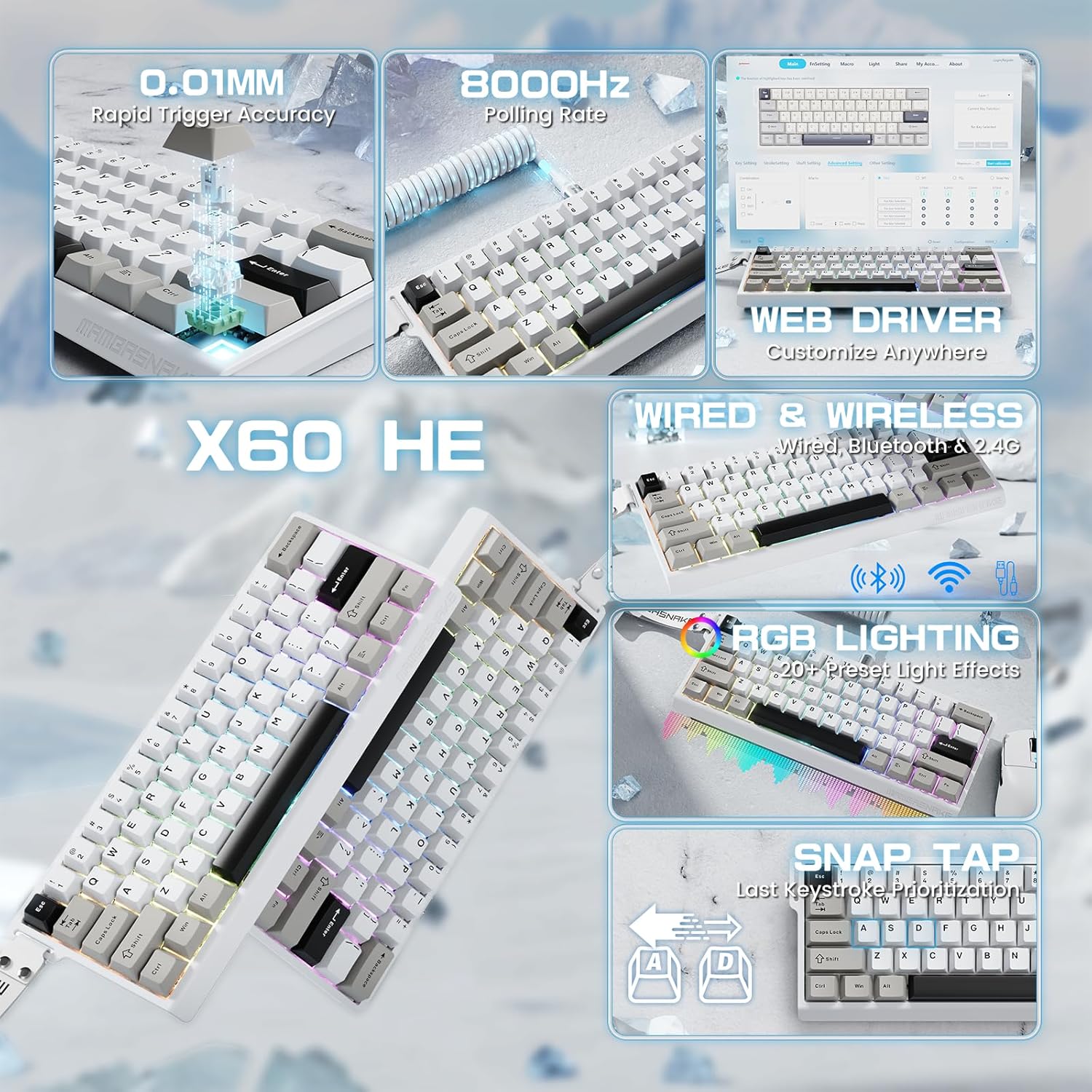
Image: The MAMBASNAKE X60 HE keyboard, illustrating its 0.01mm rapid trigger accuracy, 8000Hz polling rate, web driver customization, wired & wireless connectivity, RGB lighting, and Snap Tap feature.
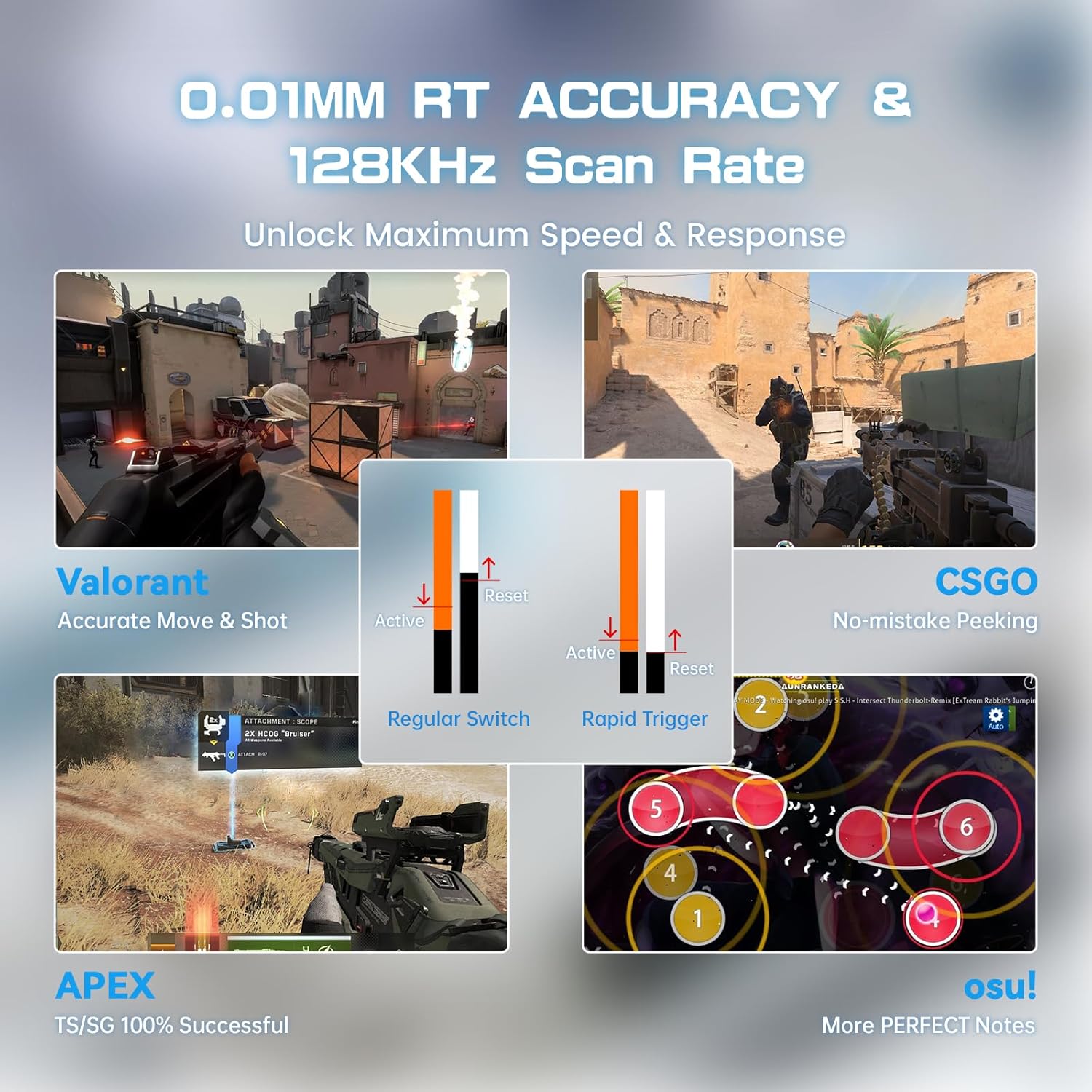
Image: The MAMBASNAKE X60 HE keyboard demonstrating 0.01mm RT Accuracy and 128kHz Scan Rate, with examples from games like Valorant, CSGO, APEX, and osu! to show its performance benefits.

Image: The MAMBASNAKE X60 HE keyboard connected via a coiled USB-C cable, highlighting its 8000Hz polling rate for ultra-fast, tangle-free connectivity. Note indicates 8000Hz polling in wired mode and 1000Hz in wireless mode.
يثبت
ATTACK SHARK R6 Wireless Gaming Mouse Setup
The R6 mouse offers three connectivity options:
- 2.4GHz Wireless Mode (Performance Mode):
Insert the 2.4GHz USB dongle into an available USB port on your computer. The mouse will automatically connect. This mode provides the fastest wireless speed. - Bluetooth 5.2 Mode (Efficiency Mode):
Activate Bluetooth on your computer. Put the mouse into Bluetooth pairing mode (refer to the mouse's specific button combination for pairing, usually a switch or button on the underside). Select the mouse from your computer's Bluetooth device list to pair. This mode is optimized for longer battery life. - وضع USB-C السلكي:
Connect the provided USB-C cable from the mouse to your computer. The mouse will function as a wired device and charge simultaneously.

Image: The ATTACK SHARK R6 mouse demonstrating its Hyperspeed Connectivity options: 2.4GHz Performance Mode, Bluetooth 5.2 Efficiency Mode, and Wired USB-C Mode, showing connections to a laptop and smartphone.
MAMBASNAKE X60 HE Magnetic Switch Keyboard Setup
The X60 HE keyboard also offers three connectivity options:
- وضع البلوتوث:
Switch the keyboard to Bluetooth mode. Activate Bluetooth on your device (laptop, tablet, mobile). Put the keyboard into pairing mode (consult the keyboard's specific instructions for the pairing key combination, often Fn + a number key). Select the keyboard from your device's Bluetooth list. This mode supports multi-device pairing. - الوضع اللاسلكي 2.4 جيجا هرتز:
Switch the keyboard to 2.4GHz mode. Insert the 2.4GHz USB dongle into your computer's USB port. The keyboard should connect automatically, providing a stable, low-latency connection. - وضع USB-C السلكي:
Connect the keyboard to your computer using the provided USB-C cable. This mode offers the fastest response with ultra-low latency, ideal for competitive gaming.
تعليمات التشغيل
ATTACK SHARK R6 Wireless Gaming Mouse Operation
- الاستخدام الأساسي: The mouse functions as a standard pointing device.
- تعديل DPI: Use the dedicated DPI button (if present) or the web driver software to cycle through DPI settings.
- الشحن: Connect the mouse via USB-C cable to charge. The LED indicator will show charging status.
MAMBASNAKE X60 HE Magnetic Switch Keyboard Operation
- الوظائف الرئيسية: Standard keyboard layout. Use the Fn key in combination with other keys for secondary functions (e.g., media controls, lighting adjustments).
- إضاءة RGB: Adjust lighting effects and brightness using Fn key combinations or the web سائق.
- ضبط نقطة التشغيل: استخدم web driver to customize the actuation point of individual keys.
التخصيص (Web سائق)
Both the ATTACK SHARK R6 mouse and MAMBASNAKE X60 HE keyboard support a web-based driver for extensive customization. This allows you to personalize settings without needing to download or install software.
- الوصول إلى Web السائق: افتح web browser and navigate to the official ATTACK SHARK or MAMBASNAKE web driver portal (refer to product packaging or official webالموقع ل URL).
- تخصيص الماوس: Adjust button functions, DPI sensitivity, polling rate, and macro settings.
- تخصيص لوحة المفاتيح: Configure key functions, adjust actuation points (0.1mm to 3.2mm), set up DKS (Dynamic Keystroke), Snap Tap, Zero Deadzone, and customize RGB lighting effects.
ال web driver provides a graphical interface to manage your device settings. Ensure your device is connected to the computer when using the web سائق.

Image: A screenshot of the MAMBASNAKE X60 HE keyboard's web driver interface, showing options for key redefinition, stroke settings, shaft settings, and advanced settings like DKS, Snap Tap, and Zero Deadzone.
صيانة
- تنظيف: Use a soft, dry cloth to clean the surfaces of the mouse and keyboard. For stubborn dirt, a slightly damp يمكن استخدام قطعة قماش مبللة بصابون خفيف، مع التأكد من عدم دخول أي سائل إلى الجهاز.
- تجنب السوائل: Do not expose the devices to excessive moisture or immerse them in liquids.
- تخزين: قم بتخزين الأجهزة في مكان بارد وجاف بعيدًا عن أشعة الشمس المباشرة ودرجات الحرارة القصوى.
- العناية بالكابلات: Avoid sharp bends or excessive pulling on the USB-C cables to prevent damage.
استكشاف الأخطاء وإصلاحها
- الجهاز لا يستجيب:
- تأكد من تشغيل الجهاز وشحنه بالكامل.
- Check the connection mode (2.4GHz, Bluetooth, Wired) and ensure it matches your computer's setting.
- For wireless connections, ensure the USB dongle is securely inserted or Bluetooth is properly paired.
- حاول الاتصال عبر كابل USB-C السلكي لاستبعاد مشاكل الاتصال اللاسلكي.
- التأخير أو انقطاع الاتصال:
- Ensure the 2.4GHz dongle is not obstructed and is close to the device.
- تقليل التداخل من الأجهزة اللاسلكية الأخرى.
- For Bluetooth, ensure your computer's Bluetooth drivers are up to date.
- DPI/Key Settings Not Changing:
- تأكد من web driver is properly connected to the device.
- Apply changes within the web driver interface.
- إضاءة RGB لا تعمل:
- Check lighting settings via Fn key combinations or the web سائق.
- تأكد من أن الجهاز لديه طاقة كافية.
تحديد
ATTACK SHARK R6 Wireless Gaming Mouse
- المستشعر: PixArt PAW3950MAX
- مكو: Nordic 52840 Chip
- نقطة لكل بوصة: حتى 42000
- تسريع: 50 جرام
- معدل التصويت: 8000 هرتز
- وزن: 39 جرام
- الاتصال: 2.4GHz Wireless, Bluetooth 5.2, Wired USB-C
MAMBASNAKE X60 HE Magnetic Switch Keyboard
- نوع المفتاح: Hall Effect Magnetic Switches
- نقطة التشغيل: قابل للتعديل من 0.1 مم إلى 3.2 مم
- معدل التصويت: 8000Hz (Wired), 1000Hz (Wireless)
- الاتصال: Bluetooth, 2.4GHz Wireless, Wired USB-C
- سمات: RGB Lighting, DKS, Snap Tap, Zero Deadzone
الضمان والدعم
For warranty information and technical support, please refer to the documentation included with your purchase or visit the official ATTACK SHARK website. If you encounter any issues not covered in this manual, please contact customer support for assistance.