
1. المقدمة
This manual provides detailed instructions for the installation, operation, and maintenance of your SIXWIN 4+64G Android 15 Car Radio. This unit is specifically designed for FIAT 500 models manufactured between 2007 and 2015, offering advanced features such as Wireless CarPlay, Android Auto, GPS navigation, and a high-definition touchscreen display.
Please read this manual thoroughly before installation and use to ensure proper functionality and to maximize your driving experience.
2. محتويات العبوة
تأكد من تضمين جميع العناصر المدرجة أدناه في الحزمة الخاصة بك:
- 1 x Car Player Unit
- 1 × فك تشفير كانبوس
- 1 × كابل الطاقة
- شنومكس x رسيا كابل
- 1 × كابل إدخال الكاميرا الخلفية
- شنومكس x أوسب الكابلات
- 1 × هوائي GPS
- 1 × ميكروفون
- 1 × خلفي View Camera (AHD)
- شنومكس x تصاعد قوس
- 1 × مفك براغي
- 1 × دليل المستخدم

الصورة: أكثر منview of the SIXWIN car radio unit, its dimensions, rear connections, and included accessories such as the AHD rear camera, power cable, Canbus, installation tool, microphone, GPS antenna, USB cables, and user manual.
3. دليل التثبيت
يُنصح بالتركيب الاحترافي. تأكد من فصل الطاقة عن السيارة قبل بدء التركيب.
3.1 توصيلات الأسلاك
Refer to the wiring diagram for correct connections. Ensure all cables are securely connected to their respective ports on the car radio and the vehicle's harness.
- سلك الطاقة: قم بتوصيله بمصدر طاقة السيارة.
- كابل RCA: For audio/video input/output connections.
- كبلات USB: لتوصيل أجهزة USB.
- مدخل الكاميرا: Connect the AHD Rear View آلة تصوير.
- هوائي الراديو: قم بتوصيل هوائي راديو السيارة.
- هوائي GPS: Position in a location with clear sky view لاستقبال الإشارة الأمثل.
الصورة: مفصلة view of the rear panel of the SIXWIN car radio, showing labeled ports for power, RCA, USB, camera input, radio antenna, and GPS antenna.
3.2 تركيب الوحدة
Use the provided mounting bracket and screwdriver to secure the car radio into the dashboard opening. Ensure a snug fit without excessive force.

Image: A comparison showing the dashboard of a FIAT 500 before and after the installation of the SIXWIN car radio, highlighting the integrated display.
3.3 Initial Setup and Dashboard Flickering Solution
After installation, follow these steps to configure the unit and address potential dashboard flickering:
- Select the correct protocol: اذهب الى إعدادات → إعدادات المصنع (Password: 8888) → CAN Settings → Hiword → فيات → Select the corresponding model year (e.g., 2007-2015).
- Configure the vehicle model: اذهب الى إعدادات السيارة → الإعدادات الأخرى → تكوين السيارة → الموديل 1.
- Perform power cycle: After selecting the model, switch off the ignition, turn off the vehicle, and remove the key. Close all doors and wait for 10 minutes. After 10 minutes, restart the vehicle and switch on the radio.
- If flickering persists: Switch the model to 'Model 2' or 'Model 3', then switch off the radio, remove the key, switch off the ignition, wait 10 minutes, and restart the radio.
If the issue remains unresolved, please contact customer service for assistance.

Image: Screenshot detailing the steps to resolve dashboard flickering issues after installation, including protocol selection and vehicle model configuration.
4. تعليمات التشغيل
4.1 التشغيل الأساسي
The unit features a 9-inch HD touchscreen display. Power on the unit by turning the vehicle's ignition to the ACC or ON position. Navigate through menus and applications by touching the screen icons.

Image: Close-up of the SIXWIN car radio's IPS display screen, highlighting its 2.5D touch glass and anti-blue light features, with a car interior displayed on screen.
4.2 CarPlay اللاسلكي وAndroid Auto
Connect your iPhone or Android smartphone wirelessly to access CarPlay or Android Auto. This allows for voice control or touchscreen operation for calls, messages, music, and navigation, enhancing driving safety.
- تأكد من تمكين Bluetooth وWi-Fi على هاتفك الذكي.
- في راديو السيارة، حدد تطبيق CarPlay أو Android Auto.
- اتبع التعليمات التي تظهر على الشاشة لإقران جهازك.

Image: Display showing the Wireless CarPlay and Android Auto interfaces with various app icons like Music, WhatsApp, Spotify, and navigation.
4.3 وظيفة رابط المرآة
The Mirror Link function allows you to cast your smartphone's screen content directly to the car radio display.
- For iOS devices, Mirror Link supports Wi-Fi connection.
- For Android devices, Mirror Link supports Wi-Fi or USB connection.
- Access the Mirror Link app on the car radio and follow the pairing instructions.

Image: A smartphone screen mirrored onto the car radio display, demonstrating the Mirror Link feature.
4.4 ملاحة GPS
The integrated GPS module for precise navigation. It supports both online and offline maps.
- Pre-installed maps are available (e.g., "Here We Go").
- Supports other online navigation applications like Google Maps when connected to Wi-Fi.
- Ensure the GPS antenna is properly installed for optimal signal.

Image: The car radio display showing a GPS navigation map with route information and various navigation icons.
4.5 اتصال Wi-Fi
Connect the car radio to the internet via a Wi-Fi hotspot from your smartphone or a dedicated mobile network connection. This enables web browsing, streaming, and downloading applications directly on the device.
- Access Wi-Fi settings from the main menu.
- اختر الشبكة التي تريدها وأدخل كلمة المرور.

Image: The car radio display showing Wi-Fi and Bluetooth connectivity options, with a woman driving and a phone dialer interface.
4.6 بلوتوث 5.0
The integrated Bluetooth 5.0 module allows for high-fidelity audio streaming, hands-free calling, and phone book synchronization.
- Pair your mobile phone or other compatible devices via Bluetooth settings.
- Enjoy music playback and make/receive calls directly from the car radio.
راديو 4.7 FM/RDS
The built-in FM/RDS radio receiver provides clear audio quality and real-time station information.
- Access the Radio application from the main menu.
- Tune to your desired stations. The unit supports 18 preset stations and FM(3*6) channels.
- RDS (Radio Data System) displays information such as station name and traffic updates.
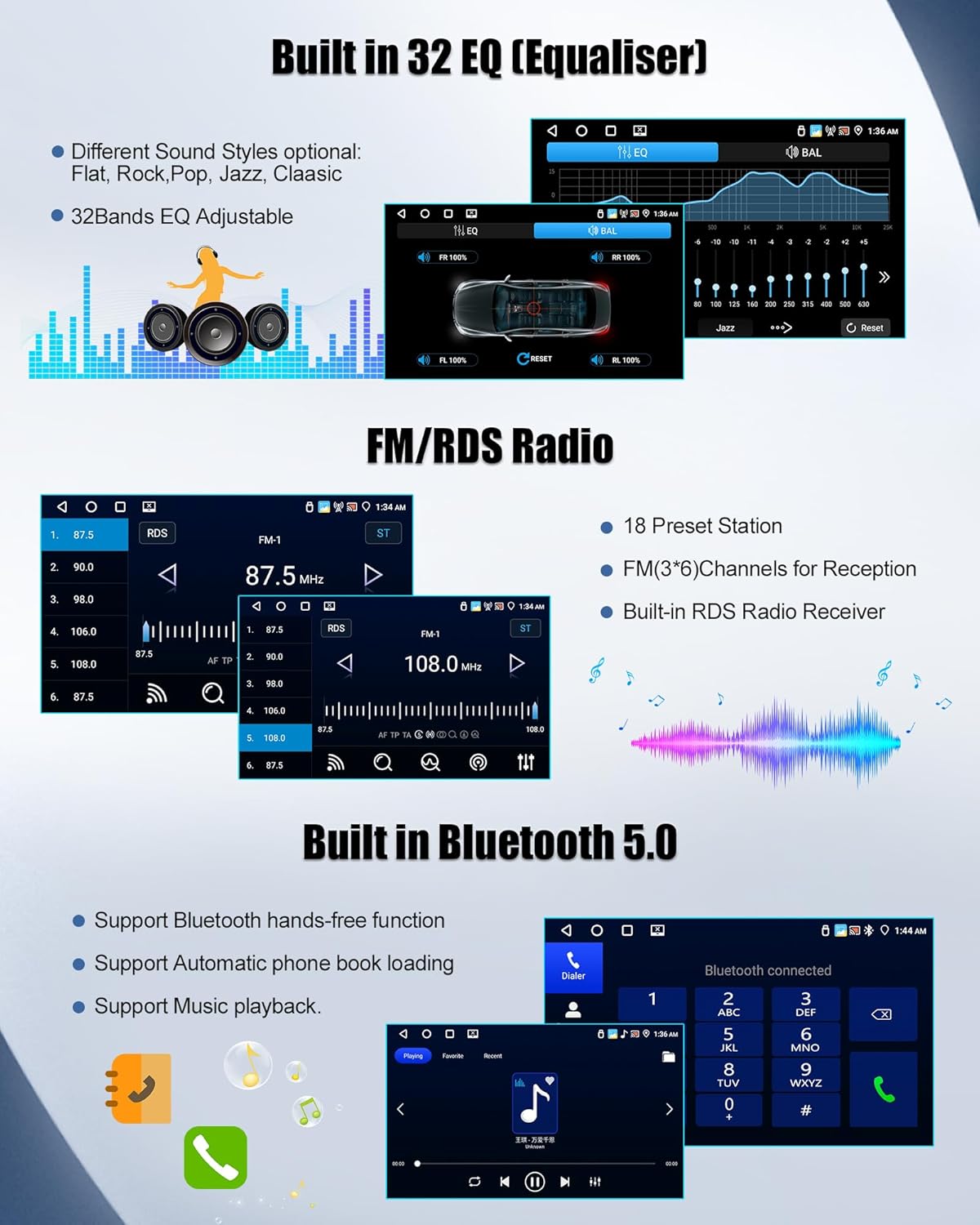
Image: The car radio display showing the FM/RDS radio interface with frequency tuning and preset options, alongside the 32-band equalizer settings.
4.8 32-Band Equalizer (EQ)
Customize your audio experience with the professional 32-band equalizer. It includes presets for various music genres like Jazz, Classical, and Rock, allowing for personalized sound effects.
- Access the EQ settings from the audio menu.
- Select a preset or manually adjust frequency bands for a tailored sound.
4.9 التحكم في عجلة القيادة
The unit supports steering wheel controls, allowing you to manage radio functions without taking your hands off the wheel. This includes switching songs, changing channels, and adjusting volume.
- Ensure the CANbus decoder is correctly installed and configured for your vehicle model.
- Access the steering wheel control settings to map functions to your vehicle's buttons.

Image: The car radio display showing the interface for configuring steering wheel controls, with options for various functions like volume, track skip, and mode selection.
4.10 وظيفة تقسيم الشاشة
Utilize the split-screen feature to run two applications simultaneously, such as navigation on one side and music playback on the other.
- Long-press the recent apps button or follow specific gestures (refer to on-screen prompts) to activate split screen.
- Select the two applications you wish to display.

Image: The car radio display demonstrating the split-screen function, showing a navigation map on one side and a music player on the other.
4.11 خلفي View آلة تصوير
نظام AHD الخلفي المضمن view توفر الكاميرا زاوية رؤية واسعة وواضحة view for safer parking and reversing. It automatically activates when the vehicle is shifted into reverse gear.
- Ensure the rear camera is properly connected to the "Camera Input" port.
- The camera features HD resolution, night vision, wide-angle view, and IP67 waterproofing.

Image: The car radio display showing the view from the rear camera with parking guidelines, illustrating its high definition and wide-angle capabilities.
5. الصيانة
To ensure the longevity and optimal performance of your SIXWIN car radio, follow these maintenance guidelines:
- تنظيف الشاشة: Use a soft, lint-free cloth to gently wipe the touchscreen. Avoid abrasive cleaners or solvents that may damage the display.
- تحديثات البرامج: Periodically check for available software updates through the system settings. Updates can improve performance, add new features, and fix bugs. Connect to a stable Wi-Fi network for updates.
- التحكم في درجة الحرارة: Avoid exposing the unit to extreme temperatures. While designed for automotive use, prolonged exposure to direct sunlight in a parked car can affect performance.
- وصلات الكابلات: Occasionally check all cable connections at the rear of the unit to ensure they are secure and free from corrosion.
6. استكشاف الأخطاء وإصلاحها
If you encounter issues with your SIXWIN car radio, refer to the following common troubleshooting steps:
- لا يوجد طاقة: Check all power cable connections. Ensure the vehicle's ignition is on. Verify the fuse in the vehicle's fuse box related to the car radio.
- لا يوجد صوت: Check speaker connections. Ensure volume is not muted or set to minimum. Verify audio output settings in the system menu.
- Dashboard Flickering: Refer to Section 3.3 "Initial Setup and Dashboard Flickering Solution" for detailed steps.
- فقدان إشارة GPS: تأكد من تركيب هوائي نظام تحديد المواقع العالمي (GPS) بشكل صحيح وأن يكون خالياً من العوائق. view of the sky. Check GPS settings in the system menu.
- مشاكل اتصال البلوتوث: Ensure Bluetooth is enabled on both the car radio and your smartphone. Delete previous pairings and attempt to re-pair the devices.
- شاشة اللمس لا تستجيب: Perform a system reset (refer to the device's reset button, usually a small pinhole). If the issue persists, contact support.
- App Installation Issues (e.g., Waze): Ensure the unit is connected to a stable internet connection. Check available storage space. Some apps may require specific Android versions or permissions.
- Radio Signal Weakness: Ensure the radio antenna is securely connected. Check for obstructions or interference.
If these steps do not resolve the issue, please contact SIXWIN customer support.
7. المواصفات
| ميزة | مواصفة |
|---|---|
| ماركة | سيكس وين |
| رقم الموديل | 4+64 جيجا |
| نظام التشغيل | أندرويد 15 |
| كبش | 4 جيجا بايت |
| التخزين الداخلي (ROM) | 64 جيجا بايت |
| حجم العرض | 9 بوصة |
| نوع العرض | HD TouchScreen (IPS with 2.5D Glass) |
| الاتصال | بلوتوث 5.0، منفذ USB، واي فاي |
| المميزات الخاصة | Wireless CarPlay, Wireless Android Auto, Mirror Link, Built-in GPS, FM/RDS Radio, 32-Band EQ, Steering Wheel Control Support, Split Screen Function, AHD Rear Camera Support |
| وضع إخراج الصوت | Stereo, Surround (5.1 channels) |
| انتاج الطاقة | 180 واط |
| أبعاد المنتج (الطول × العرض × الارتفاع) | 32P x 22.5lx 9.5H سم |
| المركبات المتوافقة | FIAT 500 (2007-2015) |
8. الضمان والدعم
Your SIXWIN car radio comes with comprehensive support and warranty coverage:
- ضمان: 2 years product warranty.
- الإرجاعات: 30-day voluntary return guarantee.
- خدمة العملاء: 24-hour customer support and lifetime technical support.
For any inquiries, technical assistance, or warranty claims, please contact us directly:
بريد إلكتروني: SIXWINVIP@126.com

Image: Diagram showing steps to contact customer service, including finding the seller and using the "Contact Seller" option.

Image: Icons representing 24-hour customer support, 30-day return policy, 24-month quality guarantee, and lifetime customer & technical support.