
مقدمة
This manual provides detailed instructions for the setup, operation, and maintenance of your vretti K2 Bluetooth Thermal Label Maker. Please read this manual thoroughly before using the device to ensure proper functionality and to extend the product's lifespan.
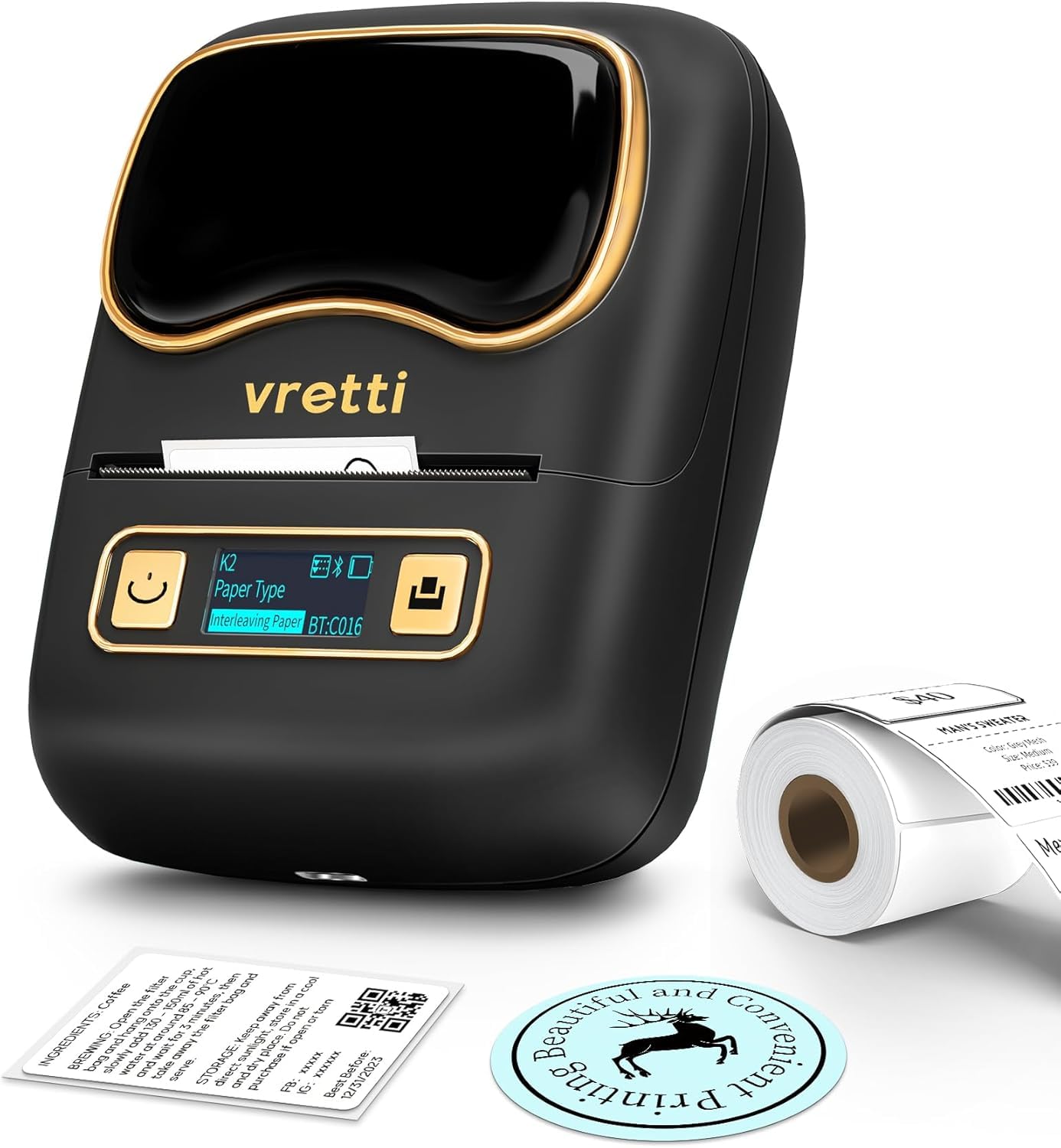
The vretti K2 Bluetooth Thermal Label Maker.
المنتج انتهىview فيديو
يقدم هذا الفيديو شرحًا موجزًاview of the vretti K2 label maker's features and common uses, such as creating labels for gifts and containers.
معلومات السلامة
- احفظ الجهاز بعيدًا عن الماء والرطوبة العالية.
- لا تعرض الجهاز لدرجات حرارة شديدة أو لأشعة الشمس المباشرة.
- Use only the specified power adapter and USB-C cable.
- تجنب إسقاط الجهاز أو تعريضه لصدمات قوية.
- لا تحاول تفكيك الجهاز أو إصلاحه بنفسك. اتصل بدعم العملاء للحصول على المساعدة.
- يحفظ بعيدًا عن متناول الأطفال.
محتويات الحزمة
تأكد من وجود جميع العناصر في الحزمة الخاصة بك:
- vretti K2 Label Maker (x1)
- 50x30mm Paper Rolls (x1, pre-installed)
- كابل من النوع C (عدد 1)
- دليل المستخدم (x1)

Contents included in the vretti K2 label maker package.
يثبت
1. تحميل ورق الملصقات
- Press the open cover button on the left side of the device to open the cover.
- Push the baffle latch back to unlock the paper roll holder.
- Remove the privacy protection sticker from the label paper roll.
- Place the label paper roll into the compartment with the print side facing down.
- Push the baffle latch forward to lock the paper roll in place.
- Extend the label paper approximately 3mm from the paper outlet, then close the cover.
- Press and hold the power button for 3 seconds to turn on the device. The display will illuminate.
- Press the feed button to advance the paper and calibrate the label position.
This video demonstrates the correct procedure for installing label paper into the K2 label maker.
2. App Download and Bluetooth Connection
- Download the "Xeasy Label" app from the App Store (iOS) or Google Play Store (Android).
- Enable Bluetooth and GPS (location services) on your mobile phone.
- Open the "Xeasy Label" app. Click the '+' button in the upper right corner to search for devices.
- Select "K2" from the list of connectable devices and click "Connect". The app will indicate "Connection successful".

The 'Xeasy Label' app supports Bluetooth connection for both Android and iOS devices.
This video guides you through connecting your K2 label maker to your mobile phone via Bluetooth for printing.
تعليمات التشغيل
1. إنشاء وتعديل الملصقات
- In the "Xeasy Label" app, select a label template that matches the dimensions of your physical label paper. For example, if your label paper is 50mm x 30mm, choose the corresponding template.
- Double-click on the template area to begin editing.
- Use the various tools in the app (Text, Frame, Sticker, Image, QR Code, Bar Code, Row Number, Shape, Table) to design your label.
- You can add text, images, icons, and adjust their size and position as needed.

The 'Xeasy Label' app offers multiple free templates, fonts, and icons for label design.
2. طباعة الملصقات
- After designing your label, click the "Print Label" button in the app.
- Adjust the quantity of labels to print and the print density if necessary.
- Confirm your settings and initiate printing. The K2 label maker will print the labels.

Easy-to-follow steps for using the vretti K2 label maker.
3. Supported Label Types and Sizes
The vretti K2 label maker supports various thermal label paper sizes, with a print range of 20mm to 58mm (approximately 1-2 inches) in width. This includes square, round, cable, and file العلامات التجارية.

The vretti K2 supports various label styles and sizes, fitting 1-2 inch width thermal labels.
4. التطبيق السابقampليه
The K2 label maker is versatile for various applications:
- استخدام مكتبي: File labels, asset tags, memo labels.
- للاستخدام التجاري: Price labels, product labels, barcode labels for retail, coffee shops, and small businesses.
- الاستخدام المنزلي: Storage labels, food container labels, spice jar labels, medication labels.
- الهدايا: Personalized gift tags and decorative labels.

Examples of multiple occasions where the vretti K2 label maker can be used.
صيانة
1. تنظيف رأس الطباعة
To ensure optimal print quality, clean the print head regularly:
- Turn off the label maker and disconnect it from power.
- افتح غطاء حجرة الورق.
- امسح رأس الطباعة برفق باستخدام قطعة قطن.ampمخفف بالكحول الأيزوبروبيل.
- Allow the print head to dry completely before closing the cover and turning on the device.
2 البطارية تشحن
The K2 label maker is equipped with a 1500mAh rechargeable battery. When the battery indicator on the display is low, connect the device to a power source using the provided USB-C cable. A full charge allows for approximately 3 hours of continuous printing or up to 5000 labels.
استكشاف الأخطاء وإصلاحها
| مشكلة | السبب المحتمل | حل |
|---|---|---|
| الجهاز لا يعمل. | مشكلة في البطارية أو الطاقة المنخفضة. | Charge the device using the USB-C cable. Ensure the power button is pressed and held for 3 seconds. |
| لا يمكن الاتصال عبر البلوتوث. | Bluetooth or GPS is off; device not discoverable; incorrect pairing. | Ensure Bluetooth and GPS are enabled on your phone. Restart the label maker and the app. Try pairing again. |
| Poor print quality (faint, blurry, or blank). | Print head is dirty; incorrect label paper orientation; low print density setting. | Clean the print head. Ensure the label paper is loaded with the print side down. Increase print density in the app. |
| Paper jam or labels not feeding correctly. | Improperly loaded paper; foreign object in paper path. | Open the cover, remove any jammed paper, and re-load the paper correctly. Ensure the baffle latch is secured. |
| يتعطل التطبيق أو يتجمد. | Software glitch; outdated app version. | Restart the app. Check for app updates in your device's app store. |
تحديد
| ميزة | التفاصيل |
|---|---|
| اسم الموديل | K2 |
| ماركة | فريتي |
| تكنولوجيا الاتصال | بلوتوث |
| تكنولوجيا الطباعة | حراري |
| مخرجات الطابعة | أحادي اللون |
| الحد الأقصى لعرض الطباعة | 58 ملم (2 بوصة) |
| دقة الطباعة | 203 نقطة في البوصة |
| سرعة الطباعة | تصل إلى 30 مم / ثانية |
| بطارية | بطارية قابلة للشحن سعة 1500 مللي أمبير (بطارية واحدة من نوع C مرفقة) |
| واجهة الشحن | يو اس بي-سي |
| أبعاد المنتج | 4.5 بوصة عمق × 2.5 بوصة عرض × 3.4 بوصة ارتفاع |
| وزن العنصر | 7.8 أونصة (0.49 رطل) |
| الأجهزة المتوافقة | الهواتف الذكية (iOS و Android) |
| طريقة التحكم | برنامج |
الضمان والدعم
معلومات الضمان
The vretti K2 Bluetooth Thermal Label Maker comes with a limited warranty. Please refer to the warranty card included in your package or contact vretti customer support for specific terms and conditions.
دعم العملاء
For technical assistance, troubleshooting, or warranty claims, please contact vretti customer support through the following channels:
- Webموقع: Visit the official vretti webالموقع للأسئلة الشائعة وموارد الدعم.
- بريد إلكتروني: Refer to your product packaging or the quick start guide for customer service email addresses.
- متجر أمازون: You can also reach out to the seller "vretti-us" directly through your Amazon order history for support.