

Image: The COLORROOM K10 Android 14 Tablet, showcasinبفضل تصميمها وحافظتها الواقية المرفقة.
مقدمة
This manual provides essential instructions for setting up, operating, maintaining, and troubleshooting your COLORROOM K10 Android 14 Tablet. Please read this guide thoroughly to ensure proper use and to maximize your tablet's performance and longevity. The K10 features an 11-inch IPS display, an octa-core processor, 12GB RAM, 128GB internal storage expandable up to 1TB, an 8000mAh battery with 18W PD fast charging, dual-band WiFi6, Bluetooth 5.0, GPS, and FM Radio.
ماذا يوجد في الصندوق
عند فتح العلبة، تأكد من وجود جميع العناصر المدرجة أدناه:
- COLORROOM Android 14 Tablet
- كابل يو اس بي
- محول الطاقة
- Shock-proof Case
يثبت
1. شحن الجهاز اللوحي
Before first use, fully charge the tablet. Connect the provided USB cable to the tablet's charging port and the power adapter, then plug the adapter into a wall outlet. The tablet supports 18W PD fast charging. A full charge typically takes several hours.
2. تشغيل / إيقاف التشغيل
- لتشغيل: Press and hold the Power button until the COLORROOM logo appears.
- لإيقاف التشغيل: اضغط مع الاستمرار على زر الطاقة، ثم حدد "إيقاف التشغيل" من الخيارات.
- لإعادة التشغيل: اضغط مع الاستمرار على زر الطاقة، ثم حدد "إعادة التشغيل" من الخيارات.
3. معالج الإعداد الأولي
Follow the on-screen instructions to complete the initial setup, which includes selecting your language, connecting to a Wi-Fi network, and signing in with your Google account.
4. الاتصال بشبكة Wi-Fi
- اذهب الى إعدادات > الشبكات والانترنت > واي فاي.
- تبديل Wi-Fi On.
- حدد الشبكة المطلوبة من القائمة.
- أدخل كلمة المرور إذا طُلب منك ذلك، ثم انقر فوق يتصل. The tablet supports dual-band WiFi (2.4/5GHz) for stable connections.
5. توسيع سعة التخزين
The tablet supports up to 1TB expandable storage via a microSD card (not included). Locate the microSD card slot, insert the card gently until it clicks into place, and follow any on-screen prompts to format it if necessary.
6. Installing the Protective Case
Carefully align the tablet with the provided shock-proof case and gently press it into place, ensuring all ports and buttons are accessible and the tablet is securely fitted.
تعليمات التشغيل
1. التنقل الأساسي
- يلمس: اضغط على أيقونة لفتح تطبيق أو تحديد عنصر.
- انتقاد: اسحب إصبعك عبر الشاشة للتمرير أو التنقل بين الشاشات.
- قرصة: استخدم إصبعين للتكبير أو التصغير في الصور web الصفحات.
- زر الصفحة الرئيسة: يعود إلى الشاشة الرئيسية.
- زر الرجوع: العودة إلى الشاشة السابقة.
- زر التطبيقات الحديثة: يعرض التطبيقات التي تم فتحها مؤخراً.
2. تعدد المهام
The tablet's octa-core processor and 12GB RAM allow for efficient multitasking. You can run multiple applications simultaneously. Use the recent apps button to switch between open applications or use split-screen mode for two apps side-by-side.
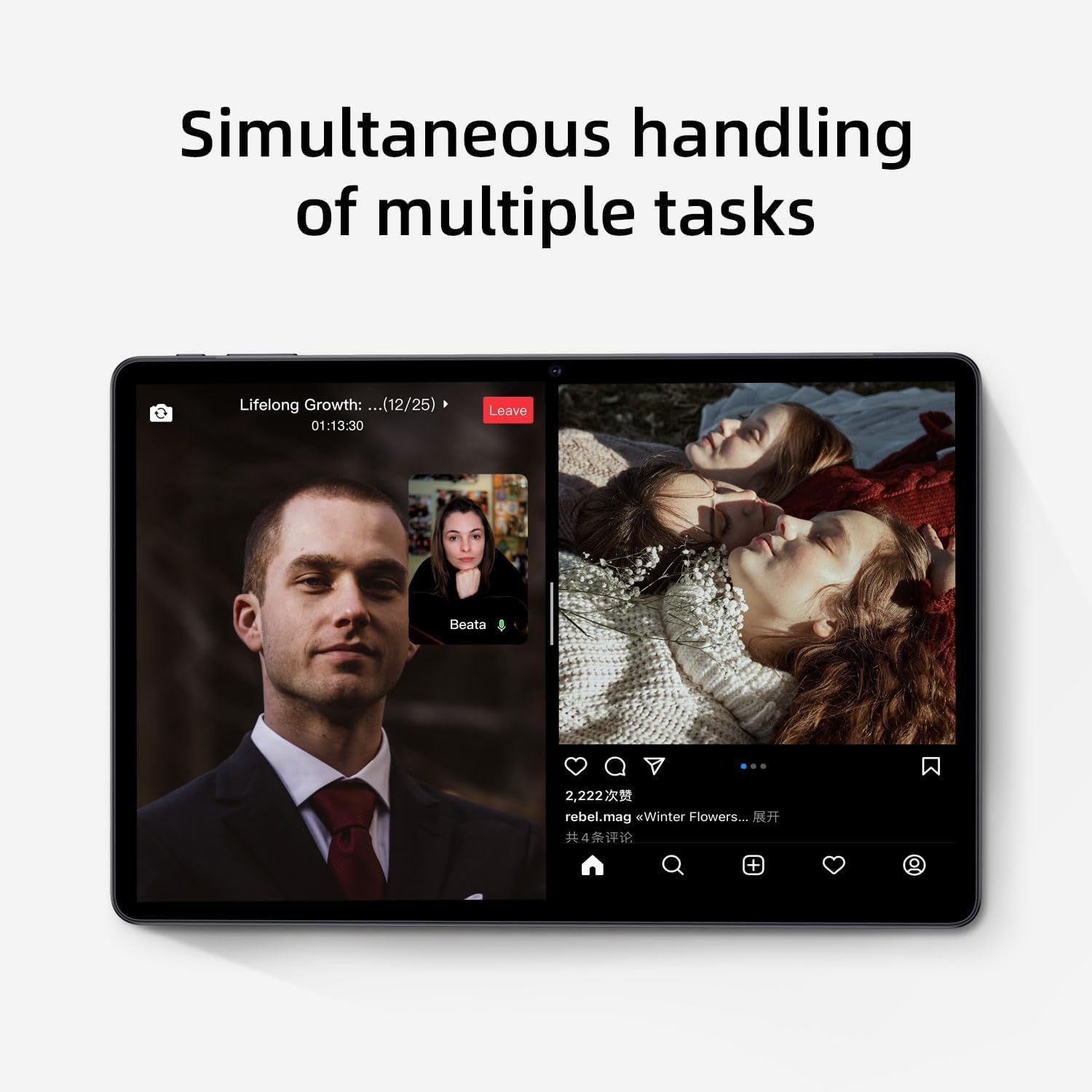
Image: The tablet screen showing two applications running simultaneously in split-screen mode, illustrating its multitasking feature.
3. تشغيل الوسائط
The 11-inch IPS display with 1920x1200 resolution provides clear and vibrant visuals for streaming videos, viewing photos, and playing games. Use pre-installed media players or download your preferred apps from the Google Play Store.
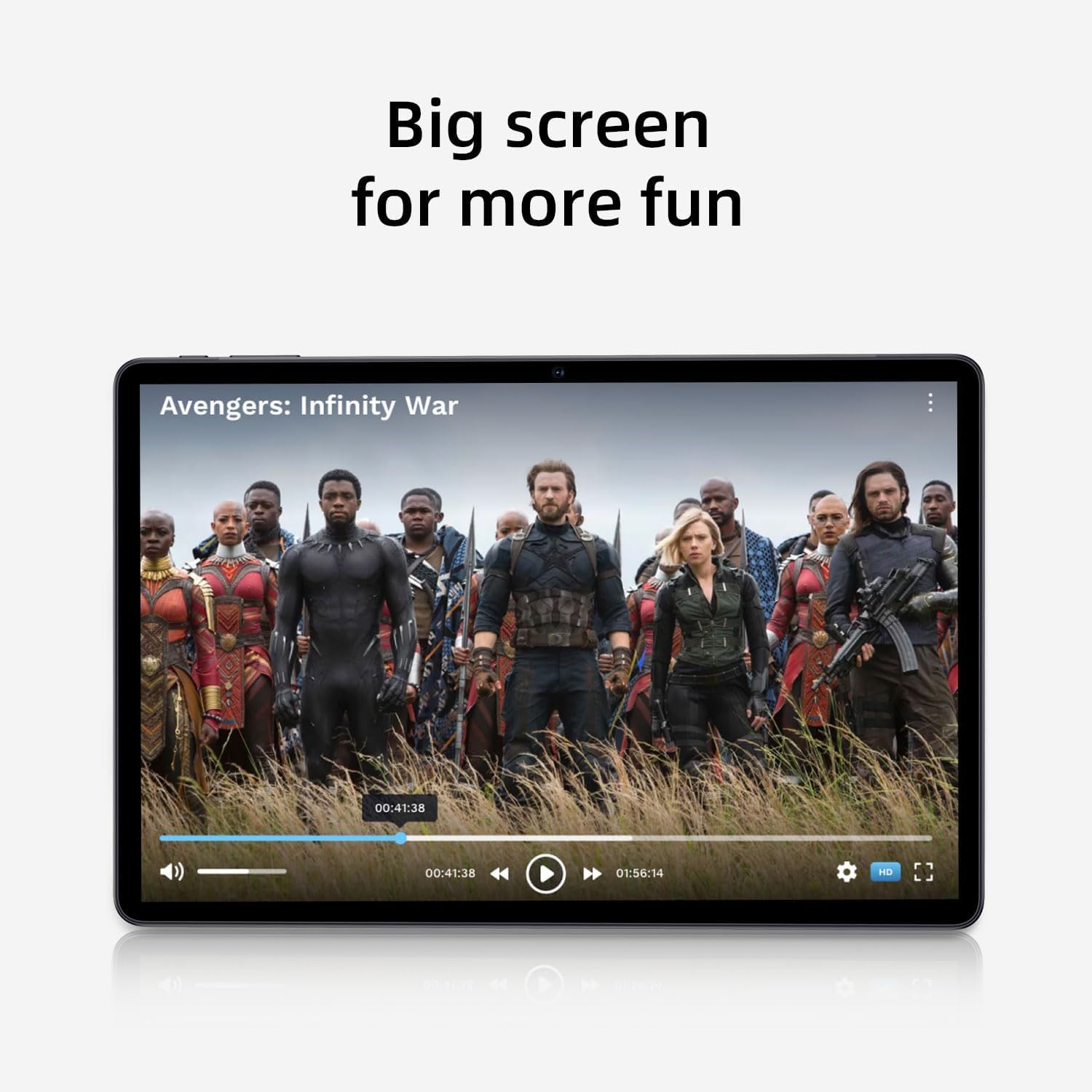
Image: The tablet screen showing a video playing, highlighting the display quality for entertainment.
4. استخدام نظام تحديد المواقع العالمي (GPS)
The tablet includes built-in GPS functionality. To use navigation apps, ensure location services are enabled in إعدادات > موقع. Download a navigation app from the Google Play Store for turn-by-turn directions.
5. استخدام راديو FM
To use the FM Radio, connect wired headphones (not included) to the tablet's audio jack. The headphones act as an antenna. Open the pre-installed FM Radio app and scan for available stations.
6. اتصال البلوتوث
لربط أجهزة البلوتوث (مثل سماعات الرأس ومكبرات الصوت):
- اذهب الى إعدادات > الأجهزة المتصلة > تفضيلات الاتصال > بلوتوث.
- تبديل البلوتوث On.
- تأكد من أن جهاز البلوتوث الخاص بك في وضع الاقتران.
- Select your device from the list of available devices and follow any on-screen prompts to complete pairing.
7. استخدام الكاميرا
Open the Camera app from the home screen or app drawer. Tap the shutter button to take photos or switch to video mode to record videos. Adjust settings like flash, timer, and camera mode within the app interface.
صيانة
1. تنظيف الجهاز اللوحي
استخدم قطعة قماش ناعمة وخالية من الوبر لتنظيف شاشة وجسم الجهاز اللوحي. لإزالة البقع العنيدة، افركها برفق.ampاغسل قطعة القماش بالماء أو بمحلول تنظيف الشاشة. تجنب المواد الكيميائية القاسية أو المواد الكاشطة.
2. العناية بالبطارية
- تجنب درجات الحرارة القصوى، لأنها قد تؤدي إلى تدهور عمر البطارية.
- لا تترك البطارية تنفد بالكامل بشكل متكرر.
- استخدم الشاحن المرفق للحصول على أفضل النتائج في عملية الشحن.
- The 8000mAh battery provides extended usage; however, proper care ensures long-term performance.

Image: A visual representation of the tablet's 8000mAh battery capacity, emphasizing its long-lasting power.
3. تحديثات البرامج
تحقق بانتظام من وجود تحديثات للنظام لضمان حصول جهازك اللوحي على أحدث الميزات والتصحيحات الأمنية. انتقل إلى إعدادات > نظام > تحديث النظام.
4. إدارة التخزين
إعادة بشكل دوريview التطبيقات المثبتة لديك و fileس. قم بإلغاء تثبيت التطبيقات غير المستخدمة وحذف التطبيقات غير الضرورية files to free up the 128GB internal storage. Utilize the 1TB expandable storage for large media files.
استكشاف الأخطاء وإصلاحها
الجهاز اللوحي لا يعمل
- Ensure the tablet is sufficiently charged. Connect it to the power adapter and wait a few minutes before attempting to power on.
- اضغط مع الاستمرار على زر الطاقة لمدة 10-15 ثانية على الأقل لإجراء إعادة تشغيل قسرية.
مشكلات الاتصال بالواي فاي
- أعد تشغيل جهاز توجيه Wi-Fi والكمبيوتر اللوحي.
- قم بحذف الشبكة من إعدادات الواي فاي وأعد الاتصال بها.
- تأكد من أنك ضمن نطاق إشارة Wi-Fi.
الأداء البطيء
- أغلق التطبيقات غير المستخدمة التي تعمل في الخلفية.
- مسح بيانات ذاكرة التخزين المؤقت للتطبيقات المستخدمة بكثرة.
- Check for and install any available system updates.
- Consider performing a factory reset as a last resort (back up your data first). Go to إعدادات > نظام > خيارات إعادة الضبط > مسح جميع البيانات (إعادة ضبط المصنع).
شاشة اللمس لا تستجيب
- أعد تشغيل الجهاز اللوحي.
- تأكد من أن الشاشة نظيفة وخالية من الأوساخ أو الرطوبة.
تحديد

Image: The tablet shown with its physical dimensions, including screen size and overall device measurements.
| اسم الموديل | ك10 |
| نظام التشغيل | أندرويد 14 |
| المعالج | Octa-core (Unisoc) |
| كبش | 12 جيجا بايت |
| التخزين الداخلي | 128 جيجا بايت |
| تخزين قابل للتوسيع | تصل سعتها إلى 1 تيرابايت (بطاقة microSD) |
| حجم الشاشة | 11 بوصة |
| دقة الشاشة | 1920x1200 IPS |
| سعة البطارية | 8000 مللي أمبير |
| الشحن | شحن سريع بقوة 18 واط بتقنية PD |
| واي فاي | Dual-band (2.4/5GHz) 802.11ac |
| بلوتوث | بلوتوث 5.0 |
| نظام تحديد المواقع العالمي (جي بي اس) | نعم |
| راديو اف ام | نعم |
| وزن العنصر | 2.33 رطل |
| أبعاد المنتج | 10.1 × 3.5 × 0.35 بوصة |
معلومات الضمان
This COLORROOM K10 Tablet is covered by a standard manufacturer's warranty. The specific terms and duration of the warranty may vary by region. Please retain your proof of purchase for warranty claims. For detailed warranty information, including coverage and how to make a claim, please refer to the warranty card included with your product or visit the official COLORROOM webموقع.
يدعم
For further assistance, technical support, or to inquire about service, please visit the COLORROOM official support webالموقع الإلكتروني أو تواصل مع قسم خدمة العملاء. عادةً ما تجد معلومات الاتصال على موقع الشركة المصنعة. webالموقع أو على مواد التغليف.