
مقدمة
This manual provides essential information for the proper setup, operation, maintenance, and troubleshooting of your KTC H27T27 27-inch WQHD IPS Flat Monitor. Please read this manual thoroughly before using the product to ensure optimal performance and safety.
The KTC H27T27 monitor features a 27-inch WQHD (2560x1440) IPS panel with a 100Hz refresh rate, designed to deliver clear and detailed images with smooth motion. It includes FreeSync technology for enhanced visual fluidity during dynamic content. The IPS panel ensures vivid colors and wide viewزوايا متعددة.

Figure 1: KTC H27T27 27-inch WQHD IPS Flat Monitor Front View
يثبت
1. فك التعبئة
أزل جميع المكونات من العبوة بعناية. تأكد من وجود جميع العناصر المدرجة في قائمة التعبئة وأنها سليمة. احتفظ بالعبوة الأصلية لاستخدامها في النقل أو الصيانة مستقبلاً.
2. التجمع الوقوف
- ضع الشاشة على سطح ناعم ونظيف بحيث يكون وجهها لأسفل لمنع الخدوش.
- قم بتثبيت قاعدة الحامل على رقبة الحامل باستخدام البراغي المرفقة.
- قم بمحاذاة الحامل المُجمّع مع فتحة التثبيت الموجودة في الجزء الخلفي من الشاشة وقم بتثبيته بإحكام.
3. تركيب VESA (اختياري)
The monitor supports VESA 100x100mm mounting. If using a VESA mount, remove the stand and attach the VESA compatible bracket to the monitor's rear panel using appropriate screws.
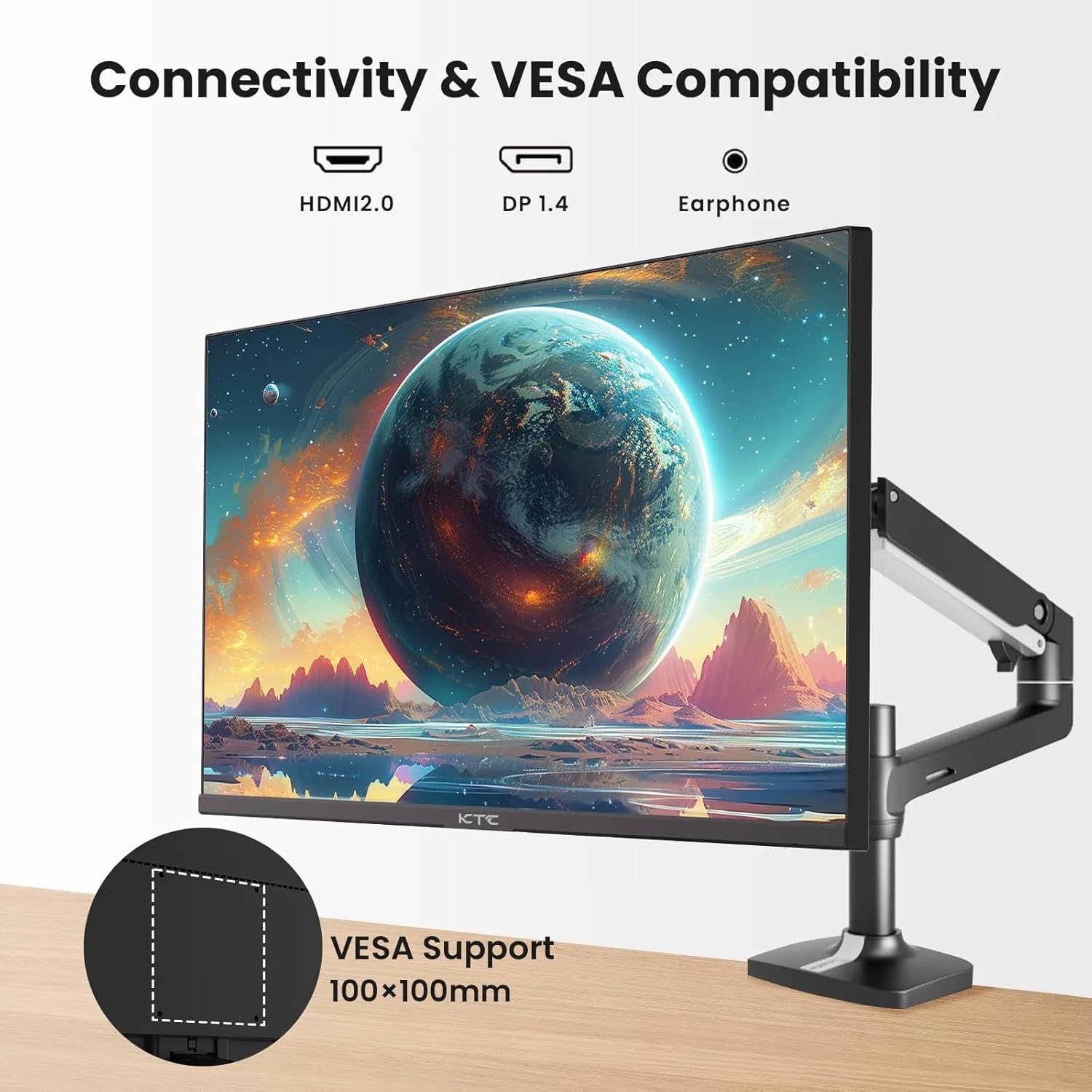
Figure 2: VESA Compatibility and Connectivity Ports
4. توصيل الكابلات
قم بتوصيل الكابلات اللازمة بالشاشة وجهاز الكمبيوتر أو الأجهزة الأخرى. تأكد من أن جميع التوصيلات محكمة.
- سلك الطاقة: Connect the power adapter to the monitor's DC input port, then plug the power cable into a power outlet.
- كابل الفيديو: Connect either an HDMI cable (HDMI 2.0) or a DisplayPort cable (DP 1.4) from your computer's graphics card to the corresponding input port on the monitor.
- مخرج الصوت: If desired, connect headphones or external speakers to the 3.5mm audio output jack.

الشكل 3: منافذ إدخال الشاشة
5. التشغيل الأولي
Press the power button on the monitor. The power indicator light will illuminate. If no image appears, ensure your computer is powered on and the correct input source is selected on the monitor.
التشغيل
1. تشغيل/إيقاف التشغيل
Press the power button located on the monitor to turn it on or off. The power indicator will show the monitor's status.
2. قائمة العرض على الشاشة (OSD)
تتيح لك قائمة OSD ضبط إعدادات الشاشة المختلفة. استخدم أزرار التحكم (الموجودة عادةً في الجزء الخلفي أو السفلي من الشاشة) للتنقل عبر القائمة.
- اضغط على زر لتفعيل قائمة العرض على الشاشة.
- استخدم أزرار التنقل للتنقل عبر خيارات القائمة.
- اضغط على زر الاختيار للدخول إلى القائمة الفرعية أو تأكيد الإعداد.
- اضغط على زر الخروج لإغلاق قائمة OSD.
3. ضبط الإعدادات
تتضمن الإعدادات القابلة للتعديل الشائعة ما يلي:
- السطوع / التباين: اضبط مستوى الإضاءة الكلي والفرق بين المناطق المضيئة والمظلمة.
- إعدادات الألوان: Modify color temperature, gamma, and individual RGB values.
- مصدر الإدخال: يمكنك الاختيار يدويًا بين مدخلات HDMI 1 أو HDMI 2 أو DisplayPort.
- وضع الصورة: Select predefined display modes (e.g., Standard, Game, Movie).
4. معدل التحديث
The KTC H27T27 supports a 100Hz refresh rate, providing smoother motion compared to standard 60Hz displays. Ensure your graphics card and operating system are configured to output at 100Hz for the best experience.

Figure 4: 100Hz Refresh Rate Benefit
5. FreeSync Technology
This monitor is compatible with AMD FreeSync technology, which synchronizes the monitor's refresh rate with your graphics card's frame rate. This helps eliminate screen tearing and stuttering for a smoother gaming and video experience. Ensure FreeSync is enabled in both the monitor's OSD menu and your graphics card's control panel.
الشكل 5: تقنية FreeSync قيد التشغيل
صيانة
1. تنظيف الشاشة
- أوقف تشغيل الشاشة وافصل سلك الطاقة.
- امسح الشاشة بلطف بقطعة قماش ناعمة وخالية من الوبر.
- بالنسبة للعلامات العنيدة، قم بالتدليك برفقampبلل قطعة القماش بالماء أو بمنظف الشاشة المتخصص (لا ترش مباشرة على الشاشة).
- تجنب استخدام المنظفات الكاشطة أو الكحول أو المحاليل التي تحتوي على الأمونيا، لأنها قد تتلف سطح الشاشة.
2. العناية العامة
- أبقِ الشاشة بعيدة عن أشعة الشمس المباشرة والحرارة الزائدة والرطوبة.
- تأكد من وجود تهوية كافية حول الشاشة لمنع ارتفاع درجة حرارتها.
- تجنب وضع أشياء ثقيلة على الشاشة أو كابلاتها.
استكشاف الأخطاء وإصلاحها
إذا واجهت مشكلات مع شاشتك، فراجع المشكلات والحلول الشائعة التالية:
- لا يوجد طاقة:
- Ensure the power cable is securely connected to both the monitor and the power outlet.
- Verify the power outlet is functional. - لا توجد تغطية:
- Check that the video cable (HDMI or DisplayPort) is securely connected to both the monitor and your computer.
- Ensure your computer is powered on and not in sleep mode.
- Select the correct input source via the monitor's OSD menu. - صورة متقطعة أو مشوهة:
- Check the video cable for damage or loose connections.
- Adjust the refresh rate settings on your computer.
- Disable or enable FreeSync in the OSD menu and graphics card settings to test. - الألوان غير صحيحة:
- Reset color settings to factory defaults in the OSD menu.
- Adjust color temperature or individual RGB values.
إذا استمرت المشكلة بعد محاولة هذه الحلول، فيرجى الاتصال بدعم العملاء.
تحديد
| ميزة | مواصفة |
|---|---|
| ماركة | KTC |
| رقم الموديل | ح27ت27 |
| حجم الشاشة | 27 بوصة |
| دقة | 2560 × 1440 (WQHD) |
| معدل التحديث | 100 هرتز |
| نوع العرض | اي بي اس |
| وقت الاستجابة | 7 ميلي ثانية |
| المزامنة التكيفية | فري سينك |
| الاتصال | منفذان HDMI 2.0، منفذ DisplayPort 1.4، مخرج صوت 3.5 ملم |
| نسبة العرض إلى الارتفاع | 1.78:1 |
| سطح الشاشة | مطفي |
| أبعاد المنتج (العمق × العرض × الارتفاع) | 1.85 بوصة عمق × 24.25 بوصة عرض × 14.33 بوصة ارتفاع |
| وزن العنصر | 4 كيلوغرام |
الضمان والدعم
معلومات الضمان
This KTC monitor is covered by a manufacturer's warranty. Please refer to the warranty card included in your product packaging for specific terms, conditions, and duration of coverage. Keep your purchase receipt as proof of purchase for warranty claims.
دعم العملاء
For technical assistance, warranty service, or any product-related inquiries, please contact KTC customer support. Contact details can typically be found on the official KTC webالموقع أو على بطاقة الضمان.
When contacting support, please have your monitor's model number (H27T27) and serial number ready.