
مقدمة
This manual provides comprehensive instructions for the SENGBIRCH Magic Keyboard Case, designed to enhance your iPad experience. It features a QWERTZ layout, a multi-touch trackpad, and adjustable backlighting, transforming your iPad into a versatile workstation. Please read this manual carefully before use to ensure proper operation and longevity of your device.
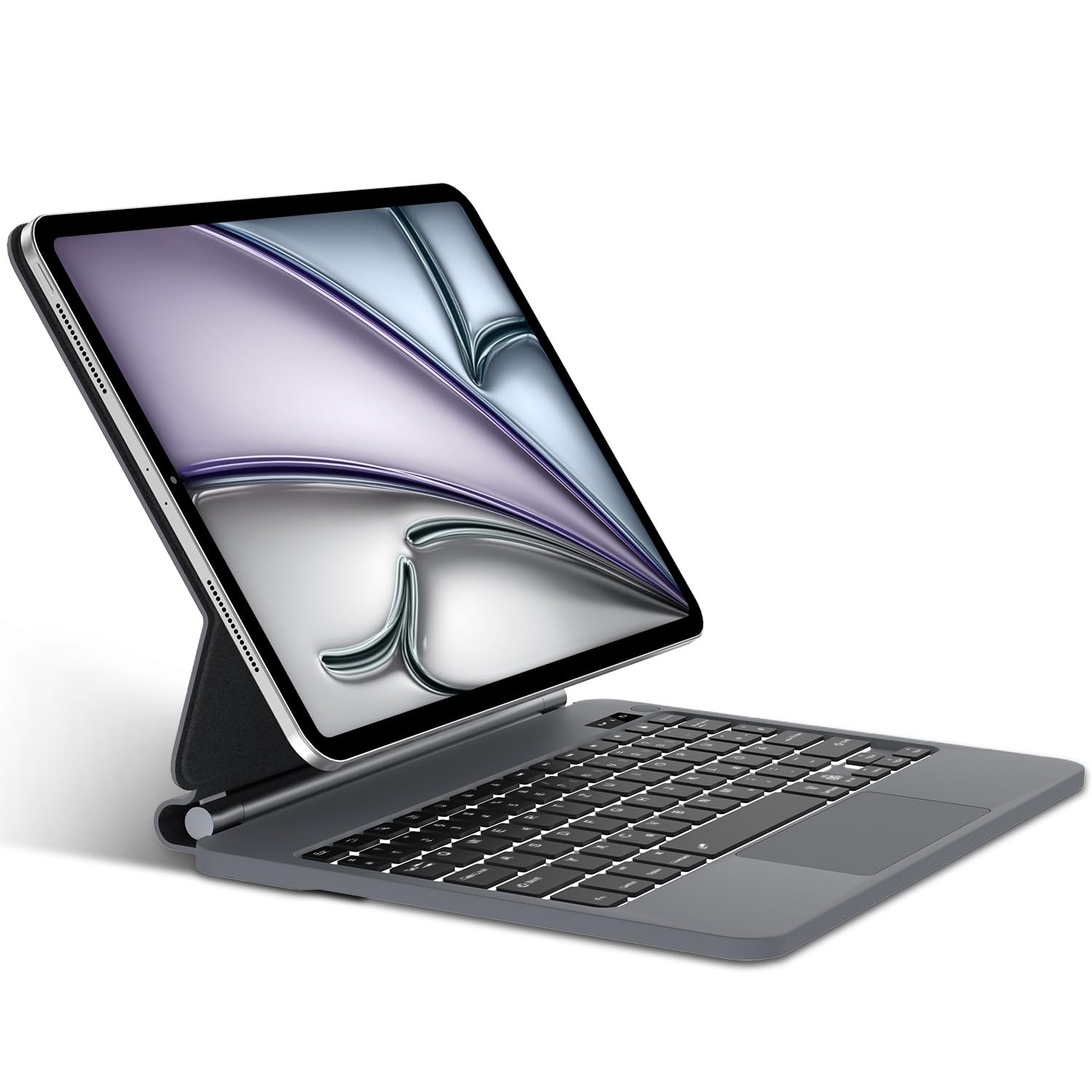
Image: The SENGBIRCH Magic Keyboard Case with an iPad, illustrating the product's overall appearance.
التوافق
The SENGBIRCH Magic Keyboard Case is compatible with the following iPad models:
- iPad Air 11-inch (M3 2025)
- iPad Air 11-inch (M2 2024)
- iPad Pro 11-inch 4th Generation 2022 (Models: A2435, A2761, A2762)
- iPad Pro 11-inch 3rd Generation 2021 (Models: A2377, A2459, A2301, A2460)
- iPad Pro 11-inch 2nd Generation 2020 (Models: A2228, A2068, A2230, A2231)
- iPad Pro 11-inch 1st Generation 2018 (Models: A1980, A2013, A1934, A1979)
- iPad Air 10.9-inch 5th Generation 2022 (Models: A2588, A2589, A2591)
- iPad Air 10.9-inch 4th Generation 2020 (Models: A2316, A2324, A2325, A2072)
Please verify your iPad's model number before use to ensure compatibility. The model number is typically found on the back of your iPad.

Image: Detailed compatibility chart illustrating supported iPad models and their specific model numbers.
يثبت
1. شحن لوحة المفاتيح
The keyboard comes with a USB-C charging cable. Connect the USB-C cable to the keyboard's charging port and the other end to a compatible USB power adapter. A full charge takes approximately 2 to 3 hours.

Image: The keyboard case being charged via USB-C, highlighting its long-lasting battery and quick charging capabilities.
2. تشغيل / إيقاف التشغيل
- لتشغيل: Press and hold the physical power button located in the upper right corner of the keyboard for 3 to 5 seconds.
- لإيقاف التشغيل: Press and hold the power button again for approximately 5 seconds. A red indicator light on the left side of the button will flash when powering off.
3. اتصال بلوتوث
- Ensure the keyboard is fully charged and powered on.
- Press and hold the power button for 3 seconds to turn on the keyboard.
- اضغط على الجبهة الوطنية + ج keys simultaneously to activate Bluetooth pairing mode. The Bluetooth indicator light will flash.
- على جهاز iPad الخاص بك، انتقل إلى الإعدادات > البلوتوث.
- Locate and select "لوحة مفاتيح بلوتوث"من قائمة الأجهزة المتوفرة.
- سيتم إنشاء الاتصال تلقائيًا.
تعليمات التشغيل
1. Using the Multi-Touch Trackpad
The integrated multi-touch trackpad allows for precise navigation, scrolling, swiping, and more. To ensure the trackpad functions correctly:
- First, ensure the trackpad is enabled on the keyboard by pressing Fn + مسافة.
- On your iPad, navigate to الإعدادات> إمكانية الوصول> اللمس> AssistiveTouch وتأكد من تفعيله.
The trackpad automatically deactivates when typing to prevent accidental inputs.

Image: Close-up of the multi-functional trackpad, highlighting its capabilities and the keyboard's overall protective design.
2. Adjustable Backlit Keyboard
The keyboard features ergonomic keys with adjustable backlighting. You can choose from three levels of brightness to type comfortably in various lighting conditions, including dark environments.
- Use the dedicated backlight keys (usually Fn + Light icon or similar) to cycle through brightness levels or turn the backlight off.
3. Smart Features and Design
- ملحق مغناطيسي: Your iPad magnetically attaches to the back cover, allowing for easy setup and removal.
- قابل للتعديل Viewزوايا جي: The floating cantilever design enables smooth adjustment of the viewزاوية جي لراحة قصوى.
- وظيفة 3 في 1: The case serves as a protective cover, a stable stand, and a functional keyboard, transforming your iPad into a laptop-like device.
- تخزين قلم Apple: A dedicated spot allows you to place and charge your Apple Pencil.

Image: The keyboard case in use, demonstrating its wireless connectivity, quick access keys, magnetic attachment, and flexible viewزوايا متعددة.

Image: Visual representation of the keyboard case's versatility, functioning as a stand, a keyboard, and a protective case.

Image: A user typing on the keyboard case, illustrating the ergonomic design and typing experience.
صيانة
- تنظيف: استخدمي قطعة قماش ناعمةamp cloth to wipe the surface of the keyboard and case. Avoid using harsh chemicals or abrasive materials.
- تخزين: عند عدم الاستخدام، قم بتخزين غطاء لوحة المفاتيح في مكان بارد وجاف بعيدًا عن أشعة الشمس المباشرة ودرجات الحرارة القصوى.
- العناية بالبطارية: لإطالة عمر البطارية، تجنب تفريغ لوحة المفاتيح بالكامل بشكل متكرر. اشحنها بانتظام، حتى لو لم تكن قيد الاستخدام المستمر.
استكشاف الأخطاء وإصلاحها
- لوحة المفاتيح غير متصلة:
- تأكد من شحن لوحة المفاتيح وتشغيلها.
- Verify Bluetooth is enabled on your iPad and the keyboard is in pairing mode (Fn+C).
- Forget the device in iPad's Bluetooth settings and try pairing again.
- أعد تشغيل جهاز iPad ولوحة المفاتيح.
- لوحة اللمس لا تعمل:
- Ensure the trackpad is enabled on the keyboard (Fn+Space).
- Check if "AssistiveTouch" is enabled in your iPad's Accessibility settings (الإعدادات> إمكانية الوصول> اللمس> AssistiveTouch).
- Ensure your iPadOS version is 13 or higher.
- المفاتيح لا تستجيب:
- Check battery level and charge the keyboard if low.
- أعد توصيل اتصال Bluetooth.
- تأكد من عدم وجود أي حطام أسفل المفاتيح.
- الإضاءة الخلفية لا تعمل:
- تأكد من تشغيل لوحة المفاتيح.
- اضغط على مفاتيح ضبط الإضاءة الخلفية للتنقل بين مستويات السطوع.
- تحقق من مستوى البطارية؛ فقد يؤدي انخفاض مستوى البطارية إلى تعطيل الإضاءة الخلفية.
تحديد
| أبعاد لوحة المفاتيح | 31.2 x 22.4 x 2.7 cm (12.28 x 8.82 x 1.06 inches) |
| لوحة المفاتيح الوزن | 940 جرام (2.07 رطل) |
| نسخة البلوتوث | بلوتوث 5.0 |
| سعة البطارية | 680 مللي أمبير ليثيوم بوليمر |
| عمر المفتاح | 500 مليون نقرة |
| نطاق التشغيل | 10 أمتار (33 قدم) |
| وقت الاستعداد | 300 days (Note: Some visuals may indicate 90 days) |
| وقت العمل (بدون الإضاءة الخلفية) | 100 hours (Note: Some visuals may indicate 70-80 hours) |
| Working Time (with backlight) | 10 hours (Note: Some visuals may indicate 5-7 hours) |
| وقت الشحن | 2-3 ساعات |
| تخطيط لوحة المفاتيح | كويرتز (ألماني) |
| مادة | Plastic, Synthetic Leather |
| نظام التشغيل المتوافق | iPadOS 13 أو أعلى |
الضمان والدعم
Information regarding product warranty and customer support is not available in the provided product details. Please refer to the product packaging or contact the retailer/manufacturer directly for warranty claims and technical assistance.