
TopMade MF60
TopMade MF60 MagSafe Wallet with Find My - Instruction Manual
الموديل: MF60
مقدمة
This manual provides instructions for the TopMade MF60 MagSafe Wallet. This product is designed to securely attach to compatible iPhone models, store essential cards, function as an adjustable stand, and integrate with Apple's Find My network for location tracking. It also features RFID blocking technology for card security.

Image: TopMade MagSafe Wallet attached to an iPhone, displaying the Apple Find My interface with location and sound options.
يثبت
1. الشحن الأولي
The wallet contains a rechargeable lithium-ion battery. To charge, place the wallet on a compatible wireless charger. No special charging cable is required. A full charge can last up to 6 months.

Image: The wallet placed on a wireless charging pad, indicating wireless charging capability.
2. الاقتران مع تطبيق "العثور على جهازي" من Apple
The TopMade MF60 wallet integrates with Apple's Find My network. Follow these steps to pair your wallet:
- Enable Two-Factor Authentication: Ensure Two-Factor Authentication is enabled for your Apple ID on your iPhone. (Settings > [Your Name] > Password & Security > Two-Factor Authentication).
- تفعيل خاصية "العثور على جهازي" والبلوتوث: On your iPhone, navigate to Settings, then tap on your name, select 'Find My', and ensure 'Find My iPhone' is enabled. Also, ensure Bluetooth is turned on in your iPhone's Control Center or Settings.
- Activate Wallet: Short press the power button on the wallet once to turn it on.
- Add Item in Find My App: Open the 'Find My' app on your iPhone. Tap the '+' icon at the bottom of the screen, then select 'Add Other Item'. Follow the on-screen prompts to complete the pairing process.

Image: A visual guide illustrating the four steps to pair the wallet with the Apple Find My app.
تعليمات التشغيل
1. Attaching to iPhone (MagSafe)
Align the wallet with the MagSafe area on the back of your compatible iPhone or MagSafe-compatible case. The strong built-in magnets will securely attach the wallet. The magnetic force is designed to be robust, providing a firm hold.
ملحوظة: A caseless iPhone or a MagSafe-compatible case is required for optimal magnetic attachment.

Image: A diagram illustrating the magnetic strength of the wallet compared to others, highlighting its secure attachment.
2. Card Storage and Access
The wallet features multiple card slots designed to hold 1-9 cards. Utilize the individual card slots and the thumb slot for quick access to frequently used cards.
- Main Slots: Can hold up to 6 cards.
- Thumb Slot: Provides easy access to a single card.
- ID Window: For displaying identification cards.
- Additional Slots: Two internal slots for extra cards.

الصورة: مفصلة view of the wallet's card storage features, including the thumb slot and ID window.

Image: A user accessing a card from the wallet using the dedicated thumb slot.
3. Using the Adjustable Stand
The wallet features an adjustable hinge that allows it to function as a phone stand. It supports both portrait and landscape orientations with a multi-angle adjustment range of 15-170 degrees. This allows for comfortable viewing during various activities.

Image: The wallet used as an adjustable stand, supporting an iPhone in both portrait and landscape orientations.

Image: A user engaged in a video call, with their iPhone propped up by the wallet's stand feature.
4. Find My Features
Once paired, the wallet leverages the Apple Find My network for various tracking functionalities:
- الموقع في الوقت الفعلي: View the wallet's last known location on a map within the Find My app.
- تشغيل الصوت: If the wallet is nearby, you can play a loud sound (up to 100dB) from the Find My app to help locate it.
- إشعارات المتخلفين عن الركب: Receive an alert on your iPhone if you leave your wallet behind at an unfamiliar location.
- الوضع المفقود: Mark your wallet as lost in the Find My app. This can display a message and contact information to anyone who finds it.

Image: Visual representation of the 'Left-Behind Remind' notification and the 'Play Sound' function within the Find My application.
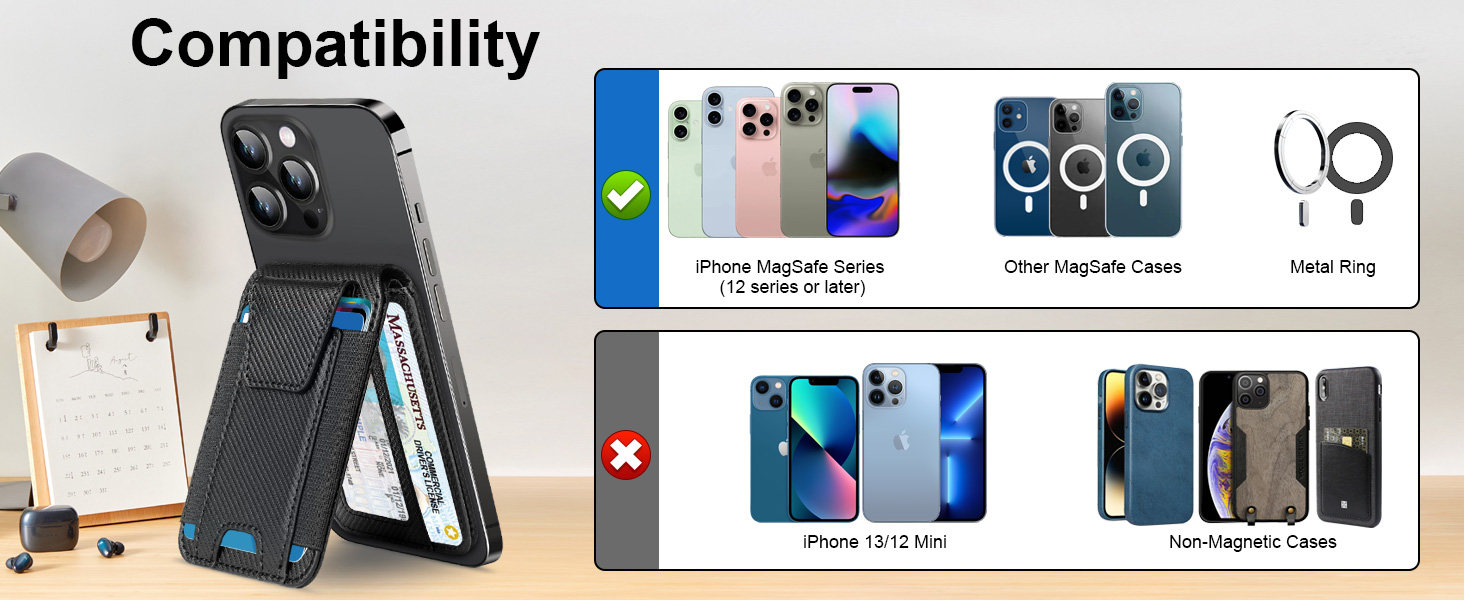
Image: A user activating the 'Play Sound' feature in the Find My app to locate their wallet within a home environment.
5. RFID Blocking
The wallet incorporates special lining to protect your credit cards and other RFID-enabled cards from unauthorized scanning and demagnetization. This helps safeguard your personal information.

Image: An illustration demonstrating the RFID blocking functionality, preventing unauthorized data scanning from cards stored in the wallet.
صيانة
- تنظيف: Wipe the wallet with a soft, damp القماش. تجنب المواد الكيميائية القاسية أو المواد الكاشطة.
- تخزين: Store the wallet in a cool, dry place when not in use.
- العناية بالبطارية: Recharge the wallet periodically, even if not frequently used, to maintain battery health.
استكشاف الأخطاء وإصلاحها
- Issue: Wallet not pairing with Find My.
حل:
- Ensure Two-Factor Authentication is enabled for your Apple ID.
- Verify that Find My and Bluetooth are enabled on your iPhone.
- Make sure the wallet is turned on (short press the power button).
- Try restarting your iPhone and the wallet, then attempt pairing again.
- Ensure your iPhone is running a compatible iOS version.
- Issue: Weak magnetic attachment.
حل:
- Ensure you are using a MagSafe-compatible iPhone model (iPhone 12 series or later) or a MagSafe-compatible case.
- Remove any non-MagSafe cases or accessories that might interfere with the magnetic connection.
- Clean the MagSafe area on your iPhone and the wallet to ensure no debris is obstructing the connection.
- Issue: Find My sound alert is not audible.
حل:
- Ensure the wallet's battery is charged.
- Check if the wallet is within the Bluetooth range (approximately 50m/160ft) of your iPhone.
- تأكد من أن مستوى الصوت على جهاز iPhone الخاص بك ليس مكتومًا أو منخفضًا جدًا.
تحديد
| رقم الموديل | إم إف 60 |
| أبعاد | 4.06 × 2.65 × 0.67 بوصة (10.3 × 6.5 × 1.7 سم) |
| وزن العنصر | 4.2 أونصات |
| نوع البطارية | قابلة للشحن ليثيوم ايون |
| عمر البطارية | ما يصل إلى 6 أشهر بتهمة واحدة |
| القوة المغناطيسية | حتى 4,000 جرام |
| مدى البلوتوث | حتى 50 مترا (160 قدما) |
| مستوى صوت التنبيه | 100 ديسيبل |
| سعة البطاقة | 1-9 بطاقات |
| التوافق | iPhone 12 series and later (including 17/16/15/14/13 series), official magnetic cases, and other MagSafe-compatible cases. Not compatible with Android phones. |

Image: A visual guide detailing the compatibility of the wallet with various iPhone models and MagSafe cases.
الضمان والدعم
For warranty information or technical support, please refer to the product packaging or contact TopMade customer service directly. Contact details can typically be found on the manufacturer's official webالموقع أو من خلال منصة الشراء الخاصة بك.
Ask a question about this manual
Ask about setup, troubleshooting, compatibility, parts, safety, or missing instructions. Manuals+ will review the question and use this page’s manual context to help answer it.