
Displays2go DF043TLB2
Displays2go Advertising Multimedia Kiosk (DF043TLB2) User Manual
Model: DF043TLB2 | Brand: Displays2go
1. المقدمة
This manual provides comprehensive instructions for the setup, operation, and maintenance of your Displays2go Advertising Multimedia Kiosk, model DF043TLB2. This 43-inch multi-touch kiosk is designed for displaying interactive digital content in various public and commercial environments. Please read this manual thoroughly before use to ensure proper functionality and safety.
2. معلومات السلامة
- Ensure the kiosk is placed on a stable, level surface to prevent tipping.
- لا تعرض الوحدة للرطوبة أو المطر أو درجات الحرارة القصوى.
- استخدم فقط محول الطاقة المقدم.
- حافظ على فتحات التهوية واضحة لمنع ارتفاع درجة الحرارة.
- لا تحاول فتح أو إصلاح الجهاز بنفسك. أحل جميع أعمال الصيانة إلى فنيين مؤهلين.
- Disconnect power before cleaning or moving the unit.
3. محتويات العبوة
تأكد من وجود جميع العناصر في العبوة:
- Displays2go Advertising Multimedia Kiosk (DF043TLB2)
- كابل الطاقة
- Four Locking Casters (pre-installed or to be installed)
- دليل المستخدم (هذا المستند)
4. تعليمات الإعداد
4.1. فك التعبئة والتركيب
Carefully remove the kiosk from its packaging. Place the unit on a flat, stable surface. Ensure adequate space around the kiosk for ventilation and access.

الشكل 1: الجبهة view of the Displays2go Advertising Multimedia Kiosk.

الشكل 2: الجانب view of the kiosk displaying content.

الشكل 3: خلفي view of the kiosk, showing ventilation and access panel.
الفيديو 1: 360 درجة view of the 43-inch Floor Standing Poster, showcasing its physical design and features from all angles.
4.2. Caster Installation (if not pre-installed)
If the four locking casters are not pre-installed, carefully tilt the kiosk and attach each caster to the designated mounting points on the base. Ensure they are securely fastened. Lock the casters once the kiosk is in its final position to prevent unintended movement.
4.3. توصيل الطاقة
- Locate the power input port on the back of the kiosk.
- Connect the provided power cable to the kiosk and then to a standard electrical outlet.
- Flip the power switch to the "ON" position. The kiosk will begin to boot up.

الشكل 4: مفصل view of the kiosk's connectivity ports and power switch.
5. تعليمات التشغيل
5.1. Initial Boot-Up and Android 11 OS
Upon powering on, the kiosk will boot into the Android 11 operating system. The initial setup may require you to configure basic settings such as language, Wi-Fi connection, and time zone. Follow the on-screen prompts.
Video 2: Product Showcase of the Displays2go Digital Poster, highlighting various features and applications. This video provides a general overview of the kiosk's capabilities, including its touch functionality and design.
5.2. Using the Multi-Touch Screen
The kiosk features a 10-point IR touchscreen, allowing for interactive gestures such as tapping, swiping, and multi-finger operations. Navigate the Android interface and interactive applications by touching the screen directly.
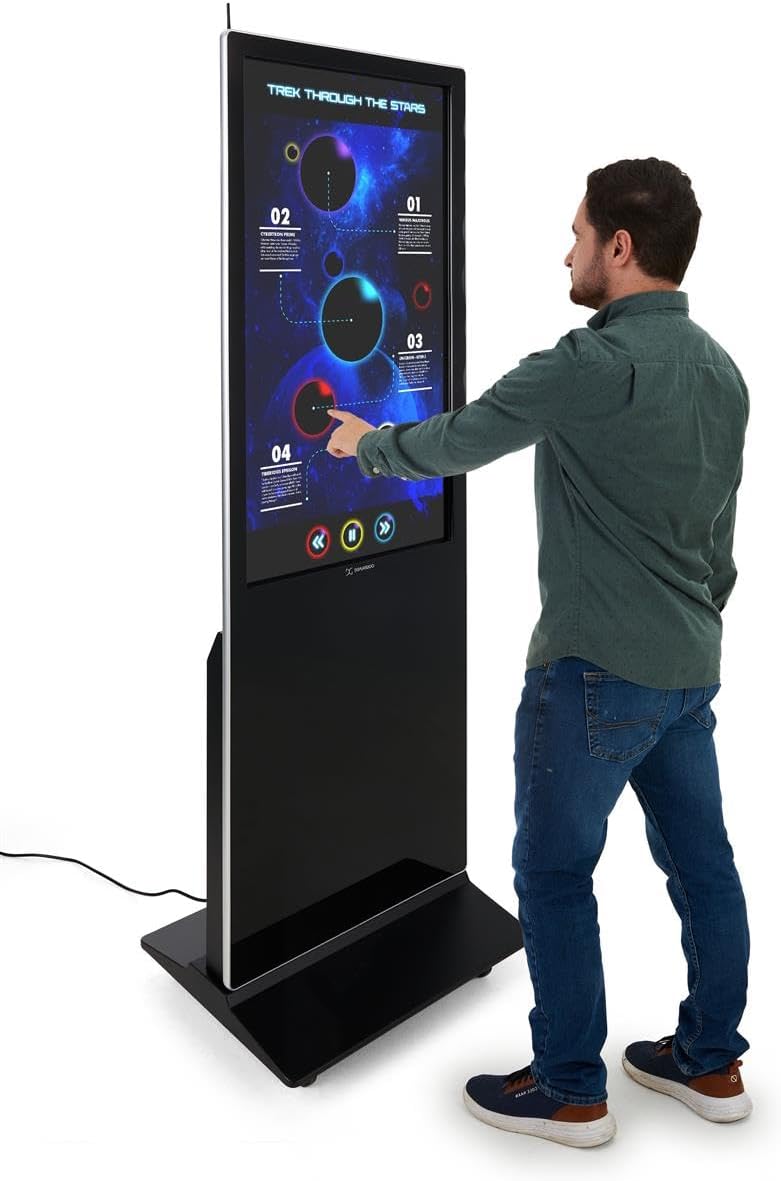
Figure 5: A user interacting with the multi-touch screen of the kiosk.
5.3. Content Upload and Management
There are several methods to upload and manage content on your kiosk:
- التوصيل والتشغيل عبر USB: Connect a USB drive to one of the three available USB ports. The kiosk will detect the drive, allowing you to transfer media files (images, videos, documents) directly to the internal storage.
- Cloud Storage/CMS: Connect the kiosk to your network via Wi-Fi or Ethernet (LAN port). You can then access your personal cloud storage accounts or integrate with a connected content management system (CMS) for remote content updates.
5.4. Using the DiViEX Slideshow App
The kiosk comes with the DiViEX slideshow app pre-installed. This application allows you to create and manage captivating slideshows with various borders, aspect ratios, and theme sharing capabilities. Refer to the in-app help or the DiViEX documentation for detailed usage instructions.
Video 3: Demonstration of the DiViEX Slideshow App. This video illustrates how to use the pre-installed application to create and customize digital content for display on the kiosk.
5.5. مخرج الصوت
The kiosk is equipped with dual 8W speakers for audio output. Adjust the volume through the Android operating system settings or within the media playback application.
6. الصيانة
6.1. Cleaning the Screen and Casing
- افصل كابل الطاقة دائمًا قبل التنظيف.
- استخدم قطعة قماش ناعمة وخالية من الوبر وامسحها برفق.ampاشطف الشاشة بالماء أو بمنظف شاشة غير كاشط لمسحها.
- من أجل جasinاستخدم قطعة قماش ناعمة وجافة. تجنب المواد الكيميائية القاسية أو المواد الكاشطة.
6.2. تحديثات البرامج
Periodically check for system updates through the Android settings menu to ensure optimal performance and security. Ensure the kiosk is connected to the internet during updates.
7. استكشاف الأخطاء وإصلاحها
| مشكلة | السبب المحتمل | حل |
|---|---|---|
| Kiosk does not power on. | Power cable disconnected; power switch off; no power from outlet. | تحقق من توصيل كابل الطاقة؛ تأكد من أن مفتاح الطاقة في وضع التشغيل؛ اختبر المنفذ بجهاز آخر. |
| شاشة اللمس لا تستجيب. | Software glitch; screen dirty; external interference. | Restart the kiosk; clean the screen; ensure no objects are blocking the IR sensors. |
| No content displayed. | No media loaded; incorrect app selected; network issue for streaming content. | التحقق من الوسائط files are present; ensure the correct application (e.g., DiViEX) is running; check network connection. |
| لا صوت. | Volume too low; audio muted; application audio settings. | Increase volume in Android settings; unmute audio; check audio settings within the playing application. |
8. المواصفات
| ميزة | التفاصيل |
|---|---|
| نموذج | DF043TLB2 |
| حجم الشاشة | 43 بوصة |
| دقة | 1920 × 1080 (1080p HD) |
| اتصال تقنية | 10pt IR Touchscreen |
| نظام التشغيل | أندرويد 11 |
| التخزين الداخلي | 32 جيجا بايت |
| كبش | 4 جيجا بايت |
| منافذ USB | 3 |
| المتحدثون | مزدوج 8 واط |
| نسبة العرض إلى الارتفاع | 1.78:1 |
| نسبة تباين الصورة | 1200:1 |
| أبعاد المنتج (العرض × الارتفاع × العمق) | 24.4 × 56 × 9 بوصة |
| الشركة المصنعة | شاشات2go |
9. الضمان والدعم
For warranty information and technical support, please refer to the Displays2go official webالموقع أو تواصل مع خدمة العملاء. احتفظ بإيصال الشراء لطلبات الضمان.
Displays2go Contact Information:
- Webموقع: www.displays2go.com
- الهاتف: 1-844-221-3393
Ask a question about this manual
Ask about setup, troubleshooting, compatibility, parts, safety, or missing instructions. Manuals+ will review the question and use this page’s manual context to help answer it.