
مقدمة
This manual provides essential information for the proper setup, operation, and maintenance of your ONN 24-inch FHD Gaming Monitor, model 100027813. Please read this manual thoroughly before using the product to ensure optimal performance and safety. This monitor is designed to deliver a high-quality gaming experience with its 1080p resolution, 165Hz refresh rate, 1ms response time, and FreeSync technology.
معلومات السلامة
Always observe the following safety precautions to prevent damage to the monitor and ensure user safety:
- لا تعرض الشاشة للمطر أو الرطوبة لتجنب مخاطر الحريق أو الصدمات الكهربائية.
- لا تفتح الشاشةasinز. لا توجد قطع غيار قابلة للصيانة من قِبل المستخدم. يُرجى إحالة جميع أعمال الصيانة إلى فنيي صيانة مؤهلين.
- ضع الشاشة على سطح ثابت ومستوٍ لمنع سقوطها.
- تأكد من التهوية الجيدة حول الشاشة. لا تسد فتحات التهوية.
- استخدم فقط محول الطاقة المرفق مع الشاشة.
- افصل الشاشة عن مأخذ الطاقة أثناء العواصف الرعدية أو عند عدم استخدامها لفترات طويلة.
محتويات الحزمة
تأكد من وجود جميع العناصر في العبوة:
- ONN 24-inch FHD Gaming Monitor
- حامل الشاشة (القاعدة والرقبة)
- محول الطاقة
- DisplayPort Cable (6 ft)
- HDMI Cable (6 ft)
- دليل المستخدم (هذا المستند)

Image: Retail box of the ONN 24-inch Gaming Monitor, highlighting key features like 165Hz, 1ms response time, DisplayPort, HDMI, and Adaptive-Sync.
يثبت
1. تجميع الحامل
- قم بإزالة مكونات الشاشة والحامل من العبوة بعناية.
- Attach the stand neck to the stand base. Secure it with the provided screw, if applicable.
- Align the assembled stand with the mounting slot on the back of the monitor. Gently push until it clicks into place or secure with screws as per the design.
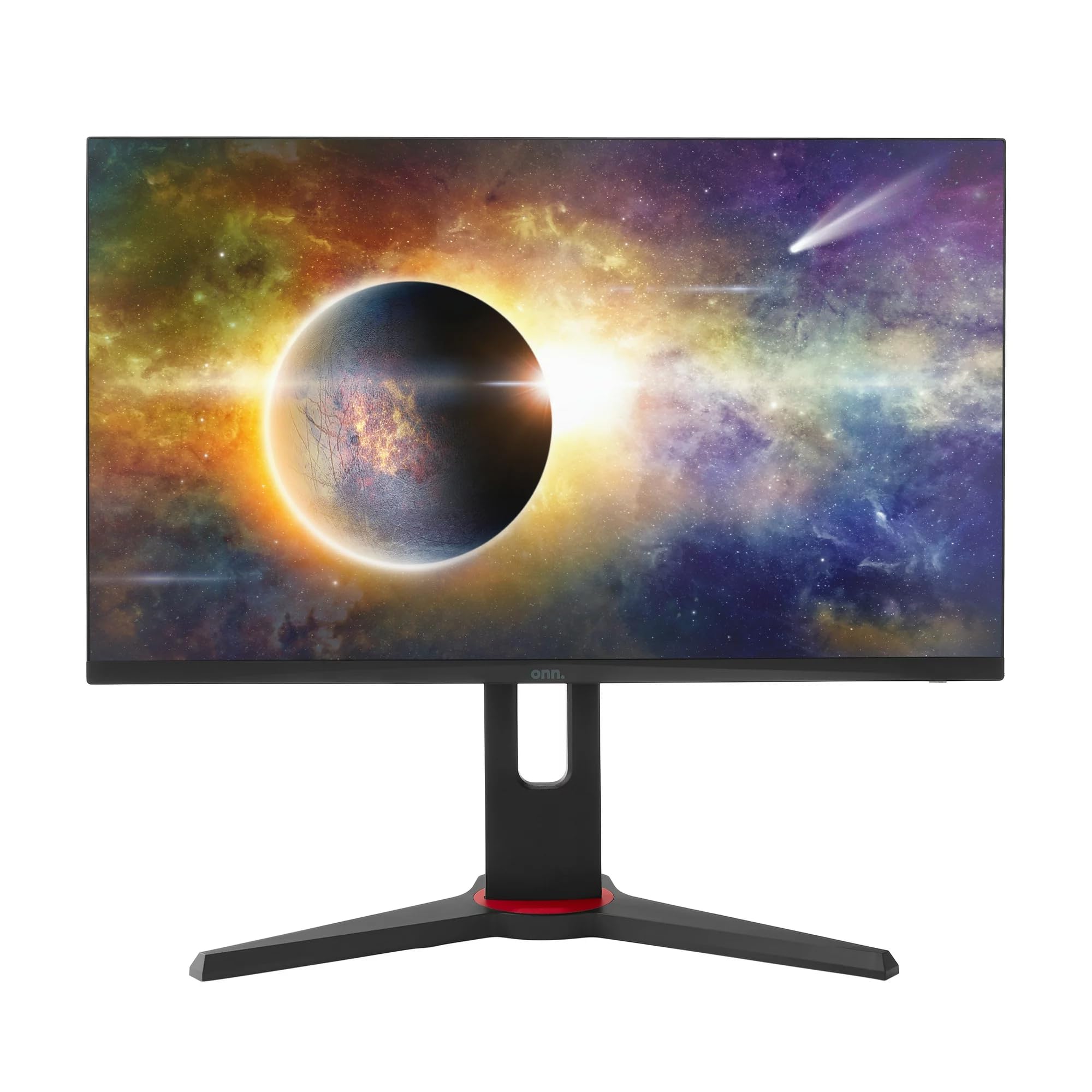
الصورة: الجبهة view of the ONN 24-inch Gaming Monitor, fully assembled with its stand.

الصورة: الخلفية view of the ONN 24-inch Gaming Monitor, illustrating the stand attachment and cable management area.
2. توصيل الكابلات
Locate the input ports on the back of your monitor:
- قوة: قم بتوصيل محول الطاقة بمدخل الطاقة الخاص بالشاشة ثم بمأخذ الطاقة.
- مدخلات الفيديو: Connect one end of the provided DisplayPort or HDMI cable to the corresponding port on your computer's graphics card and the other end to the monitor. The monitor supports 2 HDMI inputs and 1 DisplayPort input.
- مخرج الصوت (اختياري): If your monitor has a 3.5mm audio jack, you can connect external speakers or headphones.

الصورة: عن قرب view of the monitor's rear ports, including HDMI 1, HDMI 2, DisplayPort (DP), and power input.
3. التشغيل الأولي
- تأكد من توصيل كافة الكابلات بشكل آمن.
- Press the power button on the monitor (usually located on the back or bottom right).
- The monitor should display the ONN logo and then search for an input signal.
- If no image appears, ensure your computer is powered on and the correct input source is selected on the monitor (see Operating section).
التشغيل
1. تشغيل/إيقاف التشغيل
اضغط على زر الطاقة لتشغيل الشاشة أو إيقاف تشغيلها. سيُظهر ضوء مؤشر الطاقة حالة الشاشة (على سبيل المثال، أزرق للتشغيل، وأصفر لوضع الاستعداد).
2. التنقل في قائمة العرض على الشاشة (OSD)
Your monitor features an OSD menu for adjusting various settings. Typically, buttons on the back or bottom of the monitor control the OSD:
- زر القائمة: يفتح قائمة OSD.
- أزرار التنقل (أعلى/أسفل/يسار/يمين): تُستخدم للتنقل بين خيارات القائمة.
- زر التحديد/الإدخال: يؤكد الاختيار أو يدخل إلى قائمة فرعية.
- زر الخروج: يخرج من القائمة الحالية أو شاشة العرض على الشاشة.
3. ضبط الإعدادات
تتضمن الإعدادات الرئيسية التي يمكنك تعديلها عبر قائمة OSD ما يلي:
- السطوع / التباين: اضبط مستوى الإضاءة الكلي والفرق بين المناطق المضيئة والمظلمة.
- إعدادات الألوان: تعديل درجة حرارة اللون، وجاما، ومستويات RGB الفردية.
- مصدر الإدخال: يمكنك الاختيار يدويًا بين مدخلات HDMI 1 أو HDMI 2 أو DisplayPort.
- معدل التحديث: Ensure your graphics card and monitor are set to 165Hz for the smoothest experience. This is usually configured in your operating system's display settings.
- وقت الاستجابة: Adjust the monitor's response time setting (e.g., 1ms) for reduced motion blur in fast-paced games.
- تقنية FreeSync: Enable FreeSync in the OSD menu and in your AMD graphics card settings to synchronize the monitor's refresh rate with your GPU's frame rate, eliminating screen tearing and stuttering.
- أوضاع الصورة: Select from preset modes optimized for different content (e.g., Standard, Game, Movie, Text).

Image: The ONN 24-inch Gaming Monitor displayed in a typical desk setup, connected to a laptop with gaming peripherals.
صيانة
تنظيف الشاشة
- افصل الشاشة دائمًا قبل التنظيف.
- استخدم قطعة قماش ناعمة وخالية من الوبر برفق دampيُنظف بالماء أو بمنظف شاشات خفيف وغير كاشط.
- لا ترشّ المنظف مباشرةً على الشاشة، بل ضعه على قطعة القماش أولًا.
- تجنب استخدام المواد الكيميائية القاسية، أو الوسادات الكاشطة، أو المذيبات.
تخزين
في حالة تخزين الشاشة لفترة طويلة، افصل جميع الكابلات، وقم بتعبئتها في عبوتها الأصلية (إن وجدت)، وخزنها في مكان بارد وجاف بعيدًا عن أشعة الشمس المباشرة ودرجات الحرارة القصوى.
استكشاف الأخطاء وإصلاحها
إذا واجهت مشكلات مع شاشتك، فراجع المشكلات والحلول الشائعة التالية:
| مشكلة | الحل المحتمل |
|---|---|
| لا توجد صورة على الشاشة |
|
| Image is flickering or distorted |
|
| لا يوجد صوت (إذا كنت تستخدم مكبرات صوت الشاشة/مخرج الصوت) |
|
| لا تصل شاشة العرض إلى 165 هرتز |
|
تحديد
Detailed technical specifications for the ONN 24-inch FHD Gaming Monitor (Model 100027813):
| ميزة | مواصفة |
|---|---|
| رقم الموديل | 100027813 |
| حجم الشاشة | 24 بوصة |
| دقة | دقة كاملة 1080 بكسل (1920 × 1080) |
| معدل التحديث | 165 هرتز |
| وقت الاستجابة | 1 ميلي ثانية |
| تكنولوجيا العرض | اي بي اس |
| المزامنة التكيفية | فري سينك |
| نسبة العرض إلى الارتفاع | 16:9 |
| نسبة التباين | 2000:1 |
| سطح الشاشة | Matte, Anti-glare with low blue light setting |
| الاتصال | 2 × HDMI، 1 × DisplayPort |
| أبعاد المنتج (العمق × العرض × الارتفاع) | 61.3 × 11.3 × 37.3 سم |
| وزن العنصر | 6.1 كجم |
| لون | أسود |
| نوع التركيب | جبل مكتب |
| استخدامات محددة | Entertainment, Gaming |
ضمان
This ONN 24-inch FHD Gaming Monitor is a renewed product. Warranty terms and conditions for renewed products may vary. Please refer to the specific warranty information provided by the seller or retailer at the time of purchase. It is recommended to retain your proof of purchase for any warranty claims.
يدعم
For technical assistance, troubleshooting beyond this manual, or warranty inquiries, please contact the retailer or the Amazon Renewed support channel where the product was purchased. Have your model number (100027813) and proof of purchase ready when contacting support.