
BSP D9
BSP D9 Game Controller User Manual
نموذج: D9
1. المقدمة
The BSP D9 Game Controller is a versatile gaming accessory designed for a wide range of devices, including iPhone, iPad, Android phones and tablets, PC, Nintendo Switch, and PlayStation consoles. It features advanced Hall Effect joysticks and triggers for precise control, along with programmable back buttons for enhanced gameplay. This manual provides detailed instructions for setting up, operating, maintaining, and troubleshooting your D9 Game Controller.
2. انتهى المنتجview
The D9 Game Controller is engineered for comfort and performance, offering a stretchable design to accommodate various device sizes. Key features include:
- عصي التحكم ومشغلات تأثير هول: Provides high precision and durability, reducing drift issues.
- أزرار خلفية قابلة للبرمجة (M1/M2): Customize functions for quick access to complex commands.
- Stretchable Design: Supports device lengths from 130mm to 280mm (5-11 inches) and thickness up to 13mm.
- التوافق مع منصات متعددة: Works with iOS, Android, PC, PS3, PS4, and Nintendo Switch.
- وظيفة التربو: Adjustable auto-fire settings for various buttons.
2.1. تصميم وحدة التحكم

Image: BSP D9 Game Controller with a tablet, demonstrating its use with Call of Duty Mobile. This image highlights the controller's ergonomic design and how it holds a tablet.

Image: Detailed diagram of the BSP D9 Game Controller's buttons and indicators. This includes the Cross Key, L1/R1, L2/R2, Select, Home, Start, Turbo, A/B/X/Y buttons, Status Indicator, Charging Indicator, Left Stick/L3, Right Stick/R3, and programmable M1/M2 back buttons.

Image: Illustration explaining the Hall Effect Triggers and Joysticks. It highlights 0.1mm accuracy for triggers and features like no latency, no dead zone, long lift, and precision control for joysticks, ensuring smooth and accurate input.
3. الإعداد والاتصال
Before first use, ensure the controller is fully charged. Connect the provided USB cable to the controller's charging port and a power source.
3.1. Device Compatibility and Mounting

Image: Diagram illustrating the stretchable design of the BSP D9 Game Controller. It shows support for device lengths from 130-280mm (5-11 inches) and a thickness of 13mm. The image also indicates compatibility with iPhone 15 series and support for silicon & clear phone cases.
The D9 controller features a stretchable design to securely hold your smartphone or tablet. Gently pull the two halves of the controller apart to extend the central bracket. Insert your device into the bracket, ensuring it is centered and stable. The controller supports devices with lengths between 130mm and 280mm and a maximum thickness of 13mm. Extra silicone pads are included for optimal fit and protection.
3.2. الاتصال بالأجهزة
The controller supports various connection modes. Refer to the specific pairing instructions for your device type:
- iOS Devices (iPhone/iPad):
- قم بتشغيل وحدة التحكم.
- Go to Bluetooth settings on your iOS device.
- Select "D9 Gamepad" or similar from the list of available devices to pair.
- أجهزة أندرويد:
- قم بتشغيل وحدة التحكم.
- قم بتمكين Bluetooth على جهاز Android الخاص بك.
- بحث عن "D9 Gamepad" and pair.
- الكمبيوتر الشخصي:
- Connect via USB cable or Bluetooth (if your PC has Bluetooth).
- For Bluetooth, go to PC Bluetooth settings and pair with "D9 Gamepad".
- Nintendo Switch/PS3/PS4:
- Specific pairing instructions may vary. Generally, put the console into pairing mode and then activate the controller's pairing mode (often by holding a specific button combination).

Image: Visual representation of the BSP D9 Game Controller's broad compatibility. It shows support for streaming & cloud gaming services like PS Remote Play, Xbox Game Pass, Steam Link, Rainway, NVIDIA GeForce NOW, Moonlight, and Arcade. It also lists direct play support for iOS games (Genshin Impact, Call of Duty Mobile, Diablo Immortal, Minecraft, Roblox) and Android games (Call of Duty Mobile, Diablo Immortal, Minecraft, NBA, Asphalt).
4. تعليمات التشغيل
4.1. عناصر التحكم الأساسية
Familiarize yourself with the controller's buttons and their standard functions:
- عصا التحكم اليسرى/اليمنى: التحكم في الحركة والكاميرا.
- D-Pad (مفتاح متقاطع): الإدخال الاتجاهي.
- أزرار A/B/X/Y: Action buttons, typically for jumping, interacting, etc.
- L1/R1 (أزرار الكتف): Common for aiming, firing, or menu navigation.
- L2/R2 (المحفزات): Analog input for acceleration, braking, or precise shooting.
- SELECT/START/HOME Buttons: Menu navigation, pausing, or system functions.
4.2. Macro Programming Function (M1/M2)

Image: Instructions for the Macro Programming Function on the BSP D9 Game Controller. It shows how to set and cancel macros for the M1 and M2 back buttons, allowing users to combine A/B/X/Y/L1/L2/R1/R2/Cross key inputs into a single button press.
The D9 controller features two programmable back buttons (M1 and M2) that can be customized to perform complex key combinations, enhancing your in-game operation and potentially prolonging the life of other buttons.
How to Set a Macro:
- Press "SELECT + M1" key for 2 seconds until the LED indicator light flashes quickly.
- Press the key combination you want to set for the macro (e.g., "A + B + X + Y").
- Then press the "M1" key again. The LED light will remain on, indicating that the setting is complete.
- After setting, pressing "M1" will automatically execute the programmed key combination. (This setting also applies to "M2".)
How to Cancel a Macro:
- Press "SELECT + M1" key for 2 seconds until the LED indicator light flashes quickly.
- Press "M1" to clear the macro programming button. (Note: Do not press other buttons at this time). The LED light will remain on to confirm the clearing.
4.3. وظيفة التوربو
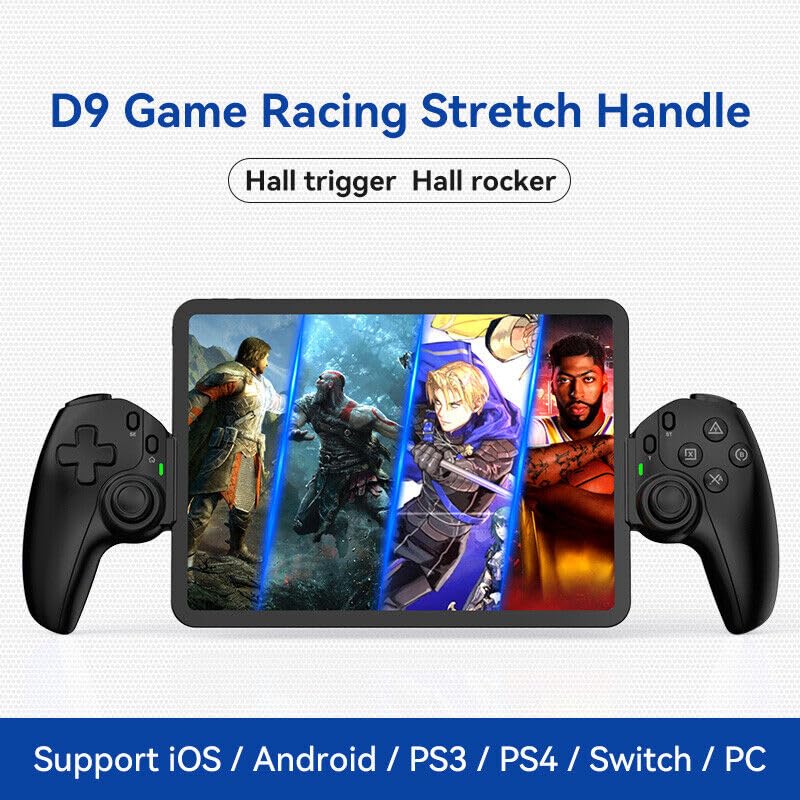
Image: The D9 Game Racing Stretch Handle, highlighting its Hall trigger and Hall rocker features. This image serves as a general product shot.

Image: Explanation of the Turbo Function on the BSP D9 Game Controller. It shows that A/B/X/Y/L1/L2/R1/R2 buttons can be set with turbo function, offering three adjustable turbo speeds: 8 shoots/s, 15 shoots/s, and 25 shoots/s.
The Turbo function allows you to set automatic rapid firing for specific buttons (A/B/X/Y, L1/L2, R1/R2). There are three adjustable turbo speeds: 8 shots/second, 15 shots/second, and 25 shots/second.
How to Set Turbo:
- Press and hold the button you wish to apply Turbo to (e.g., A button).
- While holding the button, press the "TURBO" button once to activate the lowest speed.
- Press the "TURBO" button again (while still holding the action button) to cycle through the speeds.
- Release both buttons when the desired speed is set.
How to Clear Turbo:
- Press and hold the button with Turbo enabled.
- Press the "TURBO" button until the Turbo function is deactivated (usually indicated by a specific LED flash or cessation of rapid firing).
5. الصيانة
- تنظيف: استخدم قطعة قماش ناعمة وجافة لمسح وحدة التحكم. لإزالة الأوساخ العنيدة، امسحها برفق.ampاغسل قطعة القماش بالماء. تجنب استخدام المواد الكيميائية القاسية أو المنظفات الكاشطة.
- تخزين: قم بتخزين وحدة التحكم في مكان بارد وجاف بعيدًا عن أشعة الشمس المباشرة ودرجات الحرارة القصوى.
- العناية بالبطارية: لإطالة عمر البطارية، تجنب تفريغ وحدة التحكم بالكامل بشكل متكرر. اشحنها بانتظام، حتى في حال عدم استخدامها لفترات طويلة.
- التعامل: تجنب إسقاط وحدة التحكم أو تعريضها لصدمات قوية، حيث يمكن أن يؤدي ذلك إلى إتلاف المكونات الداخلية.
6. استكشاف الأخطاء وإصلاحها
| مشكلة | السبب المحتمل | حل |
|---|---|---|
| لا يتم تشغيل وحدة التحكم. | بطارية منخفضة. | قم بشحن وحدة التحكم لمدة 30 دقيقة على الأقل. |
| لا يمكن توصيل جهاز التحكم عبر البلوتوث. | Bluetooth not enabled on device; controller not in pairing mode; interference. | Ensure Bluetooth is on. Put controller in pairing mode. Move closer to the device. Restart both controller and device. |
| الأزرار أو عصي التحكم لا تستجيب. | Software glitch; physical damage; low battery. | Recharge the controller. Restart the controller. If problem persists, contact customer support. |
| Macro function not working. | خطوات البرمجة غير صحيحة. | Review "Macro Programming Function" section and re-program carefully. |
| الجهاز لا يتناسب مع وحدة التحكم. | Device dimensions exceed supported range. | Check your device's length and thickness against the supported range (130-280mm length, 13mm thickness). |
7. المواصفات
- نموذج: D9
- الاتصال: Bluetooth, Wired (USB)
- المنصات المتوافقة: iOS, Android, PC, PS3, PS4, Nintendo Switch
- طول الجهاز المدعوم: 130 مم - 280 مم (5 - 11 بوصة)
- Supported Device Thickness: حتى 13 ملم
- عصا التحكم/المشغلات: تأثير هول
- المميزات الخاصة: Programmable Back Buttons (M1/M2), Turbo Function
- الشركة المصنعة: شركة شنتشن شانوان للتكنولوجيا المحدودة
- ASIN: B0DBR2SZZ6
8. الضمان والدعم
For warranty information and technical support, please refer to the official BSP webالموقع أو تواصل مع بائع التجزئة. احتفظ بإيصال الشراء كإثبات للشراء في حال وجود أي مطالبات بالضمان.
الشركة المصنعة: شركة شنتشن شانوان للتكنولوجيا المحدودة
Ask a question about this manual
Ask about setup, troubleshooting, compatibility, parts, safety, or missing instructions. Manuals+ will review the question and use this page’s manual context to help answer it.