
ShanWan Q36-XPS-KABRILAN
دليل مستخدم وحدة تحكم ألعاب بلوتوث صغيرة الحجم من شانوان
Model: Q36-XPS-KABRILAN
1. المقدمة
This manual provides comprehensive instructions for the ShanWan Bluetooth Gamepad Keychain Sized Mini Controller. Please read this manual carefully before use to ensure proper operation and to maximize your gaming experience. This device is designed for use with Android phones and tablets, PS4/Slim/Pro, iPhone, iPad, Nintendo Switch, and Windows PCs.
2. انتهى المنتجview
The ShanWan Mini Controller is a compact and versatile gamepad designed for portability and multi-platform compatibility. It features 17 buttons and a D-Pad, all within a keychain-sized form factor.
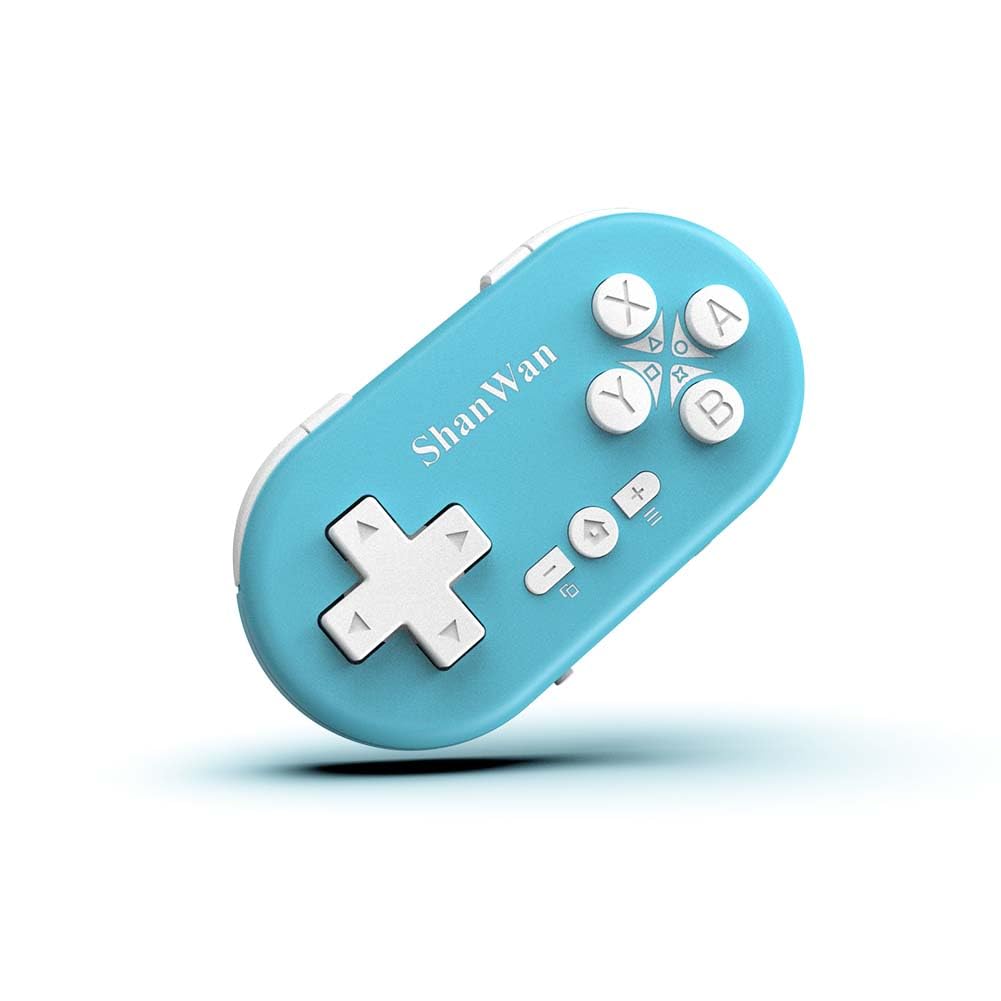
Figure 2.1: ShanWan Mini Bluetooth Gamepad, showcasinبفضل تصميمه الصغير وتخطيط أزراره.

Figure 2.2: Dimensions of the ShanWan Mini Bluetooth Gamepad, measuring 2.83 inches in length, 1.57 inches in width, and 0.55 inches in thickness.
2.1 محتويات العبوة
- ShanWan Bluetooth Gamepad Keychain Sized Mini Controller
- كابل شحن USB
- دليل المستخدم (هذا المستند)
3. المواصفات
| ميزة | التفاصيل |
|---|---|
| رقم الموديل | Q36-XPS-KABRILAN |
| الاتصال | بلوتوث لاسلكي |
| التوافق | Android, iOS, Windows, Nintendo Switch, PlayStation 4 |
| سعة البطارية | بطارية ليثيوم بوليمر 180 مللي أمبير في الساعة (متضمنة) |
| وقت الشحن | حوالي ساعة واحدة |
| وقت التشغيل | ما يصل إلى 5-6 ساعات |
| لاسلكي المدى | حتى 10 مترا (33 قدما) |
| أبعاد المنتج | 2.83 × 1.57 × 0.55 بوصة |
| وزن العنصر | 1.44 أونصة (حوالي 41 جرامًا) |
| المميزات الخاصة | Gyroscope motion sensing, One-button wake-up function |
4. الإعداد والاقتران
4.1 شحن وحدة التحكم
Before first use, fully charge the controller. Connect the provided USB charging cable to the controller's charging port and the other end to a USB power source (e.g., computer, USB wall adapter). The charging indicator light will show the charging status and turn off when fully charged. A full charge typically takes about 1 hour.
4.2 تشغيل/إيقاف التشغيل
- تشغيل الطاقة: Press and hold the Home button (usually the button with a house icon) for a few seconds until the indicator lights turn on.
- إيقاف التشغيل: Press and hold the Home button for approximately 5 seconds until the indicator lights turn off. The controller will also automatically power off after a period of inactivity to conserve battery.
4.3 تعليمات الاقتران عبر البلوتوث
The controller supports multiple platforms. Ensure the mode switch on the controller is set to the correct platform before pairing.
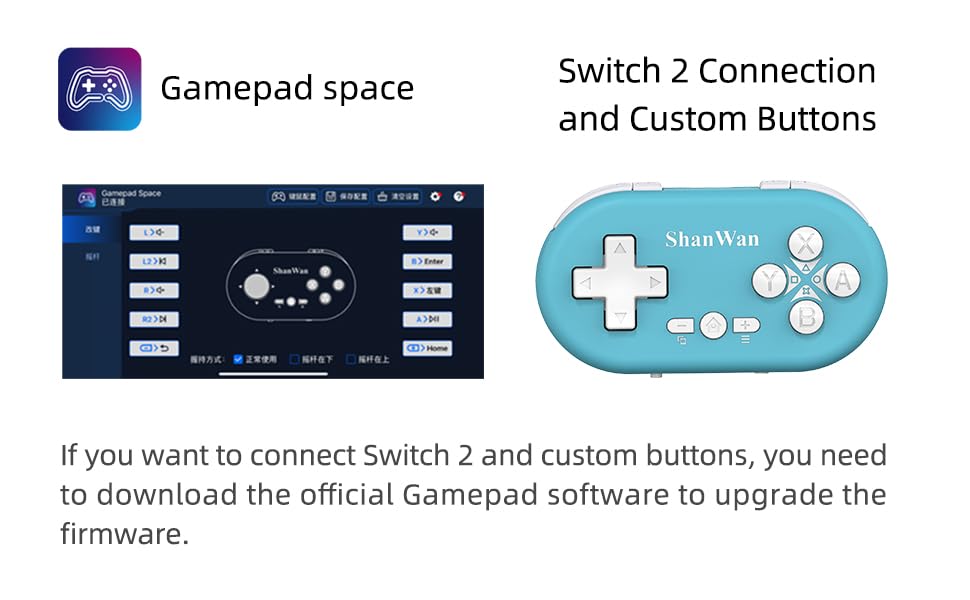
Figure 4.1: The mode switch on the controller, allowing selection between X (Xbox/PC), S (Switch), and P (PlayStation) modes for multi-device compatibility.
4.3.1 الاقتران بجهاز نينتندو سويتش
- على جهاز نينتندو سويتش الخاص بك، انتقل إلى قائمة الصفحة الرئيسية.
- حدد "وحدات التحكم" ثم "تغيير المقبض/الترتيب".
- Set the controller's mode switch to "S" (Switch mode).
- Press and hold the "Pair" button on the controller until the indicator lights begin to blink rapidly.
- The Switch will detect the controller. Once paired, the LED indicator on the controller will remain solid, and the controller will be displayed on the Switch host screen.

Figure 4.2: Visual guide for connecting the controller to a Nintendo Switch, showing menu navigation and the pairing button location.
4.3.2 Pairing with Android/iOS Devices
- Set the controller's mode switch to the appropriate mode (e.g., "X" for Android, or a specific iOS mode if available, refer to device-specific instructions).
- On your Android or iOS device, go to Bluetooth settings.
- تأكد من تمكين Bluetooth.
- Press and hold the "Pair" button on the controller until the indicator lights blink rapidly.
- Select "ShanWan Controller" or a similar name from the list of available devices on your phone/tablet.
- بمجرد الاتصال، سيصبح ضوء المؤشر الموجود على وحدة التحكم مضاءً بشكل ثابت.
4.3.3 Pairing with PS4
- Set the controller's mode switch to "P" (PlayStation mode).
- On your PS4, go to "Settings" > "Devices" > "Bluetooth Devices".
- Press and hold the "Pair" button on the controller until the indicator lights blink rapidly.
- Select "ShanWan Controller" or a similar name from the list of available devices on your PS4.
- بمجرد الاتصال، سيصبح ضوء المؤشر الموجود على وحدة التحكم مضاءً بشكل ثابت.
4.3.4 Pairing with Windows PC
- Set the controller's mode switch to "X" (Xbox/PC mode).
- On your Windows PC, go to "Settings" > "Devices" > "Bluetooth & other devices".
- Ensure Bluetooth is enabled and click "Add Bluetooth or other device".
- اختر "بلوتوث".
- Press and hold the "Pair" button on the controller until the indicator lights blink rapidly.
- Select "ShanWan Controller" or a similar name from the list of available devices.
- بمجرد الاتصال، سيصبح ضوء المؤشر الموجود على وحدة التحكم مضاءً بشكل ثابت.
5. تعليمات التشغيل
5.1 وظائف الأزرار
The controller features standard gamepad buttons. Their specific function may vary slightly depending on the platform and game.
- D- الوسادة: الإدخال الاتجاهي.
- الأزرار A، B، X، Y: أزرار العمل.
- أزرار L1، L2، R1، R2: أزرار الكتف والزناد.
- زر الصفحة الرئيسة: تشغيل/إيقاف التشغيل، والعودة إلى الشاشة الرئيسية (حسب النظام الأساسي).
- أزرار الزائد (+) / الناقص (-): وظائف البدء/التحديد أو القائمة.
- زر الاقتران: يبدأ إقران البلوتوث.
5.2 ميزات خاصة
5.2.1 One-Button Wake-Up Function
After initial pairing, you can wake up the controller and reconnect it to the last paired device by simply pressing the Home button. This feature allows for quick resumption of gameplay.
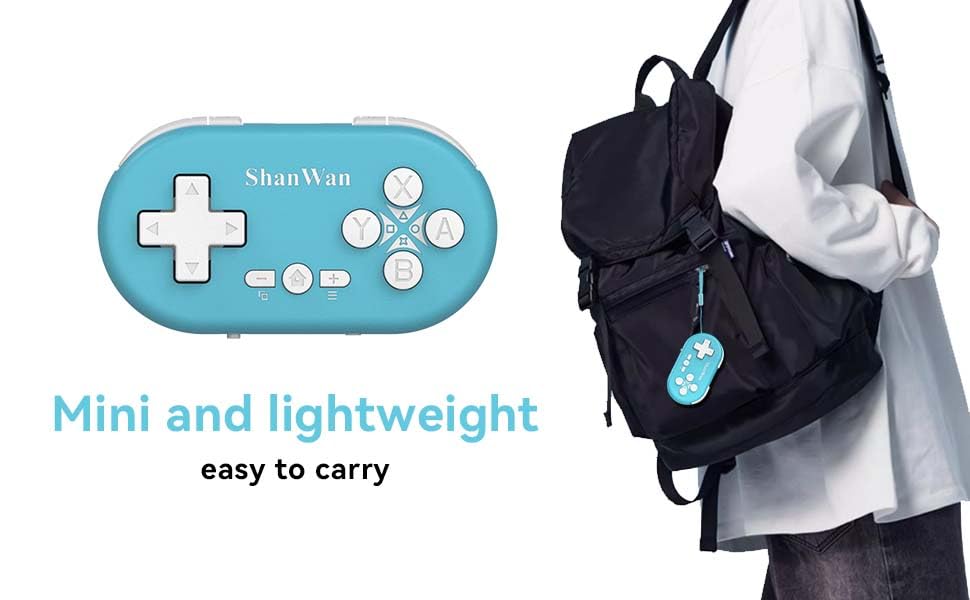
Figure 5.1: Illustration of the one-button wake-up function, highlighting the Home button used to quickly reactivate the controller.
5.2.2 Gyroscope Motion Sensing
The controller is equipped with a gyroscope for motion sensing effects, providing an immersive gaming experience in supported games, particularly on platforms like Nintendo Switch.
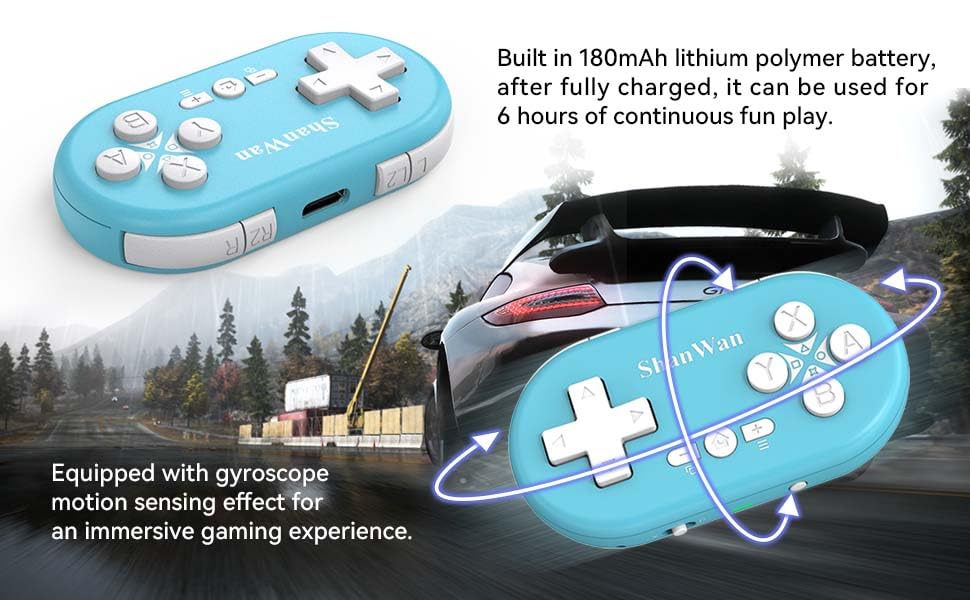
Figure 5.2: Visual representation of the gyroscope motion sensing effect, showing the controller being tilted to influence in-game actions.
5.2.3 Firmware Upgrade for Switch 2 and Custom Buttons
For compatibility with Switch 2 and to customize button mappings, it may be necessary to download the official Gamepad software and upgrade the controller's firmware. Refer to the manufacturer's official webموقع لأحدث البرامج والتعليمات.

Figure 5.3: Screenshot illustrating the "Gamepad Space" software interface, used for firmware upgrades and custom button configurations, particularly for Switch 2 compatibility.
6. الصيانة
- تنظيف: استخدم قطعة قماش ناعمة وجافة لتنظيف وحدة التحكم. تجنب استخدام المواد الكيميائية القاسية أو المواد الكاشطة.
- تخزين: قم بتخزين وحدة التحكم في مكان بارد وجاف بعيدًا عن أشعة الشمس المباشرة ودرجات الحرارة القصوى.
- العناية بالبطارية: لإطالة عمر البطارية، تجنب تفريغها بالكامل بشكل متكرر. اشحن وحدة التحكم بانتظام، حتى لو لم تكن قيد الاستخدام لفترات طويلة.
- تجنب التأثير: Do not drop or subject the controller to strong impacts, as this may damage internal components.
7. استكشاف الأخطاء وإصلاحها
7.1 Controller Does Not Power On
- تأكد من شحن وحدة التحكم بالكامل. قم بتوصيلها بمصدر طاقة واتركها تشحن لمدة 15 دقيقة على الأقل قبل محاولة تشغيلها مرة أخرى.
- تأكد من أن كابل الشحن ومصدر الطاقة يعملان بشكل صحيح.
7.2 Unable to Pair Controller
- Ensure the controller is in pairing mode (indicator lights blinking rapidly).
- Check that the mode switch on the controller is set to the correct platform (S for Switch, X for Android/Windows, P for PS4).
- Make sure Bluetooth is enabled on your device (Switch, phone, PC, PS4).
- Move the controller closer to the device you are trying to pair with.
- Remove any previous pairings of the controller from your device's Bluetooth settings and try pairing again.
- أعد تشغيل كل من وحدة التحكم وجهازك.
7.3 تأخر الإدخال أو انقطاع الاتصال
- Ensure the controller is within the 10-meter wireless range of your device.
- تقليل التداخل من الأجهزة اللاسلكية الأخرى (أجهزة توجيه Wi-Fi، وأجهزة Bluetooth الأخرى).
- Ensure the controller is fully charged. Low battery can affect connection stability.
- حاول إعادة إقران وحدة التحكم بالجهاز الخاص بك.
- Update the controller's firmware if available (refer to Section 5.2.3).
7.4 Buttons Not Responding Correctly
- Test the controller on a different game or application to determine if the issue is game-specific.
- تأكد من أن برنامج وحدة التحكم محدّث.
- Perform a factory reset if possible (refer to manufacturer's support for specific instructions, as this model may not have a dedicated reset button).
8. الضمان والدعم
ShanWan products are designed for reliability and performance. For warranty information, technical support, or further assistance, please visit the official ShanWan webالموقع أو تواصل مع خدمة العملاء. احتفظ بإيصال الشراء كإثبات للشراء في حال وجود أي مطالبات بالضمان.
Official ShanWan Store: ShanWan Store on Amazon
9. معلومات إضافية
The ShanWan Mini Controller's compact and lightweight design makes it highly portable, allowing users to carry it easily and enjoy gaming on the go.

Figure 9.1: The ShanWan Mini Bluetooth Gamepad attached to a backpack, illustrating its keychain-sized portability and ease of transport.

Figure 9.2: The ShanWan Mini Bluetooth Gamepad being used outdoors with a portable screen, demonstrating its ease of transport and use anywhere.
Ask a question about this manual
Ask about setup, troubleshooting, compatibility, parts, safety, or missing instructions. Manuals+ will review the question and use this page’s manual context to help answer it.